
WeLearn is your organisation's learning space. Colleagues write the trainings, you take them, and WeLearn keeps the record of what you completed and passed.
What you find in WeLearn
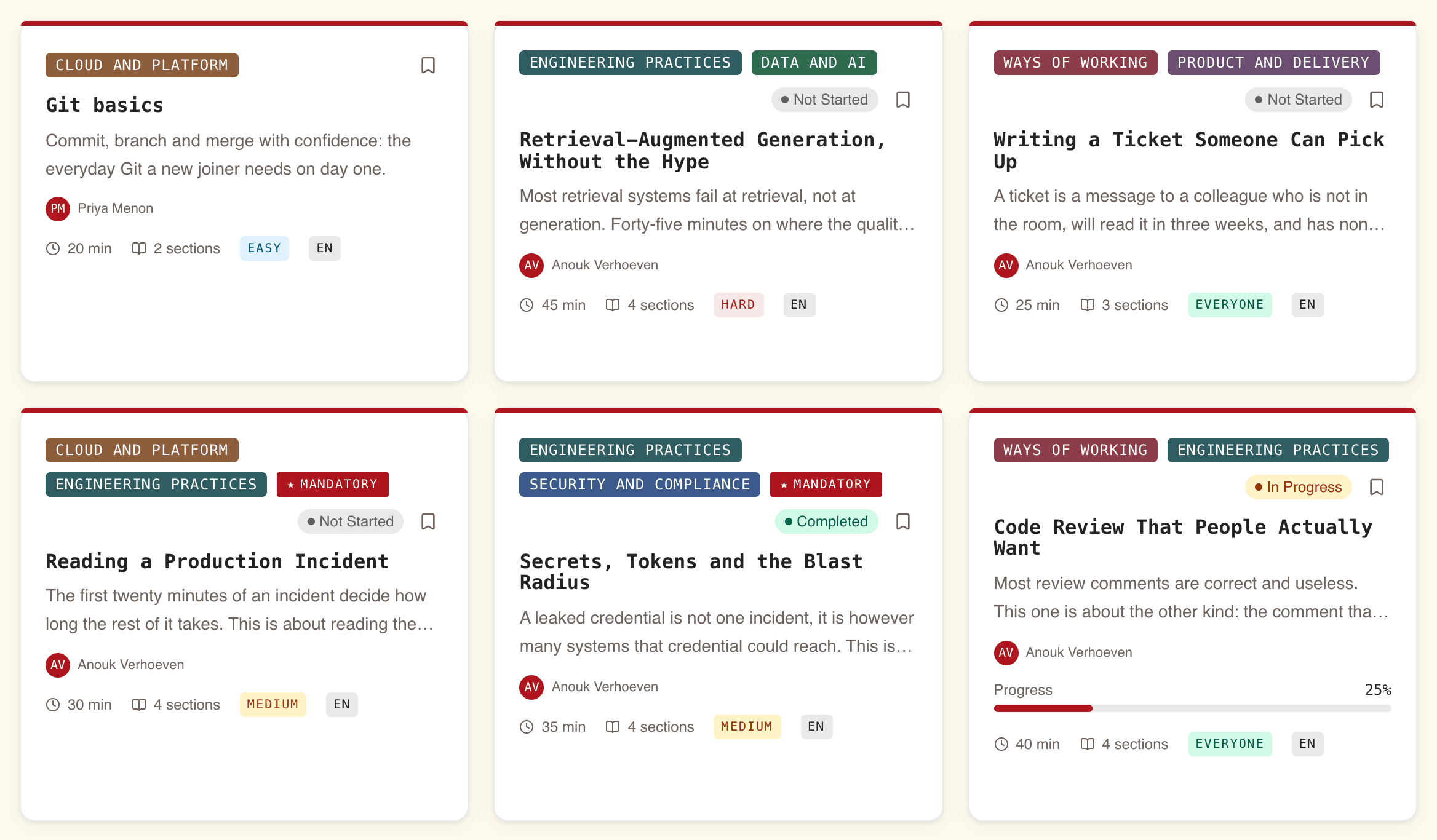
- Trainings written by colleagues. Any member can create a training. A training is a sequence of content and exercises, published to the Catalog once it is ready.
- Evaluations. Quizzes and other exercises inside a training are scored. When you finish a training, WeLearn tells you whether you passed.
- Certification for mandatory trainings. Your organisation can make a training mandatory. Passing it certifies you, and the certification can expire, in which case you take the training again. See Mandatory trainings and certification.
- A light game layer. XP, levels, streaks, badges, quests, a weekly leaderboard and a daily puzzle called Five Clues. It is optional: you can switch it off for yourself in Settings › Gamification, and WeLearn then behaves as if it did not exist.
The core loop: find, take, pass, get certified
- Open the Catalog and pick a training.
- Press Start Training and work through it at your own pace. Continue brings you back to where you stopped.
- Finish every part of it. Your result is shown at the end: passed or not.
- If the training is mandatory, passing it certifies you. Your Dashboard warns you under Action required when a mandatory training is overdue or a certification has expired.
Signing in
Your space has its own address. The first part of the path after the site address is your
organisation's space name, for example …/acme/ for a space called acme. Bookmark that address:
it is the one your colleagues share, and every link inside WeLearn starts with it.
The sign-in page offers one button, chosen by how your space was set up:
| Your space uses | The button reads |
|---|---|
| Google accounts | Continue with Google |
| Your organisation's own single sign-on | Continue with followed by your space's name, for example Continue with acme |
Use your work account, the one your organisation knows you by. If you opened a link to a specific page before signing in, WeLearn takes you there once you are signed in.
Your organisation has no space yet? The sign-in page has a Request a new space link. See Requesting and setting up a space.
Where to go next
| You are… | Start with |
|---|---|
| Taking trainings | Learner quickstart |
| Writing a training | Author quickstart |
| A Manager assigning trainings or following a team | Manager quickstart |
| An Administrator running your organisation's space | Administrator quickstart |
And for everyone:
- Roles and what they can do: what an Employee, a Manager and an Administrator can each do.
- Finding your way around: every menu entry, the top bar and the search.
- Glossary: the words WeLearn uses, in one place.