
A training is an ordered list of blocks, built on the Content step of the training editor. Each block becomes one section for the learner. This page covers the operations every block shares and the two blocks that teach rather than test: Text and Link. The exercises are in Building evaluations.
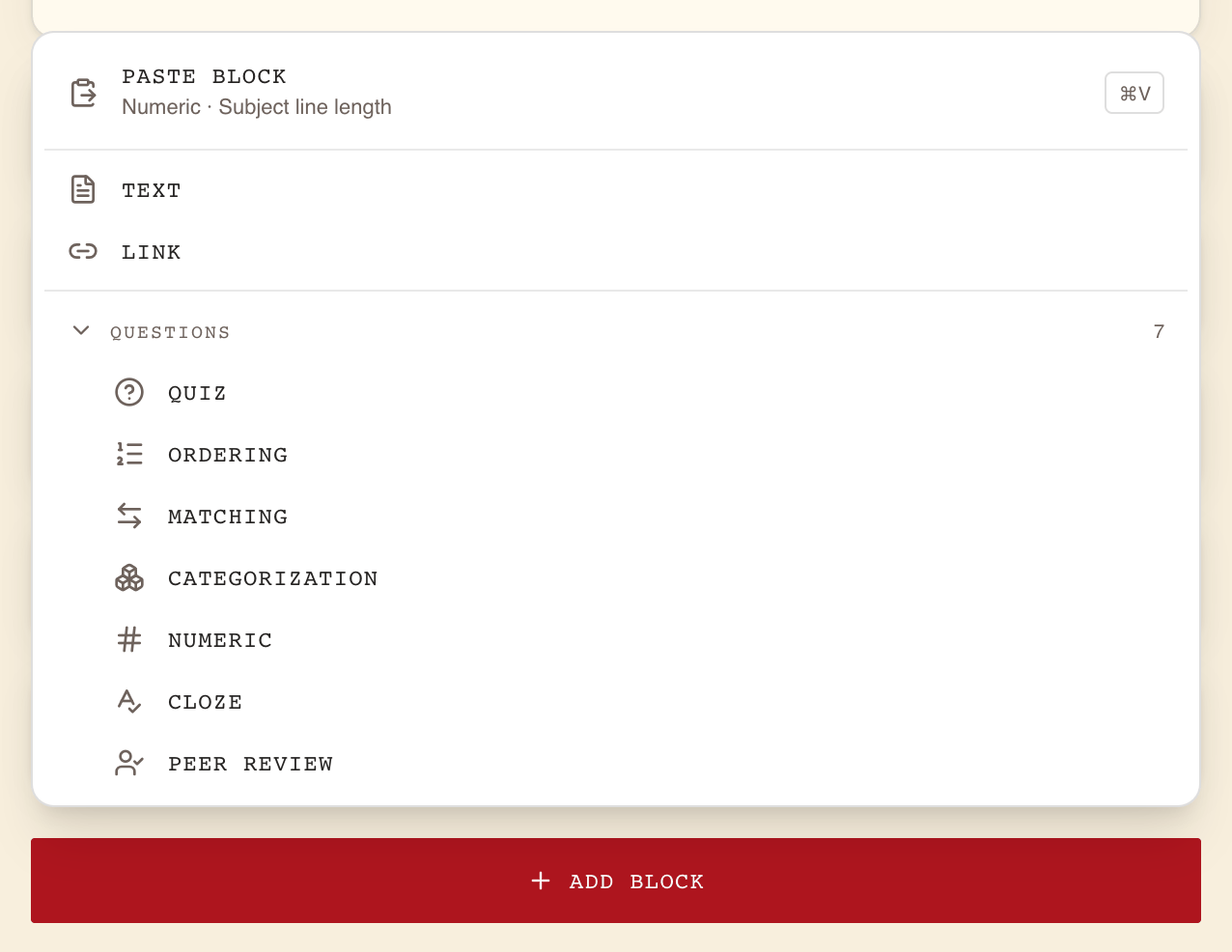
The Add block menu offers nine kinds of block
Select Add block under the last block. The menu has two groups:
| Group | Blocks | Covered in |
|---|---|---|
| Content | Text, Link | This page |
| Questions | Quiz, Ordering, Matching, Categorization, Numeric, Cloze, Peer review | Building evaluations, and Setting up peer review for the last one |
The Questions group can be folded with its own arrow. When you have copied a block, a Paste block entry also appears at the top of the menu (see below).
A new block is added at the end of the list, and the page scrolls to it. An empty training shows No content yet where the blocks will go.
Every block has the same header row
Each block is a card whose header row holds, from left to right:
- a grip handle, to drag the block;
- the block type (on a narrow screen, its icon only);
- the block's title, or Section N while it has none, and its position, such as #3;
- an arrow that folds or unfolds the block;
- four icon buttons: help (an i), Copy block, Duplicate block and Delete block. Their names show to screen readers and in the browser's tooltips.
Quiz, exercise and peer review blocks are tinted amber, Link blocks blue, Text blocks neutral.
The help popover explains the block in three lines
The i button opens a short card with What is, How to set it up and What the learner sees, written for that block type. Close it with Escape or by clicking elsewhere.
Reorder by dragging, or from the keyboard
Drag a block by its grip handle and drop it where it should go. While you drag, every block folds to its header so the targets are easy to hit.
From the keyboard: move the focus to the grip handle, press Space or Enter to pick the block up, move it with the arrow keys, press Space or Enter to drop it, or Escape to cancel. A screen reader announces each move by the block's title and position.
Fold blocks to see the outline
The arrow in a header folds that block; the others stay as they are. With two blocks or more, Fold all sections above the list folds every block at once, and then reads Unfold all sections.
Duplicate copies a block in place
Duplicate block inserts an exact copy right after the original. The copy is a new block: you can edit it without touching the original.
Copy and paste moves blocks between trainings
Copy block puts the block on a clipboard that WeLearn keeps in your browser. The icon turns into a check mark, named Block copied, ready to paste, and stays that way until you copy something else. If the browser refuses to store the copy, for example in a private window, the icon turns red, named Could not copy this block.
To paste, open the Content step of any training you can edit, in the same browser, and either:
- select Add block, then Paste block. The entry names what it holds, for example Quiz · Knowledge check, and shows its shortcut; or
- press Cmd+V (Mac) or Ctrl+V (Windows, Linux), with the cursor outside any text field.
The pasted block lands at the end of the list as a new block. You can paste the same copy as many times as you like.
The copy is also placed on your computer's ordinary clipboard. You can send it to a colleague through a chat message; when they press Cmd/Ctrl+V on their own Content step, it arrives as a block.
If the pasted text looks like a block but cannot be used, WeLearn says That paste was not a block this editor can use. Copy the block again from its training.
Delete is immediate, and Undo brings the block back
Delete block removes the block at once, without asking. A strip appears where it was: Deleted “[title]”. Was this a mistake? with an Undo button.
- The strip disappears after about five seconds. Hovering over it or focusing it pauses the countdown. On a touch screen it does not time out.
- After the strip has gone, Cmd+Z or Ctrl+Z still restores the most recently deleted block, as long as the cursor is not in a text field and no menu is open. Press it again to restore the one deleted before.
- The block returns where it was, unfolded.
Text blocks hold the lesson
A Text block is a section of formatted text, images and videos. Nothing in it is graded.
| Field | What to enter |
|---|---|
| Section title | The section's heading, as the learner sees it. Required to publish. |
| The text editor | The lesson. Required to publish: text, an image or a video. |
The toolbar
| Button | What it does | Shortcut |
|---|---|---|
| Undo, Redo | Steps back or forward through your edits in this text. | Cmd/Ctrl+Z, Cmd/Ctrl+Shift+Z |
| Heading 2, Heading 3 | Turns the line into a heading or subheading. Use them to break up long sections. | |
| Bold, Italic, Underline | Formats the selection. | Cmd/Ctrl+B, Cmd/Ctrl+I, Cmd/Ctrl+U |
| Strikethrough | Strikes the selection through. | |
| Inline code | Formats the selection as code within a sentence. | |
| Bullet list, Ordered list | Starts a bulleted or numbered list. | Cmd/Ctrl+Shift+8, Cmd/Ctrl+Shift+7 |
| Blockquote | Sets the paragraph off as a quotation. | |
| Code block | A block of code in a fixed-width font. Learners see it coloured by syntax when WeLearn recognises the language. | |
| Link | Turns the selection into a link (see below). | |
| Divider line | Inserts a horizontal line. | |
| Insert image | Uploads an image from your computer (see below). | |
| Embed video (YouTube / Vimeo) | Embeds a video player (see below). |
Drag the bar under the text area to make it taller or shorter, or focus the bar and use the up and down arrow keys (with Shift for bigger steps).
Links in the text
Select the words, then Link. Type or paste the address and press Enter, or select the check
mark. An address without http gets https:// in front of it. Links open in a new tab for the
learner. To change or remove a link, place the cursor in it and select Link again: the cross
removes it, and so does applying an empty address.
Images
Select Insert image and pick a file. The image is placed at the cursor.
| Rule | Detail |
|---|---|
| Formats | JPG, PNG, WebP or GIF. Anything else: Only JPG, PNG, WebP and GIF images are allowed. |
| File size | The file you pick must be under 10 MB: Image must be under 10 MB. |
| Resizing | WeLearn shrinks JPG, PNG and WebP images to at most 1920 pixels on their longest side and converts them to WebP before uploading. GIFs are uploaded as they are, so that animations keep moving. |
| Final size | The uploaded image must be 2 MB or less. Otherwise: Image rejected: too large or unsupported format. |
Videos
Select Embed video (YouTube / Vimeo), paste the video's address into the field (YouTube or Vimeo link) and press Enter, or select the check mark. You can also paste a YouTube or Vimeo address on its own into the text: it turns into a player at once.
Only YouTube and Vimeo are accepted. Ordinary YouTube links, short youtu.be links, Shorts and
embed links all work; for Vimeo, the video page or the player address. Any other address shows
Enter a valid YouTube or Vimeo link. YouTube videos are embedded in YouTube's privacy-enhanced
mode.
What the learner sees
The learner reads the section as a page under Section N and its title, with your formatting, images and videos as players. The section counts as done when they select Next, or Finish Training on the last section.
Link blocks point learners to other resources
A Link block lists external resources: articles, videos, documentation. Nothing in it is graded.
| Field | What to enter |
|---|---|
| Resource title (e.g. Further reading) | The block's title. Required to publish. |
| Short description (optional) | One line introducing the list. It belongs to the block, not to each link. |
| Links | One or more links, each with a Link title (e.g. Official documentation) and an address. Both are required to publish. |
A new Link block starts with one empty link. Add link adds another, up to 20. As soon as there are two links, each has a cross to remove it. Once an address is valid, an arrow next to it opens it in a new tab so you can check it.
What the learner sees
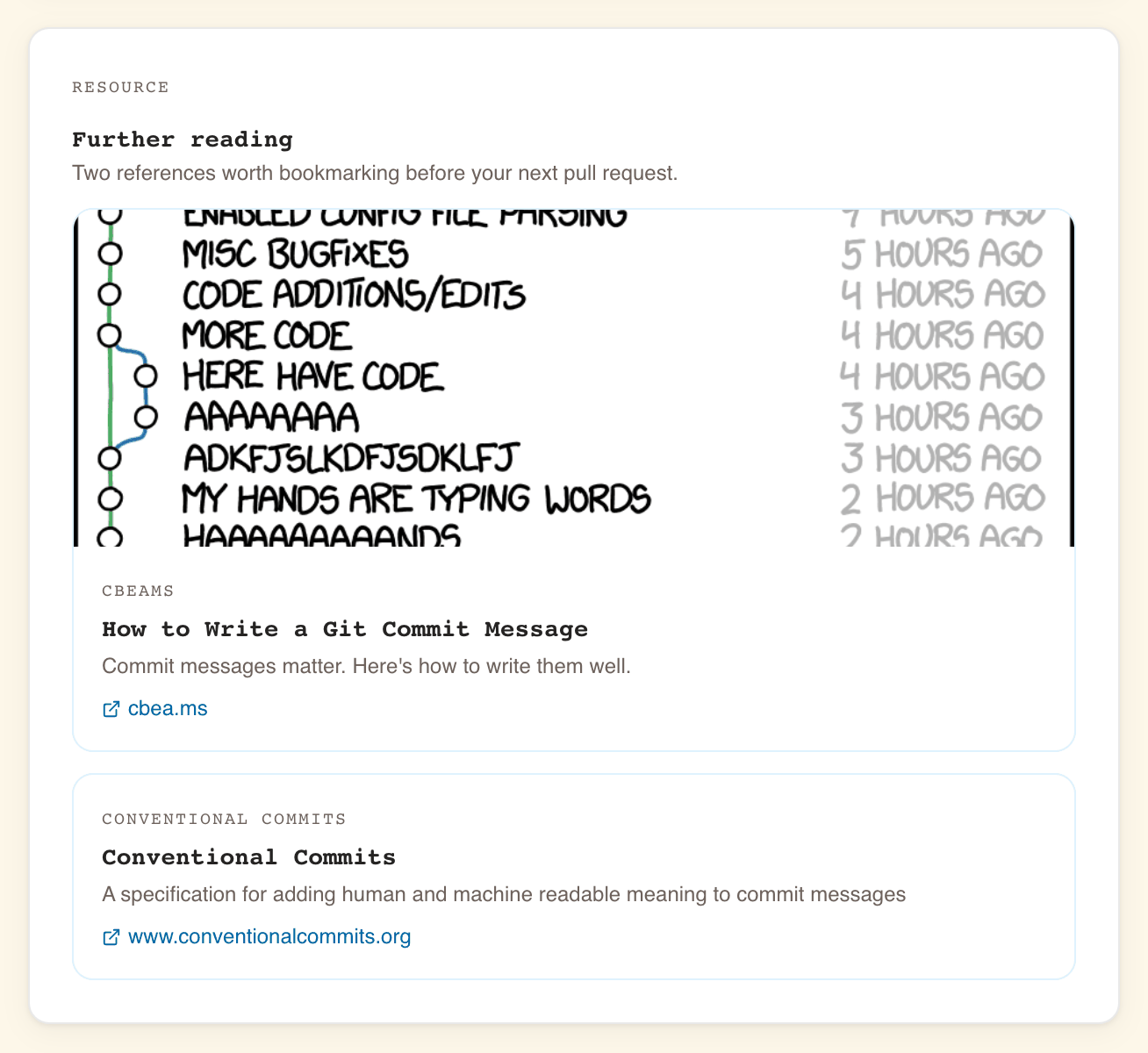
The learner sees Resource, your title and description, then one card per link. Each card opens the link in a new tab. Where WeLearn can read a preview of the page, the card shows the page's own image, site name, title and summary, and the page's title replaces the title you wrote. Where it cannot, the card shows your link title and the site's address. The section counts as done when the learner selects Next.
Exercises and peer review
The seven blocks in the Questions group check what the learner knows. WeLearn grades six of them; a person grades the peer review. Each is described, with its limits and scoring, in Building evaluations. Peer review is covered in Setting up peer review.
Related pages
- The training editor: the steps, saving and the readiness check.
- Co-authoring and reviewing drafts: editing blocks with others at the same time.
- Import and export in YAML: moving whole trainings rather than single blocks.