
A draft does not have to be written alone. You can bring people in as Collaborator, to write with you, or as Reviewer, to read it and leave notes. Everything on this page happens before publishing: the moment a draft goes live, the invitations end and the notes become history.
Invite people from the Invite button
Open your draft in the editor and select Invite in the header. The dialog Invite people to this draft opens.
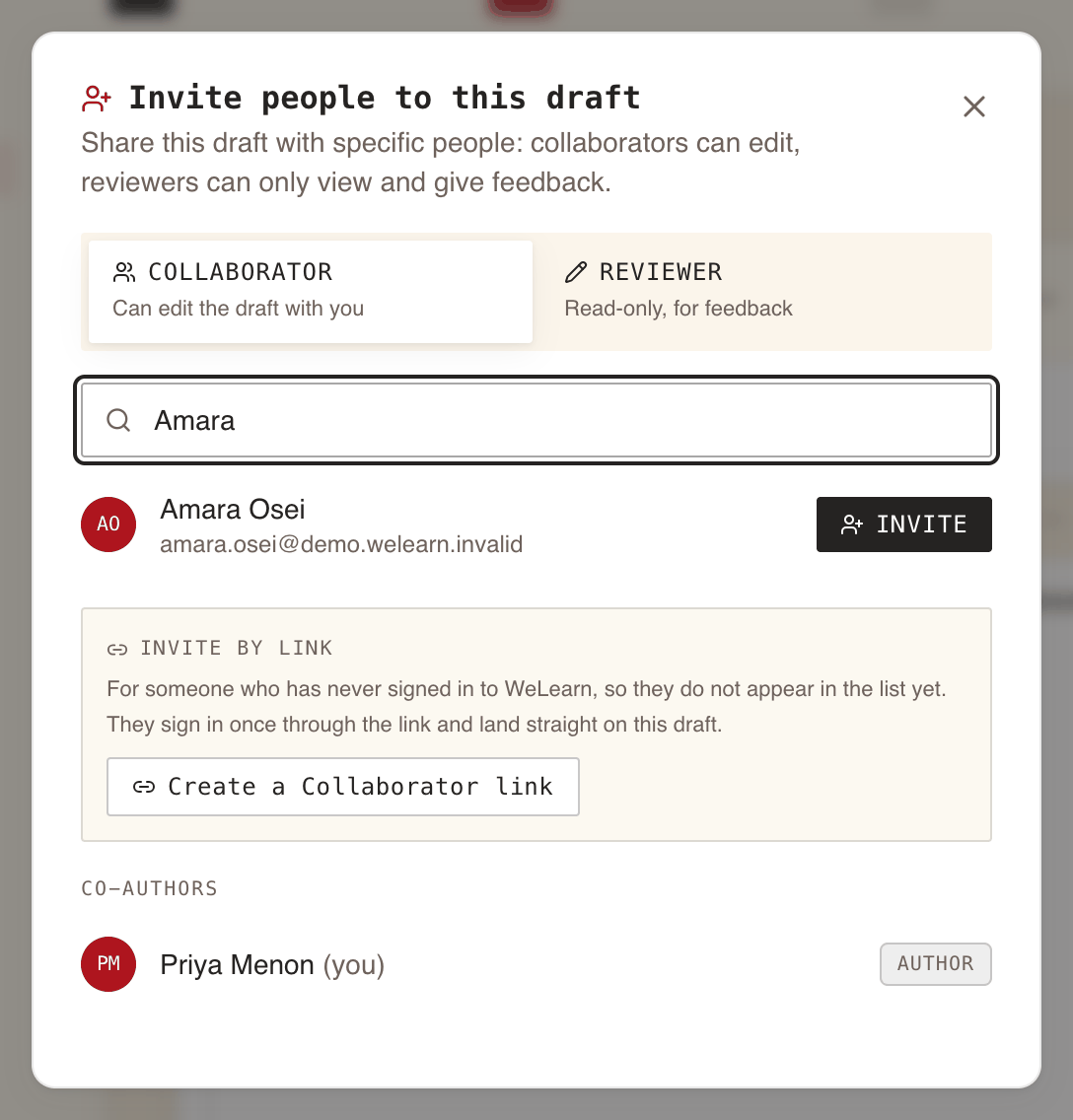
- Pick the Access level at the top: Collaborator ("Can edit the draft with you") or Reviewer ("Read-only, for feedback"). Collaborator is selected by default.
- Find the person. Before you type, the list shows up to eight people; typing in Search by name or email narrows it to up to eight who match.
- Select Invite next to the person. They appear under Invited with their access level.
The list never offers you, the draft's authors, or people already invited. If nobody matches, the dialog says so and points you to a link instead (next section).
| Collaborator | Reviewer | |
|---|---|---|
| Find the draft under My Trainings › Authored › Shared with me | Yes, with Edit | Yes, with Review |
| Edit content and settings | Yes | No |
| See the answer keys | Yes | Yes |
| Play the draft as a learner would | Yes, in the Preview step | Yes, with Try it as a learner |
| Write, reply to and finish review notes | Yes | Yes |
| Resolve or reopen a note | Any note | Only their own |
| Invite or remove people, publish, delete the draft | No | No |
| Credited on the published training | If they changed something | Always, under Reviewed by |
Inviting a Collaborator switches the draft to live editing (see below). Inviting a Reviewer does not. An invited Manager or Administrator keeps whatever their role already lets them do on the training.
Who can invite
The Invite button appears for the draft's authors. On an ordinary training, a Manager or Administrator can also invite on a draft they do not author. On a mandatory training, only its authors and Administrators can. A Collaborator does not get the button.
Change or end someone's access
- Revoke, next to a name under Invited, ends that person's access at once. If they have the draft open in the editor, it stops and tells them so. They are not notified otherwise.
- To change someone's access level, revoke them, then invite them again with the other level.
- Co-authors lists the draft's authors, marked Author. When there is more than one, each other author has a Remove button. The last author can never be removed. If the draft is being saved at that moment you see "This draft is being edited right now. Please try again."
Invite by link reaches people who have never signed in
Someone who has never signed in to WeLearn has no account yet, so search cannot find them. Use Invite by link in the same dialog.
- Pick the Access level first: the link grants that level.
- Select Create a Collaborator link or Create a Reviewer link.
- Select Copy (it changes to Copied) and send the link yourself, by chat or email. WeLearn does not send it for you.
The person opens the link, signs in once, and lands straight on the draft: in the editor as a Collaborator, on the review page as a Reviewer. They receive the same invitation notification as someone you invited by name, and they appear under Invited.
| Rule | What it means |
|---|---|
| Shown once | "This is the only time the link is shown." Close the dialog and you cannot copy it again: create a new one |
| Single use | The first person to claim it gets the access. A forwarded link works for whoever opens it first |
| Expires after 7 days | The dialog shows the date: "Single use, expires" followed by the date |
| Members only | Signing in still follows your organisation's rules, so a link cannot bring in an outsider |
| Revocable | Each link is listed under the box with its level and "Not used yet, expires" and the date, or "Used by" and a name. Revoke stops an unused link |
If your organisation only admits invited members, WeLearn refuses to create the link: "Invite links cannot be used in this organization: invite the person to the organization first." Ask an Administrator to invite them to the organisation, then invite them by name.
A link that has expired, been revoked, or been used by someone else takes the person to the Catalog without an explanation. If the draft was published in the meantime, it takes them to the published training instead.
Every invitation ends when the draft stops being a draft
Invitations belong to one draft. They all end, along with every unused link, when the draft leaves the draft stage:
| What happens to the draft | Invitations and links | Review notes |
|---|---|---|
| It is published, or the revision is published | End | Kept as read-only history |
| The revision is discarded | End | Deleted |
| The draft is deleted | End | Deleted |
| The training is archived while a revision is open | End, with the revision | Deleted |
The draft then disappears from everyone's Shared with me. Nobody is told their access ended, but anyone with the editor open sees the message described below. To work with the same people on the next revision, invite them again on that revision.
Writing together live
A draft with at least one Collaborator uses live editing: everyone with the editor open works on the same copy, and sees the others' changes as they type. The header shows Collaborative editing enabled and a small dot: green when connected, amber while connecting, red when the connection is down.

What you see of the others:
- Avatars in the header, one per other person connected, ringed in that person's colour. Your own avatar is never shown there.
- A named caret in the colour of each person typing in a text field.
- Name pills next to a short field, such as a title, that someone else is in.
- A pointer with a name for someone moving their mouse on the same step without typing.
Nothing is locked. Two people can type in the same field at once:
- In lesson text, the description, questions, explanations and answer options, both people's typing is merged.
- In single-value fields (titles, links, points, the correct-answer ticks, and the settings on Publish), the last change made is the one kept.
Saving is automatic. One of the connected editors saves the shared draft a few seconds after the last change, and at least every 30 seconds during continuous typing. The Save button only confirms (Saved): there is nothing extra for it to do. Save as Draft saves and leaves.
The messages you may see
| Message | When | What to do |
|---|---|---|
| Someone joined this draft | You had unsaved changes when the draft switched to live editing, for example because someone just claimed a Collaborator link | Save and join keeps your changes and joins. Discard and join drops them and joins the shared copy as it stands |
| Reconnecting… | The connection dropped for a few seconds | Nothing: WeLearn reconnects on its own |
| Still trying to reconnect… | The connection has been down for about 25 seconds. Your changes may not reach the others | Reload to reconnect |
| Live editing has stopped on this draft | The draft was published, replaced or removed, or live editing was turned off | Reload. Anything typed since the last save is lost. If it was published, editing it again opens a new revision |
| Your access to this draft was removed | You were revoked or removed, or your account was removed | Ask an author to invite you again. Reconnecting does not restore access |
Reviewing a draft as a Reviewer
Open the draft from My Trainings › Authored › Shared with me with Review, or from the invitation notification. The review page carries the badge Review mode and a Back to training link. A switch at the top chooses how the draft is shown:
- Read to review lays out the whole draft at once, every answer key visible: correct answers are marked, orders, pairs, ranges and blanks are spelled out.
- Try it as a learner plays the draft the way learners will meet it, answers checked on the spot.
Authors keep editing while you read. When you come back to the tab, the page reloads the draft and the notes.
Review notes
A review note is a comment pinned to the draft. Reviewers, Collaborators and authors all write them the same way, and they never leave the training: they do not appear in My notes, search, exports or anywhere else.
Four kinds of note
| Kind | Means | Needs resolving |
|---|---|---|
| Issue | "This is wrong" | Yes |
| Suggestion | "This could be better" | Yes |
| Question | "I don't understand this" | Yes |
| Praise | "This is good, keep it" | No: it is shared but never counts as open |
Write a note on a passage, an element or the whole training
- On a passage: select text in Read to review. An Add note button appears next to the selection; select it, or press N. A selection that runs across two fields offers nothing.
- On a whole element: select the note icon in the element's header (its tooltip reads Note on this element). This covers images, videos, the order of questions or "this quiz is too easy". The icon shows how many notes the element carries.
- On the training: the note icon next to the title (Note on the training), for the title, description, settings or overall shape.
The composer opens in the notes panel with the passage quoted, or "Whole element ·" and its title, or "The training as a whole". Pick the kind (Issue is preselected), write up to 2,000 characters, and file it one of two ways:
| Button | Effect |
|---|---|
| Add to review | Keeps the note Pending: only you see it, and nobody is notified. Pending notes are kept if you close the tab |
| Post now | Shares the note at once with every reviewer and author. Nobody is notified either |
For a Reviewer, Add to review is the main button. For an author or Collaborator, Post now is. A chip such as "3 pending" reminds you of notes only you can see.
Finish your review to notify the authors
Select Finish review. The dialog counts your pending notes by kind, lists any elements you have not opened yet ("Not viewed yet:"), and asks for a verdict:
- Looks good: "Ready to publish as far as you can tell."
- Changes suggested: "Worth another pass before learners see it." It is preselected when you have a pending Issue or Suggestion.
Add an optional Message to the authors (optional), then Send review. Every pending note is shared at once and each author receives one notification, for example "Alice reviewed "Kafka basics": changes suggested, 7 notes". You can send a verdict with no notes at all. After sending you can keep writing, replying and finishing again.
While you review, a progress trail at the top ("4 / 9") fills in as you scroll past elements or select the tick in an element's header (Looks fine). It is a convenience kept in your browser only.
Reply, resolve and reopen
Every shared note shows who wrote it, when, its kind, the passage, and the replies under it.
| Action | Who | Shown when |
|---|---|---|
| Reply | Anyone who can see the note | The note is shared |
| Resolve | Anyone who can edit the draft, and the note's writer | The note is open |
| Reopen | The same people | The note is resolved |
| Discard | The note's writer | Nobody has replied yet |
Notes cannot be edited once filed: discard and write again. A note whose quoted text was rewritten shows the quote struck through and "The quoted text has changed since this note. It stays on its element until someone resolves it." If the text around it moved, it says "The passage was edited since this note."
Filters at the top of the panel: Open (open notes, plus your own pending ones), Resolved and All. Reviewers start on All, authors on Open. Other reviewers' pending notes are never shown, but their shared notes are, so a second reviewer can build on the first.
Working through notes as an author
In the editor, the header button reads "2 open notes" in red, or Review notes when nothing is open. It opens Review notes on this draft over the editor. In the Content step, passages with notes are underlined inside the fields.
- Work through notes steps through the open notes one at a time ("Note 1 of 5"), with Exit to stop. When the last one is resolved: "That was the last one. All notes resolved."
- The "3 open" chip filters the panel to open notes.
- If you also wrote pending notes, Finish review (2) sends them, like any reviewer.
Keyboard shortcuts
Shortcuts work in the review page and the notes overlay while you are not typing in a box.
| Key | Does |
|---|---|
| N | New note on the selected text, or on the element you are in |
| J / K | Next / previous note |
| R | Reply to the current note |
| E | Resolve the current note |
| Esc | Close the composer, the reply box, the walkthrough, then the notes panel |
| 1 to 4 | In the composer, after tabbing out of the text: Issue, Suggestion, Question, Praise |
| ⌘ Enter or Ctrl Enter | File the note, or send the reply |
On a narrow screen the notes panel is a sheet at the bottom, opened with "Notes · 2 open".
Publishing with notes still open
Open notes never block publishing, but they cannot be skipped by accident. If any Issue, Suggestion or Question is still open when you select Publish Training, a step appears first: "2 review notes are still open", listing each one, and "Publishing is allowed. It turns these notes into read-only history, and learners see the current text." If someone still has an unsent review, it says so, for example "Bob has a review in progress, not submitted yet."
- Review them first (the default) closes the step and opens the notes.
- Publish with 2 open notes publishes. Those notes are marked Published open.
If a new note arrives while the step is open, nothing is published and the step comes back: "A new note arrived while this was open, so nothing was published. Check it, then decide again."
When the draft is published, pending notes that were never sent are deleted, and every shared note becomes read-only. The published training's page then shows a Review history panel to its authors only: reviewers, notes and resolved counts, each verdict, and who published with open notes. Notes are not carried into the next revision.
Shared with me
My Trainings › Authored › Shared with me lists the drafts you were invited to and do not author, with your access level, the number of sections and the last update. View opens the draft's page. Edit (Collaborator) opens the editor; Review (Reviewer) opens the review page. A draft leaves the tab as soon as it is published, discarded or deleted, or your access is revoked.
Who is credited when the draft goes live
When the draft is published, WeLearn records who helped. The training's page shows:
| Section | Who |
|---|---|
| Author or Authors | The training's authors, plus every Collaborator who changed something in the draft |
| Reviewed by | Everyone invited as Reviewer, whether or not they wrote a note |
A Collaborator who only opened the draft is not credited. Someone you revoke before publishing is not credited either: their invitation is gone. Nobody is listed twice. Credits add up across versions, so people credited on version 1 stay credited on version 2.
Notifications you receive
| Notification | Who receives it | Can it be turned off |
|---|---|---|
| "… invited you to co-edit" or "… invited you to review", then the title | The person invited, by name or through a link | No: always in your WeLearn inbox. Slack is your choice under Required notices |
| "… reviewed" the title, with the verdict and note count | The draft's authors, once per finished review | No, same as above |
| "… replied to a review note on" the title | Everyone in that note's thread except the person replying, at most once per note every 5 minutes | Yes: Authoring activity |
| "… is resolving your review notes on" the title | The note's writer, when someone else resolves it, at most once per draft every 30 minutes | Yes: Authoring activity |
Being invited does not get you a notification when the draft is published or discarded. Revision and publishing notifications go to the training's authors; see Publishing, revisions and archiving. Settings for each category are described in Notifications.