
As an Administrator you decide who is in your organisation and what role each person holds. All of it happens on one page: open Users in the sidebar, and the page is titled Team. Every member can browse that page. Only you see the invite panel, the role drop-downs, the bin icon on each card and the erasure footer at the bottom.
For a first-day walkthrough, start with the Administrator quickstart. This page covers every rule you meet afterwards.
People join by invitation or by email domain
Your organisation lets people in one of two ways. A new space starts by invitation; admitting by email domain has no screen and is arranged with Lunatech. Neither can be changed from Settings. The Team page tells you which one you have:
| You see | Your organisation admits | How a new person gets in |
|---|---|---|
| An Invite a teammate panel at the top | By invitation | You invite their email address. They sign in with that same address within 7 days. |
| No invite panel | By email domain | Anyone who signs in with an address on your organisation's domain joins on their own, as an Employee. |
A person who signs in to an invitation-only organisation without an invitation is turned away with This organization does not admit this account. It needs an invitation or an allowed email address. Ask an administrator to invite you, then sign in again.
If your organisation's sign-in provider decides roles, it also gives new members their first role. Roles are then changed there, not in WeLearn.
If the panel briefly reads Checking invitation settings…, wait a moment. If it reads Could not load your organisation settings, so the invite panel is hidden. Reload the page to try again., reload the page.
Inviting someone
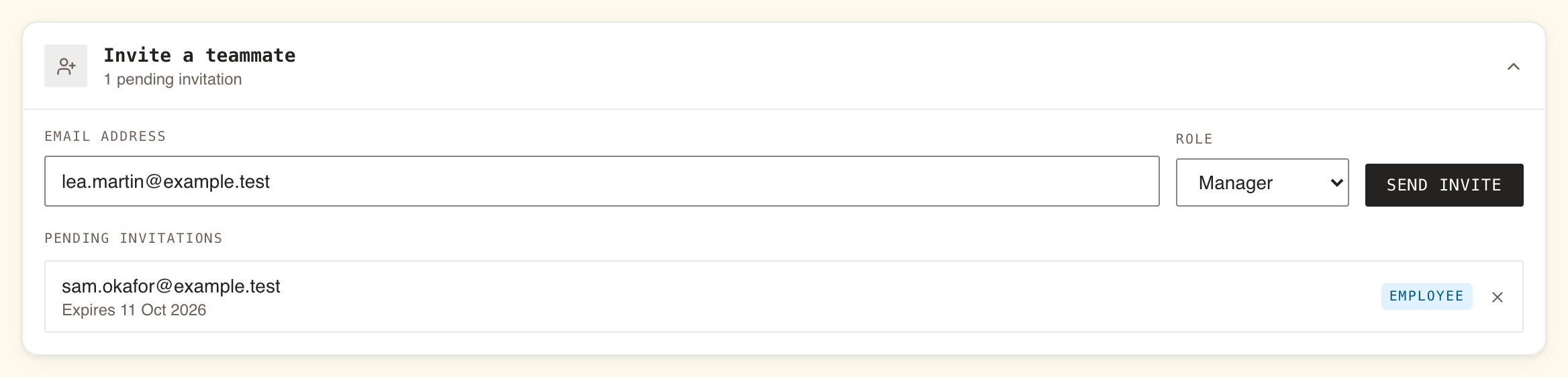
- On the Team page, open the Invite a teammate panel. Its subtitle reads No pending invitations or the number pending.
- Type the person's Email address.
- Choose a Role: Employee (the default), Manager or Administrator. See Roles and what they can do.
- Press Send invite. WeLearn confirms with Invitation sent to followed by the address.
WeLearn emails the person straight away. The email invites them to join your space, using your organisation name (or your space address if you have not set a name), and names the role. It has a Sign in to accept button and says the invitation expires in 7 days. It is written in your organisation's default language (see Organisation settings).
The person joins the moment they sign in with the invited address. Upper and lower case do not matter, but a different address does not work.
The pending list
Under Pending invitations each row shows the address, its Expires date, the role it grants, and a cross.
- To cancel an invitation, press the cross, then Revoke in the Revoke invitation dialog. The invitation is deleted and the address can no longer be used to join.
- An invitation nobody uses lapses after 7 days and drops off the list. A page you left open past that moment shows the row as Expired until you reload.
- Sending again to an address that is still pending does nothing. WeLearn keeps the existing invitation, with its original role and expiry date, and sends no new email. To change the role or restart the 7 days, revoke the invitation first, then send a new one.
- After an invitation has lapsed, sending again creates a new one and emails it.
When an invitation fails
| You see | It means | What to do |
|---|---|---|
| Enter a valid email address. | The address is not in the form name@domain.tld. | Correct it. |
| This person is already a member. Invitations only apply to new accounts. | The address already has an account in your organisation. | Change their role on their card instead. |
| This organisation admits members by email domain; invitations are disabled. | Your organisation admits by domain. | Nothing to send: the person signs in on their own. |
| Failed to send the invitation. Please try again. | Something else went wrong. | Try again. |
| Failed to revoke the invitation. Please try again. | The revoke did not go through. | Try again. |
Changing a member's role
Every member's card on the Team page shows their role. On every card except your own, that role is a drop-down. Choose the new role and it is saved at once; a small spinner shows while it saves. The change applies from the member's next action, and WeLearn logs every change.
The drop-down exists only on the Team page cards, not on a member's profile.
| You see | It means |
|---|---|
| No drop-down on your own card | Nobody changes their own role. Ask another Administrator. |
| Cannot demote the last administrator. | WeLearn always keeps at least one Administrator. Promote someone else first. |
| Roles are managed by your identity provider. | Your sign-in provider decides roles. Change the role there. |
| No drop-down on any card, only a role label | Same: your sign-in provider decides roles. |
| Failed to update the role. Please try again. | Something else went wrong. Try again. |
Pick roles from what people need to do. Roles and what they can do lists what each role adds.
Reading a member's profile
Click anywhere on a member's card to open their profile. As an Administrator you see more than other members do:
| Part of the profile | What it shows you | Who else sees it |
|---|---|---|
| Header | Name, role, email address, Follow button and a bin icon to remove them | Everyone sees name and role; Managers also see the email |
| Groups | The groups they are in. Add one with Add group, remove one with its cross. | Managers can edit groups too; others see the list |
| Certification record | Their mandatory trainings and passes, with Export CSV and Certificates (ZIP). The person is told when you download their certificates. | Managers |
| Followers and Following | The counts, and the lists themselves when you click a count | Others see only the counts, with Follower and following lists are private. |
| Showroom | The badges they chose to display | Everyone in the organisation |
A member's full learning report, with charts and a PDF export, is in Analytics › Team. See Team analytics and employee reports. Compliance across your whole team is covered in Running compliance for your team.
Removing a member
When someone leaves, remove them from either place:
- On the Team page, press the bin icon on their card.
- On their profile, press the bin icon next to Follow. You return to the Team page once they are removed.
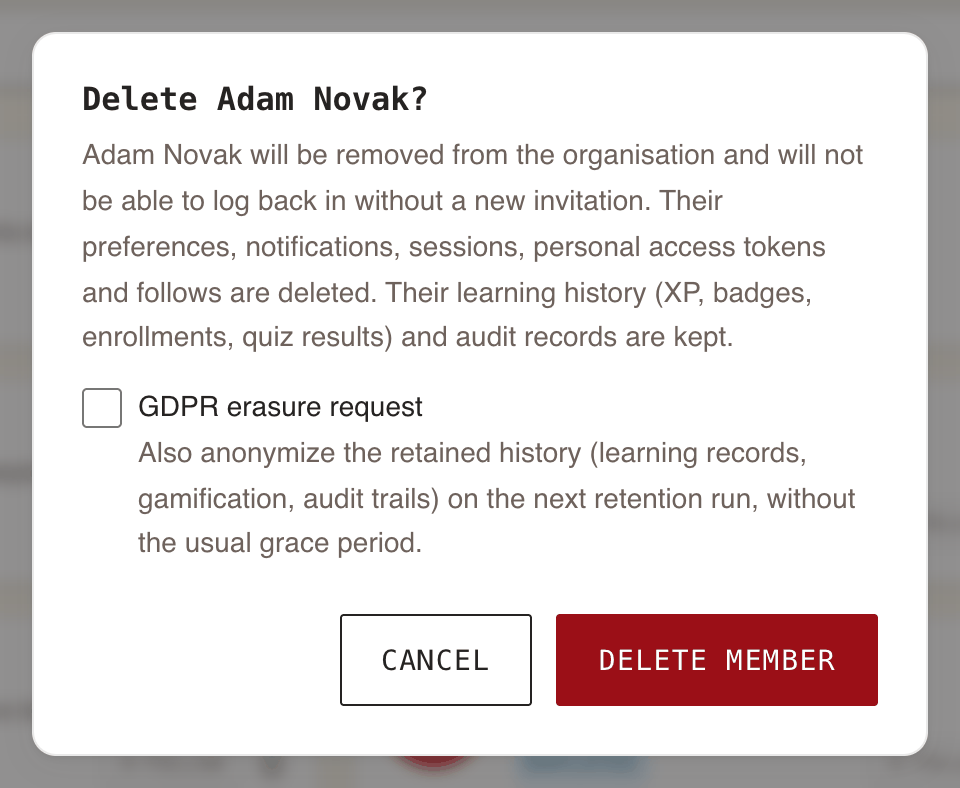
The dialog is titled Delete followed by their name. It has one checkbox, GDPR erasure request, which you leave unticked for an ordinary departure (see the erasure request below). Press Delete member to confirm.
| You see | It means |
|---|---|
| No bin on your own card | You cannot remove yourself. Another Administrator does it. |
| Cannot delete the last administrator. | Promote someone else to Administrator first. |
| You cannot delete your own account. | Same rule as above. |
| Failed to delete the member. Please try again. | Something went wrong and nothing was deleted. Try again. If it keeps failing, the person may be WeLearn's last platform administrator, whom nobody can remove. |
What happens straight away
- They can no longer use WeLearn. Their sign-in sessions, personal access tokens and connected AI assistants stop working. Any training they had open for co-editing is closed on them.
- Whether they can come back depends on how your organisation admits people. In an invitation-only organisation they need a new invitation. In an organisation that admits by email domain, they can sign in again and join as a new member. The dialog says they "will not be able to log back in without a new invitation", which holds only for invitation-only organisations.
- WeLearn does not touch their account at your sign-in provider. Close it there as well.
- Peer reviews waiting on them are withdrawn. A submission of theirs still waiting for a grade is withdrawn, and each reviewer who was asked to read it is told.
- Trainings they wrote stay. The author shows as Deleted user. If they were the only author, nobody can edit the training as its author any more. A Manager can still open its editor, or an Administrator if the training is mandatory. See Publishing, revisions and archiving.
- Their certificates still verify. The public verify page confirms the certification, with the holder shown as Unknown learner. See Verifying a WeLearn certificate.
- They no longer count as a member in Total users on Analytics › Platform.
What is deleted and what is kept
The dialog summarises this. The full picture:
| Their data | Ordinary removal | With GDPR erasure request ticked |
|---|---|---|
| Account, profile photo, group memberships, follows in both directions | Deleted at once | Deleted at once |
| Preferences, notification inbox, Slack link, sessions, tokens, connected apps | Deleted at once | Deleted at once |
| Private notes, training ratings, daily puzzle history, streak, badge showcase | Deleted at once | Deleted at once |
| Access to drafts they were invited to, and draft invite links they created | Deleted at once | Deleted at once |
| XP, earned badges, quest completions | Kept, then unlinked from them after 30 days. Organisation totals, badge rarity and quest completion counts still include them. | Unlinked on the next nightly run |
| Their activity feed entries | Deleted after 30 days | Deleted on the next nightly run |
| Problems they reported, review notes and reviews they wrote | Kept, then unlinked from them after 30 days. The words stay, so authors can still act on them. | Unlinked on the next nightly run, and their words removed. The kind of issue and where it was raised stay. |
| Verdicts they recorded on other people's peer reviews | Kept, then unlinked from them after 30 days. The learner keeps the verdict and the feedback. | Unlinked on the next nightly run, and their feedback removed. The learner keeps the verdict, its date and the result it gave. |
| Enrolments, quiz results and certifications | Kept for 3 years, then anonymised. Completion figures still count them. | Anonymised on the next nightly run, and the text of their peer-review submissions removed. Completion figures still count them. |
| WeLearn's records of role changes, report views and certificates issued, and other people's notifications that name them | Kept up to 24 months, as for everyone | Their name removed on the next nightly run |
| Trainings they wrote | Kept, author shown as Deleted user | Kept, author shown as Deleted user |
All of this runs on its own. There is nothing to configure and nothing to trigger.
Ticking GDPR erasure request
Tick GDPR erasure request when the person has asked for their data to be erased. The checkbox's own words: Also anonymize the retained history (learning records, gamification, audit trails) on the next retention run, without the usual grace period. The deletion itself is the same; what changes is the right-hand column of the table above, which then happens on the next nightly run instead of after 30 days or 3 years.
Your organisation decides, with its data protection officer, whether a legal obligation, such as a mandatory certification, requires keeping named training records. If it does, leave the box unticked: the ordinary limits then apply.
Recording an erasure request from a former member
A former member can ask for erasure after you removed them. They can no longer sign in, so the request reaches you by email or through your data protection officer, and you record it. At the bottom of the Members tab on the Team page:
- Find the line A former member can request GDPR erasure of their remaining history after offboarding. and press Erasure request.
- In the GDPR erasure request dialog, type the email address of their WeLearn account.
- Press Record erasure request. The button stays greyed out until the field looks like an email address.
WeLearn does not keep the address of a removed member, only a one-way fingerprint of it, so the address you type is checked against that fingerprint. It has to be the address their WeLearn account used; case does not matter. The dialog asks for "the email address the former member wrote from". If they wrote to you from a different address, use the one their account had.
| You see | It means |
|---|---|
| Erasure recorded. It will be executed on the next nightly retention run; remember to answer the person within one month. | Done. Their remaining history is erased on the next nightly run, as in the right-hand column above. |
| No deleted member of this organisation matches that address. | The address never belonged to a member you removed, their erasure has already been carried out, or more than 3 years have passed and their history is already anonymised. |
| The request failed. Please try again. | Something went wrong. Try again. |
Recording the same request twice before the nightly run does no harm. Answering the person is your organisation's job, not WeLearn's: reply within the month.
The member lifecycle at a glance
| Stage | What the person can do | What you can do | Where |
|---|---|---|---|
| Invited | Sign in with the invited address within 7 days | Revoke the invitation; send a new one once it lapses | Invite a teammate panel |
| Joined by domain | Use WeLearn as an Employee from their first sign-in | Change their role | Team page |
| Member | Use WeLearn as their role allows | Change role, edit groups, read their profile, remove them | Team page and their profile |
| Removed, first 30 days | Nothing. In a domain organisation, sign in again as a new member. | Record an erasure request | Erasure request footer |
| Removed, 30 days to 3 years | Same | Record an erasure request; their XP and badges are already unlinked | Erasure request footer |
| Removed, after 3 years | Same | Nothing left to erase: their enrolments are anonymised | |
| Erased | Same | Nothing left to erase |
Where to go next
- Organisation settings: name, language, time zone, colour and the organisation's figures.
- Groups and required trainings: the Groups tab next to Members.
- Privacy and your data: what members themselves can see and download.
- Roles and what they can do.