
Enrolling someone puts a training on their dashboard and tells them about it. You do it from one page, Enrollments, open to Managers and Administrators. This page covers every control on it, what the learner sees afterwards, and the limits you will meet.
If the people you enrol should keep the training as they come and go, for example everyone in an office, a group requirement does that better. See Groups and required trainings. For mandatory trainings, deadlines and chasing, see Running compliance for your team.
One page, three panels, one button
Open Enrollments in the sidebar. The page is titled Enrollment Management and reads Assign published trainings to one or many users. Work the panels in order:
| Panel | You choose |
|---|---|
| 1. Select a Training | One published training |
| 2. Select Users or Groups | People, groups, or both |
| 3. Options | Mandatory training and an optional Due date |
Then press Enroll in the bar at the bottom. The bar also sums up your choice, for example 3 users, 1 group selected · GDPR Basics, or No users or groups selected. Enroll stays greyed out until you have a training and at least one person or group.
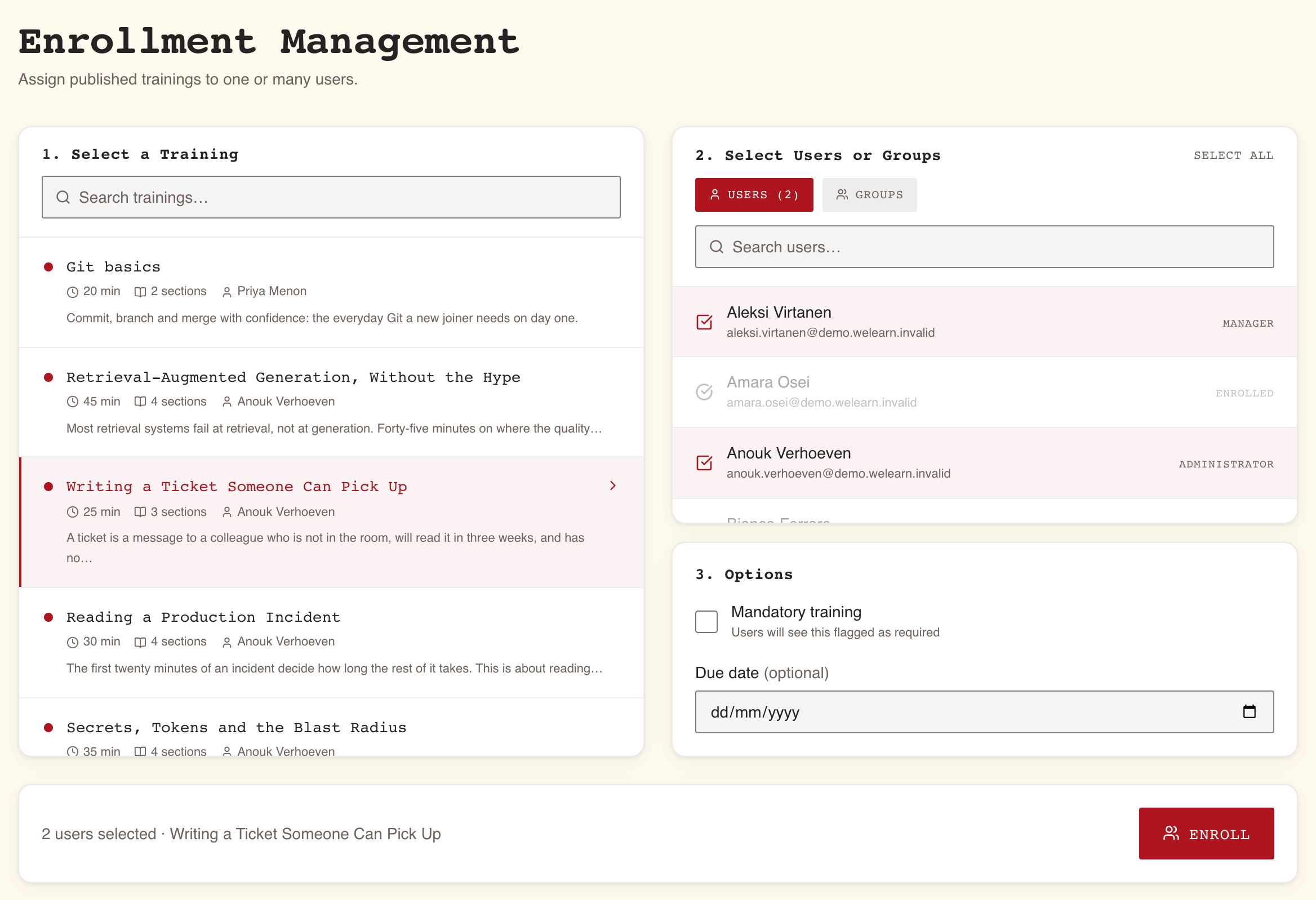
Panel 1 offers published trainings only, and at most 50 of them
Each row shows the title, the duration, the number of sections, the authors and the start of the description. Type in Search trainings… to narrow the list by title. Click a training to pick it; click it again to drop it.
Drafts and archived trainings never appear: only a published training can be enrolled on.
Picking another training starts again: your ticked people and groups, both searches and any message from the last enrolment are cleared, and the Users tab comes back to the front.
Panel 2: people on one tab, groups on the other
Nothing in this panel works until a training is picked; it says Select a training first.
The Users tab lists everyone in the organisation
Each row shows the person's name, email and role. Search with Search users… by name or email. Tick people one by one.
Once a training is picked, the list tells you who already has it:
- People already enrolled are greyed out, marked Enrolled, and cannot be ticked. This holds for any version of the training, so someone enrolled on an earlier version counts.
- On a training that is mandatory, or whose passes expire, each enrolled person also shows their standing, such as Certified, Expiring soon or Overdue. See Running compliance for your team for what each means.
Select all ticks everyone the list is currently showing who is not already enrolled. With a search typed, that means only the matches. Once they are all ticked, the same button reads Deselect all.
The Groups tab lists live groups
Archived groups are not offered. Search with Search groups… by name. Tick whole groups.
- A group whose members are all enrolled already is greyed out and marked Enrolled.
- When you tick a group that is partly enrolled, a line appears under its name, for example 3 of 8 already enrolled. Only the other five are enrolled; the three are counted in the result as already enrolled.
You can tick people and groups in the same go. The tabs keep count, for example Users (3) and Groups (1). Someone ticked by name and also in a ticked group is enrolled once.
Picking a group also upgrades members who already hold the training
A member of a ticked group who already holds the training is not enrolled a second time. But if the training is marked mandatory, or you tick Mandatory training, and their enrolment was not an assignment yet (they started it themselves, or someone enrolled them without the box), it becomes one. It then shows the mandatory badge to them, and it takes your Due date, or the training's own deadline, unless it already had a deadline. An assignment that was released, because they left a group that required the training or its requirement was withdrawn, is handed back the same way: a deadline of theirs that has passed is replaced by yours, or by the training's own, and one still ahead is kept. They are told, with the same You've been enrolled in "GDPR Basics" notification a new enrolment gets.
This is the only way this page reaches people who already hold a training. On the Users tab they are greyed out.
Panel 3: what the two options really do
Both options are cleared after every enrolment, so set them again each time.
Mandatory training adds a badge, not compliance tracking
The checkbox's hint reads Users will see this flagged as required, and that is what it does. What the learner gets depends on whether the training itself is marked mandatory, on its Compliance card:
| Training itself marked mandatory | Ordinary training | |
|---|---|---|
| Box ticked | A compliance obligation: badge, status, deadline, reminders, certificate, and a row in Team compliance | The mandatory badge on their dashboard, the catalog card and the training page. With a Due date, finishing before it also earns 25 bonus XP and counts toward the Deadline Crusher badge. Nothing else |
| Box not ticked | Exactly the same as ticked: on such a training every enrolment is an obligation | A plain enrolment, no badge |
Due date ends at the close of that day, in each learner's own time zone
Due date (optional) sets the learner's deadline. It works with or without the Mandatory training box.
- Pick a date after today. Today or a date in the past is refused with an error saying the due date must be in the future.
- Everyone you enrol gets the same calendar date, ending at the close of that day where each of them is: their own Time zone setting, or the organisation's default time zone if they have not set one. A team spread over several offices does not lose hours to yours.
- Left empty on a mandatory training, each learner gets the training's Time to complete from today, 30 days unless the training says otherwise.
- Left empty on an ordinary training, there is no deadline at all.
- The date is fixed when you press Enroll. You cannot change it afterwards from any screen, and enrolling the person again does not move it.
A deadline is what the learner is reminded about: they see it on their dashboard as Due 14 Nov 2026, then Due in 3 days, then Overdue by 2 days, and they get a reminder 7 days and 1 day before it. On an ordinary training an expired deadline is only that label: nobody is reported or chased. The full schedule is in Running compliance for your team.
Press Enroll and read the answer
The bar at the bottom answers in up to three lines.
| Message | Meaning |
|---|---|
| 5 users enrolled successfully. (green) | Five new enrolments were made. Each of those people is notified |
| 2 users were already enrolled. (amber) | They held the training already, by name or through a ticked group. Nothing new was made for them, apart from the upgrade in section 03 |
| 1 selected user could not be found. (amber) | Someone you ticked was removed from the organisation while the page was open |
| No enrollments were created: the selection contained no eligible users. (red) | Typically a ticked group with nobody in it |
| Enrollment failed (red), or a more precise reason | Nothing was saved. A date that is not in the future, or a training archived while the page was open, is reported here |
The ticked people and groups, the Due date and Mandatory training are then cleared, and the list refreshes: the people you just enrolled now read Enrolled.
What the learner sees, and how it differs from enrolling themselves
Learners can enrol themselves on any published training by pressing Start Training on its page. Your enrolment and theirs land in the same place, but they arrive differently.
| You enrol them | They enrol themselves | |
|---|---|---|
| Notification | You've been enrolled in "GDPR Basics", in the app, and in Slack if your organisation has connected it | None |
| Where it shows | Their Dashboard, under My Trainings, with the due date if there is one | The same |
| Mandatory badge (★ Mandatory) | If the training is mandatory, or you ticked Mandatory training | Only if the training is mandatory |
| Deadline | Your Due date, or on a mandatory training its Time to complete | On a mandatory training its Time to complete; otherwise none |
| Counts in Team compliance | Only on a mandatory training | Only on a mandatory training: starting one yourself takes on the obligation |
If you enrol yourself on this page, you get no notification either.
What a learner reads about their own deadlines and statuses is in Mandatory trainings and certification.
You cannot un-enrol anyone
There is no button, on this page or anywhere else, to remove an enrolment, change its deadline, or take the mandatory badge off. Neither can the learner.
What you can do is stop an obligation that came from a group: withdraw the group's requirement or take the person out of the group. That removes them from Team compliance, but the training stays on their dashboard. See Groups and required trainings. Choose the people and the date carefully before pressing Enroll.
Traps
| Trap | What happens | What to do |
|---|---|---|
| Ticking Mandatory training to "make it compliance" | Learners see a badge. Nobody appears in Team compliance, nobody gets a certificate | Have the training itself marked mandatory on its Compliance card |
| Ticking a group so newcomers are covered | Only today's members are enrolled | Require the training of the group |
| Looking for an older training in panel 1 | It is not among the 50 loaded, and search does not find it | Ask its authors to publish an update, or require it of a group |
| Picking today as Due date | The enrolment is refused | Pick tomorrow or later |
| Leaving Due date empty on an ordinary training | No deadline, no reminders | Pick a date if you want one |
| Enrolling the wrong person or the wrong date | It cannot be undone or edited | Check the summary in the bottom bar before pressing Enroll |
| Wanting to re-pick someone already enrolled | They are greyed out on the Users tab | Tick a group they are in that is not fully enrolled; on a mandatory training, or with the box ticked, their enrolment becomes an assignment |
| Expecting a deadline to move when you enrol someone again | An existing deadline is never moved | None: a deadline cannot be changed once set |
| Ticking an empty group | No enrollments were created | Add members first: Groups and required trainings |