
A YAML file is a training written out as plain text: its title and settings, then every block in order, answer keys included. WeLearn writes one when you select Export, and turns one back into a training when you select Import YAML. Use it to:
- start a new training from an existing one, since there is no Duplicate button for a whole training;
- keep a copy of a training outside WeLearn, for example in a git repository next to the material it teaches;
- write a training in a text editor, or have a tool or an AI assistant write it, and bring it in as a draft;
- hand a training to someone in another WeLearn organisation.
An import always creates a new draft. It never changes an existing training. That one rule explains most of this page.
A file carries content and settings, never history
| Carried in the file | Not carried |
|---|---|
| Title, Description, Language, difficulty, estimated duration | Versions and the training's stage (an import is always a draft) |
| The topics, as ids of this organisation | Authors and the credits for people who helped |
| The Evaluation Playback settings: Attempts, Feedback timing, Passing score | Invitations, invite links and review notes |
| Who may grade a peer review (the Reviewers setting) | Whether the training is mandatory, and its certification period |
| Every block, in order, with all its text | Enrollments, results, certificates, XP and badges |
| Every answer key: correct propositions, the right order, pairs, buckets, numeric ranges, the right choice for each blank, reviewer guidelines | Live editing |
| Links to images uploaded into the text | The images themselves |
Whoever imports the file becomes the only author of the new draft.
Export downloads the saved training, answer keys included
There are two Export buttons. Both download a file named after the training's title, such as
welearn-training-git-basics.yaml.
| Where | What it downloads | Who sees the button |
|---|---|---|
| The editor header | The draft or revision you are editing, as last saved. Hover over Export to see the browser tooltip "Download the SAVED training as a YAML file you can re-import, keep in git, or hand to someone else. Unsaved edits are not included." | Anyone who can edit the draft |
| The training's page, beside Edit and Archive | The version that page shows, whatever its stage. Pick an earlier version in the version selector first to export that one. Hover over Export to see the browser tooltip, which ends "It carries the answer keys." | The training's authors; Managers and Administrators on an ordinary training; only authors and Administrators on a mandatory one |
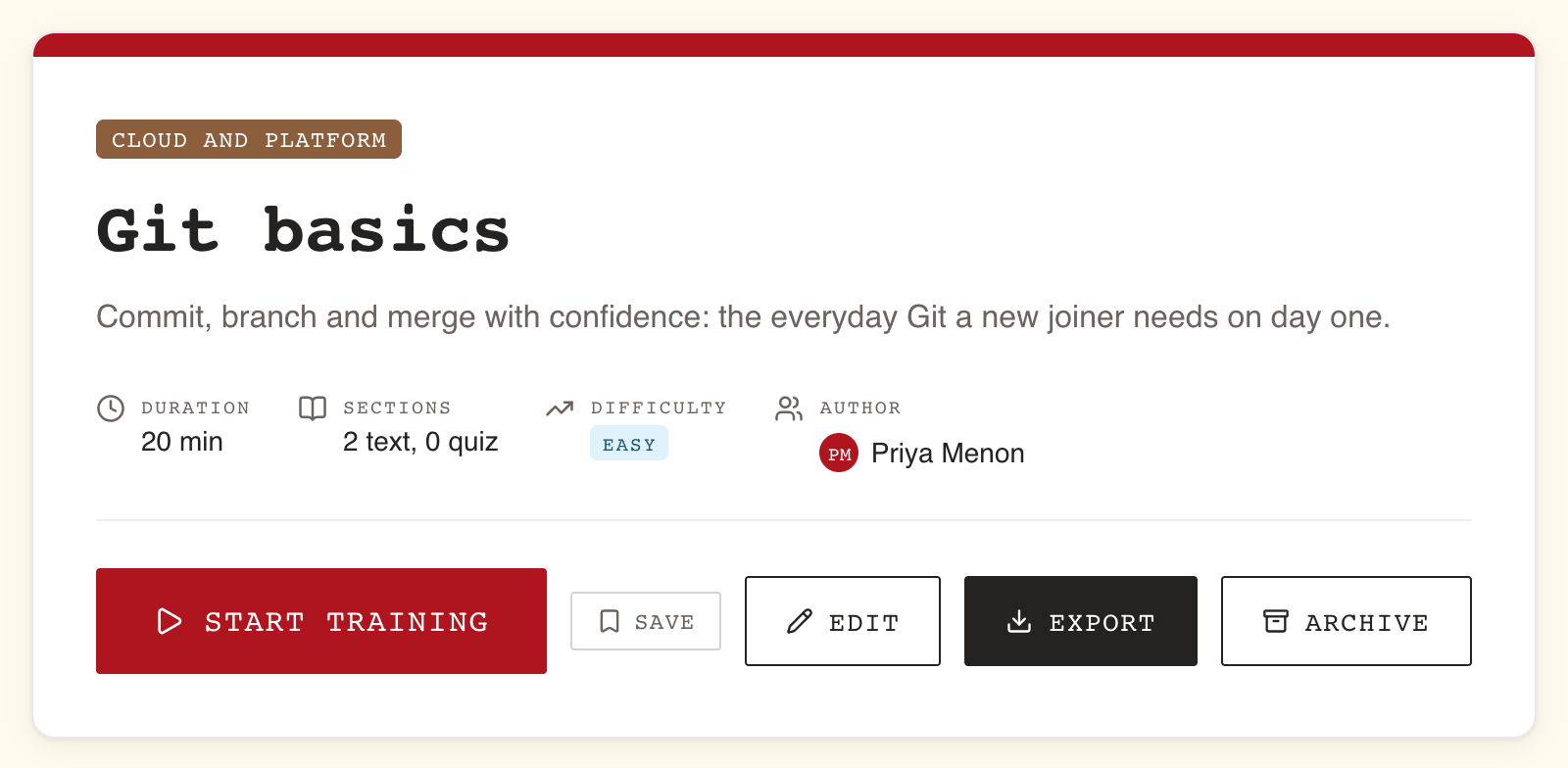
Before you export from the editor, check that the header reads Saved, or select Save. On a training's page that has an open revision, Export downloads the published version, not the revision: export the revision from the editor.
The file opens with a comment block, lines starting with #, that says what it is and what it
leaves behind. When the training has topics, the comment lists each topic id with its name. When
the text holds uploaded images, it warns that they are not inside the file.
Import YAML turns a file into a new draft
Anyone who can write trainings can import one.
- Open My Trainings › Authored and select Import YAML (on a phone, the upload icon beside New Training). The dialog Import Training from YAML opens.
- Put the YAML in the large text box, in one of three ways:
- paste it;
- select Upload file and pick a
.yamlor.ymlfile. Any other file is refused with Only .yaml or .yml files are supported.; - select Load template to fill the box with the annotated template: every setting and every kind of block, with a comment under each field saying what it accepts. Edit it from there.
- Select Import as Draft. It stays disabled while the box is empty.
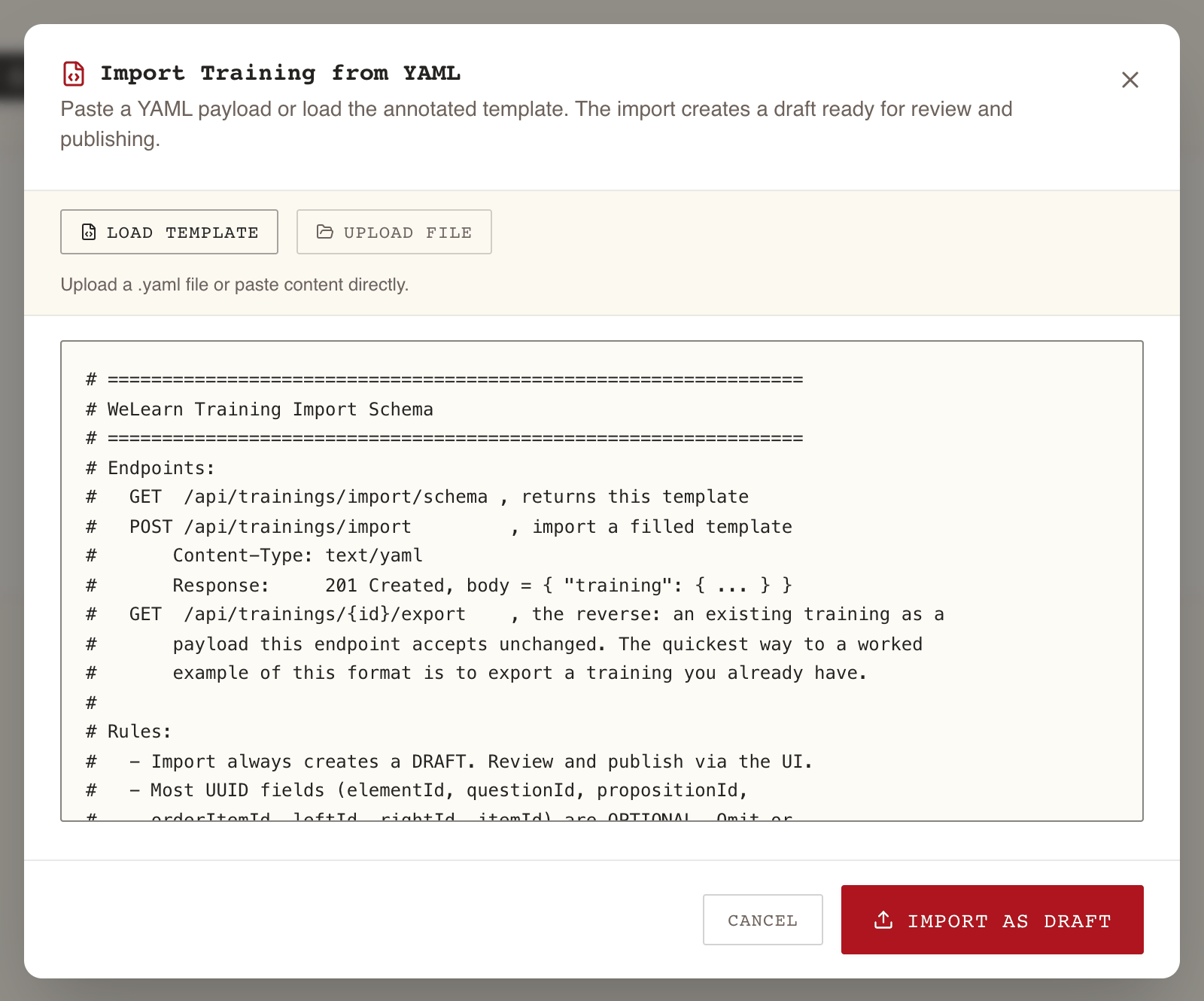
On success the dialog closes and the new draft opens in the editor, on Basic Info. It is also in My Trainings › Authored, under Draft. From there it is an ordinary draft: check it in Preview, fix whatever the Publish readiness panel lists, and publish it as described in Publishing, revisions and archiving.
The import checks the file's shape, not whether the training is ready to publish. A draft can come in without topics, without a language, or with a question bank that draws more questions than it holds. The readiness check catches those later, with the messages listed in The training editor.
A refused import names the field at fault
When WeLearn refuses the file, nothing is created and a red message appears above the buttons. It stays there until you change the text. The message tells you which kind of problem it is:
| Message | What it means | What to do |
|---|---|---|
| The request was invalid. | The text is not valid YAML at all. | Check the indentation (spaces, never tabs), and quotes that open and do not close. |
| Malformed request body: unknown field 'x'. | A key the format does not have, usually a typo. | Compare the spelling with the template. Keys are case-sensitive. |
| Malformed request body: invalid value for field 'x'. | The key is right but its value is the wrong kind, such as text where a number is expected, or difficulty: Easy instead of EASY. |
Check what that field accepts in the template. |
| A list such as elements[2].title: must not be blank, passingThreshold: passingThreshold must be 0-100 (inclusive) | The file was read, and these fields break a rule. | Fix each one. Blocks are counted from 0: elements[2] is the third block. |
| YAML import does not recognize element type 'x'. | A block type that does not exist. |
Use one of the nine types in the table below. The message lists eight of them: PEER_REVIEW is accepted too. |
| Unknown thematic ids: … | A topic id that does not exist in this organisation. | Remove it, or replace it with the id of a topic here. |
| The requested language is not supported. | A language other than en or fr. |
Use en or fr, or leave the line out. |
| Import failed. Check your YAML and try again. | WeLearn gave no detail. | Check the file against the template and try again. |
The rules a file must meet to import:
- the training has a
title(200 characters at most) and adescription(2,000 at most); - 100 blocks at most;
- every block has a
typeand atitle, and the text fields its type requires (see below); - a quiz has at least one question; each question has text and at least two propositions, one or more of them correct;
- an Ordering has 3 to 100 items; a Matching 2 to 100 pairs, both sides filled;
- a Categorization has at least one bucket and one item, and every item names a bucket by its id;
- a Numeric has both
minandmax, andminis not abovemax; - a Cloze has at least one blank; each blank has at least two choices, exactly one correct;
- each link has a title and a full
http://orhttps://address; maxAttemptsis 0 to 20, andpassingThreshold0 to 100.
The file in plain terms
The top of the file holds the settings
Each line is a key, a colon, and a value. Lines starting with # are comments and are ignored.
| Key | Editor equivalent | Values | If left out |
|---|---|---|---|
title |
Title | Text, required | Refused |
description |
Description | Text, simple HTML allowed, required | Refused |
language |
Language | en (English) or fr (French) |
No language: the draft imports, publishing asks for one |
difficulty |
Difficulty | EVERYONE, EASY, MEDIUM, HARD |
EVERYONE |
estimatedMinutes |
Estimated Duration | A whole number of minutes | 0 |
thematicIds |
Topics | A list of topic ids of this organisation | No topic: publishing asks for one |
maxAttempts |
Attempts | 1 to 20, or 0 for unlimited (∞) | 1 |
delayedFeedback |
Feedback timing | false for Immediate, true for At the end |
Immediate |
passingThreshold |
Passing score | 0 to 100; 0 is No threshold | No threshold |
reviewerUserIds, reviewerGroupIds |
Reviewers, for peer reviews | Lists of member and group ids of this organisation | The training's own authors grade |
elements |
The blocks | The list of blocks, in order | No block |
The editor offers 1, 2, 3, 5 or ∞ attempts, but a file can ask for any number up to 20, such as
maxAttempts: 4; the editor then shows that number among its choices. An older file may carry retakeable instead of maxAttempts: it is
still read, true as 3 attempts and false as 1.
Each block starts with its type
type |
Block in the editor | Fields beyond title |
|---|---|---|
COURSE |
Text | content |
EXTERNAL_LINK |
Link | description (optional), links, each with title and url |
QUIZ |
Quiz | questions, servedQuestionCount (optional, for a question bank) |
ORDERING |
Ordering | prompt, items in the correct order, explanation (optional) |
MATCHING |
Matching | prompt, pairs, each with left and right |
CATEGORIZATION |
Categorization | prompt, buckets with bucketId and name, items with value and bucketId |
NUMERIC |
Numeric | prompt, min, max, explanation (optional). For Exact, give min and max the same value |
CLOZE |
Cloze | richText, with a marker {{blank:<blankId>}} per blank, and blanks, each with blankId and propositions |
PEER_REVIEW |
Peer review | prompt (the Brief), reviewerGuidelines (optional) |
The template you get with Load template shows a complete, commented example of each.
An annotated example
A training with one Text block and a one-question quiz:
title: "Git basics"
description: "<p>Commit and branch with confidence.</p>"
language: en             # en or fr
difficulty: EASY         # EVERYONE, EASY, MEDIUM or HARD
estimatedMinutes: 30
maxAttempts: 3           # 0 means unlimited
delayedFeedback: false   # false = Immediate, true = At the end
passingThreshold: 80     # 0 means No threshold
elements:
  - type: COURSE         # a Text block
    title: "What a commit is"
    content: "<p>A commit records a snapshot of your files.</p><ul><li>It has a message.</li><li>It points to its parent.</li></ul>"
  - type: QUIZ
    title: "Knowledge check"
    questions:
      - value: "Which command records your staged changes?"
        explanation: "git commit turns what you staged into a new commit."
        point: 1         # optional, 1 if left out
        propositions:
          - value: "git commit"
            correct: true
          - value: "git push"
            correct: false
          - value: "git status"
            correct: false
It imports as it stands. The new draft then needs a topic before it can be published, since the
example has no thematicIds.
Text is HTML, written inside quotes
Text blocks, descriptions, peer-review briefs and Cloze texts are HTML: <p> for paragraphs,
<strong>, <em> and <u> for emphasis, <ul>, <ol> and <li> for lists, <br> for a line
break. To see how the editor writes richer formatting, write it in a draft and export it.
Put every text value in double quotes, as the template does. Without them, a colon in a sentence
can break the file, and a value such as true or 007 can be read as something other than text,
which silently changes an answer.
Ids can stay or go, except two kinds
An export writes an id on everything: blocks, questions, propositions, items. Inside one file you
can leave them as they are, delete them, or set them to null: WeLearn makes new ones where they
are missing. A block you add by hand needs none.
Two kinds of id must stay, because other parts of the file point to them:
- Categorization: each bucket's
bucketId, which is what each item'sbucketIdrefers to. That is the answer key. Any id in the 8-4-4-4-12 form works, such as11111111-1111-1111-1111-111111111111, as long as the item uses the same one. - Cloze: each blank's
blankId, which must also appear inrichTextas{{blank:<blankId>}}. A marker with no blank behind it, or a blank with no marker, imports, but the readiness check then refuses to publish.
Copying a training is an export followed by an import
- Export the training: from its page for a published version, from the editor for a draft.
- Open the file and change what should differ, at least the
title, so the two trainings are not confused in the Catalog. - In My Trainings › Authored, select Import YAML, then Upload file, then Import as Draft.
- Work on the copy in the editor, and publish it when it is ready.
The copy is a separate training from the start. Learners of the original keep their progress and results there. Nothing you do to one ever reaches the other.
Into the same organisation
The copy keeps its topics, its peer-review graders and its images, because they all exist here. It has no credits, and you are its only author. To work on it with the original's authors, invite them as described in Co-authoring and reviewing drafts.
Into another organisation
Ids of topics, members and groups belong to the organisation that exported them.
| In the file | Before importing elsewhere |
|---|---|
thematicIds |
Set it to [] and pick the topics in the editor afterwards. Otherwise the import is refused with Unknown thematic ids. The comment at the top of the file names each topic, to help you find its match. |
reviewerUserIds, reviewerGroupIds |
Set both to []. The import does not check them, so ids from elsewhere would leave a peer review that nobody here may grade. Empty, the training's authors grade. |
| Uploaded images | They still point to the original organisation and show as broken. Upload them again in the editor. |
Who can do what
| Action | Employee | Manager | Administrator |
|---|---|---|---|
| Import a file as a new draft | Yes | Yes | Yes |
| Export a training they author, or a draft they are invited to edit | Yes | Yes | Yes |
| Export an ordinary training they do not author | No | Yes | Yes |
| Export a mandatory training they do not author | No | No | Yes, and it is recorded |
Checklist
- Before exporting from the editor, the header reads Saved.
- The file is stored where only authors can read it.
- The title in the file says it is a copy, if the original stays in use.
- Topics, reviewers and images are dealt with, if the file goes to another organisation.
- After importing, the draft has a language and at least one topic.
- You played every exercise in Preview and got 100 % with your own key.
- The Publish readiness panel reads All set. This training is ready to publish.
Traps
- Exporting the page while a revision is open gives you the published version. Export from the editor to get the revision.
- Copying a file between organisations without clearing ids is refused for topics and leaves peer reviews nobody can grade.
- Forgetting
languageimports fine and then blocks publishing with Declare the language the training is written in. - Counting blocks from 1 in an error message.
elements[0]is the first block.
Related pages
- Publishing, revisions and archiving: changing a training in place, and why archiving cannot be undone.
- The training editor: the readiness check every imported draft goes through.
- Building evaluations: what each answer key in the file means.
- Content blocks reference: copying single blocks between trainings without a file.
- Authoring with an AI assistant: an assistant writes the same format.