
Most of Settings is personal: each member sets their own profile, notifications, language, time zone and display. As an Administrator you also own a few settings that apply to the whole organisation, and one page of organisation-wide figures:
| Setting | Where | Saves |
|---|---|---|
| Brand colour | Settings › Branding | When you press Save colour |
| Organisation name | Settings › Language, below your own settings | When you press Save name |
| Default language | Settings › Language | As soon as you choose |
| Default time zone | Settings › Language | As soon as you choose |
| Slack | Settings › Integrations | Per action, see Connecting Slack |
| Organisation figures | Analytics › Platform | Read only |
If the Branding and Integrations tabs are missing from Settings, or the three organisation cards are missing from Language, you are not an Administrator. See Roles and what they can do. Your personal settings are covered in Personalising WeLearn.
Brand colour: one colour that replaces the WeLearn red
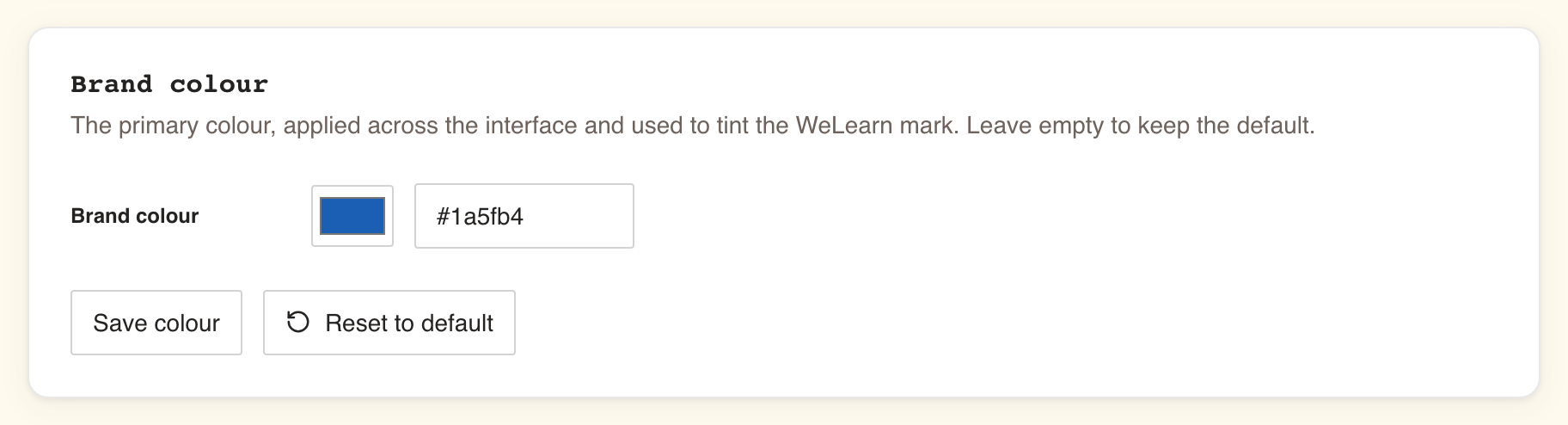
- Open Settings › Branding.
- In the Brand colour card, pick a colour with the swatch, or type it in the text field as a
six-digit hex value such as
#1A5FB4. - Press Save colour. WeLearn confirms with Branding updated.
The colour replaces WeLearn's red everywhere it appears, for everyone in your space, from their next page load:
- the sign-in page,
- the app header and the WeLearn logo,
- buttons, links, active tabs and highlights,
- the icon in the browser tab,
- the preview card a chat app draws when someone pastes a link to your WeLearn space.
To go back to the WeLearn red, press Reset to default. That button appears only once a colour is saved. Clearing the text field and pressing Save colour does the same.
| You see | It means |
|---|---|
| Enter a colour as a hex value like #RRGGBB. | The value is not # followed by six hex digits. Three-digit forms such as #FFF are not accepted. |
| Could not load the current branding. Please try again. | The current colour did not load. The controls stay disabled, so nothing is overwritten. Press Retry. |
| Could not update branding. Please try again. | The save failed. Try again. |
Organisation name: what members and invitees see
In Settings › Language, the Organization name card holds the name of your organisation as people see it. Type it, up to 100 characters, and press Save name. WeLearn confirms with Organization name updated.
The name appears:
- on your sign-in page, as "name learning platform" and "Use your name account.",
- in invitation emails ("You have been invited to join the name space on WeLearn"),
- on the preview card when someone pastes a link to your space in a chat app,
- in Settings › Security, where members are told to contact your organisation's IT administrator to revoke access.
To remove the name, clear the field and press Save name. Invitation emails and link previews then use your space address instead, and the sign-in page shows neutral wording ("Learning platform", "Use your organization account.").
Default language and time zone: for every member who has not chosen their own
Each member chooses a language and a time zone in their own Language settings. The first option in each list is Use organization default, and every member starts on it. Your two default settings decide what those members get. Members who picked their own keep it.
Default organization language
Choose English or Français under Default organization language. It saves at once, with Organization default language updated.
It sets:
- the interface language for every member on Use organization default, not only new members,
- the language of invitation emails, since invitees have no setting of their own yet,
- the language of the preview card when a link to your space is pasted in a chat app.
It does not translate trainings. Content stays in the language its author wrote it in.
Default organization time zone
Choose a zone under Default organization time zone. The list holds every zone your browser knows. It saves at once, with Organization default time zone updated. A new space starts on UTC.
For every member on Use organization default, this zone decides:
- the time zone every date in WeLearn is shown in,
- where a deadline falls: a due date ends at the end of that day in the member's zone,
- when reminders arrive: deadline and certification-expiry reminders are sent on the member's local morning, not the server's.
Each member sees the zone that applies to them under their own Time zone card, as Dates are shown in followed by the zone.
Integrations: Slack
Settings › Integrations holds one card, Slack. Press Connect Slack and approve WeLearn in your Slack workspace, choose a default channel, and invite the WeLearn bot into that channel. The channel then receives an announcement whenever a training or an update to it is published, and the Five Clues puzzle post, while members get their own notifications as Slack direct messages, matched to their WeLearn email address. Enabled off stops every message without losing the setup, and what is raised meanwhile is never sent to Slack later; Disconnect removes it. The full setup, and what to do when nothing arrives, is in Connecting Slack.
Analytics › Platform: your organisation's figures
Open Analytics and choose the Platform tab. Only Administrators see it.
Choosing the period
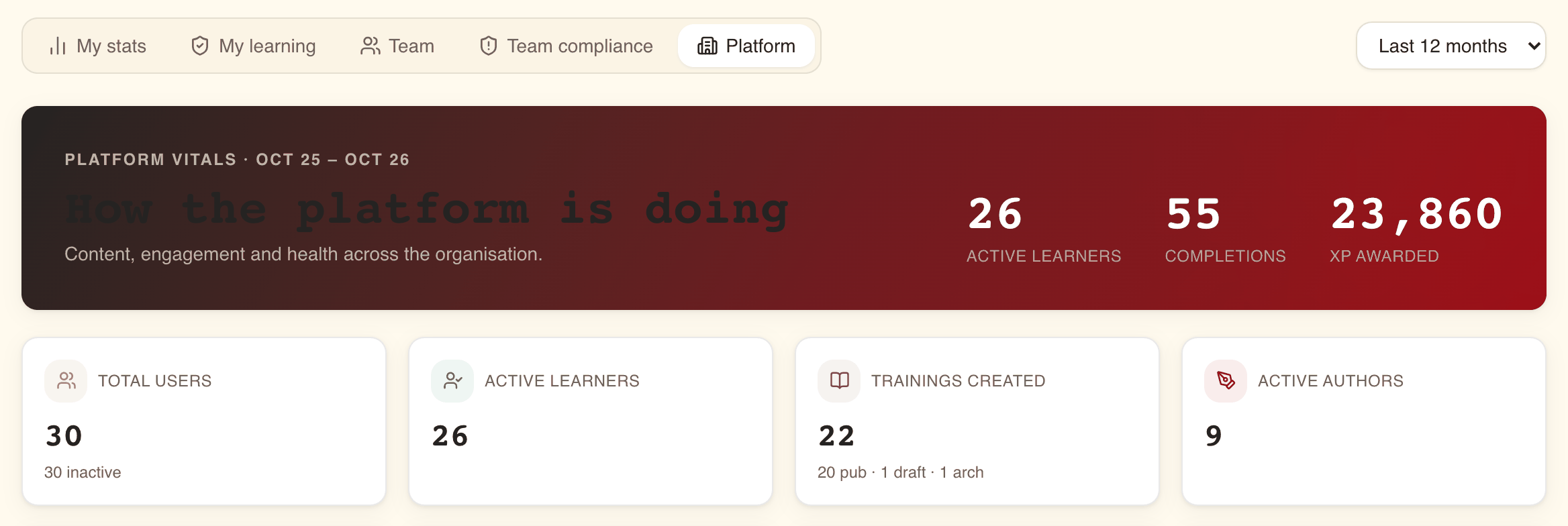
The drop-down at the top right picks the period: Last 12 months (the default), Last 6 months or Last 3 months. It applies to every tab of Analytics. The banner shows the period as Platform vitals · followed by the first and last month.
Most figures count what happened inside the period. Two do not: Total users and its inactive count always describe today.
The banner and the tiles
The banner repeats three headline numbers: Active learners, Completions and XP awarded. The tiles below it:
| Tile | What it counts |
|---|---|
| Total users | Members of your organisation today. The line below, n inactive, counts the members who neither started nor finished an enrolment in the last 30 days, whatever period you chose. |
| Active learners | Members who earned any XP during the period. |
| Trainings created | Trainings created during the period. The line below splits them by where they stand now: published, draft and archived (pub · draft · arch). |
| Active authors | People who are an author of at least one training created during the period. |
| Enrollments | Enrolments made during the period. The line below, n mandatory, counts those assigned as mandatory. |
| Quests | Quests created during the period. |
| Seasons | Seasons created during the period. |
| Completions | Enrolments finished during the period, passed or failed. |
| XP awarded (banner only) | All the XP members earned during the period. |
The three gauges under Vital rates
| Gauge | How it is worked out |
|---|---|
| Completion rate | Enrolments finished during the period, divided by enrolments made during the period. The two counts need not be the same enrolments, so a period in which many older enrolments finish can show more than 100%. |
| Pass rate | Of the enrolments finished during the period with a pass or a fail, the share that passed. |
| Mandatory compliance | Of the enrolments made during the period and assigned as mandatory, the share that are finished, not failed, and still valid at the end of the period. A certification that has expired by then does not count. |
Mandatory compliance is a period figure, not today's standing. For who is certified now and who needs chasing, use Analytics › Team compliance; see Running compliance for your team.
The charts
- Activity over time: one group of bars per month of the period, for Trainings created, Enrollments and Completions. Months are calendar months in UTC.
- Content by difficulty: the trainings created during the period, by difficulty. The slices carry the difficulty in capitals: EVERYONE, EASY, MEDIUM, HARD.
- Learning elements: the elements inside the trainings created during the period, by type. The slices carry the type in capitals, for example COURSE, QUIZ or PEER_REVIEW. When there are many types, the smallest are grouped in one slice, Other followed by how many types it holds.
What you cannot change here
- How people join and how they sign in. The sign-in method was chosen when your space was set up. A new space admits by invitation; admitting by email domain is arranged with Lunatech. Neither has a setting in Settings. See Requesting and setting up a space.
- Your space address. It is fixed when the space is created.
- A logo. Only the colour is yours to set.
- How long data is kept. WeLearn removes and anonymises old data on its own, every night, on fixed rules. What that means when a member leaves is in Managing members.
- Email notifications. WeLearn does not send notifications by email; members use In-app and Slack. Only invitations, setup links and space-request messages are emailed.
- Each member's own choices. Their language, time zone, notifications, gamification and display settings are theirs. Your defaults reach only members who left language and time zone on Use organization default.
Where to go next
- Managing members: invitations, roles, removals and erasure requests.
- Connecting Slack: the full Slack setup.
- Administrator quickstart: the first day, in order.