
Some trainings are obligations rather than options: your organisation needs you to pass them, by a date, and often again every year or so. This page covers everything you meet as the learner: how such a training reaches you, what your status means, when WeLearn reminds you, how renewal works, and where your certificates are.
The other side of the same feature is described in Authoring a mandatory training.
You recognise a mandatory training by its badge
A mandatory training carries a red Mandatory badge on its card in the catalog and on its page, and ★ Mandatory on your dashboard. In the catalog, Filters › ★ Mandatory shows only these.
Two kinds of training carry the badge, and they behave differently:
| Kind | Where it comes from | What you get |
|---|---|---|
| A compliance training | The training itself is marked mandatory | A status, a deadline, reminders, a certificate, and often an expiry date. Everything on this page applies |
| An ordinary training assigned as mandatory | A manager ticked Mandatory training when enrolling you on an ordinary training | The badge, plus a deadline with its reminders if the manager picked a due date; finishing before it earns 25 bonus XP and counts toward the Deadline Crusher badge. No status, no certification, no certificate |
You can tell them apart on the training's page: only a compliance training shows a Certification panel with a status once you are enrolled.
A mandatory training reaches you in one of three ways
- A manager enrols you. You get a notification, "You've been enrolled in" followed by the training's title, and the training appears on your dashboard under My Trainings › To Do.
- A manager makes it required for a group you belong to. You are enrolled automatically, and so is anyone who joins the group later, the moment they join.
- You start it yourself. Selecting Start Training on a compliance training makes it an obligation for you, exactly as if it had been assigned, deadline included. Starting it does not make it optional.
If you leave the group that required a training, it stops being an obligation for you. Your passes, your certificates and your history stay, and nobody chases you about it any more.
Your status, at a glance
Every compliance training you are enrolled on has one status. It shows as a coloured pill on the training's page, on your dashboard when something is wrong, and on the My learning tab of Analytics.
| Status | What it means | What to do |
|---|---|---|
| Never certified | You have not passed yet, and your deadline has not gone by | Take the training before your deadline |
| Certified | You passed, and your certification is not close to its end | Nothing, until you are reminded |
| Expiring soon | Your certification ends soon. The window is set per training under Warn before expiry, 30 days unless the training says otherwise | Renew now. You lose nothing by renewing early (section 8) |
| Expired | Your certification has ended and you have not renewed it | Renew it: you are not covered |
| Overdue | You have not passed, and your deadline has gone by | Take it now: you are not covered |
Expired and Overdue also appear in a red Action required band at the top of your Dashboard, with "Was due" or "Expired" and the date. Select a row to open the training.

How your deadline is set
Your deadline is shown as Deadline on the training's page and as Due by in the Certification panel, until you pass.
| Situation | Your deadline |
|---|---|
| A manager enrolled you and picked a due date | The end of that day, in your time zone |
| A manager enrolled you without a due date, a group did, or you started it yourself | The day you were enrolled plus the training's Time to complete, at the end of that day in your time zone. Time to complete is 30 days unless the training says otherwise |
| You had already started the training before it was assigned to you | You keep the deadline you had. If you had none, you get one as in the row above, counted from the assignment |
| You start a renewal while still certified | The moment your current certification ends |
| You start again after your certification has lapsed | The day you start again plus Time to complete |
Your time zone is set in Settings › Language, under Show dates in. WeLearn measures your deadlines against it.
When WeLearn reminds you
Scheduled reminders arrive in the morning, your time. A manager's nudge arrives when they send it.
| When | You receive | Can you turn it off |
|---|---|---|
| 7 days and 1 day before your deadline, while you have not passed: not finished yet, or failed with a retry left | "…is due on" and the date | Yes: Deadline reminders in Settings › Notifications |
| When the Warn before expiry window opens (30 days before expiry unless the training says otherwise) | "Your certification for … expires on" and the date | No |
| 7 days before expiry, when the warning window is longer than 7 days | The same message | No |
| The first morning after your certification has ended | "Your certification for … expired on" and the date | No |
| Whenever a manager chases you | "A mandatory training needs your attention", or the number of trainings. It opens Analytics › My learning | No |
The reminders you cannot turn off belong to Required notices in Settings › Notifications, marked Always on (in-app): they always reach your WeLearn inbox, and you choose whether they also reach you on Slack. See Notifications.
The Certification panel on the training's page
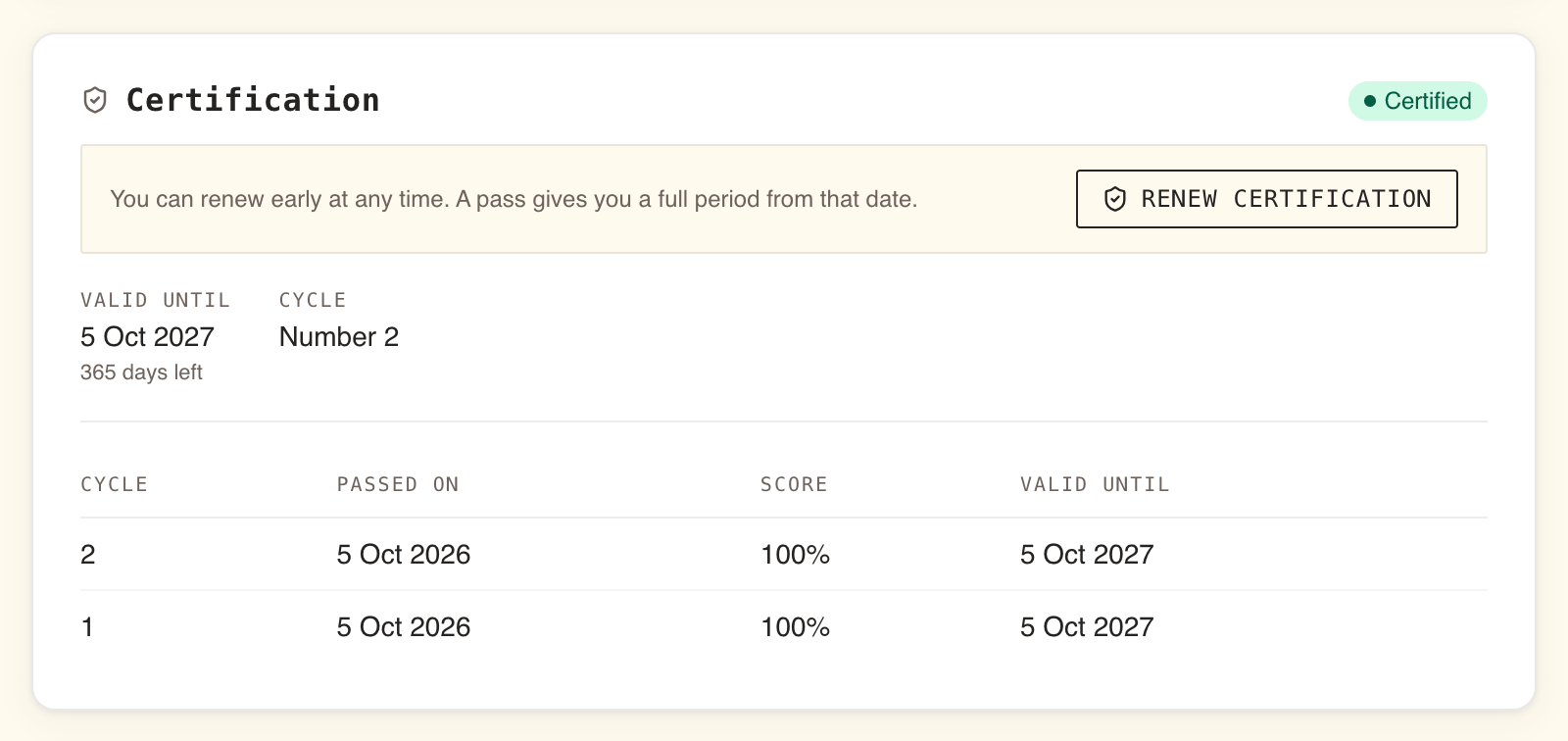
Once you are enrolled on a compliance training, its page shows a Certification panel under the description.
| Item | What it shows |
|---|---|
| The status pill | Your status from section 3 |
| Valid until | The date your certification ends, with the days left or "Lapsed N days ago". No expiry on a training whose certification never ends |
| Cycle | Which round you are on, for example Number 2. It moves up only when you start again after a pass |
| Due by | Your deadline, while you have not passed the current round |
| The history table | One row per pass: Cycle, Passed on, Score, Valid until |
| Renew certification or Take it again | Shown once you have passed, while the training still has a published version (section 8) |
Only passes are recorded. A failed attempt never appears in the history.
Passing and getting your certificate
You pass when you finish the training and, if it has a passing score, the plain average of your scores on all its exercises reaches it. The result screen then shows Training Complete! and, on a training that expires, "You are certified on this training until" followed by the date.
The pass is added to the history in the Certification panel, and your certificate is ready to download from Analytics › My learning (section 10).
If you do not pass, see Taking a training for retries.
Renewing, early or after it lapses
The button depends on the training:
| The training | The button reads |
|---|---|
| Has a validity period | Renew certification |
| Never expires | Take it again |
You find it in the Certification panel on the training's page, in a strip above the content when you open a training you have passed, and on the result screen. On Analytics › My learning, Renew opens the player, where the strip is waiting. Wherever you start it, you confirm first, and the question says what the new round does to your certification on that training: with a validity period, that it stays valid until it runs out, or once it has lapsed that a pass certifies you again; on one that never expires, that you stay certified while you do. It promises that only while your certification covers you.
What a renewal does:
- It restarts every section, reading sections included, not only the quizzes.
- It uses the latest published version of the training, whichever version you passed before.
- A pass gives you a full period from the day you pass. Your new expiry is the pass date plus the validity period. Nothing is added to the time you had left, and nothing is taken away: with the same validity period, the new certification always ends later than the one it replaces.
- Renewing early costs you nothing. If you start an early renewal and do not finish it, you stay Certified until your original date.
When renewal is not offered:
- You failed the current round. Use Retry Training instead, while you have attempts left.
- The training has been archived. There is no version left to take, so your certification stays valid until its date and cannot be renewed.
When the training gets a new version
Authors update trainings. A new version does not touch your certification: you stay Certified until your date, on the version you passed. If you had completed the version it replaces, you are told that the training "has been updated with new content".
When you renew, you take the version that is current at that moment. Each pass records the version you took, and your certificate prints it as Version assessed. You may renew early to go through the new material, at no cost (section 8).
Your certificates are on Analytics › My learning
Select Analytics in the sidebar, then the My learning tab. The top of the tab lists every compliance training you are enrolled on that is still published, healthy ones included, worst first. If you have none, it says "You have no mandatory trainings assigned."
| Item | What it does |
|---|---|
| The verdict line | "You are covered on all N of your mandatory trainings", or how many need your attention. Expiring soon counts as needing attention |
| Export as CSV | Your certification record as a spreadsheet |
| Download all certificates | One ZIP with a PDF for every pass you have on record, earlier ones included. Shown once you have at least one pass |
| Valid until or Due by | The end of your certification, or your deadline while you have not passed |
| "Certified N times before" | How many passes you have on record |
| Download certificate | The PDF for your latest pass |
| Renew or Start | Opens the training in the player |
Below it, My learning record lists every training you have passed, mandatory or not. See Your learning record and exports.
Only compliance trainings issue certificates. Passing an ordinary training is recorded, not certified.
A certificate that has expired, or that a later pass has replaced, can still be downloaded. It is a true record of the period it covered, and says so on its face: the seal reads VALID, EXPIRED, SUPERSEDED or ON RECORD.
Sharing a certificate with someone outside WeLearn
Each certificate prints a verification code, under VERIFY THIS CERTIFICATE, and the address of the public verify page. Send the PDF to whoever needs it: an auditor, a client, a regulator. They do not need a WeLearn account.
- They can open the address printed on the certificate, which ends in
/verify/?code=followed by the code. - Or they can open
/verifyat the root of the WeLearn site, with no organisation name in the address (https://<WeLearn site>/verify), and type the code. Spaces do not matter.
The page answers with a verdict, Valid certification, Expired certification, Replaced by a later certification or Pass on record, and repeats what the certificate says: Certificate holder, Training, Certification cycle, Passed on, Score, Certified until and Version assessed, issued by your organisation through WeLearn. If the code is wrong, it says "This certificate could not be verified".
Anyone holding the code sees your name, the training, your score and the dates. They see nothing else: not your email, not your other trainings. The code keeps working for as long as the pass is on record. The verify page itself is described in Verifying a WeLearn certificate.
When a manager downloads your certificate, you are told: "… downloaded your certificate for …", at most once a day per person.