
As a Manager you decide who has to take what, and you follow up. This page walks you through the five things most Managers do in their first week. Each step links to the full guide.
Everything here is open to Managers and Administrators. An Employee does not see these screens.
Enrol people on a training
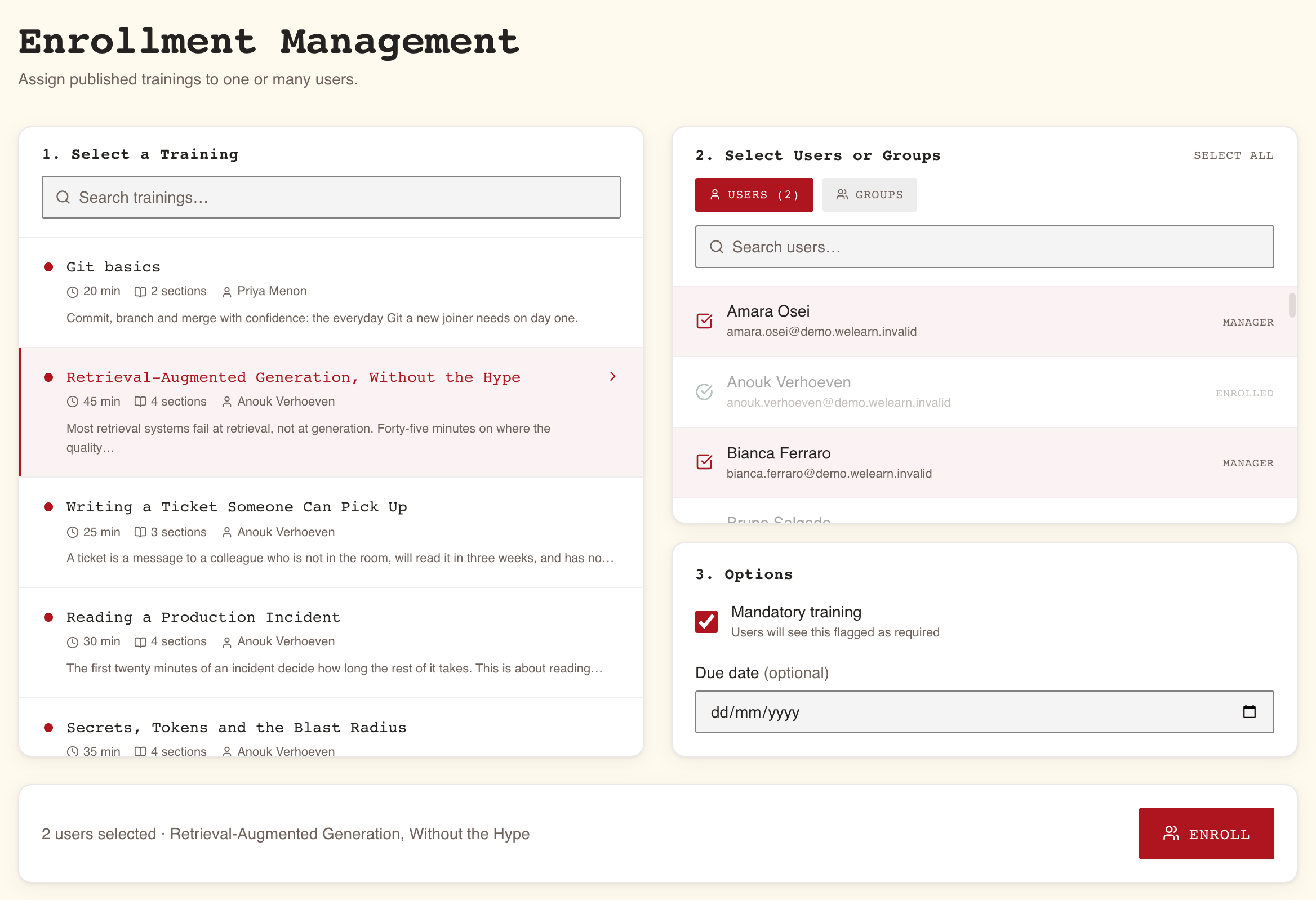
Open Enrollments in the sidebar. The page is titled Enrollment Management and has three panels, worked left to right.
- 1. Select a Training. Pick one published training. Use Search trainings… to narrow the list. Only published trainings appear here, at most the 50 most recently updated.
- 2. Select Users or Groups. On the Users tab, tick people one by one, or use Select all. On the Groups tab, tick whole groups. You can mix both. People who already hold the training are greyed out and marked Enrolled. A ticked group that is partly enrolled says, for example, 3 of 8 already enrolled.
- 3. Options. Tick Mandatory training if the learner should see it flagged as required. Set a Due date if you want one; it is optional.
- Press Enroll at the bottom of the page.
The page answers with 5 users enrolled successfully., and in amber how many were already enrolled or could not be found. Each new learner gets a notification saying they have been enrolled.
Full guide: Enrolling people.
Create a group
Groups live on the Team page (the Users entry in the sidebar).
- Open the Groups tab and press New Group.
- Type a Group name, for example "Berlin office", and press Create.
- The new group opens. Under Add members, use Search members to add…, tick the people, and press Add 4 members (the number follows your selection).
To take someone out, press the cross next to their name in the group's member list.
Full guide: Groups and required trainings.
Give the group a required training
A required training is a standing rule: everyone in the group must hold it, now and as people join.
- On the Groups tab, press Manage group under the group's name.
- Under Required trainings, press Require a training.
- Choose the training in Choose a training… and press Require.
Current members are enrolled within the hour. Anyone added to the group later is enrolled the moment they join. Nobody has to do it by hand.
Read one person's progress in Analytics
- Open Analytics and choose the Team tab.
- Use Search people and click a name. Their Learning report opens.
- Read the flags at the top first. They say On track, or name a problem: 2 mandatory overdue, Inactive recently (no XP and no completion in the last 30 days) or Streak lost.
- Change the period with the selector at the top right (Last 12 months, Last 6 months, Last 3 months).
- To take the report into a one-to-one, open Export PDF, pick a preset (Full report, Essentials, No gamification or Custom) and press Download PDF.
The Team tab lists everyone in the organisation, not only the people you manage.
Full guide: Team analytics and employee reports.
Check Team compliance
- Open Analytics and choose the Team compliance tab.
- Read the verdict line at the top. Everyone is covered. means there is nothing to do. Otherwise it says, for example, 4 people need chasing.
- Below it, one row per person who needs something, worst first. Press View on a row to see what they owe.
- To chase people, tick them and press Nudge. Each gets one notification listing everything they owe.
Full guide: Running compliance for your team.
Where to go next
| You want to | Read |
|---|---|
| Understand every option when enrolling | Enrolling people |
| Manage groups, requirements and archiving | Groups and required trainings |
| Run mandatory trainings, chase people, export evidence | Running compliance for your team |
| Read and export employee reports | Team analytics and employee reports |
| Motivate the team with quests and seasons | Running quests and seasons |
| Set up a training as mandatory | Authoring a mandatory training |