
The editor is where a draft becomes a training. It runs in four steps, shown as numbered tabs at the top: Basic Info, Content, Preview and Publish. This page covers the frame around your content: the steps, the header, saving, the warnings you may meet, the Publish step's settings and the readiness check. The blocks themselves are covered in Content blocks reference and Building evaluations. For a first walk-through, start with the Author quickstart.
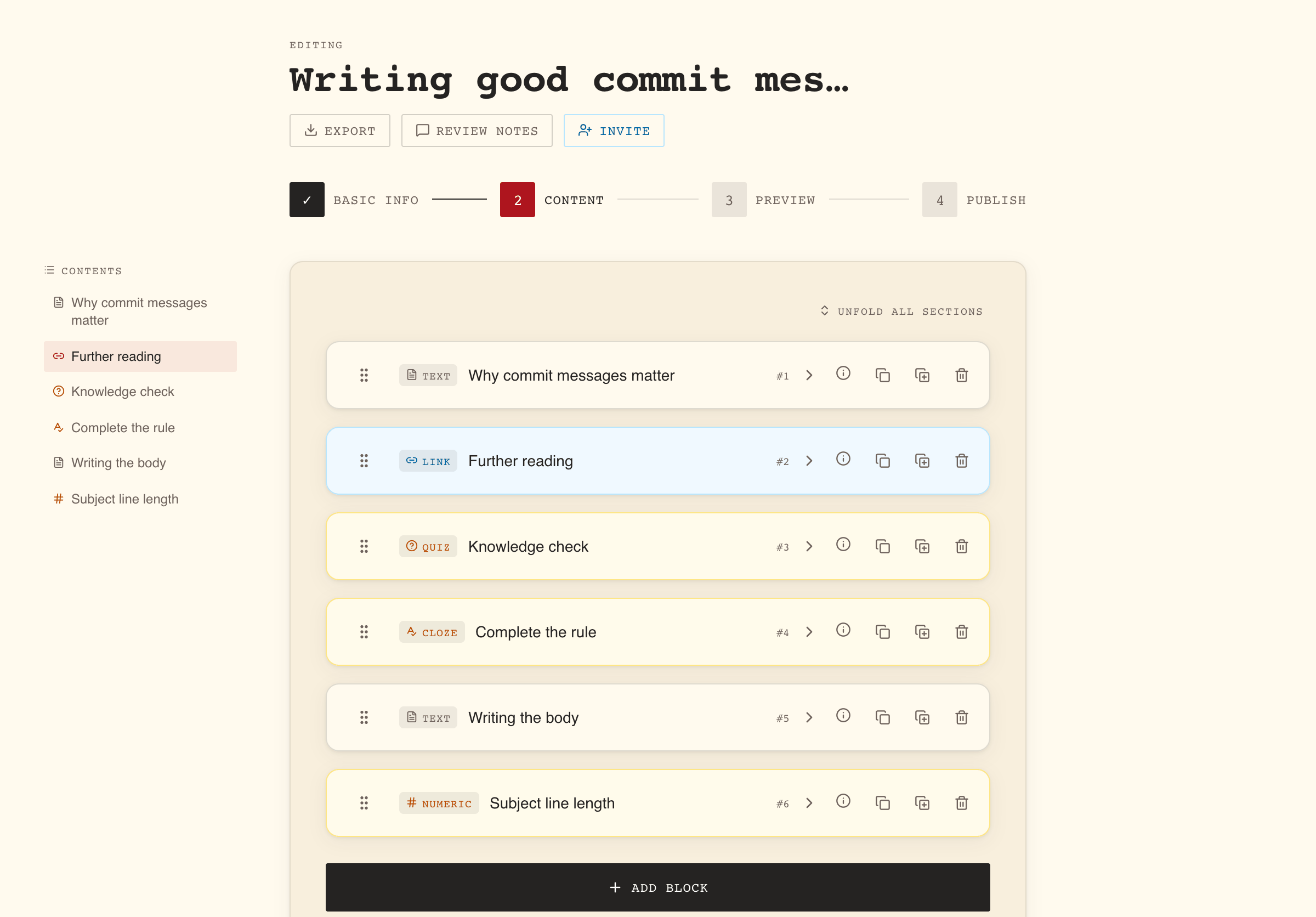
The four steps hold different things
| Step | What it holds | To move on |
|---|---|---|
| Basic Info | Title, Description, Language (English or French) and Topics. | Title and Description filled in. Language and at least one topic are checked at publish. |
| Content | The blocks, in order. Each block is one section for the learner. | At least one block; every block has a title; every link has a title and an address; every quiz question has its options filled in and at least one marked correct. |
| Preview | The training as learners see it, under the banner Preview mode, this is how learners will see your training. You can play every exercise; answers are checked against your own key and nothing is recorded. | Nothing to fill in. |
| Publish | A summary card, the Settings card, the Compliance card for Managers and Administrators, and the Publish readiness panel. | Every line of the readiness check cleared. |
You can move between steps two ways: the buttons at the bottom of the page, or the step tabs at the top. A tab for a later step stays unavailable until the steps before it meet the conditions above. Steps you have passed show a check mark, and going back is always open.
The bottom buttons are named after where they lead: Content, Preview and Review & Publish going forward, Back to Basic Info, Back to Content and Back to Preview going back. On step 1 the back button reads Cancel and leaves the editor. On a narrow screen the forward button reads Next.
On the Content step, a wide screen also shows a Contents list beside the blocks. Select an entry to scroll to that block.
The header shows what you are editing and who is with you
The header reads Editing above the training's title, with these additions when they apply:
| Item | When it appears | What it does |
|---|---|---|
| Revision badge | You are editing a revision of a published training. | Reminds you that learners still see the published version. See Publishing, revisions and archiving. |
| Collaborative editing enabled badge, a coloured dot and avatars | The draft is shared for live editing. | The dot shows the connection (green connected, amber connecting, red lost). The avatars are the people in the draft right now. See Co-authoring and reviewing drafts. |
| Export | Always, for anyone who can edit the draft. | Downloads the saved training as a YAML file. Unsaved edits are not included. See Import and export in YAML. |
| Review notes, or N open notes | Reviewers can leave notes on the draft. | Opens the notes. The button turns red while notes are open. |
| Invite | You are an author of the draft, or a Manager or Administrator. On a mandatory training, only an author or an Administrator sees it. | Shares the draft with a Collaborator or a Reviewer. See Co-authoring and reviewing drafts. |
| Saved or Unsaved | After a save, or while you have changes not yet saved. | Tells you whether the server has your latest edits. |
Your draft saves itself, and two buttons save on demand
Autosave. While you have unsaved changes on steps 1 to 3, WeLearn saves the draft at most once every 10 seconds. On the Publish step it saves about a second and a half after you stop changing a setting, then checks readiness again. The header switches from Unsaved to Saved when the save lands. A draft shared for live editing saves through the shared session instead, as described in Co-authoring and reviewing drafts.
Save and Discard & exit are the two icon buttons beside the forward button at the bottom of steps 1 to 3 (a disk and a cross). Hover over them to see their names.
| Button | What it does |
|---|---|
| Save | Saves at once. Its tooltip reads Saved! afterwards. |
| Discard & exit | On a new draft: asks Discard changes?, then leaves the editor. Changes not yet saved are lost; the draft and everything already saved stay, in My Trainings › Authored. On a revision: asks Discard revision? and deletes the whole revision, saved changes included. The published version stays live. |
The Publish step has no Save button. Its footer offers Save as Draft, which saves and leaves the editor, and Publish Training.
Warnings tell you when something outside your control changed
| Warning | What happened | What to do |
|---|---|---|
| This editor needs a wider screen | The window is narrower than a small tablet. | Select Back to the training, or Continue anyway at your own risk: some fields, such as link and video addresses, cannot be reached at that width. |
| This training was modified by another user | Someone saved a newer version of this draft while you had it open. Autosave stops. | Refresh the page, then re-apply the changes you made since your last save. |
| Someone joined this draft | A collaborator accepted an invitation link while you had unsaved changes, so the draft became collaborative. | Save and join keeps your changes; Discard and join drops them. |
| Live editing has stopped on this draft | The draft was published, replaced or removed, or live editing was turned off. Anything typed since the last save is not kept. | Reload the page. If the training was published, reloading opens a new revision. |
| Your access to this draft was removed | The draft is no longer shared with you, or your account was offboarded. | Nothing to do here: reconnecting will not restore access. Ask an author. |
| Reconnecting…, then Still trying to reconnect… | The live connection dropped. After a while your changes may no longer reach the others. | Wait, or select Reload to reconnect. |
The last four apply to collaborative drafts only. They are explained in Co-authoring and reviewing drafts.
The Publish step sets how the training plays
The step opens with a summary card: the title and description, the topic, difficulty and language badges, the duration, the number of sections, and the passing score when the training contains an evaluation. Check it before you publish. Then comes the Settings card.
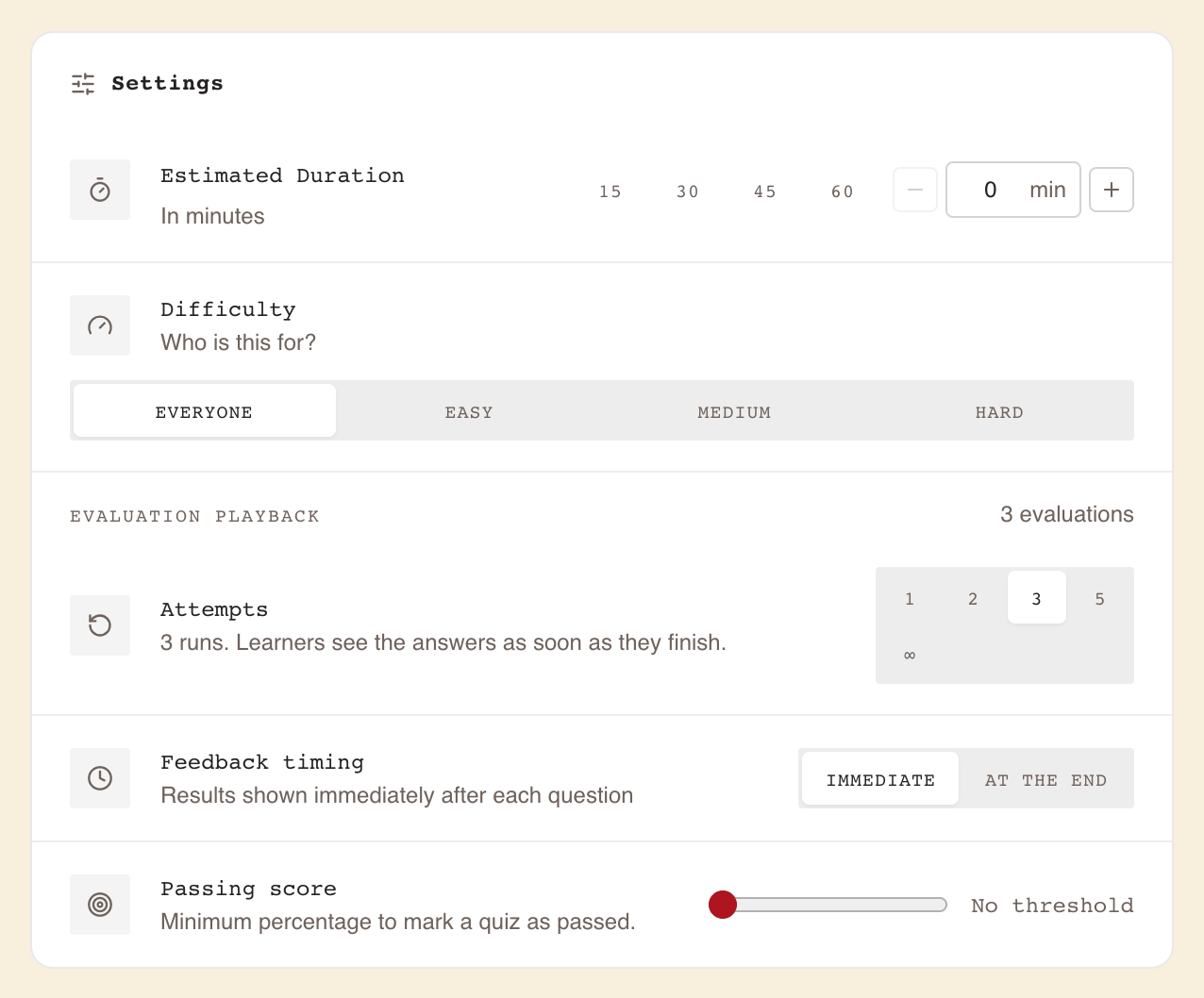
Settings apply to the whole training
| Setting | Choices | Default |
|---|---|---|
| Estimated Duration | Minutes, from 0 to 480 in steps of 5. On a wide screen, quick picks: 15, 30, 45, 60. | 0 |
| Difficulty | everyone, easy, medium, hard | everyone |
The difficulty is what the Level filter in the Catalog filters on.
Evaluation Playback applies to every evaluation at once
The Evaluation Playback band appears as soon as the training contains at least one exercise from the Questions group, with a count such as 3 evaluations. Its three settings govern every evaluation in the training together; there is no per-quiz setting.
| Setting | Choices | Default |
|---|---|---|
| Attempts | 1, 2, 3, 5 or ∞ (unlimited) | 1 |
| Feedback timing | Immediate or At the end | Immediate |
| Passing score | 0 to 100 % in steps of 5; 0 reads No threshold | No threshold |
Attempts is how many runs each learner gets. A learner with an attempt left can start again with Retry Training, which resets every evaluation in the training. A learner who has used every attempt has to ask the organisation's Administrators. The hint under the setting changes with your choices and says when learners see the correct answers:
| Attempts | Passing score | Hint shown |
|---|---|---|
| 1 | any | One run. Learners see the answers as soon as they finish. |
| 2, 3 or 5 | No threshold | N runs. Learners see the answers as soon as they finish. |
| 2, 3 or 5 | a percentage | N runs. Learners see the answers once they pass or run out. |
| ∞ | No threshold | Unlimited runs. Learners see the answers as soon as they finish. |
| ∞ | a percentage | Unlimited runs. Learners who fail never see the answers. |
Feedback timing. Immediate shows results right after each question. At the end records each answer with Answer recorded and shows the results only once the learner finishes the training. It has no effect on a peer review, which a person grades anyway.
Passing score is the minimum score for a learner to pass. With No threshold, finishing the training is passing.
When a quiz uses a question bank, the band adds a note that attempts and the passing score apply to the questions drawn, not to the whole bank. When the training holds a peer review, the band also shows the Reviewers setting, covered in Setting up peer review.
The Compliance card is for mandatory trainings
Managers and Administrators also see a Compliance card, where a training is made mandatory and given a certification period. It is covered in Authoring a mandatory training.
The readiness check lists everything that blocks publishing
The Publish readiness panel asks WeLearn whether the saved draft can be published. It runs when you open the Publish step, and again after each change you make on that step (in a draft edited live with others, only when you select Refresh). Refresh runs it on demand, for example after a co-author's edit.
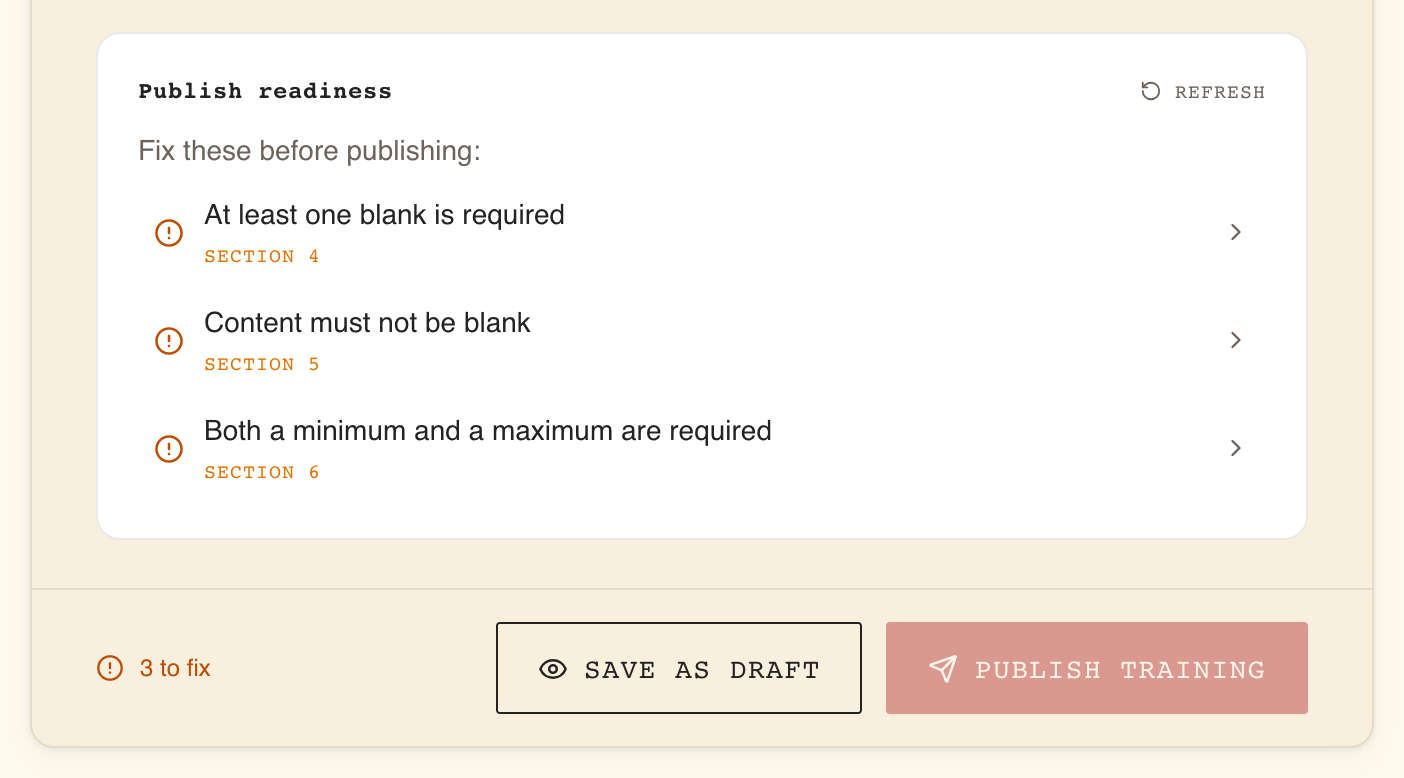
The panel and the footer show the verdict
| Panel | Footer | Meaning |
|---|---|---|
| Checking publish readiness… | Checking… | The check is running. |
| Fix these before publishing: followed by a list | N to fix | Publish Training stays disabled until the list is empty. |
| All set. This training is ready to publish. | Ready | You can publish. |
| All set. This training is ready to publish. | No changes to publish | This revision is identical to the published version. Change something first, or discard the revision. |
| Readiness not checked yet. | nothing | No result yet. Select Refresh. |
If the check itself fails, the page shows Could not check publish readiness. Please try again.
Each line jumps to the problem
Each line names the problem and, below it, where it is: Section 3, or Section 3 › Question 2 › Proposition 1 inside a quiz. Select the line to go there:
- a problem inside a block opens the Content step and scrolls to that block;
- At least one content element is required opens the Content step;
- a problem with the title, description, language or topics opens Basic Info.
After a check, the blocks that have problems also carry an amber outline on the Content step, until the next check.
Every checklist message, and how to fix it
Several messages share a wording, such as Title must not be blank. The location under the line tells you which title. "Thematic" on this list means topic.
| Message | Where | How to fix it |
|---|---|---|
| Title must not be blank | Basic Info, or a block (Section N) | Give the training, or that block, a title. |
| Description must not be blank | Basic Info | Write a description. |
| Declare the language the training is written in | Basic Info | Pick English or French under Language. |
| At least one thematic is required | Basic Info | Tick at least one topic under Topics. See Topics. |
| At least one content element is required | Content | Add a block. |
| Content must not be blank | Text block | Write some text, or insert an image or a video. |
| A resource link is required | Link block | Add a link with Add link. |
| Link title must not be blank | Link block | Give each link a title. |
| Link URL must not be blank | Link block | Fill in each link's address. |
| At least one question is required | Quiz | Select Add question. |
| Question text must not be blank | Quiz, Question N | Write the question. |
| At least two propositions are required | Quiz, Question N | Select Add proposition. |
| At least one proposition must be correct | Quiz, Question N | Tick the correct proposition or propositions. |
| Proposition text must not be blank | Quiz, Proposition N | Fill in the option, or remove it. |
| A question must be worth at least one point | Quiz, Question N | Set Points to 1 or more. |
| An attempt must draw at least one question | Quiz | Set the question bank's draw to 1 or more. |
| The question bank holds fewer questions than an attempt draws | Quiz | Write more questions, or draw fewer. |
| Prompt must not be blank | Ordering, Matching, Categorization, Numeric | Fill in Prompt. |
| At least two items are required | Ordering | Add items until there are at least three: publishing needs three. |
| Item text must not be blank | Ordering or Categorization | Fill in every item, or remove the empty one. |
| At least two pairs are required | Matching | Select Add pair. |
| Both sides of a pair must have text | Matching | Fill in both Left and Right of every pair. |
| At least one bucket is required | Categorization | Select Add bucket. |
| At least one item is required | Categorization | Select Add item. |
| Bucket name must not be blank | Categorization | Name every bucket. |
| Every item must be assigned to a bucket | Categorization | Pick a bucket for each item still on Unbucketed. |
| An item points to a bucket that no longer exists | Categorization | Pick the item's bucket again. |
| Both a minimum and a maximum are required | Numeric | Fill in Exact value, or both Minimum and Maximum. |
| At least one blank is required | Cloze | Place the cursor in the text and select Insert blank. |
| Each blank must have exactly one correct choice | Cloze | Give each blank its choices and mark one with Mark correct. |
| Every blank placeholder must match a defined blank | Cloze | A blank in the text has no card below it, or a card has no blank in the text. Delete the stray blank and insert it again. |
| Every blank placeholder must carry a valid blank id | Cloze | A blank in the text was altered by hand. Delete it and insert the blank again. |
| The brief must not be blank | Peer review | Fill in Brief. |
The Cloze lines are easier to understand with the editor's own warnings, described in Building evaluations.
Publishing and leaving
Publish Training saves the draft, publishes it and opens the published training; a new draft that uses live editing lands on the Catalog instead. A revision becomes the next version. If reviewers' notes are still open, WeLearn asks first, under Before you publish: Review them first, or Publish with N open notes. Publishing turns the notes into read-only history.
Save as Draft saves and leaves: to My Trainings › Authored for a new draft, to the published training's page for a revision. What happens after publishing, including revisions and archiving, is in Publishing, revisions and archiving.
Related pages
- Content blocks reference: adding, moving, copying and deleting blocks.
- Building evaluations: each exercise type, scoring and answer reveals.
- Co-authoring and reviewing drafts: invitations and live editing.
- Glossary: the words used on these screens.