
This is the manager's half of a mandatory training. Its authors write and publish the training as described in Authoring a mandatory training. A compliance owner, a Manager who does not author it or an Administrator, then marks it Mandatory training, decides whether a pass expires, and chooses who receives the weekly digest; authors cannot declare their own training mandatory unless they are Administrators, and an Employee author never sees the Compliance card. Everything after that is yours: who has to take it, by when, who is behind, and what you hand over as evidence.
What your learners see is in Mandatory trainings and certification.
You decide who owes the training. Mandatory alone decides nothing
A mandatory training is a label on the training. It puts the training in the compliance reports, shows learners the mandatory badge and, when it expires, gives every pass an end date. It does not put anyone on it.
Someone counts in the compliance figures when two things are true:
- The training is marked Mandatory training.
- The person was given it as an obligation. Anyone enrolled on the training after it was marked mandatory qualifies, however they were enrolled, including people who enrolled themselves.
Your job, in order:
| Task | Where | Section |
|---|---|---|
| Put the right people on the training, with a deadline | Enrollments page, or a group's Required trainings | 03 |
| See who is behind | Analytics › Team compliance | 04 |
| Chase them | Nudge on the same tab; WeLearn also sends reminders on its own | 05 |
| Produce evidence | Certificates and CSV exports | 06 |
| Keep the record honest when something changes | Training editor and group pages | 07 |
Who can do what
| Action | Employee | Manager | Administrator |
|---|---|---|---|
| Open Team compliance, nudge, export CSV | No | Yes | Yes |
| Download someone else's certificate, alone or as a ZIP | No | Yes | Yes |
| Enrol people on the Enrollments page | No | Yes | Yes |
| Create a group, add or remove members, archive a group | No | Yes | Yes |
| Require a training of a group, or withdraw the requirement | No | Yes | Yes |
| Mark a training mandatory | No | Yes, but not on a training they author | Yes |
| Change the expiry and digest recipients of a training already mandatory | No | Yes, from an editor they can open, including on a training they author | Yes |
| Switch Mandatory training off again | No | No | Yes |
| Open the editor of a mandatory training they do not author | No | No, unless invited as an author | Yes |
| Require recertification | No | Yes, from a training editor they can open | Yes |
| Download their own certificate | Yes | Yes | Yes |
| Check a certificate on the public verify page | Yes, and so can anyone without an account | Yes | Yes |
Two rows deserve a word. Require recertification and the compliance settings sit in the training's editor. Once a training is mandatory, only its authors and Administrators can open that editor, so a Manager who is not an author needs an Administrator for both. And Team compliance covers the whole organisation: there is no "my reports only" view.
Getting people assigned
Two ways to assign, for two different situations
| One-off enrollment | Group requirement | |
|---|---|---|
| Where | Enrollments page | Team page › Groups › Manage group › Required trainings |
| Who it reaches | The people and groups you tick, as they are today | Everyone in the group now, and everyone who joins later |
| When it happens | Immediately, when you press Enroll | Current members within the hour; a newcomer the moment they are added |
| Deadline | The Due date you pick, or else the training's Time to complete | Always the training's Time to complete |
| Use it for | A one-time campaign, a named list, a late joiner | A standing rule such as "everyone in Finance holds GDPR Basics" |
One-off enrollment. On the Enrollments page pick the training in 1. Select a Training, the people or groups in 2. Select Users or Groups, optionally a Due date in 3. Options, then press Enroll. Once a training is picked, each person in the list shows their current standing on it, such as Certified or Expired, so you can see who is already covered before you enrol anyone. See Enrolling people.
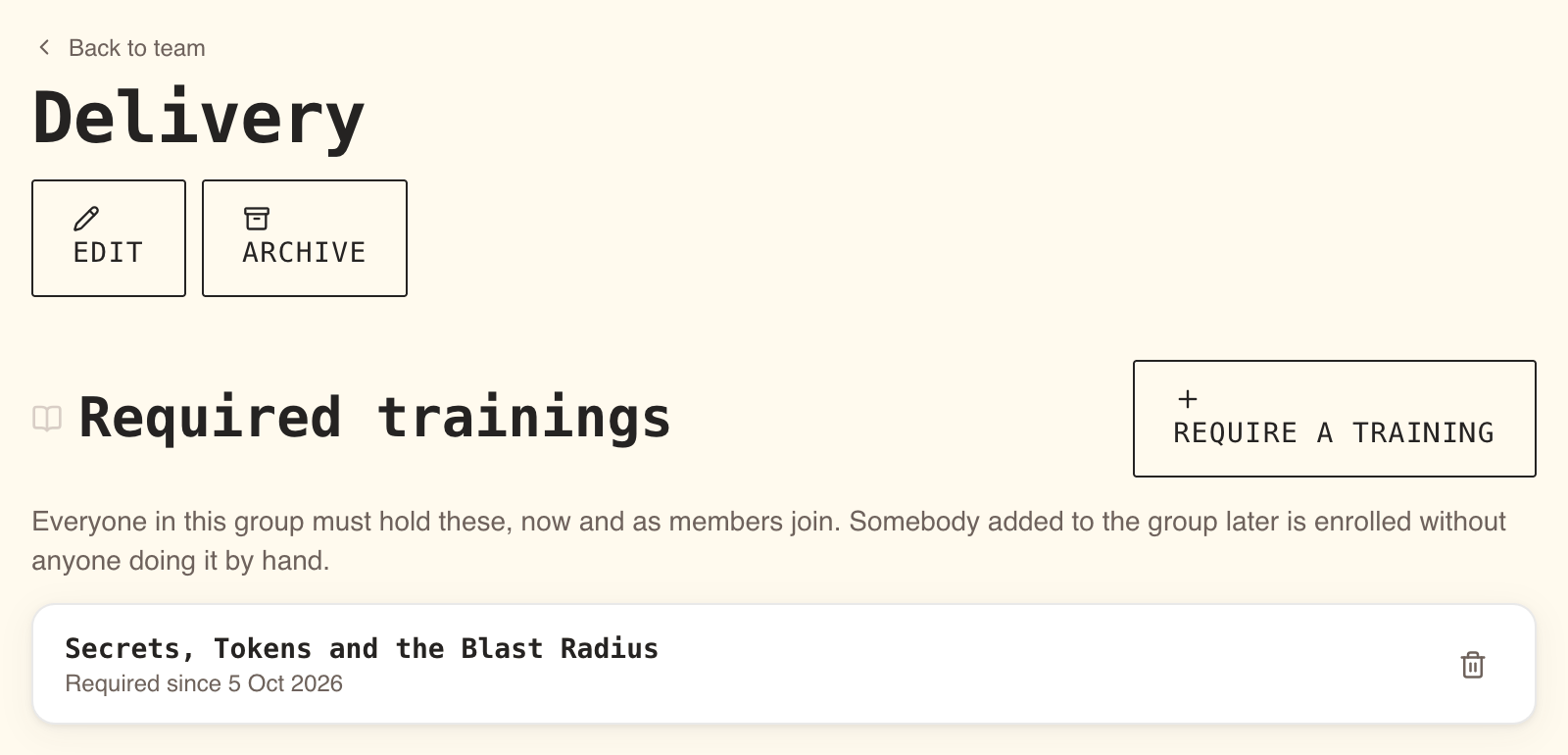
Group requirement. On the group's page, under Required trainings, press Require a training, choose it in Choose a training… and press Require. The list then shows Required since with the date. Only published trainings that the group does not already require are offered. See Groups and required trainings.
How due dates work
- A Due date you pick ends at the close of that day in each learner's own time zone. For more, see Enrolling people.
- If you leave it empty on a mandatory training, each learner gets the training's Time to complete from the day they were assigned. Its default is 30 days.
- Due dates are fixed when the person is assigned. Changing Time to complete later moves no existing deadline.
- Someone with no deadline can never read Overdue. They stay Never certified until they pass.
People who join a group later
They are enrolled as soon as they are added to a group that requires the training, and they get the usual "You've been enrolled" notification. If the addition fails for a technical reason, the hourly check catches them.
Someone who left a group and comes back has their old obligation reopened. If their old deadline ran out while they were away and they never passed, they get a fresh Time to complete from the day they rejoin.
Withdrawing a requirement
Press the bin icon next to the training on the group's page, then Withdraw in Withdraw this requirement?. The page answers Withdrawn. 12 obligations closed.
What that does:
- New members stop being enrolled.
- Current members stop being obligations on that training: they leave Team compliance, the digest and the nudge list.
- Nothing is deleted. Every pass, certificate and history entry stays, and the training stays on their list.
- Anyone also in another group that requires the same training keeps the obligation.
Taking one person out of a group has the same effect for that person. Archiving a group withdraws every requirement it has, the same way; members keep their membership and nobody loses a certificate.
Reading Team compliance
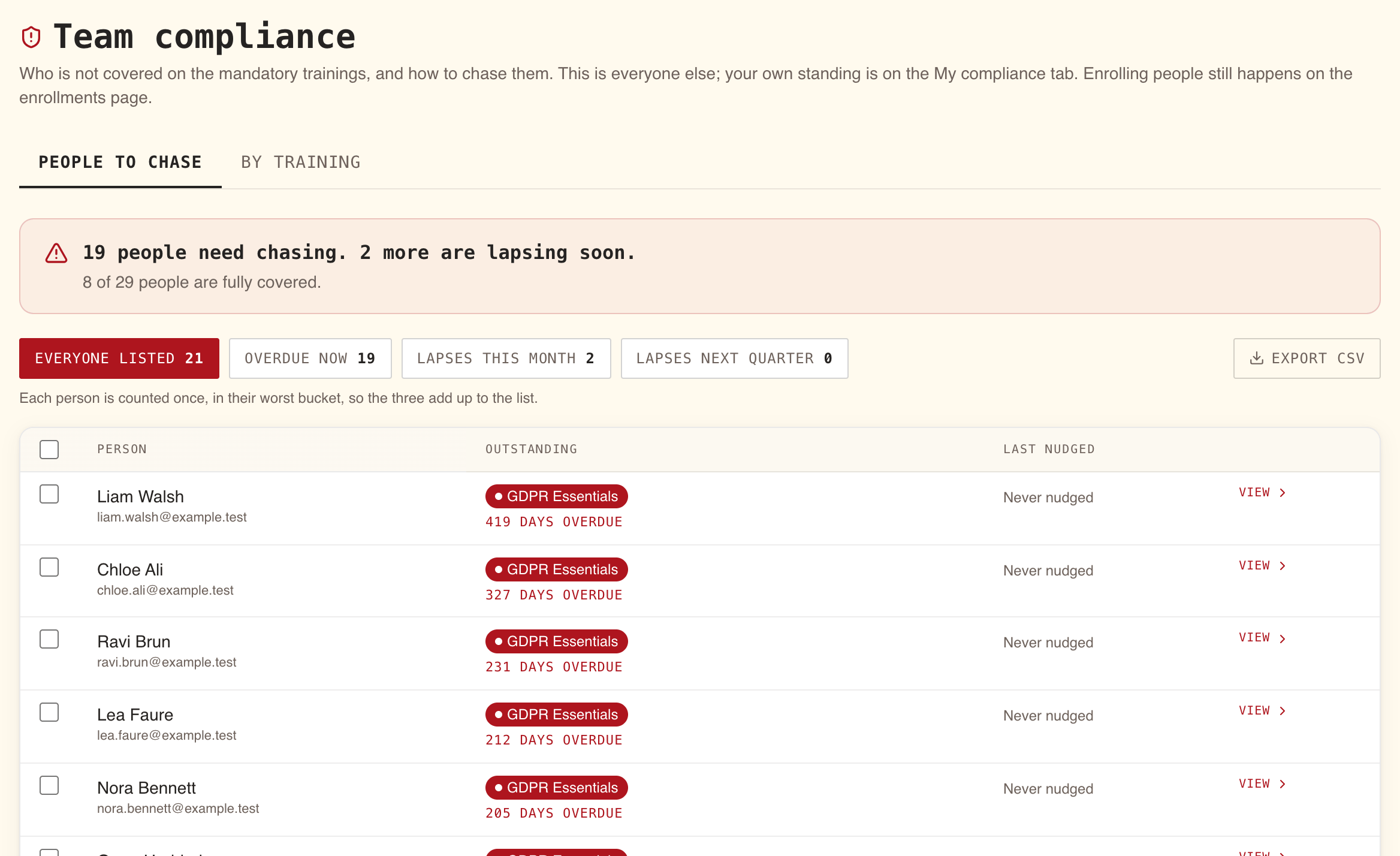
Open Analytics and choose Team compliance. The page has two tabs: People to chase, which you work from, and By training, which you report from.
The verdict line
The first line answers the whole page.
| It says | Meaning |
|---|---|
| Everyone is covered. | Nobody is overdue, expired or close to expiry. You can close the tab. |
| 4 people need chasing. | Four people have at least one training Overdue or Expired. |
| Nobody is overdue. | No one is behind yet, but someone is close to expiry. |
| 2 more are lapsing soon. | Two more people are still covered but inside their training's warning period. |
| 31 of 37 people are fully covered. | Everyone who holds an obligation, and how many of them have nothing listed against them. |
"Fully covered" means "not on the list". It includes people who have not finished yet but whose deadline has not passed.
The list and the buckets
Below the verdict, one row per person who needs something, worst first: overdue, then expired, then expiring soon, and within each, whoever has waited longest. People whose deadline has not passed yet are not listed.
| Column | Shows |
|---|---|
| Person | Name and email |
| Outstanding | Up to three trainings, coloured by status, then +2 more; under them, how bad it is: 12 days overdue, Lapsed 3 days ago, Lapses in 9 days |
| Last nudged | Never nudged, Nudged today, Nudged 2 days ago or a date |
| View | Opens the row: each training with its Valid until and Due by dates, and a Full certification record link to the person's page |
Each row also starts with a checkbox, and the one in the header selects everyone in the current filter; the selection is what you nudge (section 05). Export CSV, next to the chips, downloads the list as filtered (section 06).
The chips above the list filter it. Each person is in exactly one, their worst, so the three add up to the list.
| Chip | Who is in it |
|---|---|
| Everyone listed | The whole list |
| Overdue now | Anyone with a training Overdue or Expired |
| Lapses this month | Still covered, and the soonest date falls within 30 days |
| Lapses next quarter | Still covered, inside the warning period, and the soonest date is more than 30 days away |
Lapses next quarter fills only for trainings whose Warn before expiry is longer than 30 days. With the default of 30 days it stays empty, and nobody appears on the list until their certification is 30 days from its end.
The By training tab
One row per mandatory training. The 30, 60 and 90 day columns are cumulative: a certification lapsing in 20 days is counted in all three, and each is a subset of Certified. The page says so above the table.
| Column | Counts, among people who hold the training as an obligation |
|---|---|
| Enrolled | Everyone |
| Certified | Certified or Expiring soon |
| In 30 days, In 60 days, In 90 days | Certified people whose certification ends within that many days |
| Expired | Expired |
| Overdue | Overdue |
| Never certified | Never certified |
Press View on a row to open the learners on that training: Learner, Status, Assigned, Valid until, Due by, Cycle, Last passed and Certificate. This list includes people who enrolled on their own and were never assigned it; they read No under Assigned, and the Enrolled count above leaves them out.
The statuses
| Label on screen | Meaning | On the People list? |
|---|---|---|
| Never certified | Assigned, not passed yet, deadline not passed or none set | No |
| Certified | Passed, and still valid | No |
| Expiring soon | Passed, still valid, inside the training's Warn before expiry period | Yes |
| Expired | The certification ended and has not been renewed | Yes |
| Overdue | Never passed, and the deadline has gone by | Yes |
A failed attempt is not a status. Someone who failed stays Never certified, or Overdue once the deadline passes, until they pass.
Chasing people
Nudge
- On People to chase, tick the people, or tick the box in the header to Select everyone in this filter. Picking another chip clears the selection.
- A bar appears: 3 people selected and One notification each, listing everything they owe.
- Press Nudge. The page answers 3 people nudged. and Last nudged updates.
What the learner receives: one notification, A mandatory training needs your attention or 3 mandatory trainings need your attention. It opens their My learning tab in Analytics, where every obligation is listed with a button to start or renew it. It always reaches their in-app inbox, and their Slack too if your organisation has connected Slack, unless they switched that off. They cannot turn the in-app copy off.
What WeLearn sends on its own
| When | Who | What they read | Can they switch it off? |
|---|---|---|---|
| On enrolment, by you or by a group | The learner | You've been enrolled in "GDPR Basics" | Not in the app |
| 7 days and 1 day before their deadline, at 08:00 their time | The learner | "GDPR Basics" is due on 14 Nov 2026 | Yes, Deadline reminders |
| When the Warn before expiry period opens, at 08:30 their time | The learner | Your certification for "GDPR Basics" expires on 14 Nov 2026 | Not in the app |
| 7 days before expiry, if the warning period is longer than 7 days | The learner | The same | Not in the app |
| The first morning after it lapses | The learner | Your certification for "GDPR Basics" expired on 14 Nov 2026 | Not in the app |
| Every Monday at 08:30, recipient's time | The training's digest recipients | Compliance attention needed on "GDPR Basics": 4 expired, 2 overdue | Not in the app |
Nothing is sent on the day a learner becomes overdue. Chasing an overdue person is what Nudge is for.
The weekly digest
Every Monday morning each digest recipient gets one notification covering every mandatory training they receive it for: it names the training when there is only one and says on 3 trainings otherwise. It carries counts of expired and overdue people and never a name, and it opens Team compliance, where the names are. Nothing is sent for a training with nobody expired or overdue.
Who receives it:
- The people chosen in Escalation recipients on the training.
- If none is chosen, the training's authors, but only those who are Managers or Administrators.
- If none of them qualifies, the organisation's Administrators.
A chosen recipient who is no longer a Manager or Administrator is skipped.
Certificates and evidence
What you can download
| You need | Where | What you get |
|---|---|---|
| One person's current certificate on one training | By training › View › download icon in Certificate | A PDF of their latest pass |
| A specific past certificate | The person's page › Certification record › 3 passes on record › download icon on that row | A PDF of that pass |
| Every certificate one person holds | The person's page › Certification record › Certificates (ZIP) | A ZIP with every pass on every mandatory training they hold |
| Certificates for some or all learners on one training | By training › View › Zip selected (5) or Download all (ZIP) | A ZIP. Choose Latest pass for one per learner, or Every cycle for all their passes |
You reach a person's page from Full certification record on their row in People to chase, or from the Team page by clicking their card. The Certification record section opens with a summary such as Certified on 3 of 4 mandatory trainings. 1 needs attention., then one row per mandatory training with its status, Valid until or Does not expire, the Certification number and how many passes are on record. A row tagged Not an obligation is a training they enrolled on themselves.
If some selected people have no certificate, the ZIP still downloads and a window lists who is missing and why: no pass on record, not enrolled on this training, or a pass is on record, but its certificate could not be produced.
By default an archive holds at most 1,000 certificates, and each Manager can build 20 archives an hour. Above the limit, select fewer people.
CSV exports
| Export | Button | One row per |
|---|---|---|
| The People list, as filtered | Export CSV next to the chips | Person and outstanding training, with status, Valid until, Due by and Last nudged |
| All mandatory trainings | Export CSV on By training | Training, with the same counts as the table |
| One training's learners | Export CSV in the opened training | Learner, with status, Assigned, dates, cycle and last pass |
| One person's record | Export CSV in Certification record | Pass, plus one row for each obligation never passed |
The Status column in the exports holds the internal codes, such as OVERDUE, EXPIRED or
NEVER_CERTIFIED, rather than the labels on screen.
Downloading someone else's certificate is recorded, and they are told
Every certificate you download for someone else is recorded before the file reaches you. The holder gets an in-app notification: Maria Rossi downloaded your certificate for "GDPR Basics". One notice per downloader per person per day, however many files you take. The pages say this before you click: Each person will be told that you downloaded their certificate.
Learners download their own certificates from their My learning tab. That is not recorded and tells nobody.
For auditors: the public verify page
Every certificate carries a verification code and the address of the verify page,
https://<WeLearn site>/verify, at the root of the site with no organisation name. Anyone can open it without an account, enter the code and
press Verify. The page answers Valid certification, Expired certification, Replaced by
a later certification or Pass on record, and repeats what the certificate says: holder,
training, cycle, date passed, score, end date and version assessed. Dates are in UTC, as on the
document. It shows nothing else about the person. See
Verifying a WeLearn certificate.
When things change
| Change | Who does it | Effect on your team |
|---|---|---|
| A new version of the training is published | The authors | Nothing expires. Everyone stays at their current status. Learners who had completed it get a notification that it has new content. Anyone renewing later takes the newest version. |
| The period on the Certification expires row is shortened or lengthened | Manager or Administrator, in the editor | Only passes made after the change. Existing end dates do not move. |
| Warn before expiry is changed | Same | Applies at once: people move in or out of Expiring soon on the next page load. |
| Time to complete is changed | Same | Only people assigned after the change. Existing deadlines do not move. |
| Certification expires is switched off | Same | At once, anyone whose latest attempt is a pass reads Certified for good, including people who had read Expired. |
| Certification expires is switched on later | Same | Everyone who passed while it did not expire gets the end date their pass would have had, counted from that pass: still Certified if that date is ahead, Expired at once if it is past. Before saving, the card asks Date the passes already on record? and says how many it dates and how many have already lapsed. |
| Require recertification | Manager or Administrator, in the editor | Every live certification ends now. Those people read Expired, are told at once and must take the training again. Past passes and certificates stay on record. Cannot be undone. Offered only on a training whose certification expires. |
| Mandatory training switched off | Administrator only | The training leaves Team compliance, the digest and the reminders. No new certificates can be downloaded for it. Certificates already handed out still verify. |
| The training is archived | Its authors, or an Administrator | The training leaves Team compliance, every person's Certification record, the digest and the reminders. Nobody can be enrolled or renew. A group requiring it shows This training has no published version, so nobody can be enrolled on it. Certificates already handed out still verify. |
| A requirement is withdrawn or a group archived | Manager or Administrator | See section 03: obligations close, history stays. |
Checklist and traps
Your first mandatory training, start to finish
- The training is published and marked Mandatory training (ask its authors or an Administrator).
- You know whether it expires, and its Time to complete.
- People are assigned: a group requirement for a standing rule, the Enrollments page for a one-off list.
- Team compliance no longer says No mandatory trainings, and By training shows the Enrolled count you expect.
- Anyone who completed the training before it became mandatory has been checked (see the traps below).
- You know who receives the Monday digest.
- After the deadline, you nudge the Overdue now chip and check again a few days later.
- Before an audit, you export By training and download Download all (ZIP) with Latest pass.
Traps people fall into
| Trap | What happens | What to do |
|---|---|---|
| Marking the training mandatory and waiting | Nobody is enrolled. The report is empty, not green. | Assign it (section 03). |
| Ticking Mandatory training on the Enrollments page for an ordinary training | Learners see it flagged, but nobody appears in Team compliance. | Have the training itself marked mandatory. |
| Requiring an ordinary training of a group | Members are enrolled with no deadline and are not tracked. | Have the training marked mandatory; within the hour the group's members become obligations with a deadline. |
| People enrolled by hand before the training became mandatory | They read No under Assigned and are never chased. The Users tab of the Enrollments page greys them out, so you cannot pick them again there. | Require the training of a group they are in. Within the hour their existing enrollment becomes an obligation with a deadline. |
| Switching Certification expires on for a training people passed long ago | Each pass is dated from when it was made, so everyone whose pass is older than the period reads Expired at once and joins the People list. | Read the counts the card shows before you select Save and date them, and warn the people concerned first. |
| Expecting Fully covered to mean "everyone passed" | It also counts people who have not passed but are not late yet. | Read Never certified on By training for the full picture. |
| Withdrawing a requirement, or removing someone from a group | Obligations close, including ones you assigned by hand. The person is greyed out as enrolled on the Users tab of the Enrollments page, so they cannot be picked there. | Tick a group they are in that is not fully enrolled, on a mandatory training or with Mandatory training ticked, or put them in a group that requires the training. |
| Looking for Require recertification on a training that never expires | The button is not there: a pass never lapses, so there is nothing to end. | Switch Certification expires on: every earlier pass is dated from when it was made, and the button is offered from then on. Or treat the next version as voluntary. |
| Nudging the same people twice in one sitting | The second batch skips them: they are held back for 3 days. | Wait, or chase in person. |
| Nudging everyone on the list | Only people with Overdue, Expired or Expiring soon trainings are nudged, and only about those. | Nothing to do: that is the intended scope. |
| Downloading a colleague's certificate "quietly" | They are told, by name, at most once per downloader per day, and every download is recorded. | Say why before you download. |
| Expecting the digest to name people | It carries counts only. | Open Team compliance for the names. |
| Archiving a mandatory training to "close" a campaign | It disappears from every compliance view, including the evidence views. | Export the CSVs and certificate ZIPs first. |