
A topic is the subject tag on a training: "Security", "Scala", "Onboarding". Every training needs at least one to be published. Topics belong to the whole organisation: the one you create is the one everyone else picks, filters by and follows.
Editors and the Catalog say Topics. Search, leaderboards, quests, analytics and the publish checklist say "thematic". It is the same thing.
A topic is a name, a description and a colour
| Part | Rules |
|---|---|
| Name | Required, up to 30 characters. Unique in the organisation, ignoring case |
| Description | Required, up to 128 characters. Shown under the name in the picker, and searched by the global search |
| Colour | Picked at random from a fixed palette when the topic is created. It colours the topic's badge everywhere |
There is no owner: once created, a topic is nobody's in particular, and anyone can tag a training with it.
Tag your training from the Topics picker
Topics are set on the editor's Basic Info step, under Topics: "Tag this training with relevant topics."
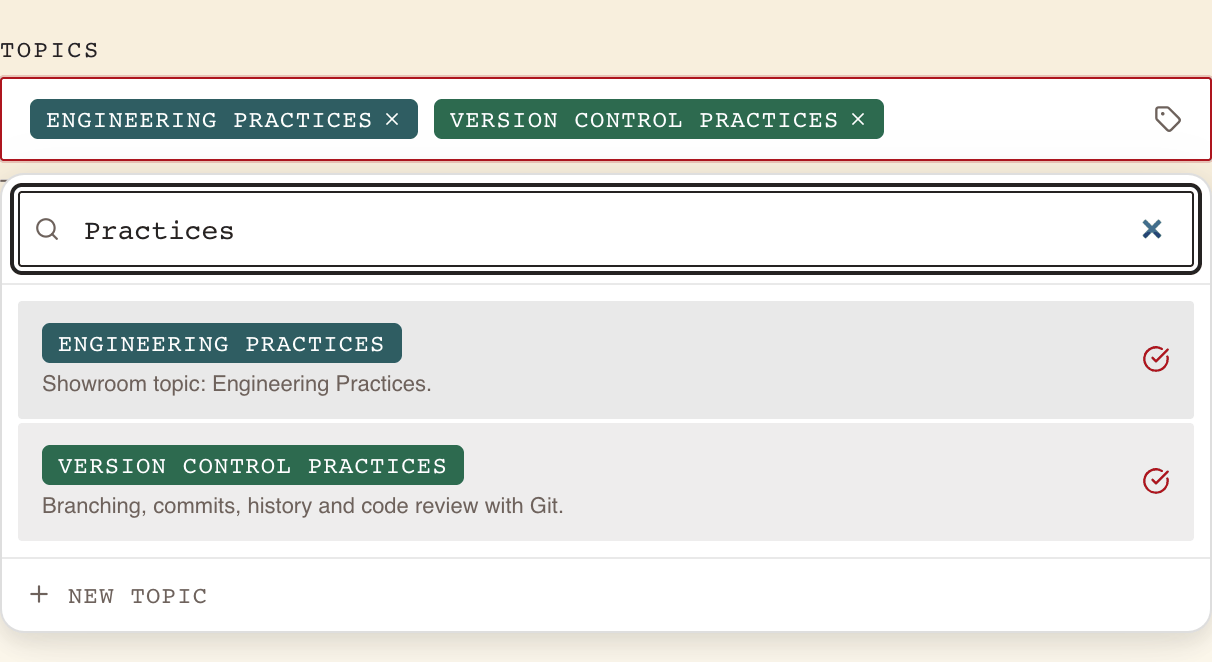
- Select Select topics. The list opens with a search box, Search topics….
- Type to narrow it. The search looks at names only. If nothing matches, the list says No topics match "…".
- Select a topic to tick it; select it again to untick it. A tick marks each chosen topic, and its badge appears in the field.
- Close the list by selecting anywhere outside it.
From the keyboard, the arrow keys move through the list, Enter ticks or unticks the highlighted topic, and Escape clears the search, then closes the list. On a wider screen, the small cross on a badge in the field also unticks it.
Tick every topic a learner might look for the training under, not only the main one. A training needs at least one: without it, the publish checklist says At least one thematic is required.
Topics on a published training change through a revision
Changing the topics of a published training is a change like any other: open a revision, change them, publish it as the next version. A change of topics alone is enough for the revision to be published. See Publishing, revisions and archiving.
Create a topic when none fits
Anyone who can write a training can create a topic: Employees, Managers and Administrators. There is no separate page for it: you create it from the same picker, and it is ticked on your training at once.
- Search the list first, with a few spellings, to make sure the topic does not exist yet.
- At the bottom of the list, select New topic.
- Fill in Name (max 30 chars) and Short description (max 128 chars). Both are needed; the fields stop accepting text at their limit.
- Select Create & select (it reads Creating... while it works), or Cancel. Escape in either field also cancels.
The topic is created for the whole organisation straight away, even if you then leave the draft without saving.
Why creating a topic can fail
If WeLearn refuses, the picker shows "Failed to create topic. Check length limits (name ≤ 30, desc ≤ 128) or a topic with this name may already exist." The fields already keep you within the lengths, so the cause is one of these two:
| Cause | What to do |
|---|---|
| A topic with the same name exists, ignoring case: "DevOps" and "devops" are the same name | Search for it and tick it. Accents do count, so "Developpement" and "Développement" are two different names: check both spellings before creating either |
| The organisation already holds 200 topics, the most it can have | Reuse an existing topic, or ask an Administrator to remove one nobody uses |
The message mentions only the first cause. If no topic with that name exists, you have met the limit.
What a topic does across WeLearn
Tagging is not only a label. The topics on a training decide where it shows up and what it counts towards.
| Where | What the topic does | More |
|---|---|---|
| Catalog | The Topics filter shows trainings tagged with any of the chosen topics. Each card shows up to two topic badges, then +N | Finding trainings |
| Search | Finds topics by name and description, under Thematics. Selecting one opens the Catalog filtered to it. Any thematic narrows results to one topic | Finding trainings |
| Following | A member follows topics from the Topics card on their own profile: "Follow the topics you care about to rank on their leaderboards and keep them close." | Personalising WeLearn |
| Notifications | Followers are told when a training tagged with the topic is published | Notifications |
| Leaderboard | Each topic a member follows gives them a weekly leaderboard, under Thematics, ranking this week's XP of the members who follow it | Gamification |
| Achievements | Mastery tracks show, per topic, how many of its published trainings the member has completed. Topic Explorer and Topic Master are badges earned across and within topics | Gamification |
| Quests | A Manager can scope a quest to one topic, Thematic (optional), so that only trainings tagged with it count | Running quests and seasons |
| Analytics | Enrolments are broken down by thematic | Team analytics |
The consequence for you as an author: a training tagged with the wrong topic is missing from that topic's catalog filter, its followers are never told about it, and it does not count towards the quests and mastery tracks a learner is working on.
Deleting a topic
Only an Administrator can delete a topic, and not from the app: there is no screen for it. If your organisation has a topic that should go, a duplicate or a misspelling for instance, ask your Administrators.
Deleting is permanent, and it reaches every training, past and present:
| What | After the topic is deleted |
|---|---|
| Trainings tagged with it, in every state and version | The topic is removed from them, without a new version. The training stays published |
| A training whose only topic it was | It has no topic left. Its next revision cannot be published until you tick one |
| Members who followed it | They no longer follow it; its leaderboard and its mastery track disappear |
| Badges already earned | Kept |
| Catalog filters and search | The topic is no longer offered |
If a quest ever shows Removed thematic, its topic was deleted anyway. No training can count towards it any more: cancel the quest and issue a new one.
Good practice
- Search before you create, with the singular, the plural and any accented spelling.
- Name a topic for its subject, not for one training or one team: "Kubernetes", not "K8s workshop March".
- Write the description for someone browsing: one line on what the topic covers.
- Tick two or three topics where they genuinely apply, rather than one broad one.
- Before asking for a topic to be deleted, check which quests use it.