
A Peer review is the one exercise WeLearn does not grade on its own. The learner writes a response to your brief, and a person records Pass or Needs more work on it later. Until that person decides, the learner's training is not finished.
This page follows a peer review from the moment you add the block to the day someone leaves the organisation with a submission still waiting. The six auto-graded exercises are in Building evaluations. Grading a submission is in Reviewing a peer's submission, and answering one in Answering each exercise type.
Use a peer review when only a person can judge the answer
A peer review fits work with no single right answer: a short design, an incident write-up, a review of a piece of code, a reflection on a case. If the answer can be checked against a key, use one of the auto-graded exercises instead: the learner gets a verdict at once, and nobody has to read anything.
| Choose a peer review when | Choose an auto-graded exercise when |
|---|---|
| The quality of the reasoning is what you assess | One answer, order, pairing or value is right |
| You can name people who have time to read submissions | Nobody is available to grade |
| A delay of hours or days before the verdict is acceptable | Learners need their result at once |
| You want to give written feedback | An explanation written in advance is enough |
The verdict is binary. A pass scores 100 % and Needs more work scores 0 %, with nothing in between.
Who does what
| Who | Does | Where |
|---|---|---|
| You, the author | Write the brief and the reviewer guidelines; choose who may grade; set the training's attempts and passing score | The editor: the block on Content, the Reviewers setting on Publish |
| The reviewers | Read each submission against your guidelines, record Pass or Needs more work, add optional feedback | The Reviews page, reached from Awaiting your review on their dashboard or from the notification |
| The learner | Writes a response, waits, reads the verdict, revises if allowed | The player, and Your submissions on the training's page |
| The organisation's Administrators | Grade only when every reviewer you named has left (section 08); grant another go when a learner is stuck (section 05) | The Reviews page |
Anyone in the organisation can be named as a reviewer, whatever their role. Being a Manager or an Administrator does not let someone grade a submission they were not named for, and nobody can ever grade their own submission.
The lifecycle: submitted, waiting, decided
stateDiagram-v2
    direction TB
    [*] --> Writing
    Writing --> Awaiting: Submit
    Awaiting --> Approved: Pass
    Awaiting --> NeedsWork: Needs more work
    NeedsWork --> Awaiting: Revise and resubmit (a submission left)
    Awaiting --> Withdrawn: The learner leaves the organisation
    Approved --> [*]
    NeedsWork --> [*]: No submission left
Withdrawn --> [*]| State, as the learner sees it | What it means | What happens next |
|---|---|---|
| The brief and Write your response… | Not submitted yet | The learner writes and selects Submit |
| Awaiting review | Submitted. The text can no longer be changed | Every reviewer is notified. The training stays unfinished |
| Approved (a verdict shown as Correct) | A reviewer recorded Pass | The section completes with 100 %. If nothing else is pending, the training completes |
| Needs more work (shown as Incorrect) | A reviewer did not pass it | The section completes with 0 %. If the learner has a submission left, Revise and resubmit sends it back to Awaiting review |
| Withdrawn | The learner left the organisation before anyone graded it | Nobody can grade it any more. The reviewers are told |
The first reviewer to record a verdict decides. A second reviewer who had the same submission open is refused when they record theirs, and the first verdict stands.
Setting it up, step by step
Step 1: add the block and write the brief
In the editor's Content step, open Add block and choose Peer review in the Questions group.
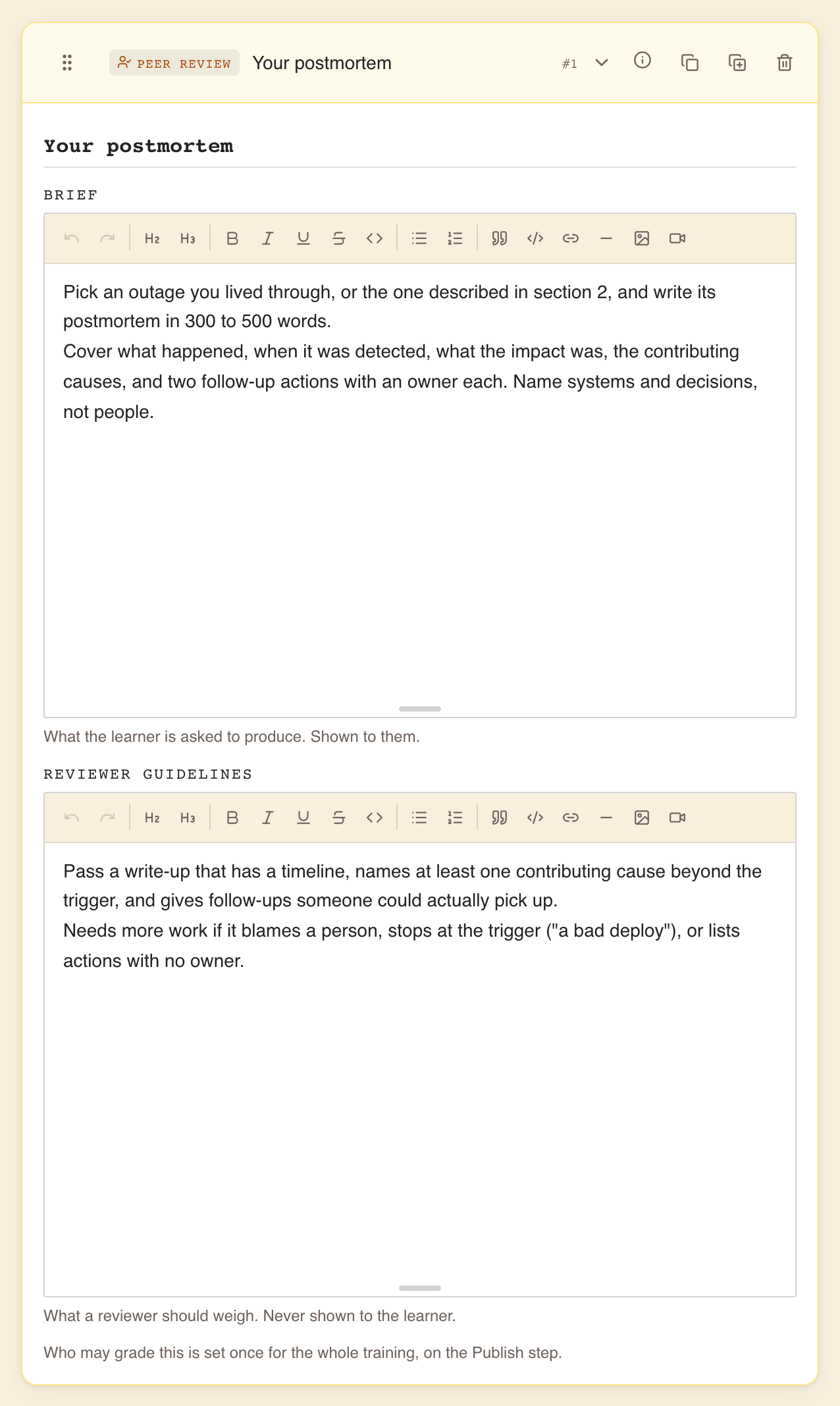
| Field | What goes in it | Who sees it |
|---|---|---|
| Title, Exercise title | The exercise's name, as in the contents list. Required to publish | Everyone |
| Brief | "What the learner is asked to produce. Shown to them." The task, its scope, the expected length and format. Required to publish | The learner, the reviewers |
| Reviewer guidelines | "What a reviewer should weigh. Never shown to the learner." Your marking criteria and what separates a pass from Needs more work. Optional | Reviewers only, and anyone who can edit or review the draft |
Both texts accept formatting, like a text block. The block itself has no answer key and no reviewer list; the line under it reminds you: "Who may grade this is set once for the whole training, on the Publish step."
A brief that leaves the reviewer guessing produces verdicts that differ from one reviewer to the next. A good pair answers, between them:
- what exactly to produce, and roughly how long it should be;
- which two or three criteria decide the verdict;
- what an answer that only just passes looks like, and what falls short.
If the brief is empty, the readiness check says The brief must not be blank. An empty title reads Title must not be blank. No other check applies: an empty reviewer list is the default, not a gap.
Step 2: decide how many submissions each learner gets
A peer review has no setting of its own for this. It follows Attempts, under Evaluation Playback on the Publish step:
| Attempts | Submissions per learner, per round | After Needs more work |
|---|---|---|
| 1 (the default) | One | The verdict is final |
| 2, 3 or 5 | That many, counting the first | The learner can revise until they run out |
| ∞ | Unlimited | The learner can always revise |
The learner sees how many they have left, for example "2 submissions left", counting the one they are writing. With ∞ the count is not shown.
Feedback timing has no effect on a peer review: the verdict always arrives when a person records it.
Step 3: choose who may grade, on the Publish step
When the training holds at least one peer review, the Evaluation Playback band on the Publish step ends with a Reviewers setting. It covers every peer review in the training; there is no per-block list.
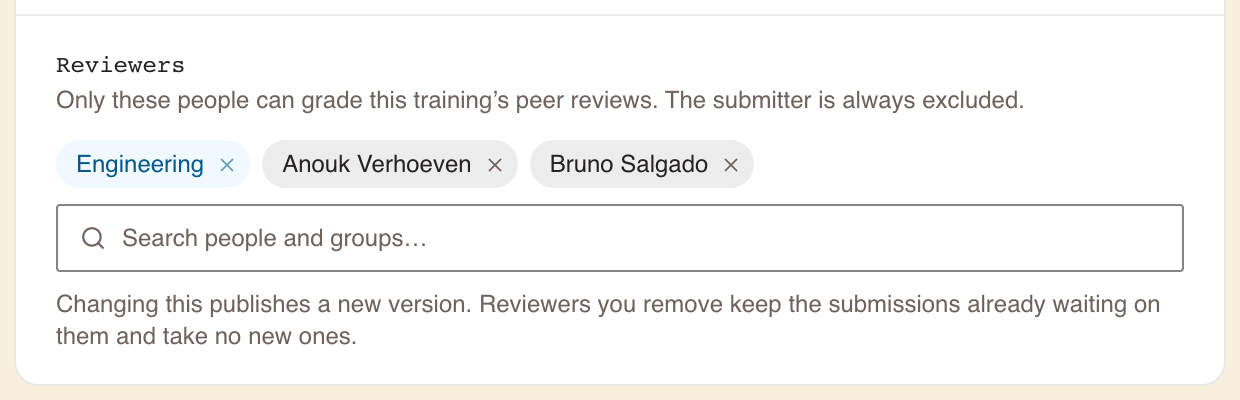
- Leave it empty to let the training's authors grade. The hint then reads "Nobody named, so this training’s authors grade its peer reviews. Pick users or groups to widen that." When you open the list, it names them: "Adjudicated by" followed by the authors, "unless you name someone here."
- To choose other people, type in Search people and groups…. Groups come first, marked group; people follow, each with their role. Select an entry to add it; select it again, or the cross on its chip, to remove it. Load more fetches further people.
- Once someone is named, the hint reads "Only these people can grade this training’s peer reviews. The submitter is always excluded."
| Choice | Who grades | Good for |
|---|---|---|
| Nobody named (default) | The training's authors | A small team that wrote the training and will mark it |
| People | Exactly those people | A few named experts |
| Groups | Everyone in those groups at the moment they grade | A rota, a guild or a team that changes over time |
| People and groups | Both together | Experts plus a wider pool |
| Rule | Detail |
|---|---|
| Naming replaces the authors | As soon as anyone is named, the authors grade only if they are named too, directly or through a group. Naming someone narrows the pool to them |
| The submitter is always excluded | Even when they are an author, a named person, or a member of a named group |
| Groups are read live | Someone who joins a named group can grade at once, including submissions already waiting; someone who leaves it stops |
| Limits | Up to 100 people and 20 groups |
| Every reviewer is notified | Each submission notifies everyone who may grade it. Naming a large group sends a notification to every member |
Draft reviewers who open the draft in Read to review see who will grade it under Reviewers: "This training’s authors, resolved when the verdict is recorded.", or how many people and groups are named.
Step 4: choose the passing score with the verdict in mind
The verdict counts in the training's result like any other evaluation (section 05). Decide now whether Needs more work should be able to fail the training, and set Passing score accordingly.
Step 5: try it in Preview, then publish
In Preview you can write a response and select Submit. You then see what a learner sees while waiting, Awaiting review. Nothing is recorded and nobody is notified.
Publish as usual with Publish Training. See The training editor.
How the verdict scores, passes and certifies
The training waits for the verdict
A training with a submission awaiting review is not finished, even when the learner has done every section. Their last button reads Close and await review. Until a reviewer decides:
| While waiting | Once the verdict is recorded | |
|---|---|---|
| Result and pass or fail | None | Worked out, as for any training |
| Completion | Not counted | Counted |
| Certification, on a mandatory training | Not certified yet, and Overdue if the deadline passes meanwhile | Certified if the result passes, dated as below |
| XP | Not awarded for the exercise | Awarded |
The date that counts is the submission date
The learner controls when they submit, not when a reviewer gets round to it. So once the verdict completes the training, the completion is dated from the learner's last action on it, usually the day they submitted.
- A due date met on the day of submission stays met, however late the verdict.
- A certification runs from that date, not from the day of the verdict, so it also expires counting from that date.
The score is 100 or 0, averaged with everything else
A pass counts as 100 % and Needs more work as 0 %. The training's result is the plain average of all its evaluations, each counting the same (see Building evaluations).
| Passing score | Effect of Needs more work |
|---|---|
| No threshold (the default) | None on the outcome. The training completes and passes, and certifies a mandatory training |
| A percentage | A 0 in the average. With few other evaluations, it fails the training |
Example with an 80 % passing score: a peer review and four quizzes at 100 %. A pass averages 100 %. Needs more work averages 80 %: still a pass. With a peer review and one quiz, Needs more work averages 50 %: a fail.
Revising and retaking
| What the learner does | What happens to the peer review |
|---|---|
| Revise and resubmit after Needs more work | The text opens prefilled; a new submission goes back to Awaiting review, the old verdict and its score are dropped, and the result is on hold again. Reviewers are notified again |
| Retry Training | The peer review is kept as it is: the text, its verdict and the submissions already used. Only the other evaluations start over. The learner confirms this first |
| Retry Training on a training whose only evaluation is a peer review | Not possible: there is nothing to start over. They revise instead, while they have submissions |
| Retry Training after a final Needs more work | Refused, even if attempts remain, because the 0 would stay. The screen tells them to ask an Administrator |
| A new round (Take it again, Renew certification) | The peer review starts afresh, with a full set of submissions |
The number of submissions is a total for the round, not per run, so retrying never gives a learner more of them. A learner stuck with a final Needs more work has to ask the organisation's Administrators for another go. A go granted that way reopens the peer review with a full set of submissions.
What the learner sees
The learner's side is covered in full in Answering each exercise type. In short:
- the brief, a box marked Write your response…, and how many submissions are left;
- after submitting, Your submission and Awaiting review: "A reviewer will grade this. You will be notified when they do, and the training completes then.";
- a notification with the reviewer's name, "… reviewed your submission: passed" or "… reviewed your submission: needs more work";
- the verdict in the player, with the reviewer's words under Reviewer feedback;
- Revise and resubmit when they have a submission left, or "You have no submissions left on this training, so this verdict is final. Retaking keeps it rather than reopening it.";
- a Your submissions panel on the training's page, one row per peer review, with Awaiting review, Approved, Needs more work or Withdrawn.
The learner never sees the Reviewer guidelines.
What reviewers see
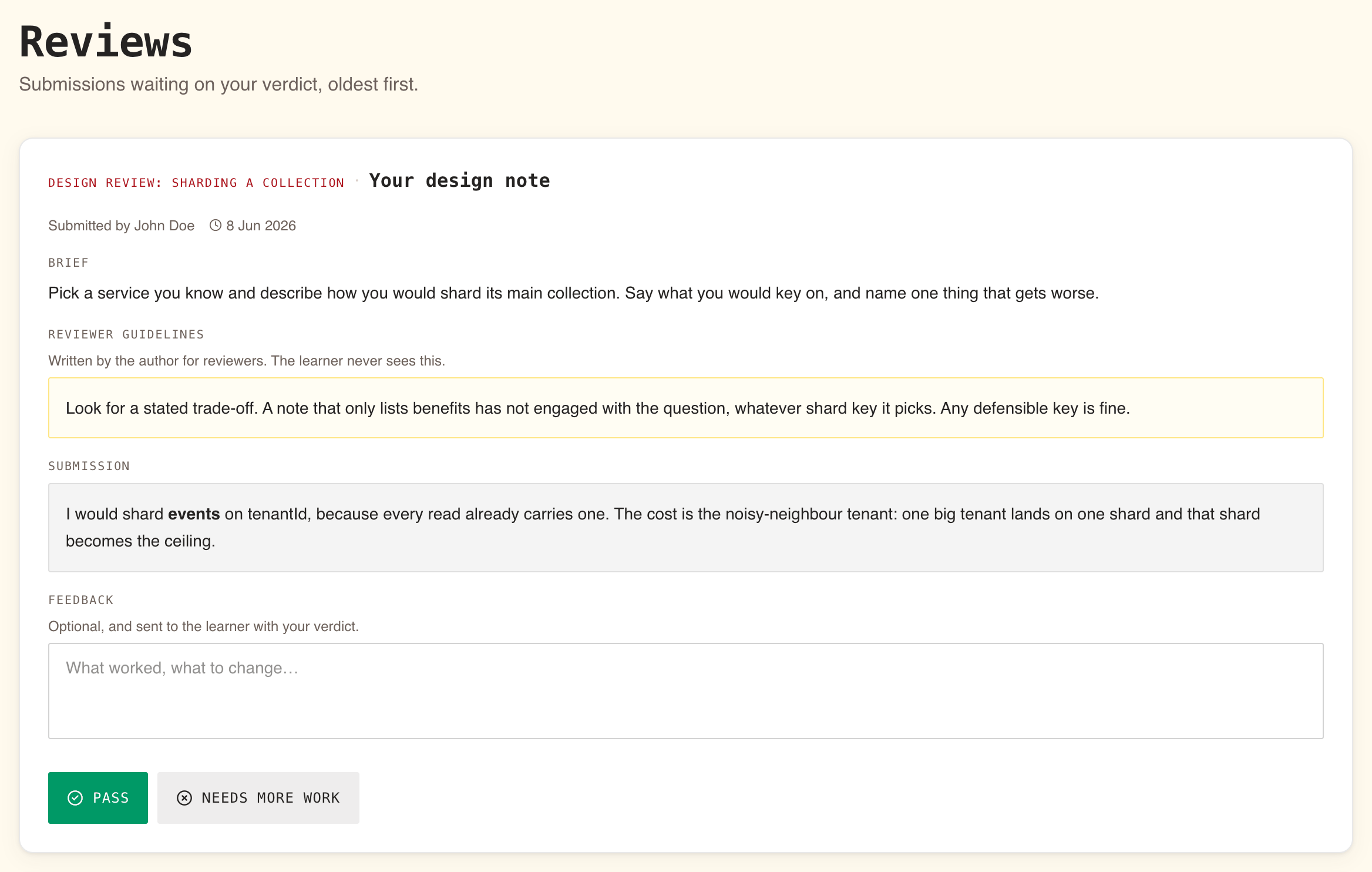
Reviewers work from the Reviews page: "Submissions waiting on your verdict, oldest first." It is not in the sidebar. They reach it from the Awaiting your review band on their dashboard, or from the notification "… submitted work for your review". Each submission shows the training and exercise titles, "Submitted by" and the learner's name, the date, the Brief, your Reviewer guidelines ("Written by the author for reviewers. The learner never sees this."), the Submission, an optional Feedback box ("Optional, and sent to the learner with your verdict.") and the two buttons Pass and Needs more work.
Submissions are not anonymous: the reviewer sees who wrote them, and the learner sees who graded them. The page lists only the submissions that person may grade. The full walk-through is in Reviewing a peer's submission.
After publication
Changing the brief, the guidelines or the reviewers needs a revision
A published training is never changed in place. Open a revision, change the block or the Reviewers setting, and publish it as the next version; a change of reviewers alone is enough for the revision to be published. See Publishing, revisions and archiving.
Under Reviewers the editor says: "Changing this publishes a new version. Reviewers you remove keep the submissions already waiting on them and take no new ones." Read it as "takes effect when you publish the revision": nothing changes until then.
| Change in the new version | Submissions made on an earlier version | Submissions made on the new version |
|---|---|---|
| You remove a reviewer | Still theirs to grade | Not theirs |
| You add a reviewer | Not theirs | Theirs |
| You rewrite the brief or guidelines | Graded against the brief the learner answered | Graded against the new text |
A verdict on an earlier version stays valid, and still completes, scores and certifies, however many versions have been published since.
When people leave
| Who leaves | What happens |
|---|---|
| A learner, with a submission waiting | The submission is Withdrawn. It leaves every reviewer's queue, and each reviewer is told: "A submission you were asked to review was withdrawn: the learner has left" |
| One of several reviewers | The others keep grading |
| Every person you named, or the last member of a named group | The waiting submissions, and new ones, go to the organisation's Administrators, so a learner is never left with nobody to grade them |
| Every author, when nobody was named | Same: the Administrators grade |
| A member of a named group, leaving the group | They stop being a reviewer at once, including for submissions already waiting |
See also Managing members.
Archiving
Archiving the training stops new enrolments, and so new submissions. Submissions already waiting stay in the reviewers' queues and can still be graded. See Publishing, revisions and archiving.
Notifications in this scenario
| Notification | Who receives it |
|---|---|
| "… submitted work for your review" | Everyone who may grade the submission, on each submission and each revision |
| "… reviewed your submission: passed" or "…: needs more work" | The learner |
| "A submission you were asked to review was withdrawn: the learner has left" | Everyone who could have graded it |
All three always reach the WeLearn inbox; only their Slack copy can be turned off. See Notifications.
Checklist and traps
Before you publish
- The Brief states the task, its scope and every criterion a reviewer will apply.
- The Reviewer guidelines say how to weigh the criteria and where the line between a pass and Needs more work lies.
- Reviewers names people who have agreed to grade, or is empty because the authors will.
- Nobody who will take the training is the only person able to grade it.
- Attempts gives learners as many submissions as you mean them to have.
- Passing score reflects whether Needs more work should be able to fail the training.
- You played the block in Preview and saw Awaiting review.
- Reviewers know where to grade: the Awaiting your review band on their dashboard.
Traps
| Trap | What happens | What to do |
|---|---|---|
| Leaving Attempts at 1 | One Needs more work is final for the round | Raise Attempts if learners should revise |
| Leaving Passing score at No threshold | Needs more work still completes, passes and certifies | Set a passing score if the verdict must count |
| Criteria only in the guidelines | Learners fail on requirements they never saw | Put every requirement in the Brief |
| Being the only author and taking your own training | Your submission is refused: nobody else can grade it | Name a reviewer, or a group |
| Naming a large group | Every member is notified of every submission | Name a smaller group or a few people |
| Expecting a Manager or Administrator to grade any submission | They can grade only if named, or when every named reviewer has left | Name them |
| Changing Reviewers and expecting it to apply at once | Nothing changes until the revision is published, and then only for new submissions | Publish the revision; tell removed reviewers to finish what is waiting |
| Confusing a draft Reviewer with a peer review reviewer | Inviting someone to review the draft does not let them grade submissions | Name them under Reviewers on the Publish step |
| A learner with a final Needs more work wants to retry | Retry Training is refused | They ask the organisation's Administrators for another go |