
An evaluation is any block from the Questions group of the Add block menu. WeLearn grades six kinds on its own: Quiz, Ordering, Matching, Categorization, Numeric and Cloze. The seventh, Peer review, is graded by a person. This page covers each kind, how it is scored, and how the training-wide settings decide the final result and when learners see the answers. Adding, moving and copying blocks is in Content blocks reference.
Every evaluation has a title, required to publish, and scores from 0 to 100 %. A score of 100 % is kept for a fully correct answer: a near miss never rounds up to it.
Use Preview to play each exercise against your own answer key before publishing. Nothing you do there is recorded.
Quiz: multiple-choice questions
A quiz holds one or more questions, each with propositions to tick. A new quiz starts with one question and two empty propositions.
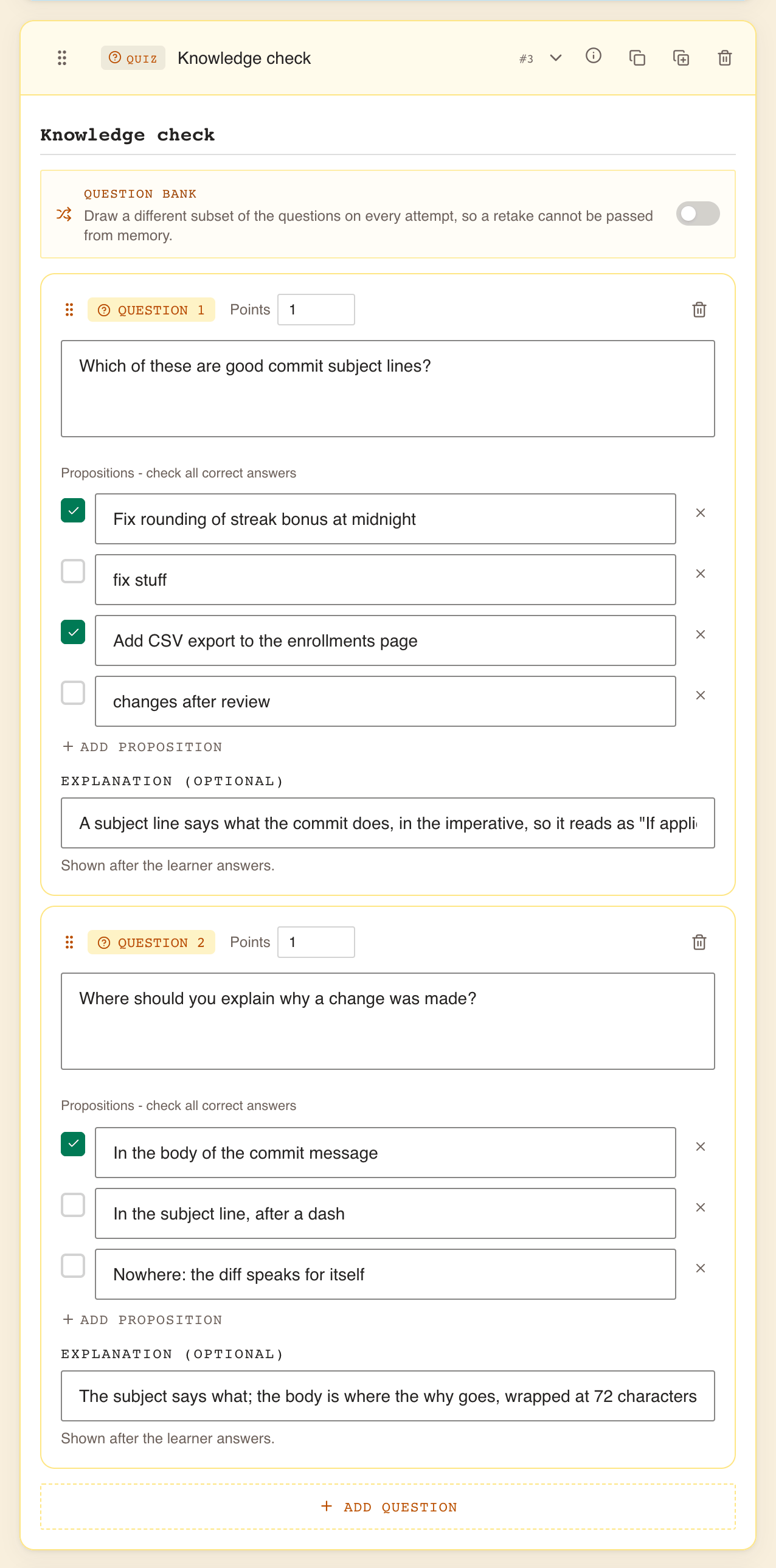
| Field | Rules |
|---|---|
| Quiz title, Quiz title (e.g. Knowledge check) | Required. |
| Question N text, Write your question… | Required. |
| Points | Whole number, 1 or more. Default 1. |
| Propositions, Option A, Option B… | Between 2 and 6 per question, each with text. Add proposition adds one; the cross next to a proposition removes it while there are more than two. |
| The check box beside each proposition | Ticks it as correct. Tick at least one; tick several if several are right. |
| Explanation (optional) | Shown to the learner with the feedback on that question. |
Code in a question. The question box has two buttons above it: select some code and press
Inline code or Code block, or press Code block with nothing selected to start an
empty one. The box grows as you type. The buttons write marks into the text, which you can also
type yourself, the way you would in a chat message. Wrap inline code in backticks: `Vec<i32>`. For a
snippet of several lines, put three backticks on a line of their own, optionally followed by the
language, then the code with its line breaks and indentation, then three backticks again:
What does this print?
```rust
let x = 5;
{
    let x = x + 1;
    println!("{x}");
}
```
The learner sees inline code in a fixed-width font and the snippet as a coloured code block. The same marks work in the prompts and items of the other exercise types.
Add question adds a question; the bin removes one while there are more than one. Drag a question by its handle to reorder it. Deleting a question that has any text asks Delete this question?, because it cannot be undone. Don't ask me again skips that question for the rest of your browser tab.
What the learner sees. The questions one at a time, with the propositions in shuffled order. A question with more than one correct proposition is labelled Multiple answers, so the learner knows to tick several. The learner never sees which propositions are correct until feedback says so.
How it is scored. Each question earns up to its Points:
- a single-answer question earns its points when the right proposition is picked, nothing otherwise;
- on a question with several correct propositions, each correct tick earns an equal share of the points, and each wrong tick takes off the points divided by the number of propositions. A question never goes below zero. Ticking everything therefore never earns full marks.
The quiz's score is the points earned divided by the points available, as a percentage. Points only weigh questions against each other inside one quiz; across the training, every evaluation counts the same (see The final score).
Example: a question worth 1 point has four propositions, two of them correct. Ticking both correct ones earns 1. Ticking one correct and one wrong earns 0.5 − 0.25 = 0.25.
Common mistakes.
- Ticking only one of several right propositions. The learner then gets a single-answer question, and picking any of the other right ones scores nothing.
- Raising Points on a hard question expecting it to weigh more in the training. It weighs more only within its own quiz.
- Leaving an explanation empty. On a training with no passing score, the explanation is what turns a wrong answer into learning.
Question bank: a different draw on every attempt
A quiz can hold more questions than one attempt asks. Switch on Question bank in the quiz: each attempt then draws a subset of the questions, so a retake, or next year's recertification, cannot be passed from memory.
| Control | What it does |
|---|---|
| Question bank switch | Off by default: every attempt asks every question. Switching it on proposes drawing a third of the questions you have written, at least one. |
| N of M drawn each attempt | How many questions one attempt asks, out of the questions written. |
Each learner gets their own draw, which changes with each attempt and each certification cycle. The questions drawn appear in the order you wrote them. The score counts only the questions drawn, so a learner who answers all of them correctly scores 100 %.
The editor warns you while you work:
| Warning | Meaning |
|---|---|
| Only N question(s) written: the bank must hold at least the M an attempt draws before this can be published. | Fewer questions than the draw. The readiness check refuses to publish. |
| Write roughly twice as many questions as an attempt draws, or attempts will keep repeating the same ones. | The bank is too small to vary much. Publishing is allowed. |
| The preview shows the whole bank. Learners only ever see their own draw. | Always shown with the bank. In Preview you see every question. |
Sizing advice. Write at least twice as many questions as an attempt draws: a draw of 10 needs a bank of 20 or more. Keep every question at the same level and on the material the whole training covers, because any learner may be asked any of them. If questions carry different Points, two learners can face draws of different weight.
Ordering: put the items in sequence
The learner receives the items in a shuffled order and puts them back in the right one.
| Field | Rules |
|---|---|
| Title, Ordering title (e.g. Steps in order) | Required. |
| Prompt | Required. The instruction, such as "Put the deployment steps in order." |
| Items, Item 1, Item 2… | At least 3 to publish, up to 8. Each needs text. The order you give them is the correct order. |
| Explanation (optional) | Shown with the feedback. |
A new Ordering block starts with two items. Add item adds one, and the cross removes one while there are more than one; at eight, the editor says Up to 8 items. Remove one to add another. Reorder items by dragging their handles, or from the keyboard with Space and the arrow keys.
What the learner sees. Your prompt and the items, never in your order. They move items with the arrow buttons on each row, or by dragging on a wider screen.
How it is scored. Each item in exactly its right position earns an equal share. An item one place off earns nothing for that item.
Common mistakes.
- Stopping at two items. Publishing needs at least three, and the readiness check lists At least two items are required until there are.
- Sequences with more than one defensible order. Only your order scores.
Matching: pair the two columns
The learner matches each item on the left with its partner on the right.
| Field | Rules |
|---|---|
| Title, Matching title (e.g. Match term to definition) | Required. |
| Prompt | Required. |
| Pairs, each with Left and Right | At least 2 pairs to publish. Both sides need text. Each row is one correct pair. |
A new Matching block starts with one pair. Add pair adds one; the cross removes one while there are more than one.
What the learner sees. Your prompt, the left items under Match and the right items under Options, both columns shuffled. They drag each option onto its match, or select an option and then its match.
How it is scored. Each correct pair earns an equal share.
Common mistakes. Two right-hand texts that could both fit one left item. Make every pairing unambiguous, for example by matching terms with definitions rather than with examples.
Categorization: sort items into buckets
The learner sorts items into categories, which the editor calls buckets.
| Field | Rules |
|---|---|
| Title, Categorization title (e.g. Sort into groups) | Required. |
| Prompt | Required. |
| Buckets, each with a Bucket name | At least one, each named. |
| Items, each with Item text and a bucket | At least one, each with text and a bucket picked in the list next to it. |
Create the buckets first with Add bucket, then the items with Add item. A new item sits on Unbucketed until you pick its bucket. Removing a bucket puts its items back on Unbucketed.
What the learner sees. The buckets and a pool of Items. They drag each item into a bucket, or select it and then the bucket. Which bucket is right stays hidden.
How it is scored. Each item in its right bucket earns an equal share.
Common mistakes. Leaving an item on Unbucketed: the readiness check reports Every item must be assigned to a bucket. Two buckets close enough in meaning that an item fits both.
Numeric: answer with a number
The learner types a number.
| Field | Rules |
|---|---|
| Title, Numeric title (e.g. Calculate the total) | Required. |
| Prompt | Required. |
| Answer type | Exact or Range. A new block starts on Range. |
| Exact value, or Minimum and Maximum | Required. Decimals are allowed. A range includes both ends, and its minimum cannot be greater than its maximum. |
| Explanation (optional) | Shown with the feedback. |
What the learner sees. Your prompt and a field reading Enter a number. When the answer is revealed, it reads Correct answer: 42 or Correct range: 40 to 45.
How it is scored. All or nothing: 100 % for a number within the range (or equal to the exact value), 0 otherwise. There is no tolerance beyond what you set.
Common mistakes. Using Exact for a computed result with decimals. If 3.14 and 3.142 are both acceptable, use a Range such as 3.14 to 3.15. Say the expected unit in the prompt.
Cloze: fill in the blanks
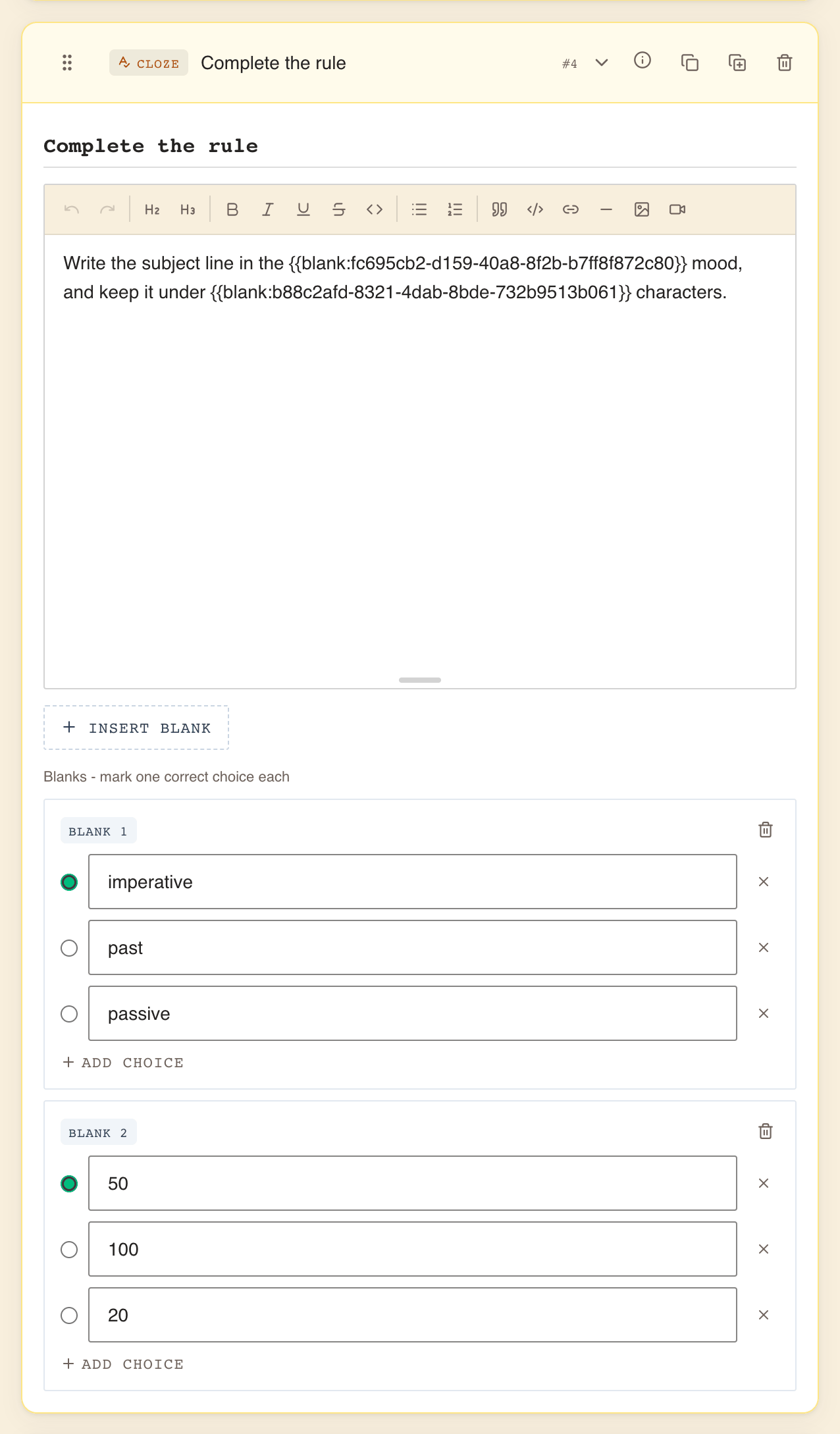
The learner reads your text and picks a word for each blank from a drop-down list.
| Field | Rules |
|---|---|
| Title, Cloze title (e.g. Fill in the blanks) | Required. |
| The text | Write it, then place the cursor where a word is missing and select Insert blank. The blank appears in the text as a marker. |
| Blank N cards, one per blank | Each needs its choices (Add choice, then type in Choice text) and exactly one marked correct with the round Mark correct button. |
At least one blank is required. No blanks yet. Use "Insert blank" to add one. shows until you insert one. Each blank starts with no choices.
Deleting a blank. The bin on a blank's card removes the blank and its marker in the text. If the blank has choices, WeLearn asks Delete this blank? first; Don't ask me again skips the question for the rest of your browser tab, and a strip Deleted “Blank N”. Was this a mistake? offers Undo instead. Undo, or Cmd/Ctrl+Z in the text, brings the blank back with its choices only while the block stays open: folding it, or dragging any block, loses that.
Warnings in the editor. The markers in the text must stay intact. The editor warns in red when one is damaged:
| Warning | What to do |
|---|---|
| A blank's placeholder has been split by formatting, so it will not publish. Delete the highlighted text and insert the blank again. | Formatting such as bold was applied across part of a marker. |
| A placeholder in the text names no blank, so it will not publish and the learner would read it literally. Delete it, or insert the blank it should point to. | A marker was typed, pasted from another Cloze, or left behind. |
| A blank's placeholder appears more than once, so it will not publish. A blank holds one answer: delete the extra copies and insert a new blank where you need another one. | A marker was copied. Each blank appears once; insert a new blank for another gap. |
In a draft edited live with others, the second warning does not appear; the readiness check still catches the problem.
What the learner sees. Your text with a Choose… list in place of each blank.
How it is scored. Each blank answered correctly earns an equal share. An unanswered blank earns nothing.
Common mistakes. Choices that are all plausible in the sentence. Choices of very different lengths or grammar, which give the answer away. Copying text that contains blanks from another Cloze block.
The final score is a plain average
The settings that decide how evaluations play are set once for the whole training, under Evaluation Playback on the Publish step: Attempts, Feedback timing and Passing score. Their choices and defaults are in The training editor.
When a learner finishes the training, WeLearn averages the scores of every evaluation in it. Each evaluation counts the same, whatever its number of questions or points: a ten-question quiz and a single Numeric weigh one each. A peer review counts as 100 % when the reviewer records Pass and 0 % for Needs more work.
- With No threshold, there is no pass or fail. Finishing the training is passing.
- With a passing score, an average at or above it passes; below it fails. WeLearn compares the exact average, so 79.5 % does not pass an 80 % threshold.
Example: a quiz at 100 %, an Ordering at 50 % and a Numeric at 100 % average 83.3 %. That passes an 80 % threshold, and fails 85 %.
A learner who fails and has an attempt left can select Retry Training, which resets every evaluation in the training. A learner who has used every attempt has to ask the organisation's Administrators.
When learners see the answers
Feedback timing decides when results appear; the passing score and attempts decide whether the correct answers come with them.
| Feedback timing | During the run |
|---|---|
| Immediate | The learner submits each answer and sees Correct or Incorrect and a score at once. |
| At the end | Each answer shows Answer recorded. Results come at the end of the training. |
With Immediate feedback, the correct answer and your explanation are shown at once when the learner's answer was fully right, or when the training has no passing score, or once the learner has passed. On a training with a passing score the learner has not yet reached, a wrong answer shows only the verdict and the score.
After an evaluation is completed, in either mode, the correct answers are shown when any of these holds:
| Condition | Why |
|---|---|
| The training has No threshold | There is nothing to fail, so nothing to protect. |
| The learner has passed | A retake cannot improve on a pass. |
| The learner has no attempt left | They cannot sit it again. |
They are withheld in exactly one case: a passing score is set, the learner is below it, and they still have an attempt. They keep their score and know which exercises they got wrong; the answers arrive when they pass or run out. With ∞ attempts, that moment never comes for a learner who keeps failing. The hint under Attempts spells out the consequence of your choices.
Peer review: graded by a person
A Peer review block asks the learner to write a response to a Brief. A reviewer reads it and records Pass or Needs more work, with optional feedback; the learner's section completes only then. Reviewer guidelines are shown to reviewers and never to the learner. Who may review is set once for the whole training, on the Publish step. Feedback timing does not apply to it. Setting it up, choosing reviewers and what each side sees are covered in Setting up peer review.
Designing a good assessment
- Each evaluation tests something the sections before it actually taught.
- Every correct answer is unambiguous: no second defensible order, pairing, bucket or choice.
- Quiz questions with several correct answers have all of them ticked.
- Every quiz, Ordering and Numeric has an explanation that says why, not only what.
- Ordering has at least three items; Matching at least two pairs.
- Numeric uses a Range wherever rounding or units could vary, and the prompt names the unit.
- A question bank holds at least twice the questions an attempt draws.
- The passing score reflects the average across all evaluations, each counting the same, and not one quiz.
- Attempts is a number, not ∞, if failing learners should eventually see the answers.
- Feedback timing matches the intent: Immediate to teach as they go, At the end for an exam.
- You played every exercise in Preview and got 100 % with your own key.
- The Publish readiness panel reads All set. This training is ready to publish.
Related pages
- The training editor: the Publish step and the readiness check messages.
- Content blocks reference: adding, moving and copying blocks.
- Answering each exercise type: the same exercises from the learner's side.
- Authoring a mandatory training: certification and question banks for recertification.