
A WeLearn space is your organisation's own corner of WeLearn, at its own address. You do not create one on the spot: you ask for it, a person at Lunatech approves it, and you finish the setup yourself from a link sent to you by email. This page follows that journey from the request to your first day as the space's Administrator.
Want to look around before you ask? The demo needs no account. See Trying WeLearn: the demo.
You ask, Lunatech approves, you set up, you sign in as Administrator
| Step | Who | What happens | What you receive |
|---|---|---|---|
| 1. Request | You | You pick a space name and give your email address. | An email: Space request for … received. |
| 2. Decision | A platform administrator at Lunatech | A person reads the request and approves or rejects it. | Approved: an email with a setup link. Rejected: an email saying the request was not approved. |
| 3. Setup | You, from the link | You choose how people will sign in: Google accounts, or your organisation's own sign-in provider. | An invitation to your space as Administrator, and an email saying the space is ready. |
| 4. First sign-in | You | You sign in with the email address from your request. | You are the space's first Administrator. |
Two rules carry through every step:
- The email address you request with is the one that becomes Administrator. The setup link, the invitation and the "ready" email all go to it, and you must sign in with it. Whoever completes the setup does not matter: if you forward the link to a colleague, the invitation still goes to your address.
- The setup link is short-lived. It works for 30 minutes after it is sent, and only once. Plan to open it when you have a few minutes to finish.
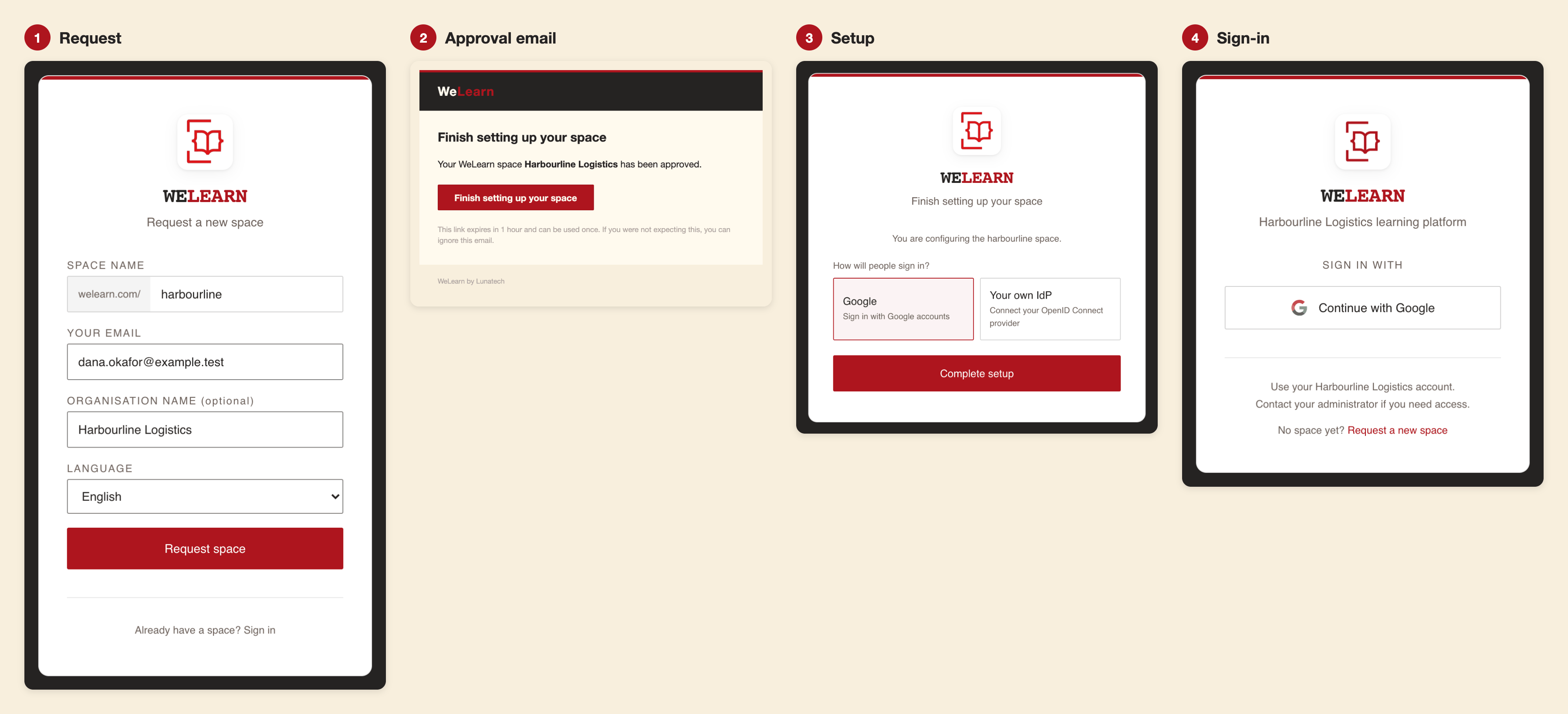
Request a space: pick its name and give your address
You find the request form in three places:
- the Request your space button on the WeLearn home page;
- the Request a new space link at the bottom of any space's sign-in page, after No space yet?;
- Ask for one on the demo's start page, and Ask for a space of your own at the end of a demo.
The form is titled Request a new space. Fill it in and press Request space.
| Field | What to enter | Rules |
|---|---|---|
| Space name | The name in your space's address, shown after the site address, as in <WeLearn site>/. Members open your space at the site address followed by this name, for example …/acme/. |
Required. 1 to 40 characters: lowercase letters, digits and hyphens, not starting or ending with a hyphen. Capitals you type are turned into lowercase. Fixed for good once the space exists. |
| Your email | Your own work address. | Required. A valid address, with no accented or non-Latin characters: WeLearn cannot deliver to them. This address becomes the space's first Administrator. |
| Organisation name (optional) | The name people see, for example on the sign-in page and in emails. | Up to 100 characters. Left empty, your space name is used instead. An Administrator can change it later in Settings › Language. |
| Language | English or Français. | Pre-filled with the language the page is shown in. It becomes your space's default language, and every email in this journey is written in it. |
Some names are refused even though they follow the rules, because WeLearn uses them for its own
pages: for example login, setup, admin, settings, verify or start. A name already used
by another space, or already asked for in a request still waiting for a decision, is refused too.
Once the request is sent, the form is replaced by Your request has been submitted. Once a platform administrator approves it, you will receive an invitation by email to set up your space. and a Back to sign in link. You also receive an email, Space request for … received, saying a platform admin will review it shortly.
Approval arrives by email, with a setup link valid for 30 minutes
A person at Lunatech reads every request, so the answer takes hours or days rather than seconds. You get an email either way.
If the request is rejected, the email reads Space request for … was not approved. It gives no reason. Write to Lunatech if you believe it is a mistake.
If it is approved, your space is created straight away, but nobody can use it yet: its address answers no one until setup is finished. The email reads Finish setting up the … space on WeLearn, says your space has been approved, and has one button, Finish setting up your space.
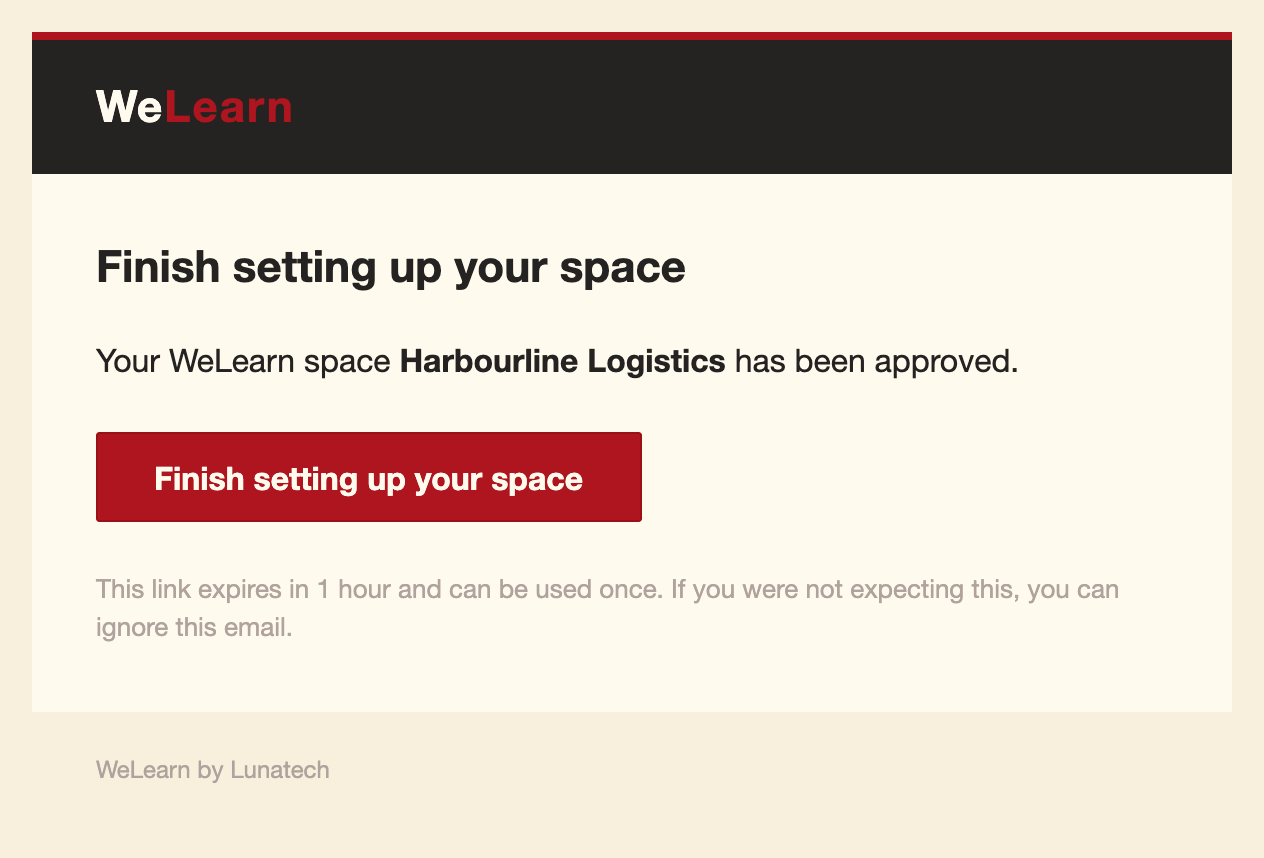
The link in that button:
- expires 30 minutes after the email is sent.
- works once. Opening it spends it. Reloading the setup page in the same browser is fine for the next 30 minutes, but opening the link again, or on another device, is refused.
- gives you 30 minutes to finish once you open it. Past that, the form refuses to save.
Set up your space: Google accounts or your own sign-in provider
- Press Finish setting up your space in the email. The page reads Checking your setup link…, then shows Finish setting up your space and, above the form, You are configuring the … space. Check that it names the space you expect.
- Under How will people sign in?, choose one of the two cards.
- For Your own IdP, fill in the two fields described below.
- Press Complete setup. The button reads Finishing setup… while WeLearn checks and saves.
- The page confirms Your space … is ready. and offers Go to … sign-in.
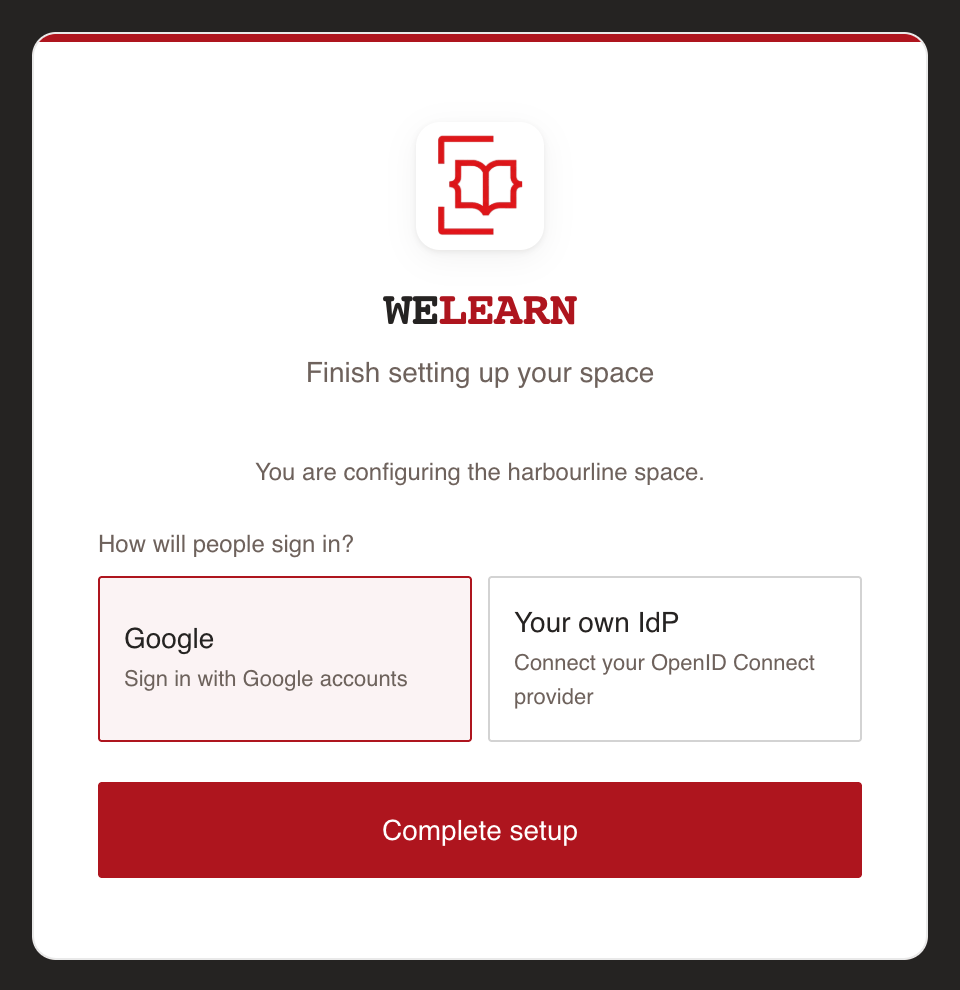
Google: members sign in with their Google account
Google (Sign in with Google accounts) is selected when the page opens. Nothing else to fill in. Choose it when your organisation uses Google Workspace, or when members have Google accounts under their work address. The sign-in page of your space will show Continue with Google.
Your own IdP: members sign in through your organisation's provider
Your own IdP (Connect your OpenID Connect provider) is for an organisation that already runs a single sign-on provider speaking OpenID Connect. Before you start, create a client for WeLearn in that provider so you have its client ID at hand. The setup page asks for two values:
| Field | What to enter |
|---|---|
| Issuer URL | Your provider's address, the one it publishes as its issuer, for example https://idp.acme.com. Under the field: We validate {issuer}/.well-known/openid-configuration before saving. |
| Client ID | The ID of the client you created for WeLearn in your provider, for example welearn. |
When you press Complete setup, WeLearn contacts your provider before it saves anything. The setup only goes through if all of this holds:
- the issuer address is a public
https://address WeLearn can reach from the internet, and the provider answers within a few seconds; - the provider's published configuration names the very address you typed as its issuer, and lists the endpoints a sign-in needs;
- no other WeLearn space already uses that issuer.
If any check fails, the page shows The identity provider configuration could not be validated. It does not say which check failed, so go through the list above. Nothing has been saved, and you can correct the values and try again.
Register WeLearn with your provider: the values on the confirmation page
With Your own IdP, the confirmation page adds a panel, Finish wiring your IdP. It reads
Register WeLearn as an OpenID Connect client that authenticates with private_key_jwt, and lists
the values to enter in your provider's settings for the WeLearn client.
private_key_jwt means WeLearn does not hold a client secret from your provider. Instead, it proves
who it is with a short message signed by its own private key, and your provider checks the
signature against WeLearn's public keys. Each value tells your provider one piece of that:
| On the page | What it is, in plain words | Where it goes in your provider |
|---|---|---|
| JWKS to trust | The address where WeLearn publishes its public keys. | The client's "JWKS URL" or "public key set" setting, with the client authenticating by signed JWT. |
| Redirect URI (exact, no wildcard) | Where your provider sends people back after they sign in. It names your space. | The client's allowed redirect URIs. Paste it exactly, without a wildcard. |
| Post-logout redirect URI | Where your provider sends people after they sign out. | The client's allowed post-logout redirect URIs. |
| Assertion issuer & subject | Who the signed message claims to come from: the Client ID you typed. | Nothing new to enter if the client ID already matches. |
| Assertion audience | Who the signed message is addressed to: the Issuer URL you typed. | Nothing new to enter; your provider expects its own issuer here. |
Your provider must also let your own account sign in to the WeLearn client, with the email address you requested the space with.
Your first sign-in makes you the space's first Administrator
As setup completes, WeLearn sends two emails to the address you requested with:
| What it says | Button | |
|---|---|---|
| You have been invited to join the … space on WeLearn | You are invited as ADMINISTRATOR. The invitation expires in 7 days. | Sign in to accept |
| The … space is ready on WeLearn | Your space is ready. | Sign in to WeLearn |
Then:
- Press Go to … sign-in on the confirmation page, or Sign in to accept in the invitation.
- On your space's sign-in page, press Continue with Google, or, with your own provider, Continue with followed by your space's name.
- Sign in with the email address from your request. Upper and lower case do not matter; a different address does not work.
- You land in your space as its Administrator. Bookmark the address.
Your space starts by invitation only: nobody else gets in until you invite them. Your next steps, in order, are in the Administrator quickstart: invite your members, give at least one other person the Administrator role, set your colour, your organisation's name, language and time zone, and connect Slack.
When something goes wrong
On the request form
| You see | It means | What to do |
|---|---|---|
| That space name is already taken or pending. Try another. | Another space has this name, or a request for it is waiting for a decision. | Pick another name. |
| Check the form: the space name must be lowercase letters, numbers and hyphens, and the email must be valid. | The name breaks the rules, the address is not valid or contains accented characters, or the name is one WeLearn keeps for its own pages. | Check both fields against the table in section 02. If the name looks valid, it is probably a reserved word: pick another. |
| Something went wrong. Please try again later. | The request did not go through. WeLearn also ends here when too many requests are sent in a short time, or for the same email address in one day. | Wait a while and send it again, or write to Lunatech. |
| Network error. Please try again. | Your browser could not reach WeLearn. | Check your connection and send again. |
On the setup page
| You see | It means | What to do |
|---|---|---|
| This setup link is invalid or has expired. Ask a platform administrator to re-send it, then open the new link. | The link is older than 30 minutes, was already opened once, the 30 minutes to finish have passed, or the space is already set up. | If the space is not set up yet, ask Lunatech to resend the link. If it is, go to your space's sign-in page. |
| This browser is set up for a different organisation. Open the setup link for the space you mean to configure, then try again. | You opened a second setup link in this browser, for another space, since loading this page. | Open the setup link for the space you want to configure. |
| The identity provider configuration could not be validated. | One of the checks on Your own IdP failed. | Go through the checklist in section 04, correct the values, and press Complete setup again. |
| Rate limit exceeded | Too many setup attempts on this space in a short time. | Wait a few minutes, then try again. |
| Something went wrong. Please try again. or Network error. Please try again. | The setup did not go through. | Try again. Your space stays as it was until a setup succeeds. |
On your first sign-in
| You see | It means | What to do |
|---|---|---|
| This organization does not admit this account. It needs an invitation or an allowed email address. Ask an administrator to invite you, then sign in again. | You signed in with an address other than the one you requested with, or your invitation lapsed after 7 days. | Sign out of your provider and sign in again with the requested address. If the 7 days have passed, write to Lunatech. |
| Nobody can sign in through your own provider | The values from Finish wiring your IdP are not registered, or not exactly. | Check each value in your provider, especially the redirect URI. |
Checklist and traps
From request to first day
- Choose a space name you will keep: it is in every link your members share, and it cannot be changed.
- Request with your own work address, the one that will sign in as Administrator.
- Choose the language your members mostly use.
- Watch for the approval email, and open the setup link within 30 minutes of receiving it.
- If you choose Your own IdP, have the issuer address and a client ID ready before you open the link, and someone who can edit your provider's settings at hand.
- Copy the values under Finish wiring your IdP and register them before you leave the page.
- Sign in with the requested address within 7 days.
- Follow the Administrator quickstart: invite people and name a second Administrator first.
Traps
- Opening the link on your phone, then finishing on your laptop. The first opening spends the link. Finish in the browser where you opened it, or ask for a new link.
- Forwarding the setup email. Your colleague can finish the setup, but the Administrator invitation still goes to you.
- Leaving the confirmation page too early with your own provider. The wiring values are shown there only.
- Choosing Google for an organisation without Google accounts. Members then cannot sign in, and the choice has no setting afterwards.
- Waiting more than 7 days to sign in. The space is then left without an Administrator.
Related pages
- Administrator quickstart: your first day in the new space.
- Managing members: invitations and roles in full.
- Organisation settings: the name, language, time zone and colour.
- Welcome to WeLearn: signing in, for the members you invite.
- Trying WeLearn: the demo.