
The Team tab in Analytics gives you one member's learning over a period: what they started and finished, how they did, what they are curious about, what they gave back, and whether anything needs a word. You can read it on screen or take it into a meeting as a PDF.
It is open to Managers and Administrators. An Employee has no Team tab and sees only their own figures, on My stats. For who has finished a mandatory training and who needs chasing, use Team compliance instead; see Running compliance for your team.
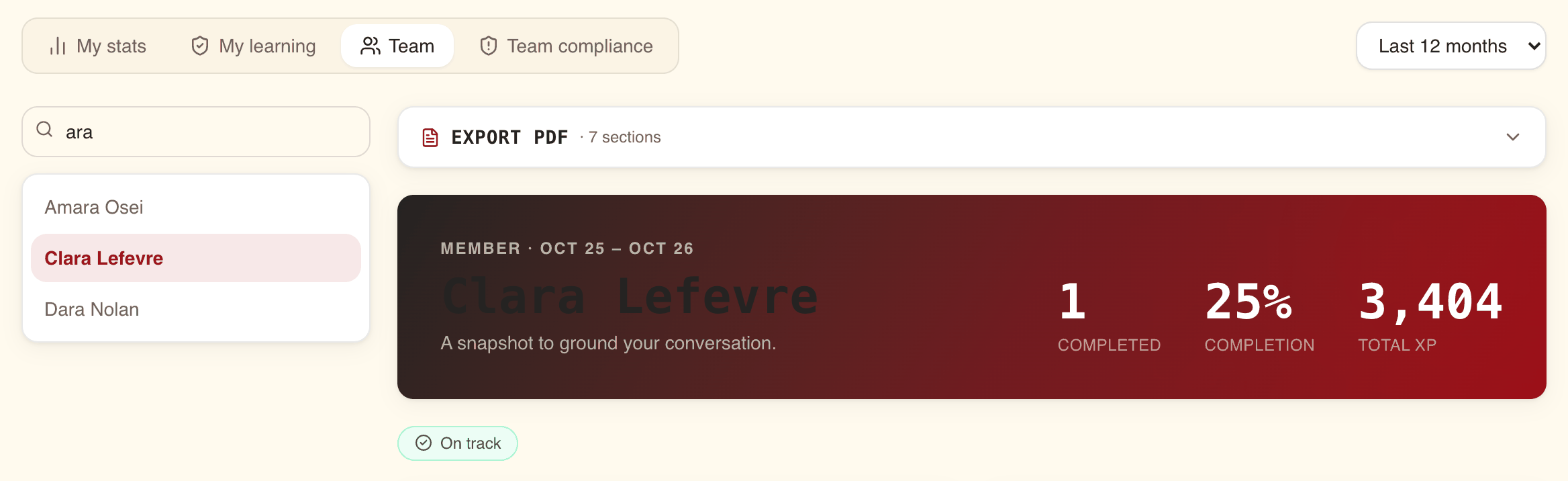
The Team tab lists everyone in the organisation
Open Analytics and choose Team. On the left is a list of names, and Pick a person to open their learning report. on the right until you choose one.
- The list holds every member of the organisation, not only the people you manage. WeLearn has no reporting lines, so there is no "my team only" view. You are in the list too.
- Search people filters the list by display name as you type. It does not search email addresses. No people found. means no name contains what you typed.
- Click a name to open their report. Click another name to switch.
On a narrow screen the list sits above the report rather than beside it.
Choose the period first
The drop-down at the top right of Analytics sets the period for every tab: Last 12 months (the default), Last 6 months or Last 3 months. Each ends today. The report reloads when you change it, and the new period is recorded as a new view.
| Period | The Trajectory chart shows |
|---|---|
| Last 12 months, Last 6 months | One point per calendar month |
| Last 3 months | One point per week |
Most figures count what happened inside the period. Two things do not:
- The attention flags (section 03) always describe the person as of today, whichever period you pick.
- Total XP and the current Streak are the person's figures today, not for the period.
Read the flags at the top first
Under the person's name, a row of coloured flags says whether anything needs your attention.
| Flag | Shown when |
|---|---|
| On track | None of the three below applies |
| 2 mandatory overdue | That many mandatory trainings were assigned to the person, are past their due date, and are not finished. Only obligations that are still open count: a training no longer marked mandatory, or one withdrawn from the person, does not |
| Inactive recently | Nothing in the last 30 days: no XP earned and no training finished |
| Streak lost | The person's current streak is zero and they have had a streak at some point |
What each part of the report shows
The report opens with a banner: Member and the period, the person's name, and three headline figures: Completed, Completion and Total XP. For someone who opted out of gamification the third is Minutes instead.
| Section | What it shows |
|---|---|
| Enrollment mix | The enrolments made during the period, split into Completed, In progress and Not started |
| Quality | Two gauges. Completion: trainings finished in the period, divided by enrolments made in the period. Pass rate: of the trainings finished in the period with a pass or a fail, the share passed |
| Highlights | Minutes: the estimated duration of the trainings finished in the period, as their authors set it, not time actually spent. Mandatory: obligations assigned in the period and finished, with of 3 · 1 overdue below. Retakes: retakes on enrolments made in the period. Started: enrolments made in the period |
| Trajectory | XP earned and trainings completed, month by month or week by week |
| Interest fingerprint | The topics of the trainings the person enrolled on in the period, up to eight, by number of enrolments |
| Gamification | XP this period, Streak with the longest streak below it, Badges earned in the period and Total XP, then the period's XP by what earned it |
| Contributions | Authored: trainings the person is an author of that were created in the period, with how many of them are published and draft today. Quests issued and Seasons created in the period. Archived: how many of those authored trainings are archived today |
Three details trip people up:
- Completion compares two different groups: trainings finished in the period, whoever enrolled them and when, against enrolments made in the period. A period in which older enrolments finish can read above 100%.
- The overdue count under Mandatory covers only obligations assigned during the period. The flag at the top covers all of them, so the two can differ. Trust the flag.
- Contributions counts trainings by when they were created, so a training written two years ago and still widely used does not appear in a 12-month report.
When the person opted out of gamification
Members can switch gamification off in their own settings; see Privacy and your data. Their report then:
- shows Opted out on the Gamification card, with This person has opted out of gamification, so XP, streaks and badges are not tracked. Their learning above is unaffected.,
- shows Minutes in the banner instead of Total XP,
- draws Trajectory with completions only.
Their learning, topics and contributions are reported as for everyone else.
Export the report as a PDF
Above the report, the Export PDF bar shows how many sections are selected. Click it to open the options.
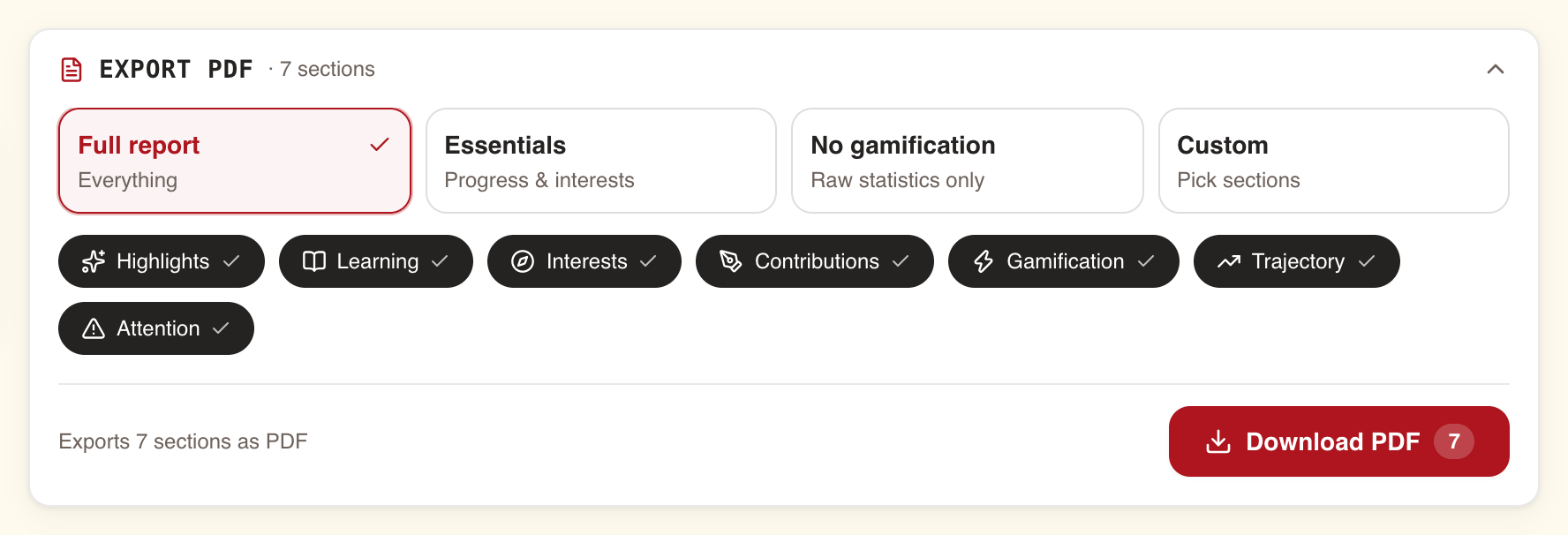
- Pick a preset, or toggle sections one by one below them. Toggling a section switches the preset to Custom.
- Check the line at the bottom, for example Exports 6 sections as PDF.
- Press Download PDF. The button reads Preparing… while the file is built.
| Preset | Sections |
|---|---|
| Full report | All seven |
| Essentials | Highlights, Learning, Interests, Trajectory, Contributions |
| No gamification | All except Gamification |
| Custom | Whatever you tick |
With no section ticked the button is disabled and the line reads Select at least one section. If the file cannot be built, Could not generate the report. Please try again. appears.
What the PDF contains
The PDF is written in English, whatever your language, and its dates are in UTC. It covers the period selected at the top of the page.
Every PDF starts with the same three blocks, whichever sections you pick:
- A header: the person's name, their role, and the period's first and last day.
- Three headline figures: trainings completed, with how that compares to the period just before it of the same length; learning time; and mandatory trainings done, such as 2 of 3, with how many are overdue.
- An attention row: the overdue count, Inactive recently or Recently active, Streak lost or Streak intact, and the date of the last activity.
Then the sections you chose, always in this order:
| Section chip | Heading in the PDF | Contents |
|---|---|---|
| Highlights | The year in brief | Up to six plain sentences to read aloud: volume against the previous period, the busiest month or week, the strongest topic, average score, mandatory status, authored trainings, the best badge, and a note if the person has gone quiet |
| Learning | Learning activity | Started, passed and failed, mandatory done, learning time; a table of every training finished in the period with date, topic, level, score and duration; a table of every training still open, with progress, start date, due date and a status such as OVERDUE · mandatory |
| Interests | Interest fingerprint | Up to eight topics, each with enrolled and finished counts |
| Trajectory | Learning rhythm | Completions and XP per month or week; three or more empty months or weeks in a row are folded into one "no activity" line |
| Contributions | Contributions | The counts above, then each authored training with its status, publication date, and how many colleagues enrolled on it and finished it. The author is not counted |
| Gamification | Recognition & consistency | Badges earned, streak, XP this period, total XP, and each badge with its tier and date. For a person who opted out, a notice and nothing else |
| Attention | Attention & follow-ups | Each overdue mandatory training with progress, due date and days overdue, and notes on inactivity and a lost streak; or "Nothing needs attention" |
Using the report well in a one-to-one
The report was built to ground a conversation, not to replace it. Its banner says so: A snapshot to ground your conversation.
- Pick the period to match the conversation. Last 12 months for an annual review, Last 3 months for a quarterly check-in, where the week-by-week Trajectory is more telling.
- Start from what they did. Highlights and the completed-trainings table are the conversation opener; the flags are a prompt to ask, not a verdict.
- Check before you raise a flag. Inactive recently and Streak lost have the blind spots described in section 03. Someone deep in a long training can look inactive.
- Give credit for contributions. Authoring a training others use is real work and the Contributions section is the only place it shows.
- Send the PDF only if the person asks for it. If you give it to them, use Essentials or No gamification when the conversation is about learning rather than points.
- Let them bring their own view. Members see the same report about themselves on My stats, and their record of passed trainings on My learning; see Your learning record and exports.
Privacy: what is recorded, and what you are responsible for
| You do | WeLearn records | The person is told |
|---|---|---|
| Open someone's report on the Team tab | You, them, the time and the period | No |
| Change the period while their report is open | A new entry with the new period | No |
| Export their report | You, them, the time, the period and the sections you chose | No |
| Open your own report | Nothing | Not applicable |
These records are kept for 24 months and then deleted. They exist so that access to people's figures can be checked afterwards. No screen in WeLearn lists them; see Privacy and your data, which tells members the same.
- Open a report when you have a reason to, such as an upcoming conversation. Every view is on record, and browsing colleagues out of curiosity is exactly what that record is for.
- Do not compare people by XP or streaks. Gamification is optional and opting out costs a member nothing; their XP says how much they played, not how well they learned.
- A member's private notes never appear in the report or the PDF.