
Learners talk back to a training in two ways. At the end, they rate it: Useful, So-so or Not useful, with an optional comment. In any section, they can report a problem. Both land in the Learner feedback panel on the training's page, where you read the ratings and close the reports.
How learners rate and report is in Notes, ratings and reporting problems.
| Ratings | Reported problems | |
|---|---|---|
| Says | Whether the training was worth the learner's time | That one section is wrong |
| Learner's name | Never | Always |
| Reaches you | When you open the panel | As a notification, at once, and in the panel |
| You act on it | By reading | By marking it On it, Fixed or Not a problem |
Who sees the panel
The panel is on the training's page, below the learner's own panels, for:
- the training's authors;
- every Manager and Administrator, on every training, mandatory ones included.
Nobody else sees it, and learners never see what others wrote. Everyone who sees the panel can also mark reports.
The panel appears only once someone has rated the training or reported a problem in it. Until then there is nothing on the page, which is not an error. If the panel cannot be loaded, it says so: "Learner feedback could not be loaded. Nothing here means the request failed, not that nobody has answered."
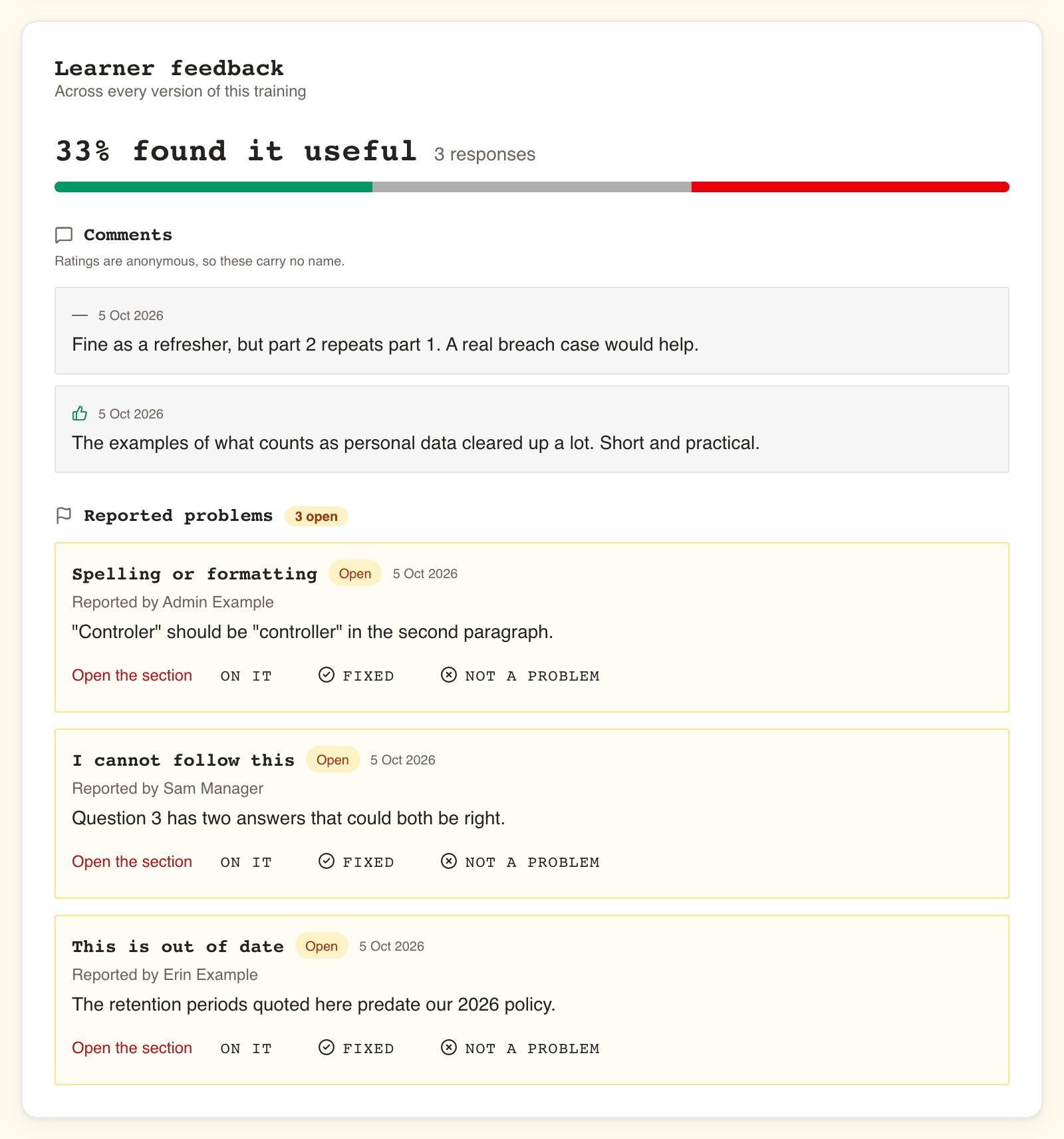
The panel covers every version
The subtitle reads "Across every version of this training". Publishing a revision does not reset the ratings or empty the list of reports: the panel shows the same feedback on v1, v2 and v3, and on an archived version.
That has two consequences:
- After a rewrite, old ratings still weigh in the share. Read the comments' dates to tell feedback on the old material from feedback on the new.
- A report always points at the version the learner was reading. Open the section opens that version, so you see exactly what they saw.
Ratings: a share, a bar and anonymous comments

| What you see | What it means |
|---|---|
| N% found it useful | The share of ratings that chose Useful, rounded to a whole percent. So-so counts against it, like Not useful |
| N responses | How many ratings there are in all |
| The bar | Green for Useful, grey for So-so, red for Not useful, each as wide as its share |
| Nobody has rated this training yet. | Shown in place of the share when there are reports but no ratings |
A learner rates once per round of the training, whether they passed or not, so a run of failures still gets a voice. Nothing notifies you of a rating: you find out by opening the panel.
Comments
Under Comments, the panel shows the 20 most recent ratings that came with a comment, newest first. "Ratings are anonymous, so these carry no name." Each comment shows the rating it came with (thumbs up for Useful, thumbs down for Not useful, a dash for So-so) and the day it was written, never the time.
Reported problems: the queue you work through
Each report names its reason, its status, the date, "Reported by" and the learner's name, their details if they wrote some, and Open the section.
| Reason the learner chose | Usually means |
|---|---|
| Something here is wrong | A factual error, or a wrong answer key |
| This is out of date | Content that was right once |
| A link or embed is broken | A dead link, a video that does not play |
| I cannot follow this | An unclear explanation or question |
| Spelling or formatting | A typo, broken layout |
| Something else | Read the details |
The heading Reported problems carries a count, such as 3 open: every report still waiting on someone, in all versions. The list below it holds up to 50 reports: those still waiting first, newest first, then the most recently closed ones in the room left. When more than 50 are waiting, it says "Showing the 50 most relevant reports, open ones first.", and the count tells you how many there really are.
If the reporter has since left the organisation, the report stays, under Deleted user.
The buttons on a report, and the status they set
| Button | Status it sets | Offered while the report is |
|---|---|---|
| On it | Being looked at: someone has taken it on, so the other authors need not | Open |
| Fixed | Fixed: the content has been corrected | Open or Being looked at |
| Not a problem | Not a problem: the content was checked and is right | Open or Being looked at |
On it is optional: you can go straight from Open to Fixed. Fixed and Not a problem close the report for good. There is no way to reopen it, and a closed report offers no buttons. If two people act on the same report at once, the second is told "Somebody has already handled this report. Reload to see where it stands."
Notifications to authors
Every author of the training, except the reporter if they are one, is notified the moment a report is sent: the learner's name, "reported a problem in" the section's title, and the reason. The learner's details are not in the notification; read them in the panel. The notification opens the player on that section.
Managers and Administrators who are not authors are not notified; they see reports only in the panel. Report notifications belong to Required notices, so they always reach your WeLearn inbox; only their Slack copy can be turned off. See Notifications.
A triage routine that keeps the queue honest
On each report notification, or once a week on a busy training:
- Open the section and read it as the learner did, on the version they reported.
- If you will deal with it but not straight away, select On it, so co-authors do not pick it up as well.
- If the learner is right, open a revision, correct the section, and publish it. Then mark the report Fixed. Fix every open report on the same section in the same revision.
- If the content is right, mark it Not a problem. If the report shows that a passage confused someone, consider rewording it anyway.
- If you need more detail, contact the reporter before deciding.
And from time to time:
- Read the newest comments, especially those under Not useful, for what learners say the training lacks.
- Compare the share before and after a revision using the comments' dates.
- Check the N open count reaches zero. A report left Being looked at for weeks is a promise nobody is keeping.