
This page takes you through your first training, from picking it in the catalog to seeing your result. It takes about five minutes to read. Every step links to a fuller guide if you want the detail.
If a manager has already assigned you a training, you do not need the catalog: it is waiting on your Dashboard, under My Trainings, in the To Do group with its due date. Open it there and continue from step 3.
Open the catalog
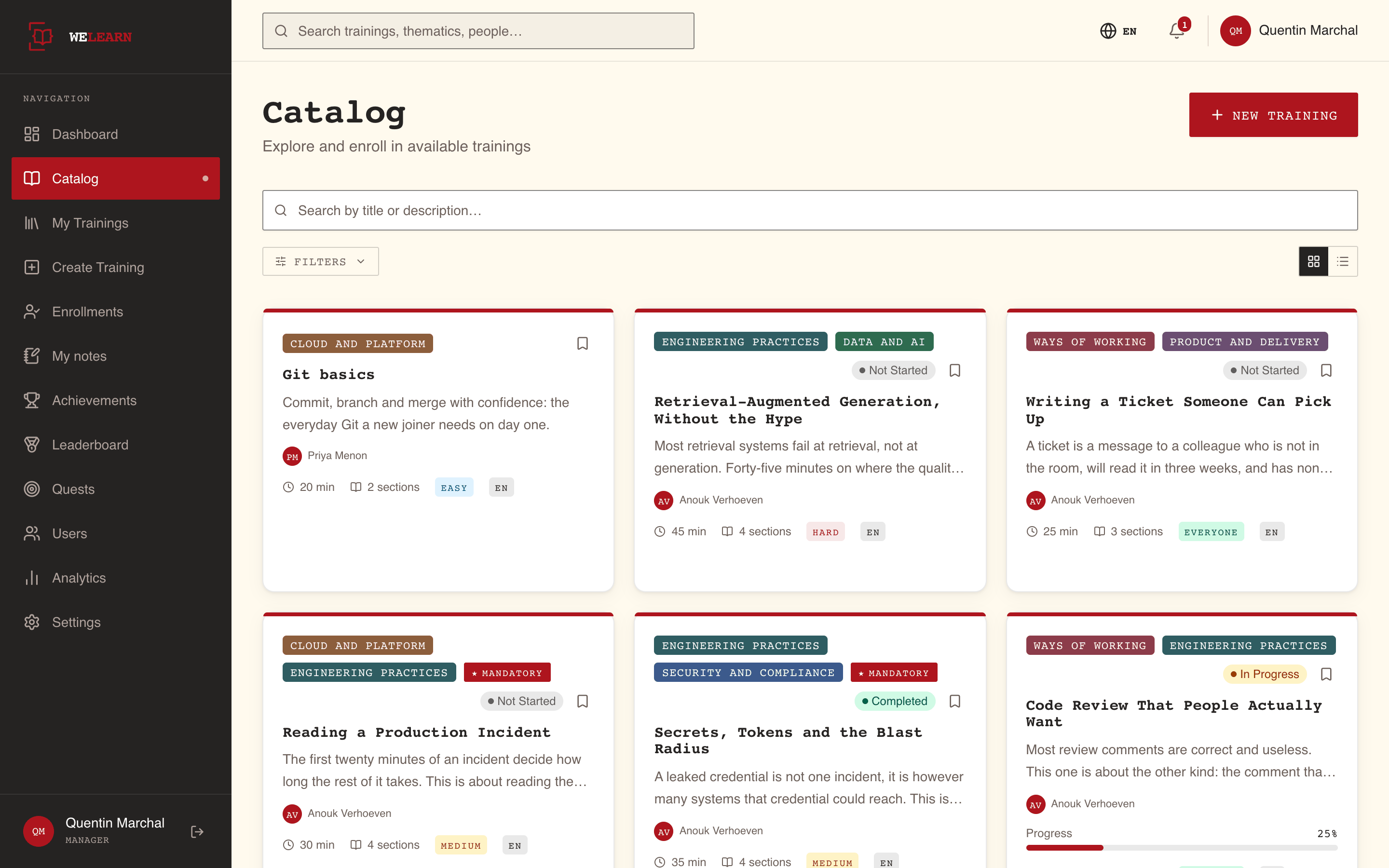
Select Catalog in the sidebar. The page lists every published training in your organisation, one card per training.
Each card shows the topics, the title, a short description, the authors, the duration, the number of sections, the difficulty and the language. A card with the Mandatory badge is a compliance training: see Mandatory trainings and certification.
Narrow the list down
- Type in Search by title or description… to search as you type.
- Select Filters to filter by Topics, Level (All Levels, Easy, Medium, Hard), Language and Authors, or to show only Saved only, ★ Mandatory or ⊘ Archived trainings. Each active filter appears as a pill you can remove; Clear all removes them all.
- Switch between Grid view and List view with the two icons on the right.
The full set of options, including saving a training for later, is in Finding trainings.
Open the training's page
Select a card. A training you have already started opens straight in the player; any other opens its page. The training's page tells you what you are signing up for before you start:
| What you see | What it tells you |
|---|---|
| Duration | The estimated time to complete the whole training |
| Sections | How many reading sections and quizzes it holds |
| Difficulty | The level the author set |
| Author or Authors, Reviewed by | Who wrote it and who reviewed it |
| Deadline | Only on a training you were given a deadline for: the date and the days left |
| Contents | Every section in order, with its type |
Save keeps the training on your saved list without starting it.
Select Start Training
Start Training enrols you and opens the player on the first section. There is no request to approve: the enrolment is immediate, and the training now appears on your dashboard.
Work through the player
The player shows the sections of the training in a panel on the left, and the current section on the right with Section 1, Section 2 and so on above its title.
- Sections unlock in order. You can open any section you have already finished, and the next one. Sections further ahead show a padlock until you get there.
- Next moves you on. On a reading section or a link, Next also marks it done. On an exercise, Next stays unavailable until you have submitted an answer.
- Previous takes you back one section.
- Exit training, at the bottom of the left panel, takes you back to the training's page. Your progress is saved as you go. When you come back, Continue opens the player on the first section you have not finished.
The Progress bar in the left panel shows how much you have done.
Answer the exercises
Exercises are marked with a question icon in the left panel. Answer, then select Submit Answer on a quiz or Submit on the other exercise types. Each type is explained in Answering each exercise type.
What happens next depends on how the author set up the training:
| The training gives feedback | What you see after you submit |
|---|---|
| Immediately (the default) | Right away: whether you were right, and the explanation if the author wrote one. On a training with a passing score you have not reached yet, a wrong answer shows only Incorrect: no explanation, no correct answer |
| At the end | Answer recorded, with "Your results will be shown at the end of the training." Your answers and results appear on the result screen |
Finish and read your result
On the last section, select Finish Training. The result screen depends on whether the training has a passing score:
- No passing score. Finishing the training is a pass. You see Training Complete!
- A passing score. WeLearn takes the plain average of your scores on every exercise in the training, not the score of one quiz, and compares it to the passing score. At or above it, you see Training Complete! Below it, you see Assessment Failed with your score and, for example, Required: 80%.
The percentage shown on both screens is labelled quiz score, but it is the average across every exercise in the training.
On a training that certifies you, the result screen also says until when you are certified.
Retry if you did not pass
If you did not reach the passing score and the training allows another attempt, select Retry Training. Your quizzes and exercises start over, and the reading sections stay done. A peer-review submission is kept as it is, with its verdict. When no attempt is left, the button is not offered: if you have used every attempt, ask your organisation's Administrators. How attempts work is covered in Taking a training.
Find it again on your dashboard
Select Dashboard in the sidebar. The trainings you are enrolled in are listed under My Trainings (View all → opens the full list; see Your dashboard for the cases where one is missing here), grouped as In Progress, To Do, Failed and Completed, with your score once you have finished and the due date while one applies. Select a row to go back to it: a training in progress opens straight in the player, any other opens its page. The XP you earn by finishing trainings is explained in Gamification.
The rest of the dashboard is described in Your dashboard.