
The Dashboard is the page WeLearn opens on. It answers one question: what should you do next? Bands that have nothing to say are not shown, so your dashboard is often shorter than a colleague's. This page goes through it from top to bottom.
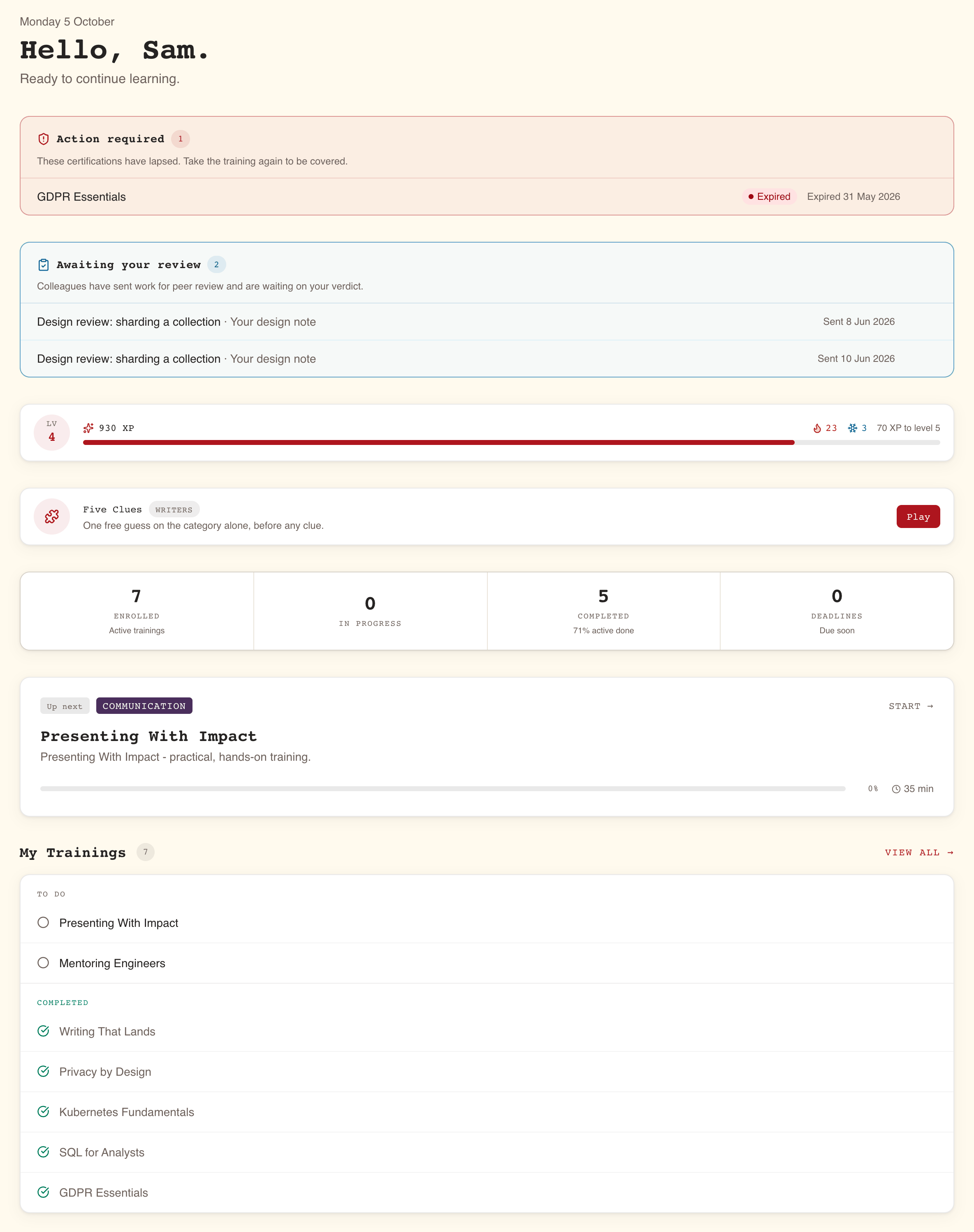
| From the top | Shown when |
|---|---|
| Greeting and status line | Always |
| Action required | A certification of yours has expired or a compliance deadline has gone by |
| Awaiting your review | A colleague has sent you work to review |
| Level and XP strip | You take part in gamification and Show level on dashboard is on |
| Five Clues banner | You take part in gamification and a puzzle is scheduled today |
| Four stat cards | Always |
| The spotlight card | Always: your next training, or suggestions from the catalog |
| Saved for later | You have saved at least one training |
| My Trainings | You are enrolled in at least one published training |
| Discover More | You are enrolled in something and there are published trainings you are not enrolled in |
When your trainings, your certifications or the catalog cannot be loaded, the dashboard says so where they would be, with Retry, rather than showing empty counts or no band at all.
The greeting line tells you the one thing that matters most
The top of the page shows today's date, Hello, followed by your first name, and one line summing up where you stand. WeLearn picks the first line that applies:
| You have | The line reads |
|---|---|
| A training you have not passed, past its due date | "1 training overdue, take action now." (or the number) |
| A due date still ahead on a training you have not passed | "2 deadlines coming up, stay on track." |
| A training in progress | "1 training in progress." |
| Only trainings you have passed | "All caught up, great work!" |
| Enrolments, none of the above | "Ready to continue learning." |
| No enrolments | "Welcome to WeLearn. Start by exploring the catalog." |
Action required lists the certifications you have lost
A red Action required band appears when one of your mandatory trainings is Expired or Overdue. It is there only when you are no longer covered, and gone the rest of the time.
Each row shows the training's title, its status, and "Was due" or "Expired" with the date. Selecting a row opens the training's page, where you take it again.

Awaiting your review lists work colleagues sent you
When a colleague submits work on a peer-reviewed exercise and you are one of its reviewers, a blue Awaiting your review band appears. The oldest submission comes first, so the person who has waited longest is at the top.
- Each row shows the training, the exercise, and Sent with the date.
- Up to five rows are shown. With more, See all followed by the number of submissions appears under them.
- Every row, and that link, opens the Reviews page. That page has no menu entry: this band is the way in.
How to review is in Reviewing a peer's submission.
The XP strip and the Five Clues banner are the game layer
Both appear only if you take part in gamification, which is on unless you turned it off in Settings › Gamification. Both sit below the two bands above, on purpose: a lapsed certification or a colleague waiting on you comes before a game.
The level and XP strip shows:
- Lv and your level.
- Your total XP.
- A flame with your current streak in working days, once you have one.
- A snowflake with your freeze tokens, once you have any.
- How much XP you need for the next level, on wider screens. The bar under it shows the same thing.
To hide the strip and keep gamification on, turn off Show level on dashboard in Settings › Gamification. XP, levels, streaks and freeze tokens are explained in Gamification.
The Five Clues banner appears on days a daily puzzle is scheduled, and not at weekends. It shows the puzzle's category and a line telling you where you are. Play opens the puzzle; once you have started, the button reads Continue. When you have finished, the button is replaced by your result grid. See Five Clues daily puzzle.
The stat cards count your enrolments
| Card | What it counts | The line under it |
|---|---|---|
| Enrolled | Trainings you are enrolled in that are still published | Active trainings |
| In Progress | Those you have started and not finished | None |
| Completed | Every training you have passed, including ones archived since. A training you failed is not counted | Avg score: your average across passed trainings that have a score. Without scores, the share of your active trainings you have passed |
| Deadlines | Trainings you have not passed whose due date is still ahead, however far, failed ones included | Due soon |
When at least one of your trainings is past its due date, the last card turns red and reads Overdue with that number, and the line under it gives the number of deadlines still to come.
The cards are not links.
The spotlight card shows the one training to open next
Below the stat cards, one large card picks a single training for you, in this order:
- A training you have not passed, due within the next 7 days.
- Otherwise, a training you have started.
- Otherwise, a training you are enrolled in and have not started.
- Otherwise, a training you failed and can still retry.
The label at its top says why it was picked: Due in 3 days, Overdue by 2 days, In progress, Up next or Failed. The card also shows the training's topics, ★ Mandatory if it is one, its description, your progress, its duration and its due date. Selecting it opens the player if you are part way through, and the training's page otherwise: a training you have not started, one you failed, and one you started on a version that has since been replaced, whose page says what to do with your run. Its corner reads Continue → or Start → accordingly, and on a failed training Retry → when you can retry it, Review → when you cannot.
When there is no such training, because you are enrolled in nothing, or everything you are enrolled in is passed or failed with no retry to offer, the card becomes Explore the catalog instead: three published trainings you are not enrolled in, and Browse all, which opens the Catalog.
Saved for later holds your bookmarks
Saved for later appears as soon as you have saved a training (see Finding trainings). The number beside the heading counts everything on your saved list.
- The first three saved trainings are shown as cards. Select one to open it.
- View all → opens the Catalog filtered to Saved only, where the whole list is.
- A saved training that has since been archived shows as "A training you saved is no longer available." with Remove, which takes it off your list. It is not hidden, so you know why it is gone.
My Trainings lists everything you are enrolled in, by status
This section lists the published trainings you are enrolled in, in four groups:
| Group | What is in it |
|---|---|
| In Progress | Trainings you have started. A progress bar shows how far you are, on wider screens |
| To Do | Trainings you are enrolled in and have not started, including those a manager assigned you |
| Failed | Trainings you finished without reaching the passing score, with your score in red. Retry from the training's page while you have attempts left |
| Completed | Trainings you have passed, with your score |
Every row in the first three groups shows Due and the date when there is a due date, or Overdue once it has passed. Trainings that are overdue or due within 7 days come first. Each group shows all its trainings: there is no limit and no "show more".
Selecting a row opens the player for a training in progress, and the training's page for the rest. On a wider screen, hovering a row shows what will happen: Continue →, Start → or Review →.
Discover More suggests what to take next
When you are enrolled in at least one training, Discover More shows three published trainings you are not enrolled in. The number beside the heading is how many such trainings the dashboard found. View all → opens the Catalog.