
Connecting Slack is a one-time job for an Administrator, about ten minutes including the Slack side. Once it is done, WeLearn reaches people where they already work, and members have nothing to set up.
This page covers what Slack adds, the setup step by step, what members and the channel receive, and what to do when a member gets nothing. What members see on their side is in Notifications.
Slack adds direct messages to members and posts to one channel
| Direct messages | Channel posts | |
|---|---|---|
| Who receives them | Each member, privately, from the WeLearn app | Everyone in the one channel you choose |
| What they carry | The member's own notifications: enrolments, deadlines, chasing, reviews, follows, and so on | New and updated trainings, and the Five Clues puzzle each working morning |
| Who decides what is sent | Each member, per category, in Settings › Notifications | You, by choosing the channel. Members cannot switch channel posts off |
| Needs | Slack connected and Enabled, and the member matched by email | Slack connected and Enabled, a default channel, and the bot invited to it |
Slack is an extra on top of WeLearn's own inbox. Every notification still lands in the member's WeLearn inbox, whether or not Slack delivers it. Nothing is lost in WeLearn if Slack is off, misconfigured or down.
You connect it once; members do nothing
| Who | Does what |
|---|---|
| Administrator | Connects Slack, approves WeLearn in the workspace, chooses the default channel, invites the bot to it, and can pause or disconnect it |
| A Slack workspace admin | May have to approve the WeLearn app, if your workspace requires approval for new apps. That is a Slack setting, not a WeLearn one |
| Manager, Employee | Nothing to connect. Each chooses, per category, whether their notifications also reach them on Slack |
| WeLearn | Finds each member's Slack account by their WeLearn email address, the first time it has something to send them |
Only Administrators see Settings › Integrations. A Manager cannot connect, pause or change Slack.
Setting it up, step by step
Connect Slack
- Open Settings › Integrations. The Slack card reads Connect a Slack workspace to send notifications and let people look up teammates by email., with a Connect Slack button.
- Press Connect Slack. Your browser goes to Slack.
- If you belong to several Slack workspaces, pick the one your organisation uses.
- Slack lists what WeLearn asks for. Approve it.
- Slack sends you back to the same tab, which shows Slack connected successfully. and the connected card.
What WeLearn asks Slack for, and why:
| Permission | What WeLearn does with it |
|---|---|
| Send messages as the app | Posts direct messages to members and posts in the default channel |
| View people in the workspace, and their email addresses | Finds the Slack account that matches each member's WeLearn email |
| View basic information about public and private channels | Lists the channels for you to choose from, and shows whether the bot is in each |
WeLearn reads no messages, joins no channel by itself and posts nowhere but in direct messages and the channel you choose.
If the page answers Could not connect Slack. Please try again., either you cancelled on Slack's side, or Slack refused the request. If it answers Could not start the Slack connection. Please try again. before you even reach Slack, try again; if this keeps happening, contact WeLearn support.
Read the connected card
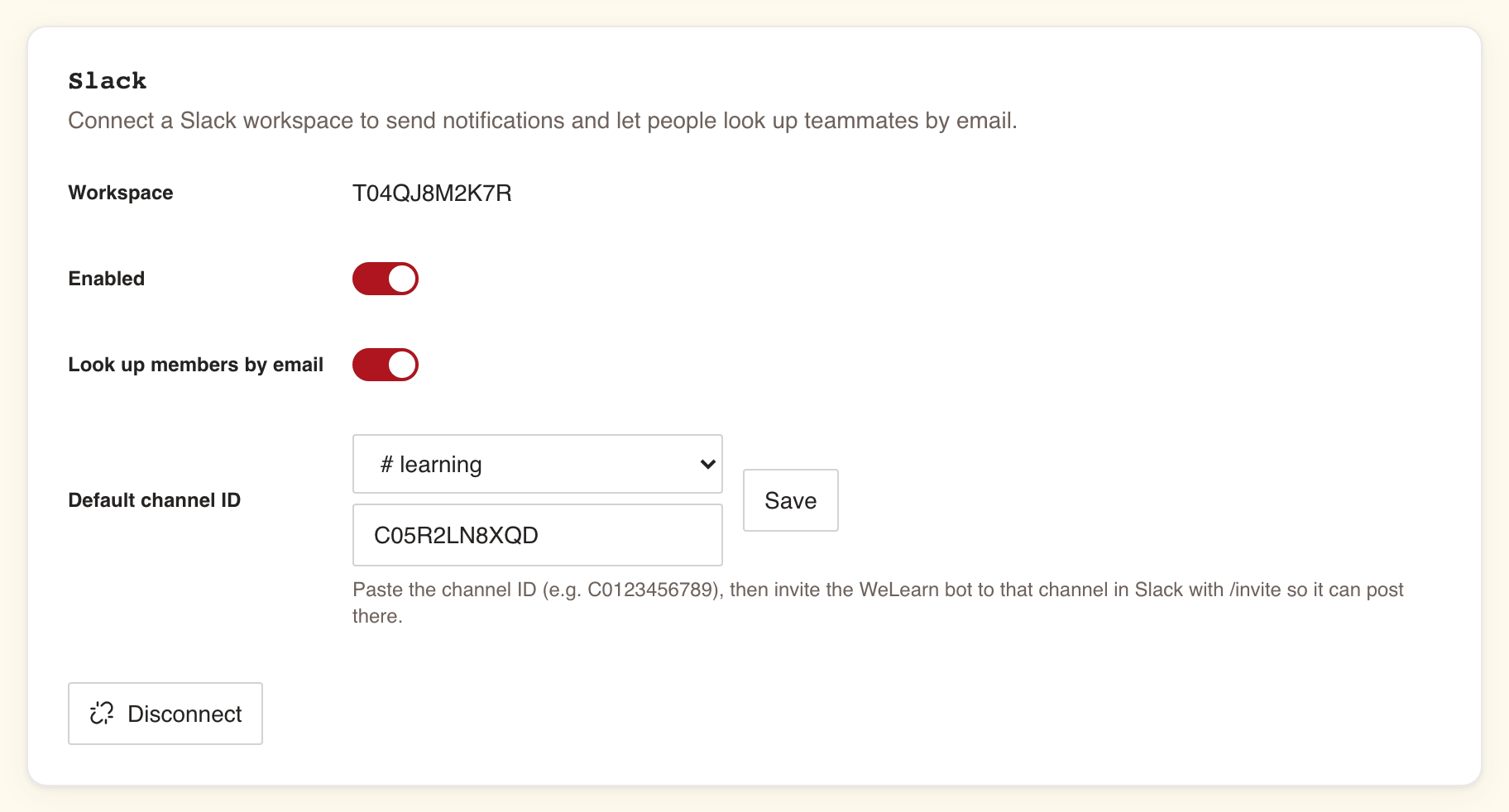
Once connected, the card shows four rows, then Disconnect.
| Row | What it is | Saves |
|---|---|---|
| Workspace | The Slack workspace WeLearn is connected to, shown as Slack's ID for it (a code), not its name | Not editable |
| Enabled | Whether WeLearn sends anything to Slack at all. On after connecting | At once; Saved. appears |
| Look up members by email | Whether WeLearn may search your Slack workspace for members' email addresses. On after connecting | At once; Saved. appears |
| Default channel ID | The channel that receives the channel posts. Empty after connecting | When you press Save |
Enabled: the master switch
Switch Enabled off to stop every Slack message from WeLearn without losing the setup: no direct messages, no channel posts, no puzzle, no weekly summary. Switch it on again and everything resumes, with the same channel and the same member matches.
Look up members by email: leave it on
This switch lets WeLearn match members to Slack accounts. With it off:
- members already matched keep receiving direct messages, through the match WeLearn already has;
- members not matched yet, including everyone who joins later, receive nothing on Slack, and nothing they can do changes that;
- a match is never refreshed, so a member who changes email keeps receiving on their old match.
There is no reason to switch it off unless your organisation forbids WeLearn from searching the Slack directory. In that case, know that Slack direct messages effectively stop for new members.
Default channel ID: choose the channel and invite the bot
- Choose the channel:
- If WeLearn can list your channels, a drop-down appears above the text field. Public channels
start with
#, private ones with a padlock. Pick one, or No default channel. - Otherwise, or if your channel is not in the list, paste its ID in the text field. In Slack,
open the channel, open its details from the channel name, and copy the Channel ID shown at
the bottom. It looks like
C0123456789.
- If WeLearn can list your channels, a drop-down appears above the text field. Public channels
start with
- Press Save. Saved. appears.
- In Slack, open that channel and type
/invitefollowed by the bot's name, then send it. Approving WeLearn did not put the bot in any channel, and Slack refuses its posts until it is a member.
Under the field, WeLearn says what it knows:
| Under the field | Meaning |
|---|---|
| Paste the channel ID (e.g. C0123456789), then invite the WeLearn bot to that channel in Slack with /invite so it can post there. | The general reminder. Shown when WeLearn cannot tell whether the bot is in the channel, for example for a pasted ID |
| The WeLearn bot is not in #learning. Invite it with /invite so it can post there., in red | The channel picked in the drop-down does not have the bot. Posts to it will fail |
The red warning reflects the channel list as it was when the page loaded. After inviting the bot, reload the page to see it clear.
The drop-down holds up to 1,000 channels and leaves out archived ones. If you connected Slack a long time ago and see only the text field, your connection predates the channel list. Pasting the ID works just as well. To get the list, Disconnect and connect again, then choose the channel again.
To stop channel posts but keep direct messages, choose No default channel, or empty the field, and press Save.
Disconnect, or just switch Enabled off
| Enabled off | Disconnect | |
|---|---|---|
| Messages stop | Yes, all of them | Yes, all of them |
| Workspace, channel and settings | Kept | Deleted |
| Member matches | Kept | Deleted, for every member |
| Undo | Switch it back on | Connect Slack again, then choose the channel again |
| Use it for | A pause: a Slack migration, a noisy week, an incident | Leaving Slack, or moving to a different Slack workspace |
What members receive by direct message
Each member chooses, per category, in Settings › Notifications, under the Slack column. The full list of notifications in each category is in Notifications.
| Category | What it covers, in short | Slack on by default |
|---|---|---|
| Required notices | Being enrolled, invitations to co-author or review, certification expiry and lapse, compliance chasing, a certificate downloaded by a manager, peer-review submissions and verdicts, problem reports, finished draft reviews, the weekly compliance summary for Managers and Administrators | Yes |
| Deadline reminders | Due-date reminders | Yes |
| Completed trainings | Finished trainings | No |
| Authoring activity | Revisions and review-note activity on trainings the member co-authors | Yes |
| New trainings in catalog | Trainings published by people or in topics the member follows, new versions of trainings they completed | No |
| Social activity | New followers | Yes |
| Streak reminders | The warning that a streak is about to break; shown only to members taking part in gamification | No |
| Achievements | Badges, quests, levels; shown only to members taking part in gamification | No |
| Weekly game digest | The weekly summary below; Slack only, shown only to members taking part in gamification | No |
Members only see a Slack switch while Slack is connected and Enabled.
What a direct message looks like:
- A heading with the notification's title, a line of detail when it adds something, and a button that opens the right page in WeLearn, such as View training, Review the submission or View my compliance. The member signs in to WeLearn as usual if they are not already.
- Pressing the button also marks the notification read in the member's WeLearn inbox, so they do not deal with it twice.
- Slack messages are in English. The WeLearn inbox follows each member's language; the Slack copy does not.
- Messages usually arrive within a minute of the event.
The weekly summary, "Your week on WeLearn", goes out on Monday at 09:00 Paris time, by direct message only. A member receives it only if they take part in gamification, have Slack on for Weekly game digest, which is off by default, and earned something that week.
Notifications about space requests, which only platform administrators receive, never go to Slack.
What the channel receives
| Post | When | Content |
|---|---|---|
| New training published | When any training is published, usually within a minute | New training published, the training's title "is now available.", and a View training button |
| Training updated | When a new version of a published training is published | Training updated, the title "has a new version available.", and a View training button |
| Five Clues puzzle | Each working day, in the morning | See below |
Each training gets a post, whoever published it and whatever its topic, including mandatory trainings. There is no way to filter them, and no channel digest: these three are everything the channel receives. The weekly compliance summary and the weekly summary are direct messages, never channel posts.
The puzzle post is one message a morning. It shows:
- a heading, Five Clues and the puzzle's number;
- yesterday's scoreboard: up to 30 players, with how many clues they used, then "… and 6 more"; players matched in Slack are mentioned by their Slack name, the others appear under their WeLearn name;
- how many working days in a row someone in the organisation has finished the puzzle, from two days up;
- today's category and a Play button.
Only members who take part in gamification and appear on leaderboards are listed on the scoreboard. Working days are Monday to Friday, except French public holidays. On a day the puzzle cannot be served, nothing is posted. The puzzle itself is described in Five Clues daily puzzle.
When a member gets nothing on Slack
Start with the member's own WeLearn inbox. If the notification is there, WeLearn raised it, and the question is only why Slack did not carry it.
| Symptom | Likely cause | What to do |
|---|---|---|
| Nobody gets anything | Enabled is off, or Slack was disconnected | Check Settings › Integrations; switch Enabled on, or connect again |
| One member gets nothing, others do | Their WeLearn email does not match any account in your Slack workspace | Make the two addresses the same. WeLearn remembers a failed match for 24 hours, then looks again the next time it has something to send them; nothing needs resetting |
| One member gets nothing, and joined after you switched Look up members by email off | WeLearn is not allowed to look them up | Switch Look up members by email on |
| A member gets some categories, not others | They switched Slack off for those categories, or never switched it on for a category where it starts off | Their choice, in Settings › Notifications. Nothing for you to change |
| A member gets no weekly summary | It needs gamification on, Slack on for Weekly game digest, and some activity that week | Tell them which switch to turn on |
| DMs arrive, the channel stays silent | No default channel saved, or the bot is not in it | Check Default channel ID, then /invite the bot |
| The channel stopped receiving after it worked | The bot was removed from the channel, or the channel was archived or deleted | Invite the bot again, or choose another channel and press Save |
| A member who changed email still gets messages at the old Slack account, or none | WeLearn keeps a match for up to 30 days before checking it again | It corrects itself within 30 days; disconnecting and reconnecting clears every match at once |
| A former member stopped receiving | Removing someone from WeLearn deletes their Slack match | Expected |
| The button opens WeLearn but the notification stays unread | The click was not reported back to WeLearn | The link itself works. If this keeps happening, contact WeLearn support |
| Nothing arrives during a Slack outage | Slack is down | WeLearn keeps retrying for up to 24 hours, then gives up |
A member can check whether WeLearn found their Slack account: their Download my data file, in Settings › About, lists it. See Privacy and your data.
Checklist and traps
Before you connect
- Members use the same email address in WeLearn and in Slack.
- You know whether your Slack workspace needs a Slack admin to approve new apps.
- You have picked a channel whose audience should see every new training's title.
Connecting
- Connect Slack, approved within 10 minutes, back on Slack connected successfully.
- Enabled and Look up members by email both on.
- A default channel chosen and saved.
- The bot invited to that channel with
/invite, and no red warning after a reload.
After connecting
- Ask one colleague to check that a notification reached them on Slack, for example by following them, which sends Social activity.
- Tell members there is nothing to set up, and that Settings › Notifications chooses what reaches Slack.
- Check the channel the next working morning for the puzzle post.
Traps
| Trap | What happens | What to do |
|---|---|---|
| Expecting members to "connect their Slack" | There is nothing for them to connect | Fix email mismatches instead |
| Switching Look up members by email off to "reduce noise" | New members never get direct messages | Leave it on; members mute categories themselves |
| Using Enabled as a snooze | Notifications raised while it is off never reach Slack | Expect members to read their WeLearn inbox meanwhile |
| Pressing Disconnect to pause | Every setting and member match is deleted, with no confirmation | Switch Enabled off instead |
Saving a channel and forgetting /invite |
Channel posts are refused and dropped after about a quarter of an hour | Invite the bot right after saving |
| Picking a channel with outsiders in it | They see every training title and the puzzle scoreboard | Choose an internal channel |
| Reading the Workspace row as a name | It shows Slack's ID for the workspace | Compare it with the workspace ID in Slack if you need to confirm |
Related pages
- Notifications: what members see and choose.
- Administrator quickstart: Slack in the first-day sequence.
- Organisation settings: the other settings you own.
- Running compliance for your team: the nudges and weekly summary that also reach Slack.
- Five Clues daily puzzle