
A training can hold seven kinds of exercise. Six are marked by WeLearn the moment you submit; the seventh, peer review, is marked by a person. This page shows how to answer each one and how it is scored. What you see after submitting, and when the correct answers are revealed, depends on the training's settings and is explained in Taking a training.
Every exercise scores from 0 to 100
| Type | How your score is counted | Partial credit |
|---|---|---|
| Quiz | Per question, weighted by the points the author gave each question. Wrong ticks cost points | Yes |
| Ordering | The share of items in exactly the right position | Yes |
| Matching | The share of pairs matched correctly | Yes |
| Categorization | The share of items in the right category. An item left out counts as wrong | Yes |
| Numeric | Inside the accepted value or range, or not | No |
| Cloze | The share of blanks filled correctly. A blank left on Choose… counts as wrong | Yes |
| Peer review | 100 when the reviewer passes it, 0 for Needs more work | No |
Two rules apply to all of them:
- 100 means perfect. A near miss is shown as 99 at most, never rounded up to 100. Correct is shown only for 100; anything less is labelled Incorrect, even with partial credit.
- Each exercise counts once in your result. Your result is the plain average of all the exercises in the training, so a long quiz weighs the same as a single numeric question. See How your result is worked out.
You answer each exercise once per attempt. Once you have selected Submit Answer or Submit, the answer is final until your next attempt.
Quiz
A quiz holds one or more multiple-choice questions, shown one at a time. Above each question you see the quiz's title and, when there are several, the question number, for example Q2/5. Options are lettered A, B, C and so on.
- One answer. The option markers are round. Selecting another option replaces your choice.
- Several answers. The question carries a Multiple answers label and square markers. Select every option you think is right.
Select Submit Answer to submit that question. The option you chose is marked Your pick. With immediate feedback, right answers turn green and your wrong picks red, within the limits described in Taking a training. An explanation, when the author wrote one, appears as ✓ Correct - Explanation or ✗ Incorrect - Explanation.
Use the quiz's own Previous and Next, or the dots between them, to move between questions. Next stays unavailable until you have answered the current question.
How it is scored. Each question is worth the points the author set. Within a question:
- every correct option you tick earns an equal share of its points;
- every wrong option you tick costs the question's points divided by the number of options;
- a question never goes below zero.
A one-answer question therefore gives full marks or nothing. On a question worth 10 points with four options, two of them right, ticking one right and one wrong option earns 5 minus 2.5: a quarter of the question. Ticking everything does not pay.
Ordering
You get a list of items in a shuffled order and put them in the correct order.
- Use the two arrow buttons on each row to move an item one place earlier or later.
- On a wider screen, you can also drag an item by its handle.
When you are done, select Submit. The order you see first is never already the correct one.
How it is scored. An item counts only if it sits in exactly its correct position. A list shifted by one place, with every item one step off, scores nothing for those items.
Matching
You match each prompt, listed under Match, with one of the Options.
- Drag an option onto the box next to its prompt, or
- select an option, then select the box next to the prompt. The box reads Tap to place while an option is selected; select the same option again to deselect it.
A matched box shows the option you placed. Select it, with no option selected, to remove the match and send the option back to Options. Placing an option on a box that already holds one sends the previous one back. When every option is used, Options reads All options placed.
Submit becomes available once you have made at least one match. Prompts you leave empty count as wrong.
How it is scored. The share of prompts matched with the right option.
Categorization
You sort the Items into the categories the author named.
- Drag an item into a category, or
- select an item, then select the category, by its name or anywhere in its box.
An item you have placed shows a small cross. Select it to move it back to Items.
Submit becomes available once you have placed at least one item. Once you submit, items you did not place are listed under Not placed and count as wrong.
How it is scored. The share of items in their correct category.
Numeric
You type a number in the field marked Enter a number and select Submit. Submit stays unavailable while the field is empty or holds something it does not read as a number.
The author sets either one exact value or a range. Once the answer is revealed, it reads Correct answer: followed by the value, or Correct range: followed by the two limits. A range includes both of its limits.
How it is scored. All or nothing: 100 inside the value or range, 0 outside it.
Cloze
A cloze is a text with blanks. Each blank is a drop-down that reads Choose… until you pick one of its choices. Choose an answer for each blank, then select Submit, which becomes available once you have filled at least one blank.
Once the answers are revealed, a Correct answer list gives each blank, Blank 1, Blank 2 and so on, with your wrong choice struck through next to the right one.
How it is scored. The share of blanks filled correctly. A blank you left on Choose… counts as wrong.
Peer review
A peer review asks you to write something, which a person then reads and marks. The author decides who reviews: the training's authors, unless they named other people or groups. You never review your own work.
Write and submit
The exercise shows the author's brief, and, while you have a limited number, how many submissions you have left: "1 submission left", "3 submissions left" and so on, counting the one you are writing. Write your answer in the box marked Write your response…, then select Submit.
After you submit, the exercise shows Your submission and Awaiting review: "A reviewer will grade this. You will be notified when they do, and the training completes then." You cannot change a submission while it waits. You can carry on with the rest of the training; at the end, the last button reads Close and await review.
If nobody is able to review it, the submission is refused with "Nobody can review this submission. Ask a training author to name a reviewer, then submit again." This happens when you are the only person who could review it, for example as the only author of the training.
The verdict
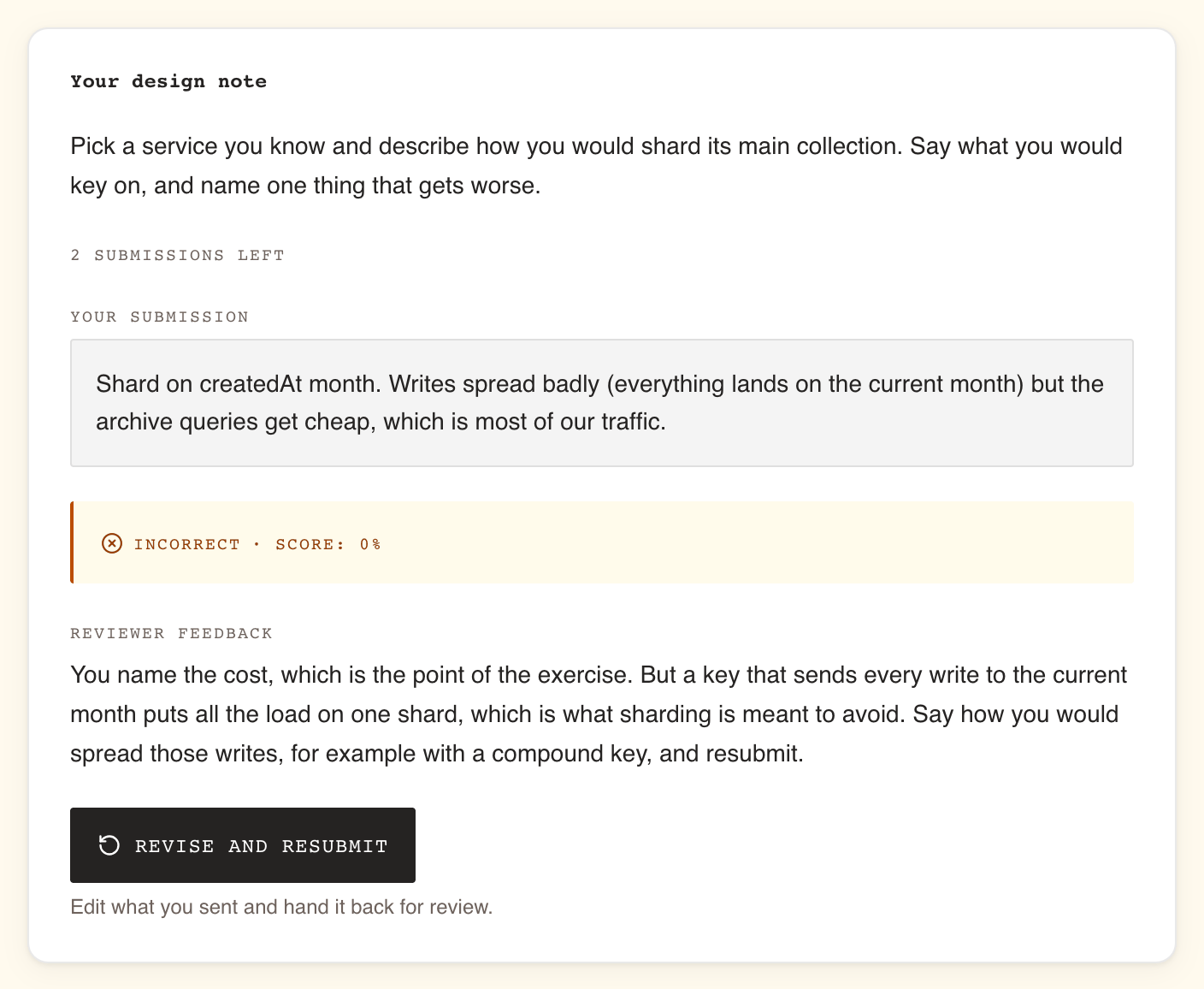
You receive a notification, "… reviewed your submission: passed" or "… reviewed your submission: needs more work", with the reviewer's name. In the player, the verdict shows as Correct for a pass and Incorrect for Needs more work, with the reviewer's comments under Reviewer feedback when they wrote some.
Your submissions on the training's page
Once you have submitted, the training's page shows a Your submissions panel, with one row per peer review.
| Status | What it means |
|---|---|
| Awaiting review | "Sent on" and the date, "waiting on a reviewer" |
| Approved | The reviewer passed it. "Reviewed on" and the date, with their comments |
| Needs more work | The reviewer did not pass it. "Reviewed on" and the date, with their comments |
| Withdrawn | "This submission was withdrawn before anyone reviewed it" |
Open in the training takes you straight to that exercise in the player.
Revise and resubmit
After Needs more work, you can send a new version if you have a submission left: select Revise and resubmit. The box opens with your previous text in it, so you only change what the reviewer asked for. Keep my current version backs out without sending anything. A new submission goes back to Awaiting review, and the reviewers are told.
When the peer review is the training's only graded item and the training has no passing score, a Needs more work verdict still finishes the training: progress reads 100%, and the player shows "You have already completed this training. You can run through it again." with Take it again, next to Revise and resubmit. To change the verdict, revise; Take it again starts a new round.
When you have no submission left, the exercise says: "You have no submissions left on this training, so this verdict is final. Retaking keeps it rather than reopening it."
How it counts
| Rule | Detail |
|---|---|
| Your submissions per round | The same number as the training's attempts. On a training with one attempt, a Needs more work verdict is final |
| A retry of the training | Keeps your submission, its verdict and the submissions you have used. It does not give you more |
| A new round (Take it again, Renew certification) | Starts the peer review afresh, with a full set of submissions |
| Your result | Waits for the verdict. Until then the training is not finished, so there is no result, no certification and no completion |
| The date that counts | Your own last action on the training, usually the day you submitted, not the day of the verdict. A deadline you met when you submitted stays met, and a certification runs from that day |
| Needs more work | Scores 0 in your average. It does not fail the training on its own: with no passing score, or with an average still above it, you can pass with it |
A revision takes the exercise back to Awaiting review and puts your result on hold again until the new verdict.
Using exercises without a mouse
Every exercise can be answered with the keyboard alone, and every drag has a tap or click alternative.
| Type | With the keyboard |
|---|---|
| Quiz | Tab to an option and press Enter or Space to select it, then to Submit Answer |
| Ordering | Tab to the arrow buttons on a row and press Enter to move the item. On a wider screen you can also focus the handle, press Space, move it with the arrow keys, and press Space again; Escape cancels the move |
| Matching | Press Space or Enter on an option to select it, then Tab to the box next to a prompt and press Space or Enter to place it |
| Categorization | Press Space or Enter on an item to select it, then Tab to a category's name and press Space or Enter to put it there |
| Numeric | Type the number, then Tab to Submit |
| Cloze | Tab to a blank, open it with Enter or Space, and choose with the arrow keys |
| Peer review | Type in the box, then Tab to Submit |
With a screen reader, each move is announced: which item is selected, where it was placed, and where it now sits in the order.