
You can connect an AI assistant such as Claude to your WeLearn account. It can then read the trainings and topics you can read, write new trainings as drafts, change drafts you author, and work live in a co-authored draft you may edit. It cannot publish, archive or delete anything, enrol anyone, or make a training mandatory: a person does those in WeLearn, always.
The assistant writes trainings in the same YAML format as Import YAML, described in Import and export in YAML. Read that page if you want to check or correct what it writes.
The assistant acts as you, with eight tools
Once connected, the assistant works through the tools below. They are listed by the names an assistant shows when it uses one.
| Tool | What it does | Needs |
|---|---|---|
get_training_schema |
Reads the annotated template of the YAML format, the one Load template gives you. | Read |
list_thematics |
Lists the organisation's topics with their ids. | Read |
list_trainings |
Lists trainings a page at a time, filtered by text, stage, difficulty, language or topic. | Read |
get_training |
Reads one training, with its answer keys if you may edit it, otherwise as a learner sees it. | Read |
export_training |
Reads one training as YAML, answer keys included, like Export. | Write |
create_training |
Creates a new draft from YAML and gives back a link to it in the editor. | Write |
update_training |
Changes a draft you author. | Write |
edit_training |
Edits a draft in live editing as a participant: its title, new sections, paragraphs. | Write |
"Read" is the permission WeLearn labels Read learning content; "Write" is Create and edit trainings. Your role still applies on top of both, on every request: the assistant never gets past what your account may do.
What it sees through list_trainings depends on your role. For an Employee, the list holds
published trainings only, so your own drafts are not in it: give the assistant the draft's link
from the editor, which carries its id. For a Manager or Administrator, the list includes
drafts and archived trainings too.
Connect by signing in
Signing in is the recommended way: there is nothing to copy, and the connection ends by itself. Everything starts in Settings › Connect an agent (Agents on a narrow screen), which shows the address of your organisation's WeLearn for assistants:
https://<your WeLearn address>/<your organisation>/api/mcpThe tab builds it for you. Copy it from there rather than typing it.
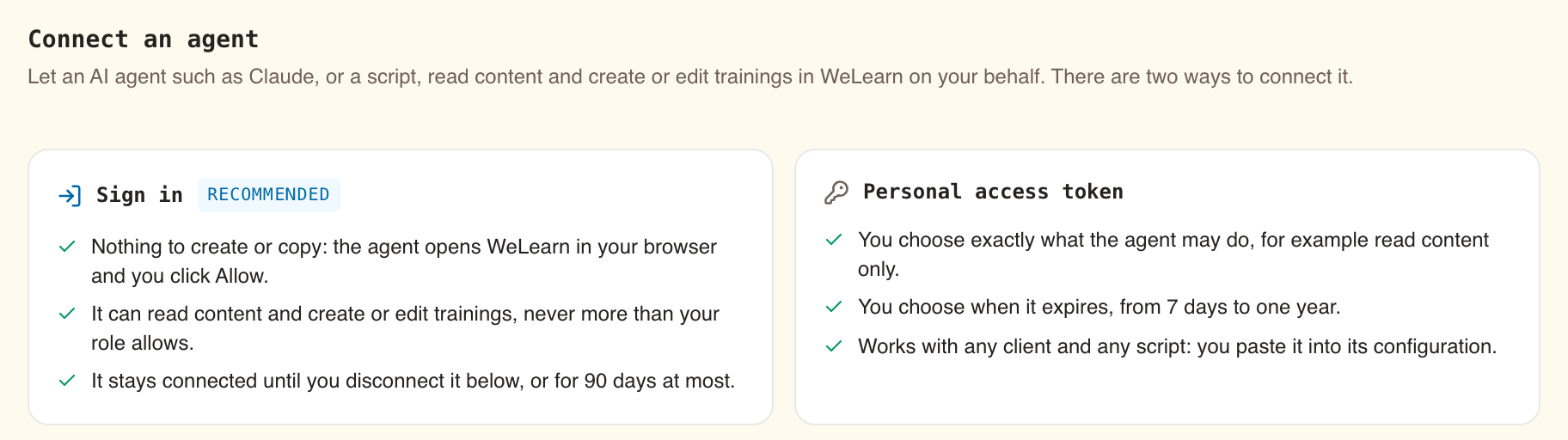
The Connect an agent tab is not offered in the demo, and apps cannot be connected to the demo.
Claude Code
In Settings › Connect an agent, under Claude Code, select Copy beside the command. It has this shape:
claude mcp add --transport http welearn https://<your WeLearn address>/<your organisation>/api/mcpRun it in a terminal.
In Claude Code, type
/mcpand start the sign-in forwelearn. Your browser opens WeLearn. If you are signed out, sign in first: you land back on the connection page.Read the page, described below, and select Allow.
The page shows Returning to the app… and hands you back to Claude Code, now connected.
claude.ai
On claude.ai, WeLearn is added once for the whole claude.ai organisation, as a custom connector, by whoever administers that organisation. The tab says: "ask your administrator to add the same URL once as a custom connector, and everyone in your organisation can connect with one click."
- The person who administers claude.ai adds a custom connector with the address above. That person need not be a WeLearn Administrator, and nothing is set up in WeLearn for it.
- Each member then connects WeLearn from claude.ai, lands on the same connection page in WeLearn, and selects Allow. Each person connects their own account; nobody connects on behalf of someone else.
Signing in this way works with Claude Code and claude.ai. Any other app is stopped on the connection page with This app is not allowed to connect to WeLearn, so there is nothing to approve here. For any other app, use a personal access token.
The connection page says who is asking and for what
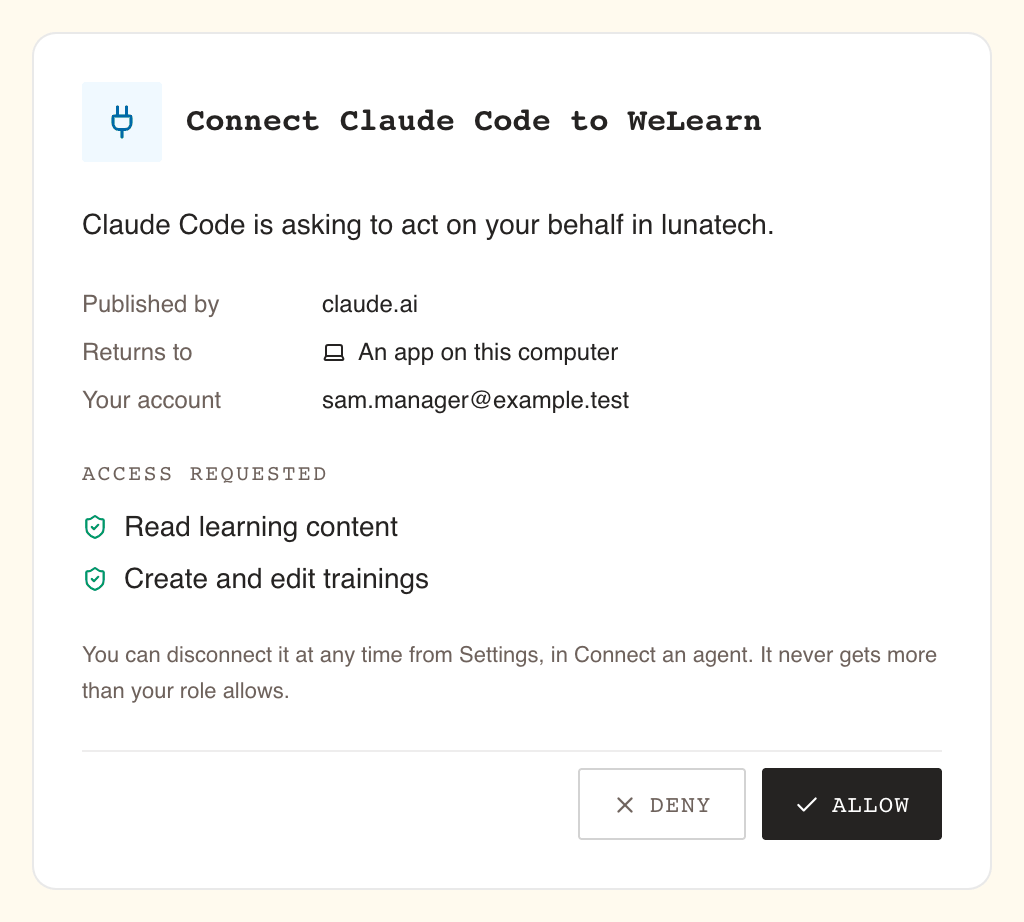
| On the page | What it tells you |
|---|---|
| Connect … to WeLearn | The app's name. |
| "… is asking to act on your behalf in …" | Which organisation the connection is for. |
| Published by | The site that publishes the app, such as claude.ai. |
| Returns to | Where the answer goes: An app on this computer for Claude Code, a website address for claude.ai. |
| Your account | The WeLearn account the app will act as. Check it before you allow. |
| Access requested | Read learning content and Create and edit trainings. Signing in can ask for these two and nothing more. |
Allow connects the app; Deny sends it away with nothing. If you did not start a connection yourself a moment ago, select Deny.
Other messages you may meet there:
| Message | What to do |
|---|---|
| There is no connection request here. Start the connection from the app you want to connect. | The page was opened without a request. Start again from the app. |
| This request could not be checked. Start the connection again from the app. | WeLearn could not check the request. Start again from the app. |
| Your answer could not be recorded. Try again. | Select Allow or Deny again. |
| Your account cannot connect apps to WeLearn. | Your account has no right to connect apps. Ask your organisation's Administrators. |
How long the connection lasts
| Lifetime | |
|---|---|
| A connection | 90 days at most from the moment you select Allow. After that, the app sends you to the connection page again. |
| Between uses | The app renews its access by itself while you use it. Left unused for 30 days, it has to ask again. |
| Your role | Checked on every request. If you are made Employee from Manager, or your account is offboarded, the assistant loses what you lose at once. |
Connected apps, and disconnecting one
The Connected apps list in the same tab shows each app you allowed: its name, the two permissions, Connected with the date, and last refreshed with the date it last renewed its access (or not refreshed yet).
Select Disconnect to cut an app off. There is no confirmation, and it takes effect on the app's next request. To use it again, connect it again.
Each Allow adds an entry, even for an app already in the list. If you connected the same app twice, disconnect the entry you no longer use.
Or connect with a personal access token
A token is for when signing in does not fit:
- you want to give the assistant less, for example a read-only assistant;
- you want to choose the expiry date yourself;
- the app is not one that can sign in, or it is a script.
The Personal access tokens section, lower in the same tab, creates and lists them.
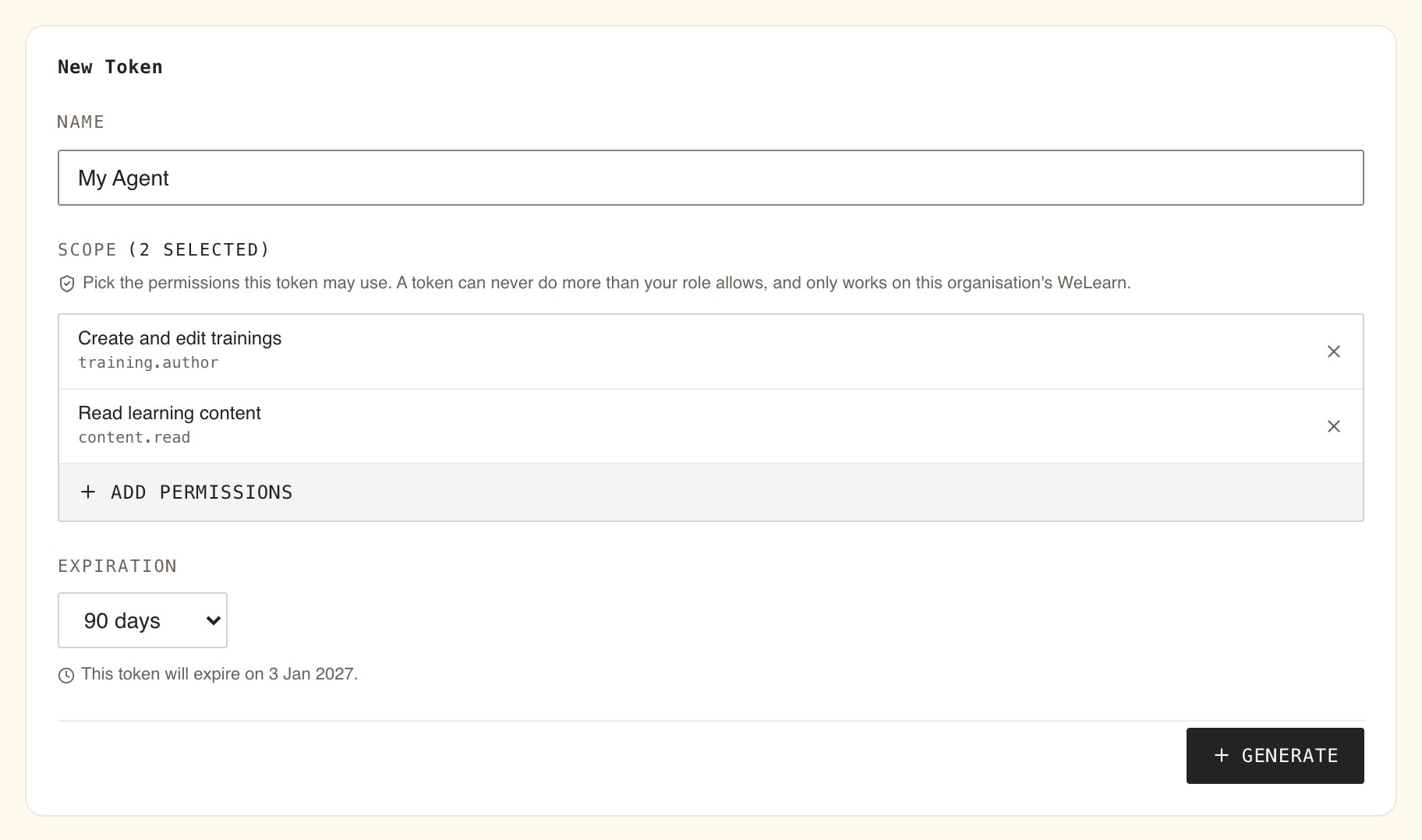
- Under New Token, give it a Name, such as "My Agent".
- Under Scope, select Add permissions and pick what it may do. Training agent picks the two an assistant uses, Create and edit trainings and Read learning content. For a read-only assistant, pick Read learning content alone. The other permissions in the list give an assistant no further tool.
- Under Expiration, pick 7 days, 30 days, 60 days or 90 days (the default), or Custom… and a date up to a year ahead. The line below reads This token will expire on ….
- Select Generate.
- Token created shows the token once, with Copy it now. For your security, it will not be shown again. Select Copy and paste it straight into the app.
Point the app at the same address and send the token as a header. Using a token in the tab shows the configuration most apps take, with your address already in it:
{
  "mcpServers": {
    "welearn": {
      "type": "http",
      "url": "https://<your WeLearn address>/<your organisation>/api/mcp",
      "headers": { "Authorization": "Bearer wl_…" }
    }
  }
}
Replace wl_… with your token.
What each choice gives the assistant:
| Token permissions | The assistant can |
|---|---|
| Read learning content only | List trainings and topics and read trainings as a learner sees them, without answer keys. It cannot export, create or change anything. |
| Read learning content and Create and edit trainings | Everything signing in allows. |
Active Tokens lists your tokens with their creation and expiry dates, and Expired on those past their date. Revoke deletes one at once, without confirmation; anything using it is refused from then on. A lost or leaked token cannot be shown again: revoke it and generate another.
Write a new training with the assistant
- Tell the assistant what the training is for, who it is for, and what it should hold, for example "a 20-minute training on our code review rules, three text sections and a five-question quiz, in English, in the Engineering topic".
- The assistant reads the format and the topics, writes the YAML, and creates the draft. It answers with the new draft's link.
- Open the link. The draft is yours, in My Trainings › Authored under Draft, like any other.
- Read every block, and play every exercise in Preview. Check each answer key yourself: the assistant can mark the wrong proposition correct as convincingly as the right one.
- Fix what the Publish readiness panel lists, and publish when you are satisfied. See The training editor.
Ask the assistant to set language: without it the draft imports fine and publishing asks for one.
Edit an existing training without losing content
The assistant can only change a draft. How it does depends on whether the draft uses live editing, which a draft switches to when a Collaborator is invited, and keeps, for later revisions too (see Co-authoring and reviewing drafts).
| The training is | What happens |
|---|---|
| A draft you author | The assistant can change it with update_training. |
| A draft you do not author, even as a Manager or an Administrator | Refused, unless it uses live editing and you may edit it (next row). Otherwise ask an author. |
| A draft that uses live editing | The assistant edits it live with edit_training if you may edit the draft: as one of its authors, a Collaborator on it, or a Manager or Administrator who can open its editor. If you author it, the assistant can also change it with update_training while nobody has it open. |
| Published | Refused. Select Edit on its page first: WeLearn opens a revision, which is a draft you author. The assistant can then change the revision. You publish it. |
| Archived | Refused. Archived trainings never change. |
With update_training, the safe sequence, which the assistant is told to follow:
- Read the training with
get_training. The assistant gets the whole draft and a marker of the moment it was last saved. - Edit what it read: change the text, add or remove blocks.
- Send it back with
update_training, with that marker unchanged.
If someone saved the draft in between, WeLearn refuses the change, and the assistant has to read the training again and redo its edit. Nothing is overwritten.
In live editing, the assistant works beside you
With edit_training, the assistant joins the draft's live editing as one more participant. People
who have the draft open see it among the others connected, under the app's name, and see its text
arrive. It can do three things, in the order you ask:
- change the title;
- add a section with its paragraphs, at the end or after a block it names;
- add paragraphs at the end of a section.
Its paragraphs are plain text. A field someone is typing in is waited for, then skipped and reported, never overwritten. With nobody else in the draft, the assistant saves it when it is done; with people in it, their editor saves it, as it saves everyone's typing.
To remove or rework blocks or exercises, use the editor, or, if you author the draft, have the
assistant use update_training while nobody has the draft open: while someone does, WeLearn refuses
it and writes nothing. Where WeLearn cannot host the assistant in live editing, it refuses
edit_training and says so.
Mandatory trainings need extra care
- The assistant cannot make a training mandatory, set its certification period or touch its Compliance card. A training it creates is ordinary until a Manager who is not one of its authors, or an Administrator, marks it mandatory. See Authoring a mandatory training.
- It sees the answer keys only where you do. On a mandatory training, a Manager who is not one of its authors gets the learner's view through the assistant, without answers, and no export.
- An Administrator's assistant is recorded. When it reads a mandatory training the Administrator does not author, the access is recorded, exactly as if the Administrator had opened its editor. Asking an assistant to "have a look" at such a training leaves that trace.
- A change still goes through a revision. Open the revision in WeLearn, let the assistant edit it, and check the result in Preview before publishing. Learners already certified stay certified until their date, as with any revision.
- Think before sending a compliance assessment to an AI service. Reading the training sends its content, answer keys included, to the assistant's provider. Follow your organisation's rules about where that may go.
What the assistant can see
The assistant sees what you ask it to read, through your account, and nothing your account could not see. In particular:
- the trainings and topics of the organisation you connected, and no other;
- the answer keys of the trainings whose editor or review page you could open, and of no others;
- nothing about other people's progress, results, enrolments or certificates: no tool reads them.
Whatever it reads goes to the assistant's provider as part of your conversation. Disconnect the app or revoke the token when you stop using it.
Who can do what
| Action | Employee | Manager | Administrator |
|---|---|---|---|
| Connect an app or create a token, in Settings › Connect an agent | Yes | Yes | Yes |
| Have the assistant list drafts and archived trainings | No | Yes | Yes |
| Have it read the answer keys of an ordinary training they do not author | No | Yes | Yes |
| Have it read the answer keys of a mandatory training they do not author | No | No | Yes, recorded |
| Have it create a draft | Yes | Yes | Yes |
| Have it change a draft they author | Yes | Yes | Yes |
| Have it edit live a draft in live editing they do not author | No | Yes, unless it is mandatory | Yes |
| Have it change any other draft they do not author | No | No | No |
| Have it publish, archive, delete or make mandatory | No | No | No |
Whatever the role, someone invited to a draft as Collaborator or Reviewer can also have the assistant read that draft's answer keys, for as long as it is a draft, and a Collaborator can have it edit the draft live.
Checklist
- The connection page showed your own account under Your account before you selected Allow.
- A token, if you use one, has only the permissions the assistant needs and an expiry you chose.
- Outside live editing, the editor is saved and closed while the assistant edits a draft.
- You exported the draft before a large edit.
- The assistant changed the existing draft rather than creating a second training.
- You read every block and played every exercise in Preview, checking each answer key.
- The draft has a language and at least one topic.
- You disconnected apps and revoked tokens you no longer use.
Traps
- Your draft is missing from the assistant's list. As an Employee, the list holds published trainings only. Give it the link to the draft.
- A co-authored draft refuses
update_trainingwhile someone has it open. Have the assistant useedit_training, or close the draft and let it try again. - The assistant cannot change a published training on its own. It cannot open a revision. Select Edit in WeLearn, then let it work on the revision.
- Two entries for the same app. Each Allow adds one. Disconnect the old one.
- Another app is refused at sign-in. Signing in works with Claude Code and claude.ai; for any other app, use a personal access token.
Related pages
- Import and export in YAML: the format the assistant reads and writes.
- The training editor: reviewing and publishing what the assistant wrote.
- Publishing, revisions and archiving: revisions, which the assistant needs to change a published training.
- Co-authoring and reviewing drafts: live editing, which the
assistant joins with
edit_training. - Privacy and your data: what happens to tokens and connected apps when an account is deleted.