
Under every section of a training, the player offers two controls: Write a private note, for yourself, and Report a problem, for the authors. At the end of a training, the result screen asks Was this training useful? This page covers all three and who sees what. In the public demo, all three are switched off (see Trying WeLearn: the demo).
| Private note | Rating | Problem report | |
|---|---|---|---|
| Where | Under any section | On the result screen | Under any section |
| Who reads it | Only you | The authors, Managers and Administrators | The authors, Managers and Administrators |
| Your name on it | Not applicable | Never | Always |
| Anyone notified | No | No | Every author of the training |
| How often | One note per section, edit it any time | Once per round of the training | As often as needed |
Keep one private note per section
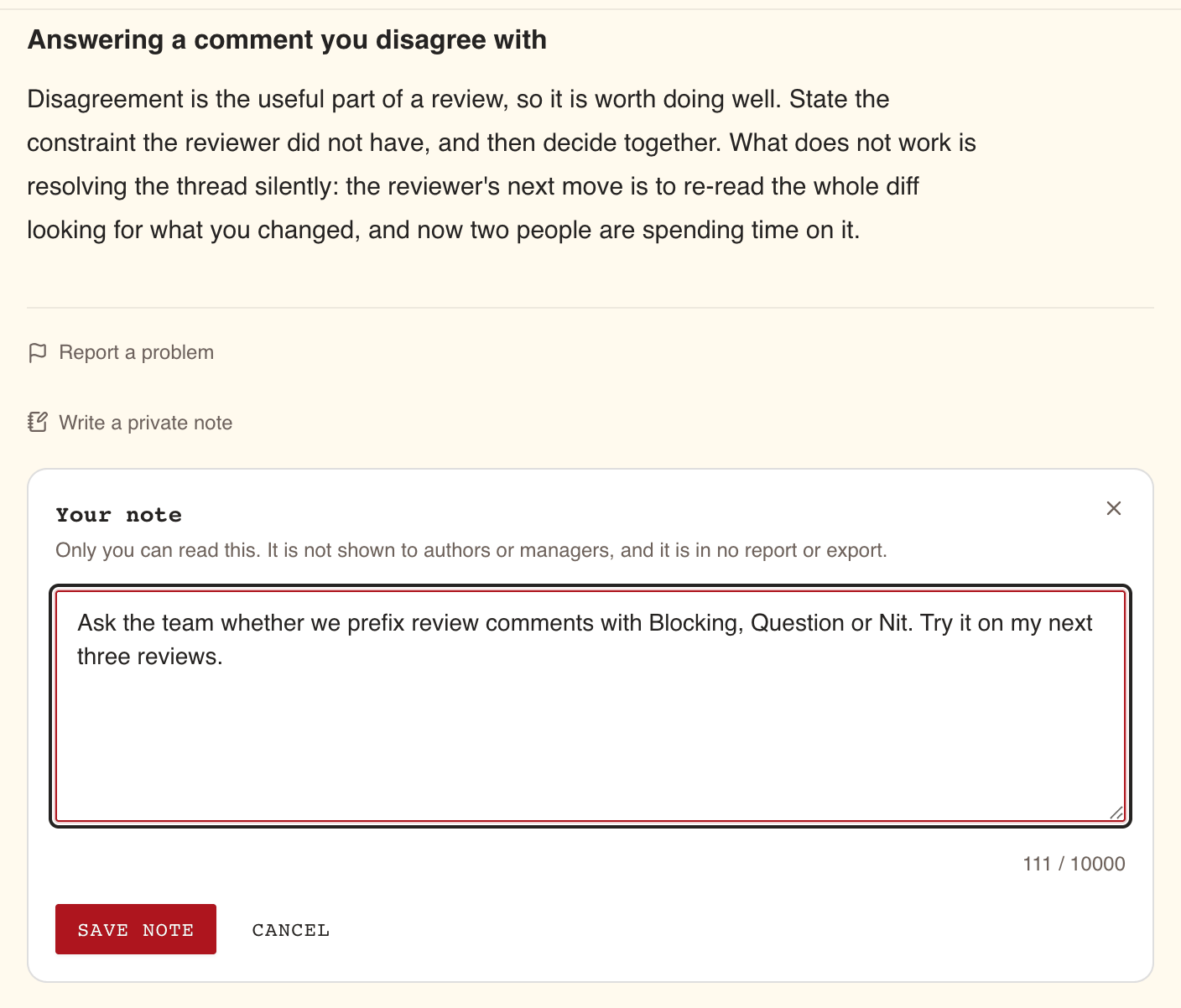
Below the content of any section, select Write a private note. A panel opens with Your note and a reminder: "Only you can read this. It is not shown to authors or managers, and it is in no report or export."
- Type in the box marked "What do you want to remember about this?". A counter shows how many of the 10,000 characters you have used.
- Select Save note. It stays unavailable until you have changed something.
Once a section has a note, the control reads Edit your note, and the panel shows "Saved" with the date. Each section holds one note: editing it replaces the text. To remove it, select Delete note, or empty the box and select Save note.
Notes work everywhere in the player, including on an archived training you are reading for reference. They are not tied to an attempt: a retry or a new round leaves them where they are.
If your notes cannot be loaded, the control says so and stays closed rather than offering an empty box: "Your notes could not be loaded, so the editor is closed here: writing now would replace a note you already hold. Reload the page to try again."
Find every note on My notes
Select My notes in the sidebar. The page lists everything you have written, grouped by training, the most recently edited first, and repeats the privacy promise: "These notes are yours alone. Nobody else on the platform can read them: not the authors of the material, not your managers, and they appear in no report, export or analytics."
- Search your notes filters as you type, on the note's text, the section's title and the training's title.
- Select a note's section title to open the player on that section.
- Delete removes a note at once. There is no confirmation and no undo.
The page shows your 500 most recently edited notes. If you hold more, it says "Showing your 500 most recently edited notes out of" the total, and the search only looks through those 500.
A note on a training that has since been deleted stays on the page, under "A training that no longer exists".
Your notes survive a new version
When the authors publish a new version of a training, its sections are replaced, so a note can lose the section it sat beside. The note is not lost. In the player, the new version shows a line such as 2 notes from an earlier version, with Show them to read them: "You wrote these before this training was revised. The sections they were about are no longer on the version you are reading, so they sit here rather than beside an element."
These notes keep the title of the section they were about. To delete one, use My notes.
Rate a training once per round, on the result screen
When you finish a training, the result screen asks Was this training useful?, whether you passed or not. The prompt is not offered anywhere else.
- Choose Useful, So-so or Not useful. Select your choice again to undo it.
- Optionally, add a comment under "Anything you want the authors to know? (optional)", up to 1,000 characters.
- Select Send. The screen answers "Thanks, the authors will see this."
Not now hides the prompt for the rest of your visit. It comes back the next time you reach the result screen of this training in a later visit, until you rate it.
| Question | Answer |
|---|---|
| Is it anonymous? | Yes. "Your answer reaches the authors as a total, never with your name on it." Your comment is shown as you wrote it, with no name |
| Who sees it? | The training's authors, and any Manager or Administrator, in the Learner feedback panel on the training's page, as a share of people who found it useful and a list of comments |
| Is anyone notified? | No |
| Can I change it? | No. You rate once per round of the training |
| When can I rate again? | After you start a new round with Take it again or Renew certification and finish it |
Report a problem in a section
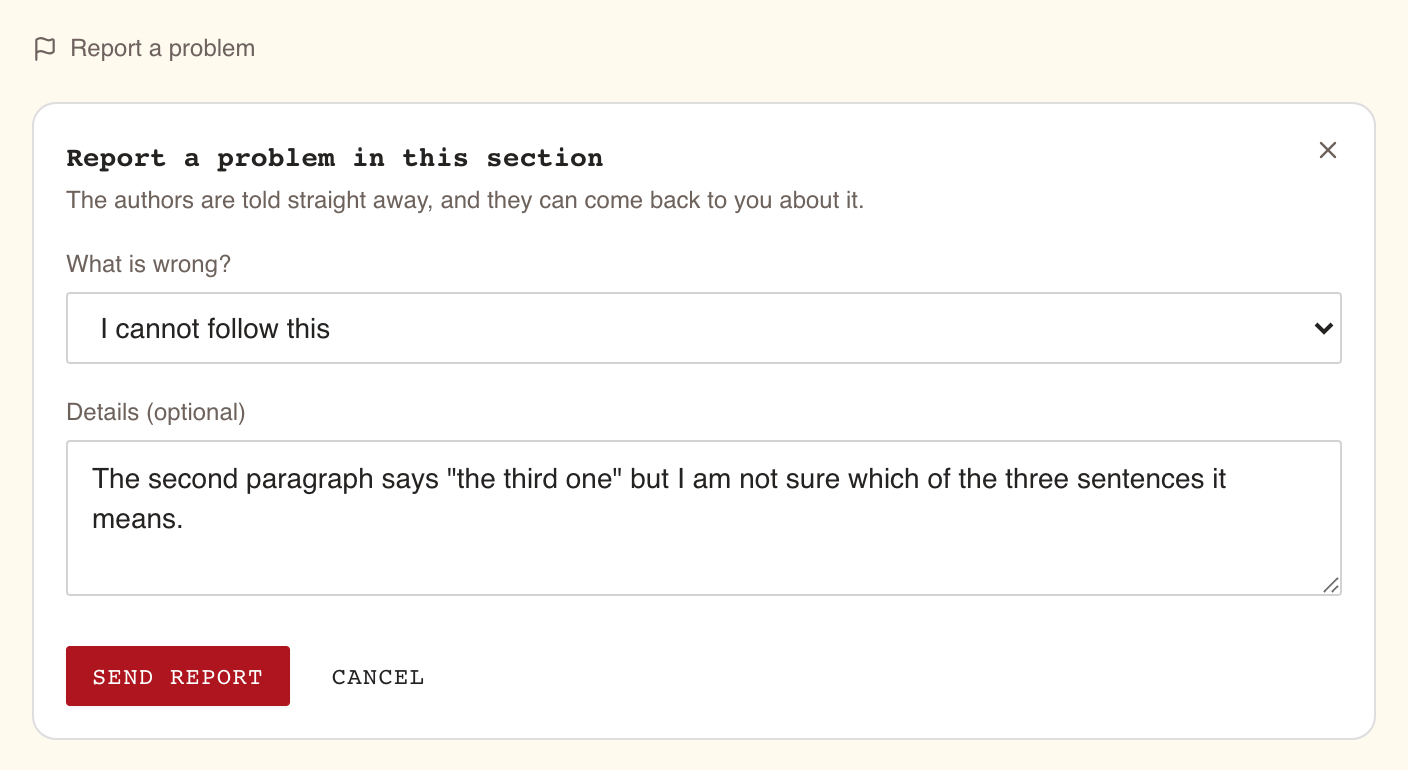
If something in a section is wrong, out of date, broken or hard to follow, tell the authors from the section itself. Below the content, select Report a problem. The panel reads Report a problem in this section and "The authors are told straight away, and they can come back to you about it."
Under What is wrong?, choose a reason:
Reason Use it for Something here is wrong A factual error, a wrong answer key This is out of date Content that was right once A link or embed is broken A dead link, a video that does not play I cannot follow this An unclear explanation or question Spelling or formatting Typos, broken layout Something else Anything else Optionally, describe it under Details (optional): what you saw, and where. Up to 1,000 characters.
Select Send report. The panel answers "Reported. Thank you."
The report names the section, so say in the details which question or paragraph you mean.
You can send up to 10 reports in 10 minutes. Beyond that, the panel says "That is a lot of reports at once. Wait a few minutes and send the rest."
Report a problem is not offered on an archived training: it no longer changes, so a report about it would reach nobody who can act on it. Moving to another section closes the panel and drops a report you had not sent.
What happens to your report
Every author of the training, except you if you are one, receives a notification right away: your name, "reported a problem in" the section's title, and the reason. Your details are not in the notification; the authors read them in the Learner feedback panel on the training's page, which Managers and Administrators can also open.
The authors then mark the report:
| Status | Meaning |
|---|---|
| Open | Not handled yet |
| Being looked at | An author has taken it on |
| Fixed | Corrected. The fix comes as a new version of the training |
| Not a problem | The authors checked and consider the content right |
You are not notified when the status changes. A fix reaches you as a new version of the training: see Taking a training. If the same problem is still there in the new version, report it again.