
This page covers the player from the moment you open a training to the result screen and after: how sections unlock, what the buttons do, what an exercise shows you once you submit it, how your score and result are worked out, and what a retry resets. For a first run-through, start with the Learner quickstart. How to answer each kind of exercise is in Answering each exercise type.
The player shows one section at a time
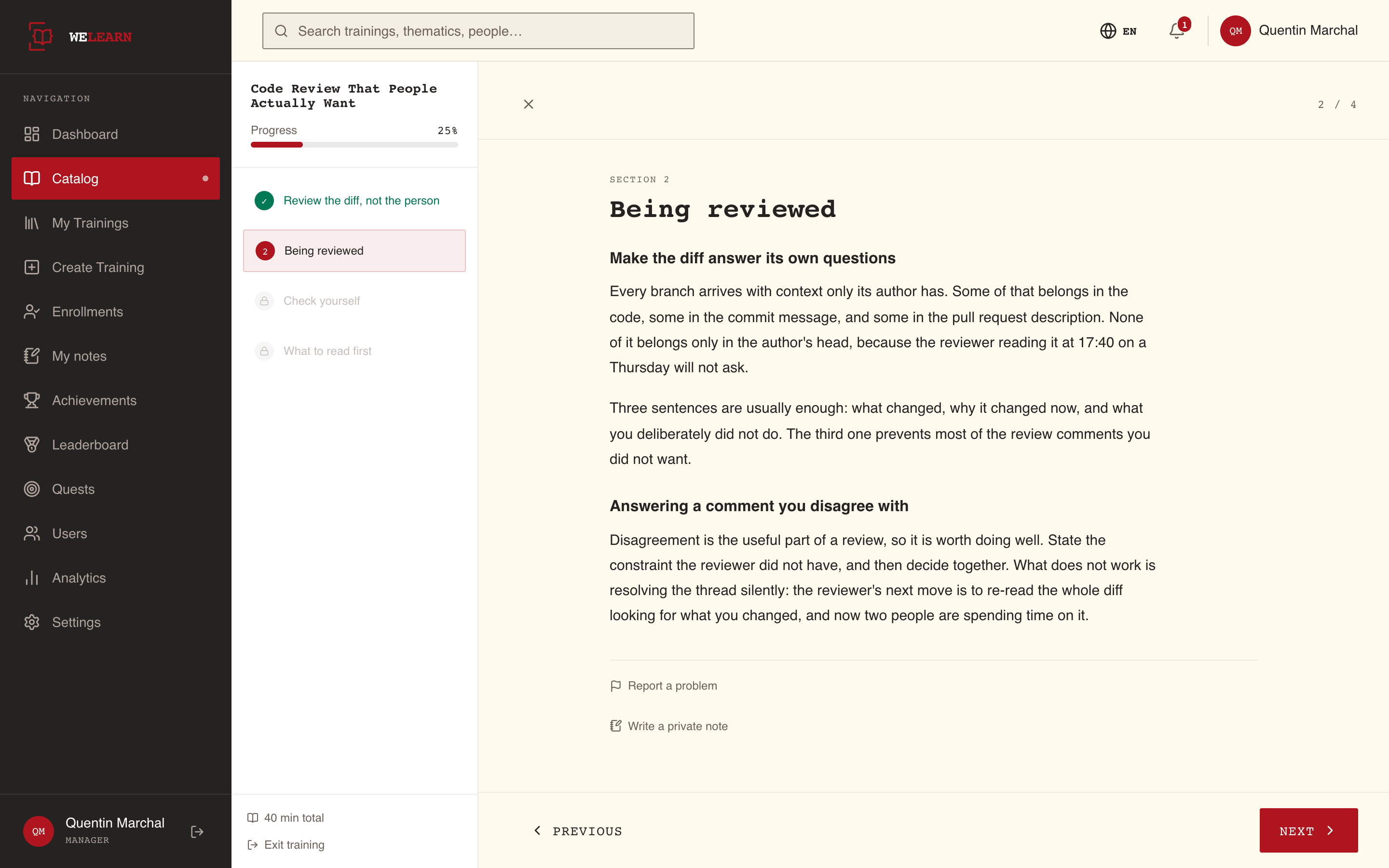
The left panel lists every section of the training in order, with the training's title, a Progress bar and, at the bottom, the total duration and Exit training. The right side shows the current section. The counter at the top right, for example 3 / 12, says where you are.
- A reading section shows Section 1, Section 2 and so on above its title.
- A link section shows Resource and one card per link. Each link opens in a new tab.
- An exercise is marked with a question icon in the left panel.
Code is shown in a fixed-width font and coloured by syntax. A block of code, in a section or in a question, has a Copy code button in its top right corner, shown when you point at the block or reach the button with Tab, and always on a touch screen. If your browser does not let WeLearn copy, the button selects the code instead, so Ctrl+C or Cmd+C copies it.
On a narrow screen the left panel is a drawer. Open it with the book icon at the top left and close it with Close.
Sections open in order
You can open any section you have finished, and the next one. Sections further ahead show a padlock and cannot be selected.
| In the left panel | Meaning |
|---|---|
| A tick | Finished |
| The section number | Open to you, not finished yet |
| A clock | A peer-reviewed submission waiting for a reviewer. It counts as done for moving on, not for Progress |
| A padlock | Not reached yet |
Progress counts finished sections. A submission waiting for review does not count until a reviewer has decided.
The buttons at the bottom move you through it
| Button | What it does |
|---|---|
| Previous | Goes back one section |
| Next | Goes to the next section. On a reading or link section it also marks that section done. On an exercise it stays unavailable until you have submitted an answer |
| Finish Training | On the last section, once everything is done: opens the result screen |
| Close and await review | Replaces Finish Training when a peer-reviewed submission is still waiting for a verdict. It takes you to the training's page, where the submission's state is shown |
| Back to training | On the last section of a training you have already finished |
| Exit training | In the left panel. Takes you to the training's page at any time |
On a phone, Finish Training reads Finish and Close and await review reads Await review.
WeLearn remembers where you stopped
Your progress is saved section by section. When you come back, Continue on the training's page, or the training's row on your Dashboard, opens the player on the first section you have not finished.
Some links open one particular section instead: a notification, a note on My notes, or Open in the training next to a peer-reviewed submission. If that section is further than you have reached, the player opens the furthest section you may open.
What an exercise shows you after you submit
Two settings, chosen by the author for the whole training, decide what you see: the Feedback timing and whether the training has a passing score.
Feedback timing
| Feedback timing | After you submit an exercise |
|---|---|
| Immediate (the default) | Right away, within the limits in the next table |
| At the end | "Answer recorded. Your results will be shown at the end of the training." Nothing more until you finish the training. If you go back to an exercise you have answered, it shows Answer recorded |
A peer-reviewed exercise is the exception: its verdict comes from a person, later, and is shown as soon as it arrives, whatever the feedback timing.
What is revealed, and when
The correct answers are held back while showing them would let you pass the next attempt from memory. In practice:
| Situation | A fully right answer shows | A wrong or partly right answer shows |
|---|---|---|
| Immediate feedback, the training has no passing score | Correct, and the explanation if the author wrote one | Incorrect, the correct answer, and the explanation if the author wrote one |
| Immediate feedback, the training has a passing score you have not reached | Correct, and the explanation if the author wrote one | Incorrect and nothing else: no score, no correct answer, no explanation |
Exercises other than quizzes also show their score next to Correct or Incorrect, except in the last case.
Once the training is finished, each exercise reveals its correct answers if any of these is true:
- the training has no passing score;
- you passed;
- you have no attempt left.
Otherwise, which means you failed and may try again, each exercise shows your own answer and whether it was Correct or Incorrect, without the correct answer. You see the answers once you pass or run out of attempts. On a training with unlimited attempts and a passing score, a learner who fails never sees them.
Quizzes with several questions
A quiz shows one question at a time, for example Q2/5 next to its title. You answer each question with Submit Answer, and you cannot change it afterwards. With immediate feedback, the quiz moves to the next question on its own after a few seconds, longer when there is an explanation to read, up to 15 seconds. A countdown shows the time left. Touching, scrolling or clicking inside the quiz stops it, and you move on with the quiz's own Next.
The quiz's Previous and Next move between questions. The buttons at the bottom of the page move between sections.
A question bank can ask you different questions each time
An author can set a quiz to draw some of its questions from a larger set. You only see the questions drawn for you, and the counter counts those. The draw stays the same if you reload the page, and changes on your next attempt and on your next round, so a retry is not a repeat of the same questions.
How your result is worked out
- Each exercise is scored from 0 to 100. Most types give partial credit: see Answering each exercise type for the rule per type. 100 is reserved for a perfect answer, so a near miss shows 99, never 100. A peer review scores 100 for a pass and 0 for Needs more work.
- Your score is the plain average of every exercise in the training. Every exercise weighs the same, whatever its size: a ten-question quiz counts as much as one numeric question.
- The average is compared with the passing score, if the training has one. At or above it, you pass. Below it, you fail. With no passing score, finishing the training is a pass.
- Your latest answer counts. After a retry, the new score of each exercise replaces the old one, even if it is lower.
The result screen and the training's page show the average rounded to a whole number, labelled quiz score and Your Score. The comparison uses the exact average.
The result screen
Select Finish Training on the last section to see it.
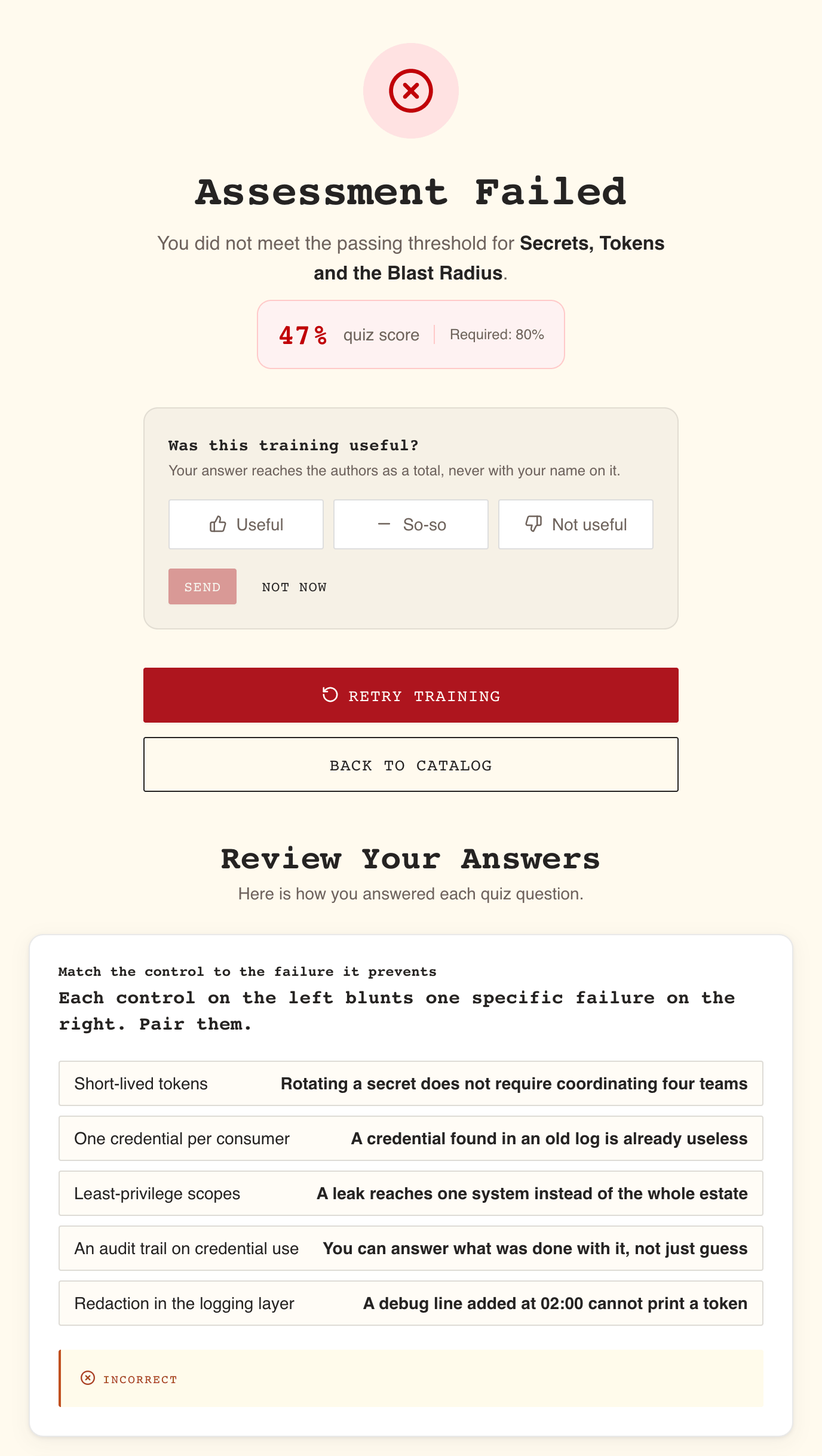
| You passed, or there is no passing score | You did not reach the passing score |
|---|---|
| Training Complete! and "You have completed" followed by the title | Assessment Failed and "You did not meet the passing threshold for" followed by the title |
| Your score, labelled quiz score, when the training has exercises | Your score, labelled quiz score, and for example Required: 80% |
| On a mandatory training that expires: "You are certified on this training until" and the date | |
| Was this training useful?, unless you have already rated this round | Was this training useful?, unless you have already rated this round |
| Renew certification or Take it again (section 10) | Retry Training, while you have an attempt left |
| Review Answers, when no answers are listed below | |
| Back to Catalog and Go to Dashboard | Back to Catalog, and Go to Dashboard when no retry is offered |
Under the buttons, Review Your Answers lists each exercise you answered with your own answer, following the rules in section 5. On a training with feedback At the end, this is where your results appear for the first time.
The rating prompt is described in Notes, ratings and reporting problems.
The result screen appears once, right after you finish. If you open the training again later, the player opens on the first section, with your answers shown read-only, and the training's page shows Completed or Failed with your score.
Attempts and retrying
The author sets how many attempts each learner has: one, a fixed number, or unlimited. Your first run is your first attempt. Each retry uses one more.
You can retry after a fail, from the result screen or from the training's page (Retry Training, next to Failed). A pass is not retried: to go through a training you passed again, start a new round (section 10).
| On a retry | What happens |
|---|---|
| Quizzes and the other auto-marked exercises | Start over, blank. Their scores are dropped until you answer them again |
| Reading and link sections | Stay done |
| A peer-reviewed submission | Is kept as it is: your text, its verdict and the submissions you have used |
| Your result | Is cleared until you finish again |
| Where the player opens | On the first exercise |
If the training holds a peer review you have already submitted, the retry asks you to confirm first: "Your quizzes and exercises start over. Your reviewed submission does not: it stays as you sent it, keeps its verdict, and keeps the submissions you have already used."
The retry button is not offered when:
- You have no attempt left. Ask your organisation's Administrators.
- The only exercise is a peer review. There is nothing to start over. Revise your submission instead, if the verdict allows it: see Answering each exercise type.
- A peer review settled the outcome. When your submission got Needs more work and you have no submissions left, its 0 stays in the average whatever you do, and the screen says: "Your reviewed submission was refused and you have no submissions left. Retaking keeps that verdict, so it cannot change the outcome. Ask an administrator to grant you another go."
On a mandatory training, a retry also affects your certification and your deadline: see Mandatory trainings and certification.
Going through it again after you pass
Once you have finished a training without failing, you can start a new round from the beginning. The player shows a strip above the content, "You have already completed this training. You can run through it again.", with Take it again. On a mandatory training whose certification expires, the button reads Renew certification instead.
You confirm first, with the question the training's page asks: "You start this training again from the beginning, on its current version.", followed by what the new round does to your passes or your certification. On a training that certifies nothing: "Your earlier passes stay on your record."
A new round differs from a retry:
| Retry (Retry Training) | New round (Take it again, Renew certification) | |
|---|---|---|
| Reading sections | Stay done | Start over |
| Peer review | Kept | Starts over |
| Version | The one you are on | The latest published version |
| Attempts | Uses one | A full set again |
For a mandatory training, read Mandatory trainings and certification before you start a new round.
An archived training is read-only
An archived training says "This training has been archived and is available for reference only. New enrollments are disabled." on its page. If you were not enrolled, View Archive opens it.
A version that a newer one replaced says instead "A newer version of this training has replaced this one, which is kept for reference only. Nothing you do on it is saved." Its page offers Current version, which opens the version that replaced it. If you have a run of the training, that is the only way on: the page offers no button that opens the read-only player as if it would record your work, and the current version's page says what to do with your run. A bookmark, or a link from before the training was revised, can still bring you to such a page: reminders, verdicts and your learning record link the current version.
In the player, a strip above the content says "This version is archived and kept for reference. Your progress is not recorded here." When the training has a current version, the strip offers Open the current version. The left panel reads Archive - Reference only instead of Progress, every section is open, and the last section offers Exit Archive. Exercises are shown but cannot be answered, and nothing you do is recorded. Report a problem is not offered. Private notes still work.
When the authors publish a new version
Authors improve trainings by publishing a new version, numbered v2, v3 and so on. Your run stays on the version you started until you switch it to the new one: publishing a version does not move your answers or your progress by itself.
Publishing a new version retires the previous one. It becomes an archived version, reachable from the version selector on the training's page, an unlabelled list shown only to the training's authors, Managers and Administrators.
- If you had finished the training, your result and your passes stay as they are. You are told that the training "has been updated with new content". The new version's page says "You completed an earlier version of this training." and shows your result and your certification. To go through the new version, select Take it again there (Renew certification on a training whose certification expires) and confirm: this starts a new round on the new version, as in section 10, and your earlier passes stay on your record. On a mandatory training, read When the training gets a new version.
- If you were part way through, or finished without passing, the version you were working on is now archived, and the player shows it read-only as in section 11. The new version's page and its player say that you started an earlier version, and offer Switch to this version.
Before anything moves, the confirmation says what carries over, what you must do again and what is no longer part of this version. Your deadline and your record stay as they are. Once you confirm:
- A section or link you completed stays completed, even where the new version edited it. It is marked Updated, and See what changed shows what is different.
- A quiz or exercise keeps your answers and score, unless the new version changed its questions or answers: then you do it again. This holds for a run you did not pass too, since switching is not a retake.
- What the new version added, and what you had not finished, is still to do. What it removed leaves your run.
- The attempts you have used still count, unless the new version replaced every quiz and exercise a retake would reopen.
When nothing is left to do after the switch, the training is finished and your result is worked out on the new version.
While a submission of yours awaits review, the switch is not offered: the page says so, and you can switch once it has been reviewed.