
WeLearn tells you when something needs you or concerns you: an enrolment, a deadline, a colleague waiting on your review, a badge. Every notification lands in your WeLearn inbox, behind the bell in the top bar. If your organisation has connected Slack, most of them can also reach you there. This page covers reading them, choosing what you receive, and what each one means.
The bell shows what is new
The bell in the top bar carries a red count of your unread notifications, 9+ above nine. New notifications arrive while you work, without reloading the page.
Select the bell to see your five most recent. Mark all read clears the count, and View all notifications opens the Notifications page. The bell is also described in Finding your way around.
The Notifications page holds them all
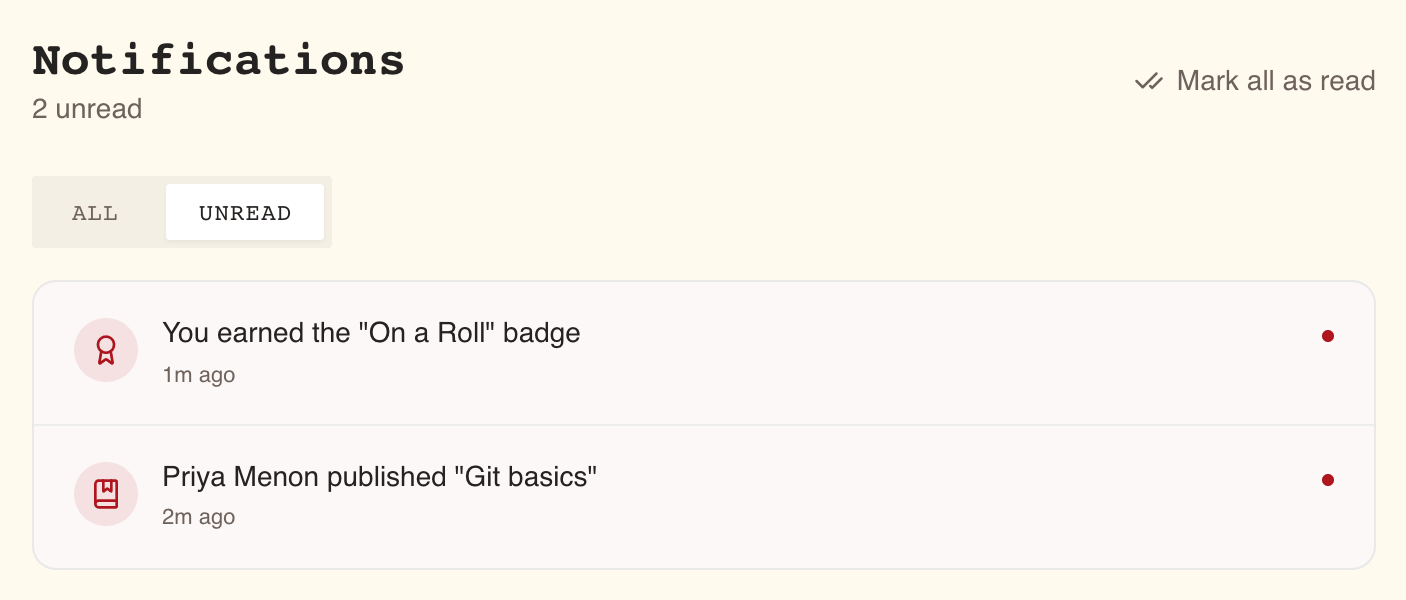
The Notifications page lists every notification you have, newest first, 20 at a time.
| Control | What it does |
|---|---|
| All / Unread | Show everything, or only what you have not read |
| Mark all as read | Marks every unread notification read, not only the ones on screen. Shown while something is unread |
| Load more | Loads the next 20. Shown while there are older ones |
| Tick icon on a row | Marks that one read, without opening it |
| Cross icon on a row | Deletes that one. There is no confirmation and no undo |
Each row shows an icon for its kind, a sentence saying what happened, and how long ago: "just now", "5m ago", "3h ago", "2d ago", then the date after a week. Unread rows are tinted and carry a red dot. On a laptop, the tick and cross appear when you hover a row; on a phone or tablet they are always shown.
Selecting a notification opens what it is about and marks it read. Where it leads for each kind is in section 7. A few notifications have nothing to open; selecting them does nothing, and you mark them read with the tick.
The sentences follow the language you have chosen for WeLearn, and switch with it.
Settings › Notifications chooses what reaches you, and where
Open Settings › Notifications. Each row is one category of notification, with a switch per channel that can reach you: In-app always, and Slack when your organisation has connected it (section 5). There is no Email switch, because WeLearn sends no notifications by email (section 4). Change what you want, then select Save preferences. Nothing changes until you save; the button confirms with Saved!.
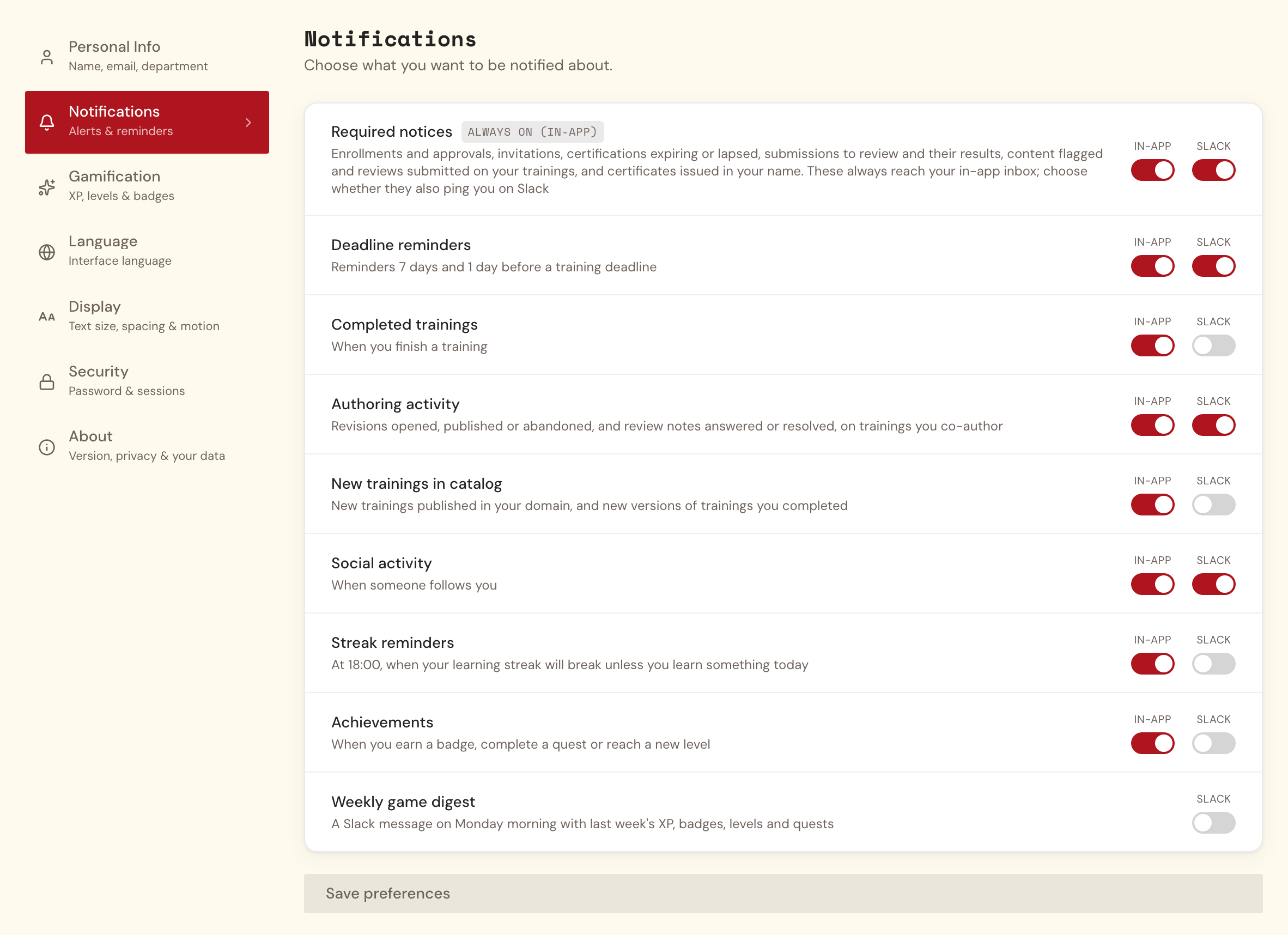
| Category, as the screen names it | What it actually covers | On by default |
|---|---|---|
| Required notices | Being enrolled by someone else; being invited to co-author or review a draft; certification expiry and lapse notices; a manager chasing your mandatory trainings; a manager downloading your certificate; peer-review submissions sent to you, their verdicts, and withdrawn submissions; a learner reporting a problem in a training you wrote; a finished review of your draft; for Managers and Administrators, the weekly compliance summary | In-app (locked), Slack |
| Deadline reminders | Reminders 7 days and 1 day before a due date | In-app, Slack |
| Completed trainings | Finishing a training | In-app |
| Authoring activity | A co-author opening, publishing or abandoning a revision of a training you co-author; replies to review notes and notes being resolved on a draft | In-app, Slack |
| New trainings in catalog | A training published by someone you follow, in a topic you follow, or that you co-author; a new version of a training you completed | In-app |
| Social activity | Someone following you | In-app, Slack |
| Streak reminders | The warning that your streak is about to break (section 6) | In-app |
| Achievements | Earning a badge, completing a quest, reaching a new level | In-app |
| Weekly game digest | "Your week on WeLearn" on Slack (section 5); this row has a Slack switch only | Off |
The last three rows are part of the game. They appear only while you take part in gamification (Settings › Gamification), and disappear as soon as you stop.
Every other switch is independent. You can keep a category in your inbox and mute it on Slack, or the reverse. Turning both off for a category stops it completely, and only that category: turning off Streak reminders leaves your due-date reminders on, and turning off Achievements still tells you when you finish a training.
WeLearn does not send you notifications by email
WeLearn does not send notifications by email. Use In-app and Slack.
The only emails WeLearn sends are:
- an invitation to join an organisation on WeLearn;
- the messages around requesting a new space: the confirmation or refusal sent to whoever asked, the setup link once a space is approved, and the notice that it is ready.
See Requesting and setting up a space.
Slack works if your organisation has connected it
Notifications reach you on Slack only when all of this is true:
- an Administrator has connected your organisation's Slack workspace and left it Enabled, with Look up members by email on (see Connecting Slack);
- you have a Slack account in that workspace with the same email address as your WeLearn account;
- the Slack switch is on for that category in Settings › Notifications.
There is nothing to connect on your side. WeLearn finds you in Slack by your email address the first time it has something to send you. If it does not find you, it tries again a day later, so joining the Slack workspace after WeLearn is fine.
If your organisation has not connected Slack, or has switched it off, your settings show no Slack switch and no Weekly game digest row.
What a Slack message looks like
A notification arrives as a direct message from the WeLearn app:
- a heading with a small icon and the notification's title, for example "You have been enrolled in" followed by the training's title;
- a line of detail, when it adds something to the heading;
- a button that opens the page in WeLearn: View training, Open the section, Open the note, View profile, View achievements, View quests, Keep the streak, Review the submission, View my compliance or View team compliance.
Selecting the button opens WeLearn at the right place and marks the same notification read in your WeLearn inbox, so you do not deal with it twice.
The weekly summary
If you take part in gamification and Weekly game digest has Slack on, you also get "Your week on WeLearn" on Monday morning: the XP you earned the week before and how it compares, your level and the XP to the next one, your streak and your longest, and any badges, level-ups and quests from the week. It is only sent if you earned something that week. It never appears in your WeLearn inbox.
Messages in your organisation's channel
If an Administrator has also set a default Slack channel, WeLearn posts there when a training is published or gets a new version, and posts the daily Five Clues puzzle on working days. These posts go to the channel, not to you, and your settings do not affect them.
Some notifications are sent on a schedule
Most notifications follow something a person did. These are sent by WeLearn on its own:
| Reminder | When | Category |
|---|---|---|
| Your due date is coming up | 7 days and 1 day before, in the morning of your own time zone, while you have not passed: not finished yet, or failed with a retry left | Deadline reminders |
| Your streak is about to break | 18:00 in your own time zone, at the end of your working day, if your streak is at least 3 days long, you were last active the working day before, and you have done nothing yet today. Your streak counts days in your time zone too | Streak reminders |
| A certification is about to expire, or has expired | In the morning of your time zone; the exact days are in Mandatory trainings and certification | Required notices |
| Compliance needs attention on trainings you are responsible for | Monday morning, for Managers and Administrators responsible for a mandatory training on which learners have expired or are overdue | Required notices |
| Your week on WeLearn | Monday morning, on Slack only | Weekly game digest |
Your time zone is set in Settings › Language, under Show dates in. The compliance summary is covered in Running compliance for your team.
Every notification, what triggered it, and where it leads
The sentence is the one your inbox shows. "…" stands for a name or a training's title.
| Your inbox shows | Sent when | Selecting it opens |
|---|---|---|
| You've been enrolled in "…" | A manager enrols you, or a group you belong to requires the training. Also when a training you started yourself becomes one you are asked to do, or one you were released from is assigned to you again by a manager. Not when you start a training yourself, nor when rejoining a group gives you back one you were released from | The training's page |
| … invited you to co-edit "…" | An author invites you to co-author a draft | The draft in the editor |
| … invited you to review "…" | An author invites you to review a draft | The draft, in review mode |
| "…" is due on … | 7 days and 1 day before your due date | The training's page |
| Your N-day streak is about to break, complete something today | See section 6 | Your Dashboard |
| Your certification for "…" expires on … | Your certification enters its warning window | The training's page |
| Your certification for "…" expired on … | Your certification has ended, or a manager required everyone to recertify | The training's page |
| A mandatory training needs your attention (or the number of trainings) | A manager chases you about your mandatory trainings | Analytics › My learning |
| … downloaded your certificate for "…" | A manager downloads your certificate. At most once a day per person | Analytics › My learning |
| … submitted work for your review | A colleague submits an exercise you are a reviewer of | The Reviews page |
| A submission you were asked to review was withdrawn: the learner has left | The learner left the organisation before you reviewed it | The Reviews page |
| … reviewed your submission: passed | A reviewer passes your exercise | The player, on that exercise |
| … reviewed your submission: needs more work | A reviewer sends your exercise back | The player, on that exercise |
| … reported a problem in "…": and the reason | A learner reports a problem in a training you author | The player, on that section |
| … reviewed "…": the verdict and the number of notes | A reviewer you invited finishes reviewing your draft | The draft, at the first note |
| … replied to a review note on "…" | Someone replies in a review-note thread you are part of | The draft, at that note |
| … is resolving your review notes on "…" | An author starts resolving the notes you wrote | The draft, at that note |
| … opened a revision on "…" | A co-author starts a revision of a training you co-author | The training's page |
| … published a new revision of "…" | A co-author publishes that revision | The training's page |
| … abandoned the revision on "…" | A co-author drops that revision | The training's page |
| … published "…" | A training is published by someone you follow, in a topic you follow, or that you co-author | The training's page |
| "…" has been updated with new content | A training you completed gets a new version | The training's page |
| … started following you | Someone follows you | Their profile |
| You completed "…" | You finish a training | The training's page |
| You earned the "…" badge | You earn a badge | Achievements |
| Quest complete: "…" (+N XP) | You complete a quest | Quests |
| You reached level N | You reach a new level | Achievements |
| Compliance attention needed on "…": N expired, N overdue | Monday, on a mandatory training you are responsible for (Manager, Administrator) | Analytics › Team compliance |
| New space request "…" from …, or … approved / rejected the space request "…" | A space request is sent or decided (platform administrators only) | Organisations |
Which category each one belongs to is in section 3. Badges, quests and levels exist only for members taking part in gamification; see Gamification.