
A training lives in three stages: Draft, Published and Archived. It only ever moves forward. A published training is never changed in place: you change it through a revision, and each revision you publish becomes a new version.
A training goes from Draft to Published to Archived, never back
stateDiagram-v2
    direction TB
    [*] --> Draft: Create Training or Import YAML
    Draft --> Published: Publish Training
    Draft --> [*]: Delete
    Published --> Revision: Edit
    Revision --> Published: Publish Training (next version)
    Revision --> Published: Discard revision
Published --> Archived: Archive| Stage | Who can see it | What learners can do |
|---|---|---|
| Draft | Its authors (My Trainings › Authored), the people invited to it (Shared with me), and Managers or Administrators who have its link | Nothing: a draft is never in the Catalog |
| Published | Every member, in the Catalog | Enroll, take it, pass it |
| Revision (a draft of a published training) | Like a draft. The editor marks it Revision | Nothing changes for them: they keep the published version |
| Archived | Its authors, Managers and Administrators | Nothing new: no enrollment, no renewal |
There is no way back from Archived, and a deleted draft is gone for good.
Publish a training from the Publish step
You publish from the last step of the editor, Publish, with Publish Training. The button stays disabled until the Publish readiness panel is empty; the Author quickstart walks through it. If review notes are still open, a confirmation step comes first: see Co-authoring and reviewing drafts.
Publishing:
- puts the training in the Catalog as version 1, and opens its page (a draft that used live editing lands on the Catalog instead);
- ends every invitation and invite link on the draft, and credits the people who helped;
- turns the draft's review notes into read-only history;
- notifies the other authors, the members who follow one of the authors, and the members who follow one of its topics: "… published" followed by the title.
Editing a published training opens a revision
Select Edit on the training's page, or Edit on its row under My Trainings › Authored › Published. WeLearn opens a revision straight away, with no confirmation: a full copy of the training, marked Revision in the editor. Learners keep seeing the published version until you publish the revision.
- One revision at a time. While one is open, the button reads Resume Editing on the training's page and Resume in My Trainings › Authored, and opens the same revision for everyone. The revision also has its own row in the Draft tab.
- Opening a revision makes you an author. A Manager or Administrator who opens a revision on a training they did not write becomes one of its authors, on the revision and on the version it becomes.
- The other authors are told: "… opened a revision on" followed by the title.
- What comes across: all content and settings, the credits, and live editing if the training had it. Invitations and review notes do not: invite people again on the revision.
Publishing a revision needs a real change
A revision is published like any draft, with Publish Training. It must differ from the live version in at least one of: the title, description, language, difficulty, estimated duration, topics, the Evaluation Playback settings, or any block.
If nothing changed, the footer shows No changes to publish and Publish Training stays disabled.
When the revision is published:
- it becomes the next version (v2, v3 and so on) and opens on its page;
- the version it replaces steps aside and stays reachable from the version selector;
- the other authors receive "… published a new revision of" followed by the title;
- learners who had completed the previous version receive "… has been updated with new content".
Discard a revision you no longer want
On the first three steps of the editor, select the Discard & exit button (the cross at the bottom). The dialog Discard revision? reads "This deletes the entire revision draft, including saved changes. The published version stays live." Select Discard to confirm, or Keep editing.
The revision, its invitations and its review notes are deleted. The other authors receive "… abandoned the revision on" followed by the title. Delete on the revision's row in the Draft tab has the same effect, without that notification.
Versions and the version selector
Every publish of a revision adds a version. From version 2 on, the training's page and its card show a badge such as v2.
Once a training has two versions or more, its page shows a version selector beside the badges, for its authors, Managers and Administrators. Each entry reads like v1 (archived), v2 (current) or v3 (draft revision). Choosing one opens that version's page. An earlier version is read-only reference: it shows "A newer version of this training has replaced this one, which is kept for reference only. Nothing you do on it is saved." Other members never see the selector: they only ever see the current version.
What a new version means for learners:
| Learner | What happens |
|---|---|
| Not enrolled | They see and enroll in the new version only |
| Part-way through | Their run stays on the version they started until they choose Switch to this version on the new version's page or in its player. Before confirming, they see what carries over: completed sections and links stay completed even where you edited them, and only the quizzes and exercises whose questions or answers you changed are asked again. Their deadline and record stay as they are |
| Completed the previous version | They are told the training "has been updated with new content". Their completion stays on their record. On the new version's page, Take it again (Renew certification on a training whose certification expires), confirmed first, starts them on it from the beginning |
| Certified on a mandatory training | They stay Certified until their date. When they renew, they take the version current at that moment, and the certificate prints it as Version assessed. See Mandatory trainings and certification |
Archive a training to retire it
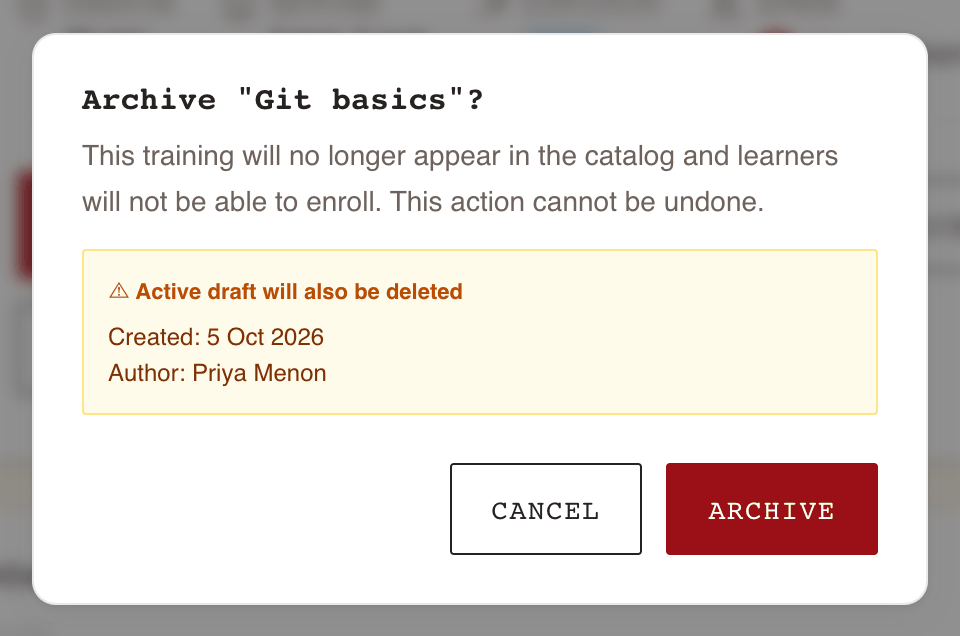
Archive a published training when it should no longer be taken. Select Archive on the training's page, or on its row under My Trainings › Authored › Published. The dialog Archive "…"? reads "This training will no longer appear in the catalog and learners will not be able to enroll. This action cannot be undone." If a revision is open, it adds ⚠ Active draft will also be deleted, with when it was created and by whom.
| What | After archiving |
|---|---|
| Catalog | Gone for Employees. Managers and Administrators can still list it with the ⊘ Archived filter |
| New enrollments | Refused, whether self-enrolled, by a Manager, or through a group that requires it |
| Existing enrollments | Kept. Passes stay on learners' records |
| Certifications on a mandatory training | Stay valid until their date and cannot be renewed |
| An open revision | Deleted, with its invitations and review notes |
| The training's page | Shows "This training has been archived and is available for reference only. New enrollments are disabled." View Archive opens it read-only. Members who are not authors, Managers or Administrators can no longer open it |
| My Trainings › Authored | Moves to the Archived tab, with View only |
No notification is sent when a training is archived.
Delete a draft to remove it for good
Only a draft can be deleted, and only by one of its authors: Delete on its row in My Trainings › Authored (All or Draft tab). The dialog Delete "…"? reads "This draft will be permanently deleted. This action cannot be undone."
Deleting a draft ends its invitations and invite links, stops anyone editing it live, and deletes its review notes. If the draft is the revision of a published training, the published version stays live, as with Discard revision. A published or archived training cannot be deleted: archive it instead.
Copy a training through a YAML export
There is no Duplicate button for a whole training. To start a new training from an existing one:
- Select Export: in the editor header, it downloads the saved draft ("Unsaved edits are not included"); on a training's page, it downloads that version, answer keys included.
- In My Trainings › Authored, select Import YAML, load the file, and select Import as Draft.
The import is a new, separate training, with you as its author, opened in the editor. It shares nothing with the original: no versions, enrollments, credits or review notes. See Import and export in YAML. To reuse a single block, copy and paste it between trainings instead: see Content blocks reference.
My Trainings: the actions on each row
The Authored view of My Trainings lists the trainings you author, one row per training. Earlier versions do not get a row of their own: reach them through the version selector.
| Row | Buttons |
|---|---|
| Draft | View (its page, where Preview draft plays it in review mode), Delete, Edit |
| Published | View, Archive, Edit, or Resume when a revision is open |
| Archived | View |
| Shared with me | View, then Edit (Collaborator) or Review (Reviewer) |
While a revision is open, the training appears twice: as Published with Resume, and as Draft for the revision itself.
Who can do what
| Action | The training's authors | Manager, not an author | Administrator, not an author |
|---|---|---|---|
| Publish a draft | Yes | See below | See below |
| Edit (open or resume a revision), publish or discard it | Yes | Ordinary trainings only | Yes |
| Archive | Yes | Ordinary trainings only | Yes |
| Export as YAML | Yes | Ordinary trainings only | Yes |
| Delete a draft | Yes | No | No |
| Invite collaborators and reviewers | Yes | Ordinary trainings only | Yes |
Any member can write a training, so "authors" can be Employees. Collaborators invited to a draft cannot publish, archive or delete it. Someone who authors the open revision can also publish or discard it, even before they author the published version.