
There are two ways to look for something in WeLearn. The Catalog lists the published trainings and lets you filter them. The search box in the top bar looks across trainings, topics and people at once. This page covers both, plus saving trainings for later and what a WeLearn link looks like when you paste it into a chat.
The catalog lists every published training
Select Catalog in the menu. Each training appears once, as a card, newest change first. If you have chosen a language for yourself in Settings › Language, trainings written in that language come first and the others follow. Choosing Use organization default leaves the order alone.
The list loads more trainings as you scroll. If it does not, for example when the page is zoomed in, select Load more at the bottom. All trainings loaded tells you that you have reached the end.
New Training at the top right starts a training of your own. See Author quickstart.
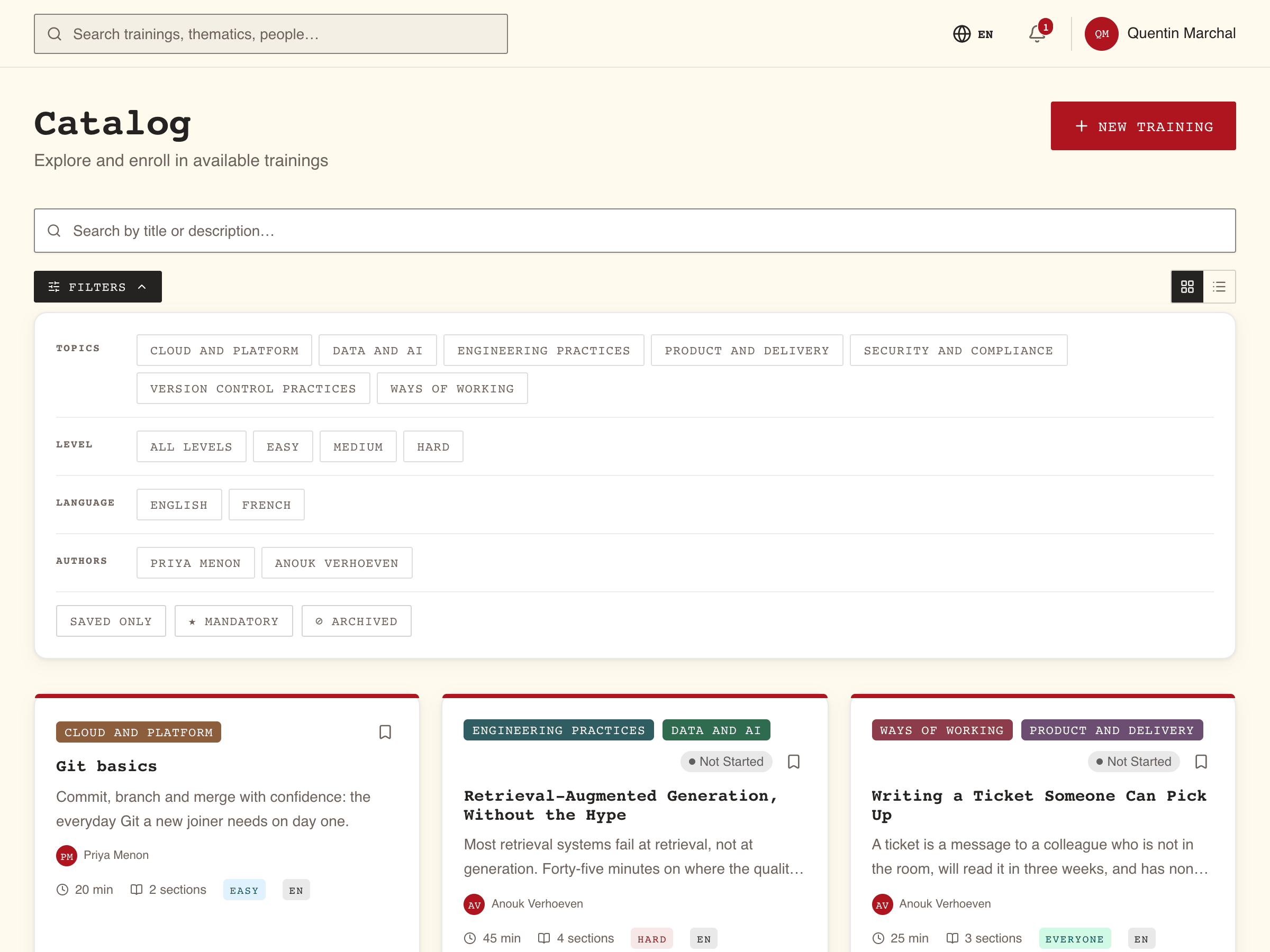
Search and filter to narrow the list
The search box
Type in Search by title or description…. The list updates shortly after you stop typing, and matches the words anywhere in a training's title or description. The cross in the box clears it.
The filters
Select Filters to open the panel. The number on the button counts the filters you have on.
| Filter | What it keeps |
|---|---|
| Topics | Trainings tagged with any of the topics you select |
| Level | All Levels, Easy, Medium, Hard. You can pick several |
| Language | English or French. Only trainings written in it |
| Authors | Trainings written by any of the people you select |
| Saved only | Your saved trainings (section 5) |
| ★ Mandatory | Mandatory trainings, and trainings a manager assigned you as mandatory |
| ⊘ Archived | Archived trainings, for a Manager or an Administrator (see below) |
Each filter you turn on also appears as a pill next to Filters. Select a pill to remove that filter. Clear all removes every filter and empties the search box.
A list of more than eight topics or authors shows the first eight, then +N more. Expanding it gives you a box to search the list, and Show less folds it back.
Grid or list
The two icons on the right switch between Grid view (cards) and List view (one line per training). WeLearn remembers your choice on this browser.
The list view is denser: it shows the title, Mandatory, topics, authors, duration and your status, but not the difficulty, language or number of sections. Switch to the grid to see those.
Your filters are in the page address
Everything you set, the search words included, is written into the address of the page. Reload the page and your filters are still there. Copy the address and send it to a colleague, and they open the catalog with the same filters.
Read a card before you open it
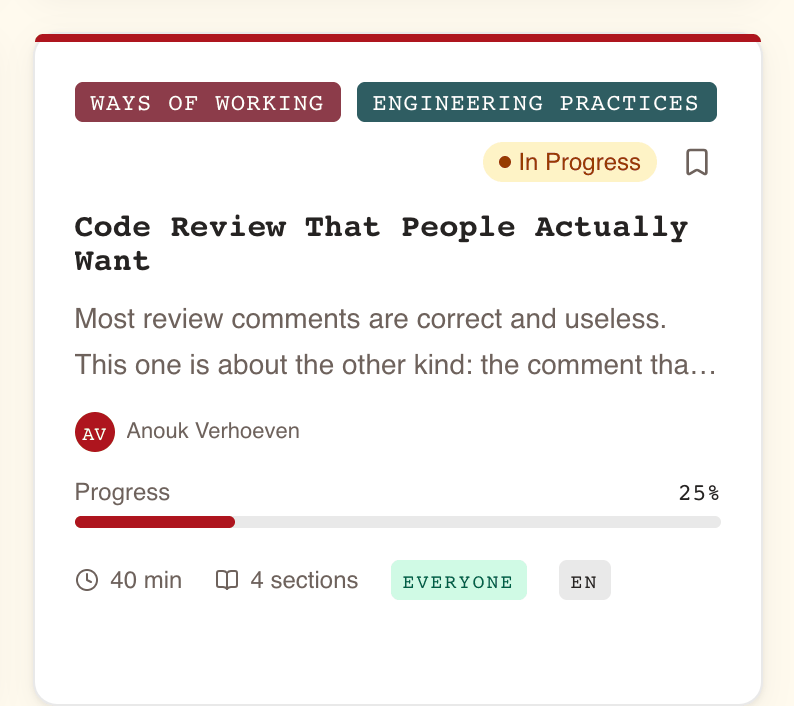
| On the card | What it tells you |
|---|---|
| Coloured bar | The training's colour, grey when archived |
| Topic badges | Up to two topics, then +N for the rest |
| Mandatory | A mandatory training, or one a manager assigned you as mandatory |
| v2, v3… | The training has been revised. Only the current version is listed |
| Your status | Not Started, In Progress, Completed or Failed, once you are enrolled, also when you started a version the authors have since replaced |
| Save icon | Saves the training for later (section 5) |
| Title, description, authors | What it is and who wrote it |
| Progress | How far you are, on a training in progress on the version listed |
| Score | Your score, once you have finished it |
| Duration, sections, difficulty, language | What you are signing up for. The language reads EN or FR |
The word at the bottom right says what selecting the card will do. On a laptop it appears when you hover the card; on a phone or tablet it is always there.
| The card reads | You are | Selecting it opens |
|---|---|---|
| Start | Not enrolled, or enrolled and not started | The training's page |
| Continue | Part-way through | The player, where you left off. A training revised since you started it opens its page instead, which says what to do with your run |
| Retry | Finished below the passing score on the version shown, with an attempt left | The training's page |
| Review | Passed, or failed with no attempt left, or failed on a version that has since been replaced, whose page offers to switch your run | The training's page |
| View | Looking at an archived training | The training's page |
The card's word is a guide only. Starting, retrying and renewing happen on the training's page, which is described in Taking a training.
Search the whole platform from the top bar
The search box in the top bar finds more than trainings. Type at least two characters and, after a short pause, results appear in three groups, up to five each:
| Group | What it searches | Selecting a result opens |
|---|---|---|
| Trainings | Published trainings, by title and description | The training's page |
| Thematics | Topics, by name and description | The Catalog, filtered to that topic |
| People | Members, by name and email | Their profile |
Search uses the word "thematic" for what the catalog calls a topic. They are the same thing.
You only get what you are allowed to see. Escape clears the box. On a phone, the magnifier button opens the same search. See Finding your way around.
The Search page gives you more results and filters
See all results →, under the results, opens the Search page with your words already in it.
- Up to 20 results per group, instead of five.
- Trainings, Thematics and People buttons: select one or more to search only those groups. With none selected, all three are searched.
- Any thematic narrows trainings to one topic. Any difficulty narrows them to one level.
- Clear filters resets the three filters above.
Each training result shows its difficulty and its length in minutes. Each person shows their email.
Copy link to this search
Once there are results, Copy link to this search puts a link on your clipboard, and confirms with Link copied. Hover the button to see what the link carries:
| The hover text says | What the link keeps |
|---|---|
| "The link carries this whole search, filters included, without spelling it out." | Your words and every filter. The words do not appear in the link itself. The link works for 7 days, then shows This search link has expired |
| "The link carries the search term. The filters stay on this page." | Your words only. Whoever opens it sets the filters again |
As in the catalog, the person who opens the link sees only what they are allowed to see.
Save a training for later
Saving is a bookmark: it keeps a training to hand without enrolling you or giving you a deadline.
- On a card, select the bookmark icon in its top corner. It fills in when the training is saved. Select it again to remove it. Saving from a card does not open the training.
- On the training's page, select Save next to the main button, such as Start Training. It reads Saved once done. Select it again to remove it.
If saving fails, the icon springs back and its tooltip tells you there was an error. Try again.
Your saved trainings are in two places:
- Catalog › Filters › Saved only, which lists them all and combines with the other filters.
- The Saved for later band on your Dashboard, which shows the first three. See Your dashboard.
A saved training stays saved when its author publishes a new version. If it is archived, the dashboard tells you "A training you saved is no longer available." and offers Remove.
A WeLearn link pasted in a chat shows a preview card
When you paste a WeLearn link into Slack, Microsoft Teams or another chat app, the app shows a small preview card under it. Nobody needs to be signed in for the card to appear, so it only says what is safe to show anyone holding the link.
| You paste a link to | The card shows |
|---|---|
| A published training's page, or the player | The training's title and description, with a coloured banner. Apps that show extra details, such as Slack, add its Difficulty and Length |
| A draft, an archived training, or a training that does not exist | "A training on WeLearn" and "Open this link to follow the training on WeLearn." The card does not say which of the three it is |
| The catalog, a profile, the leaderboard, analytics and other pages | A fixed title and sentence for that kind of page, such as Training catalogue or Leaderboard, with your organisation's name. Never names, scores or figures |
The preview is written in your organisation's default language. Anyone who opens the link still has to sign in to see the page itself.