
Every member can write a training, whatever their role: Employee, Manager or Administrator. This page takes you from an empty form to a published training with one text section and one quiz. Each step links to the page that covers it in full.
The editor runs in four steps, shown at the top of the screen: Basic Info, Content, Preview and Publish.
Start a training from the sidebar
Select Create Training in the sidebar. The Create Training page opens on step 1, Basic Info.
You can also start from My Trainings › Authored with the New Training button.
Fill in the basics
All four fields are required. Next stays unavailable until each one has a value.
| Field | What to enter |
|---|---|
| Title | The name learners see in the catalog, for example "Introduction to TypeScript". |
| Description | What learners will gain. It accepts bold, italic and lists (Cmd/Ctrl+B, I, U). |
| Language | English or French: the language the training is written in, so learners can tell before they open it. WeLearn pre-selects your own interface language when it is one of these two. |
| Topics | At least one topic. Open Select topics, search, and tick the ones that fit. |
If the topic you need does not exist yet, create it from the same picker:
- Select New topic.
- Type a name (up to 30 characters) and a short description (up to 128 characters). Both are needed.
- Select Create & select. The new topic is created and ticked on your training.
Select Next. WeLearn creates your draft at that moment and opens the editor on Content.
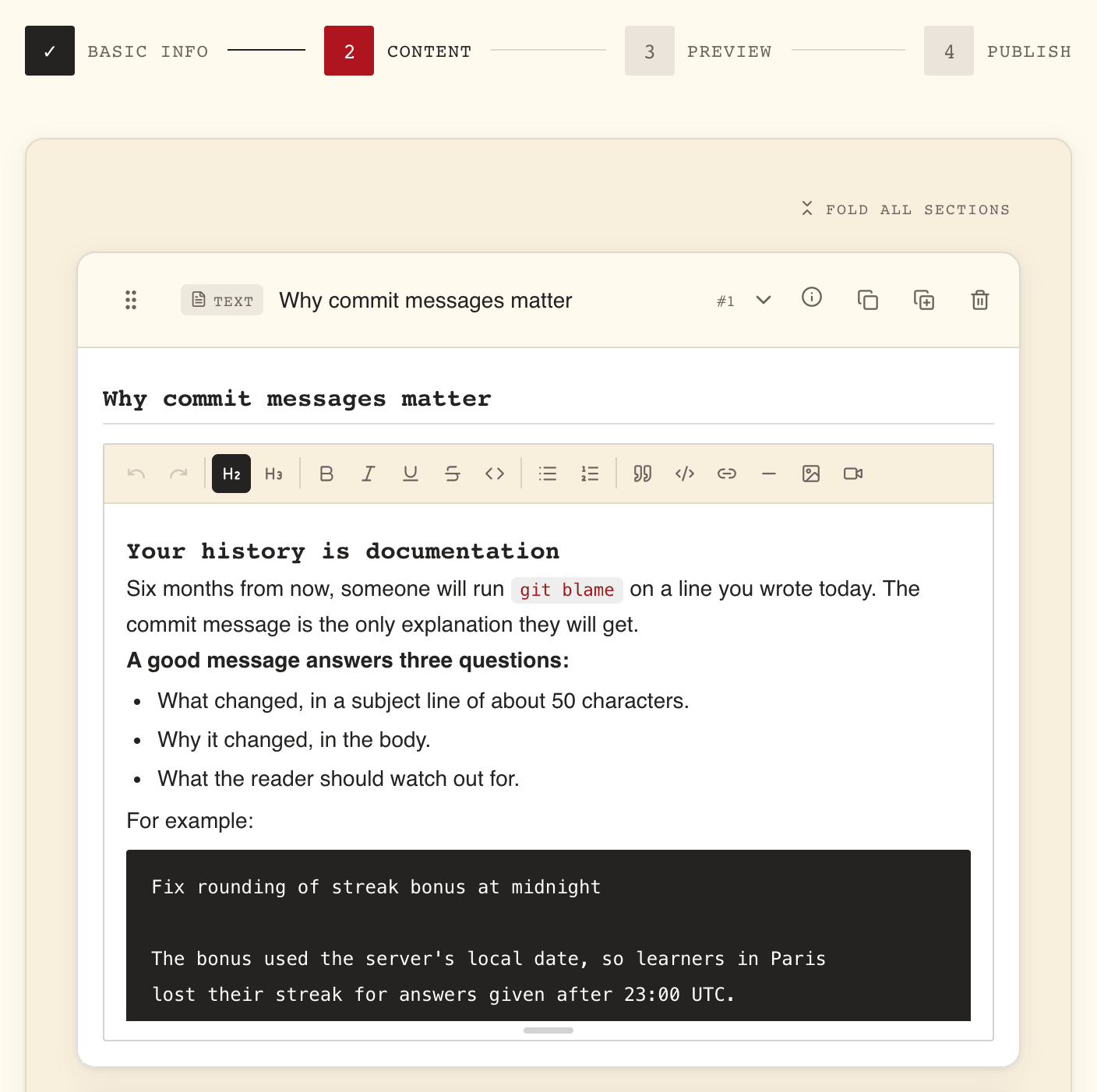
Add a text section
Content is built from blocks. Each block becomes one section for the learner.
- Select Add block, then Text.
- Give the section a title in Section title.
- Write the lesson in the editor below it. The toolbar offers headings, bold, italic, lists,
quotes, code, links and a divider line, plus:
- Insert image: JPG, PNG, WebP or GIF, under 10 MB. Large images are shrunk on upload; a GIF is never shrunk, so keep it under 2 MB.
- Embed video (YouTube / Vimeo): paste a YouTube or Vimeo link.
The Add block menu also offers Link, for a list of external resources, and a Questions group with seven kinds of exercise. Each one is described in Content blocks reference and Building evaluations.
Add a quiz
- Select Add block, then Quiz under Questions.
- Give the quiz a title, for example "Knowledge check".
- The quiz starts with one question and two propositions. Write the question in Write your question…, then fill in each option.
- Tick every correct answer with the check next to it. A question can have more than one correct answer.
- Optionally, write an Explanation (optional). Learners see it after they answer.
- Use Add proposition for more options, and Add question for more questions. Each question is worth 1 point unless you change Points.
A question needs at least two propositions, every proposition needs text, and at least one must be marked correct.
Select Preview at the bottom of the page. It stays unavailable until every block has a title and every quiz question has its options filled in and at least one marked correct.
Play it as a learner
The Preview step shows the training the way learners will see it, under the banner Preview mode, this is how learners will see your training. You can play each block, including the quiz, to check your answer key. For learners, the answer options are shuffled.
Select Review & Publish when you are satisfied.
Set how the training plays
The Publish step opens with a summary card, then a Settings card.
| Setting | Choices | Default |
|---|---|---|
| Estimated Duration | Minutes, from 0 to 480 in steps of 5. Quick picks: 15, 30, 45, 60. | 0 |
| Difficulty | everyone, easy, medium, hard | everyone |
Because your training contains a quiz, the card also shows an Evaluation Playback band. These three settings apply to every evaluation in the training at once, not to one quiz.
| Setting | Choices | Default | What it means |
|---|---|---|---|
| Attempts | 1, 2, 3, 5 or ∞ (unlimited) | 1 | How many runs each learner gets. The hint under the setting says when learners see the answers. |
| Feedback timing | Immediate or At the end | Immediate | Immediate: results shown after each question. At the end: results shown once the learner finishes the training. |
| Passing score | A percentage, or No threshold | No threshold | The minimum score a learner needs to pass. |
If you are a Manager or an Administrator, a Compliance card also appears. Leave it alone for a first training. It is covered in Authoring a mandatory training.
Clear the readiness check and publish
The Publish readiness panel lists everything that blocks publishing, under Fix these before publishing:. Select a line to jump to the block it names. When the list is empty the panel reads All set. This training is ready to publish. and the footer shows Ready.
Typical lines are Title must not be blank, Content must not be blank for an empty text section, and At least one proposition must be correct. The topic requirement appears as At least one thematic is required: "thematic" is the same thing as a topic.
Select Publish Training. It stays disabled while anything remains on the list. WeLearn publishes the training and opens its page (a draft shared for live editing lands on the Catalog instead). It is now in the Catalog for everyone in your organisation.
To stop without publishing, select Save as Draft instead.
While you work
Your draft saves itself. While you have unsaved changes, WeLearn saves the draft at most every 10 seconds; on the Publish step it saves shortly after you stop typing. The editor header shows Saved or Unsaved. On the first three steps, the save button in the bottom row saves at once.
A draft stays out of sight. It never appears in the Catalog. It shows in your own My Trainings › Authored, and in Shared with me for anyone you invite with the Invite button. Managers and Administrators can also open a draft if they have its link. Inviting co-authors and reviewers is covered in Co-authoring and reviewing drafts.
Finding your trainings later
My Trainings in the sidebar opens on the trainings you are enrolled in. Select Authored for the ones you have created, in five tabs.
| Tab | Shows |
|---|---|
| All | Every training you author. |
| Draft | Trainings not published yet. Open one with Edit, or Delete it for good. |
| Published | Live trainings. Edit opens a revision; Resume appears when one is already open. Archive retires the training. |
| Archived | Trainings you have retired. |
| Shared with me | Drafts other authors invited you to, as Collaborator or Reviewer. |
Next steps
- The training editor: every control on the four steps.
- Content blocks reference: text, links, and copying blocks between trainings.
- Building evaluations: the seven exercise kinds, question banks and scoring.
- Co-authoring and reviewing drafts: invite people before you publish.
- Publishing, revisions and archiving: what happens after the first publish.
- Authoring a mandatory training: compliance, expiry and certificates.