
Every page in WeLearn has the same frame: the menu down the left side, and a bar across the top with search, language, notifications and your picture. The menu shows only what you can use, so two colleagues can see different lists.
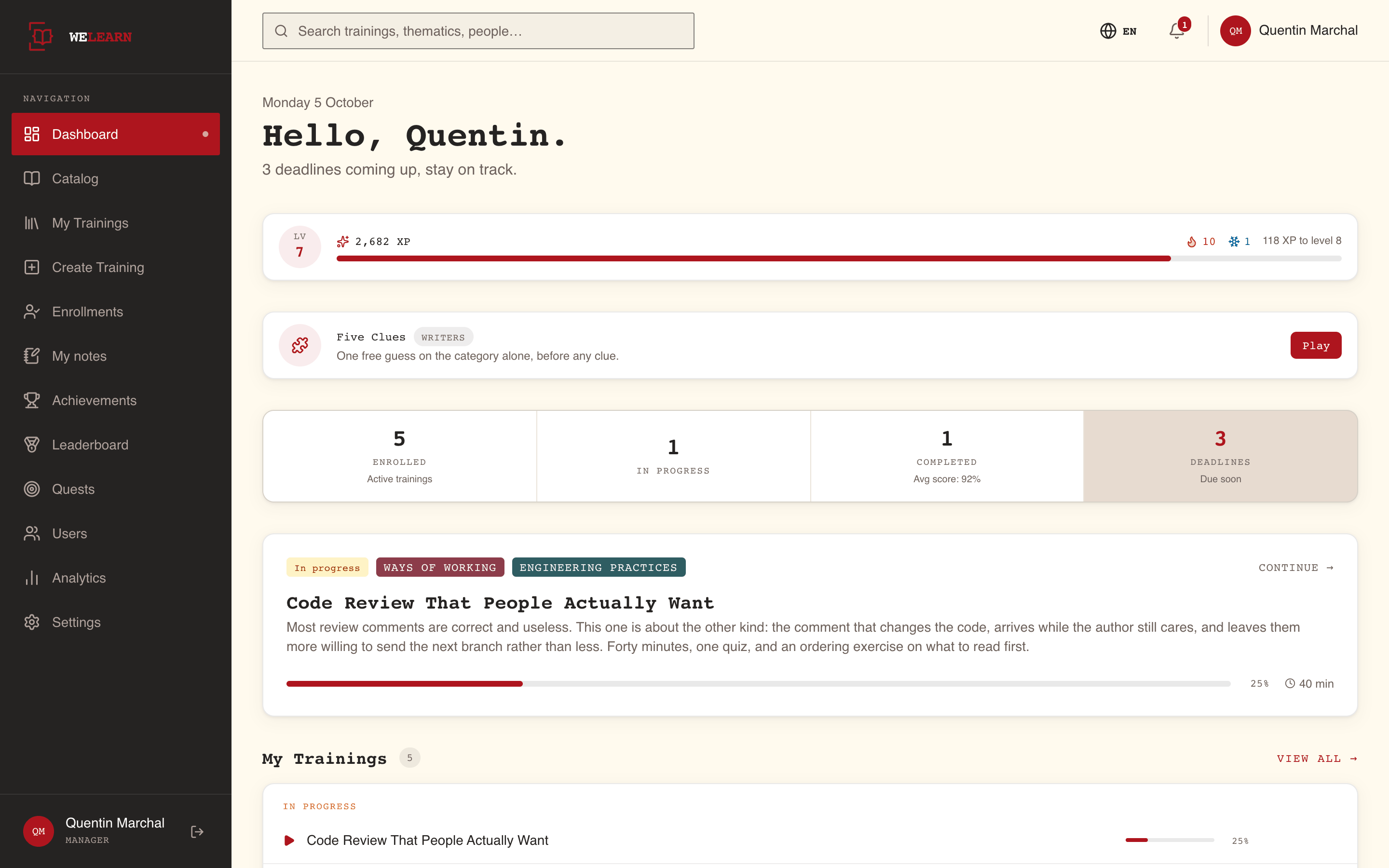
The menu shows what your role and your choices allow
| Entry | What it opens | Who sees it |
|---|---|---|
| Dashboard | Your home page: what to do next, your trainings in progress, deadlines, and suggestions | Everyone |
| Catalog | Every published training you can take, with filters and your bookmarks | Everyone |
| My Trainings | Two views. Enrolled: every training you are enrolled in, by progress: All, In progress, To do, Failed, Completed. Authored: the trainings you created, and those shared with you to co-author or review, by status: All, Draft, Published, Archived, Shared with me | Everyone |
| Create Training | A new training: title and basics first, content next | Everyone |
| Enrollments | Enrollment Management: assign published trainings to people or groups | Manager, Administrator |
| My notes | Everything you wrote down while working through trainings | Everyone |
| Achievements | Your badges | Members taking part in gamification |
| Leaderboard | XP earned this week, reset every Monday | Members taking part in gamification who also appear on leaderboards |
| Quests | Time-boxed challenges with bonus XP | Members taking part in gamification |
| Users | A page titled Team: the members of your organisation. Managers and Administrators also get a Groups tab | Everyone |
| Analytics | My stats and My learning for everyone; Team and Team compliance for Managers and Administrators; Platform for Administrators | Everyone, with tabs by role |
| Settings | Your own preferences: Personal Info, Notifications, Gamification, Language, Display, Security, Connect an agent, About. Administrators also get Branding and Integrations | Everyone, with tabs by role |
| Organisations | Every organisation on the platform, and the space requests waiting for a decision | Platform administrators only |
At the bottom of the menu are your picture, name and role. Select them to open your profile page. The button beside them signs you out (section 3).
The top bar: search, language, notifications, you
Search finds trainings, thematics and people
Type in the search box at the top. Results appear once you have typed at least two characters, after a short pause, in three groups: Trainings, Thematics and People. Each group shows up to five results.
| You select | It opens |
|---|---|
| A training | The training's page |
| A thematic | The Catalog, filtered to that thematic |
| A person | Their profile |
| See all results → | The Search page, with more results per group and filters for difficulty and thematic |
Search only returns what you are allowed to see. Press Escape to clear the box. On the Search page, Copy link to this search gives you a link to share.
The language switch changes WeLearn's language
The globe button shows the current language, EN or FR. Pick English or Français and the whole interface switches at once. Your choice is saved to your profile, so it follows you to other devices. Settings › Language offers the same choice, plus Use organization default.
The bell holds your notifications
A red count on the bell shows how many notifications you have not read; above nine it shows 9+. New notifications arrive without reloading the page.
- Select the bell to see the five most recent.
- Mark all read clears the count. It only appears when something is unread.
- Select a notification to open what it is about. That marks it read.
- View all notifications opens the Notifications page, with All and Unread filters, Mark all as read and Load more.
What you are notified about, and through which channel, is set in Settings › Notifications. See Notifications.
Your picture opens your profile
Your picture and name on the right of the top bar open your profile page, the same as the one at the bottom of the menu. To change your name or picture, go to Settings › Personal Info. The Department field there is read only and stays empty.
Signing out asks you to confirm
Select the sign-out button next to your name at the bottom of the menu. WeLearn asks Sign out? and tells you that you will be redirected to the login page. Confirm with Sign out, or cancel to stay.
On a phone, the menu becomes a drawer
On a phone, or any screen or window narrower than a typical laptop:
- The menu is hidden. The button with three lines at the top left opens it as a drawer over the page. Choosing an entry, tapping outside the drawer, the close button or Escape closes it.
- The search box is replaced by a magnifier button. Tapping it opens search across the whole top bar, with the same results. The close button or Escape dismisses it.
- Your name is hidden next to your picture; the picture still opens your profile.
- The notifications panel spans the width of the screen.
Some pages have no menu entry
| Page | How you get there | Who |
|---|---|---|
| Reviews, the peer-review queue | The Awaiting your review band on your Dashboard, which appears only when a colleague has sent you work to review | Anyone asked to review |
| Five Clues, the daily puzzle | The Five Clues banner on your Dashboard, on days a puzzle is scheduled | Members taking part in gamification |
| Notifications | View all notifications in the bell | Everyone |
| Search | See all results → under the search results | Everyone |
| Your profile, and anyone else's | Your picture, a name in the Team page, or a person in search | Everyone |
| A group's page | Users (the Team page) › Groups tab | Manager, Administrator |
| Managing quests | Manage at the top of Quests | Manager, Administrator |
| Privacy notice | Settings › About › Read the notice | Everyone |
I want to… go to…
| I want to… | Go to… |
|---|---|
| See what I should do next | Dashboard |
| Find a training to take | Catalog, or the search box |
| Find my bookmarked trainings | Catalog, filter Saved only. See Finding trainings |
| Continue a training I started | Dashboard, your trainings in progress |
| See what is overdue or expired | Dashboard, the Action required band |
| See my learning record and certificates | Analytics › My learning. See Your learning record |
| See every training I am enrolled in | My Trainings |
| Read the notes I took | My notes |
| Review a colleague's submission | Dashboard, Awaiting your review |
| Write a training | Create Training |
| Edit a training I wrote | My Trainings › Authored |
| Assign a training to my team | Enrollments (Manager, Administrator) |
| Follow my team's progress and compliance | Analytics › Team and Analytics › Team compliance (Manager, Administrator) |
| Find a colleague | Users, or the search box |
| Invite or remove members | Users (Administrator). See Managing members |
| Change my name or picture | Settings › Personal Info |
| Choose what I am notified about | Settings › Notifications |
| Change the language | The globe in the top bar, or Settings › Language |
| Make text larger or reduce motion | Settings › Display |
| Turn the game layer off | Settings › Gamification |
| Read the privacy notice | Settings › About |
| Sign out | The button next to your name, bottom of the menu |