
Settings, in the sidebar, holds your own preferences. Nothing you change there affects anyone else. This page covers each tab a member sees, in the order the screen lists them.
| Tab | What you set there | Covered |
|---|---|---|
| Personal Info | Your name and picture; your email, department and role, read only | Section 1 |
| Notifications | What reaches you, in WeLearn and on Slack | Notifications |
| Gamification | XP, levels, badges, leaderboards and the activity feed, or none of it | Gamification |
| Language | The interface language and your time zone | Section 2 |
| Display | Theme, text size, line spacing, reading font and motion | Section 3 |
| Security | Where your sign-in is managed | Section 4 |
| Connect an agent | Let an AI assistant or a script work in WeLearn for you | Authoring with an AI assistant |
| About | The app version, the privacy notice and Download my data | Section 5 |
Administrators also see Branding and Integrations, and extra sections on the Language tab; those are described in Organisation settings.
On a phone or a narrow window, the tabs become a strip of icons along the top, and the open one shows a short name: Personal Info reads Profile there.
Personal Info: your name and picture
The tab opens on a card with your picture, name, email and role, followed by four fields.
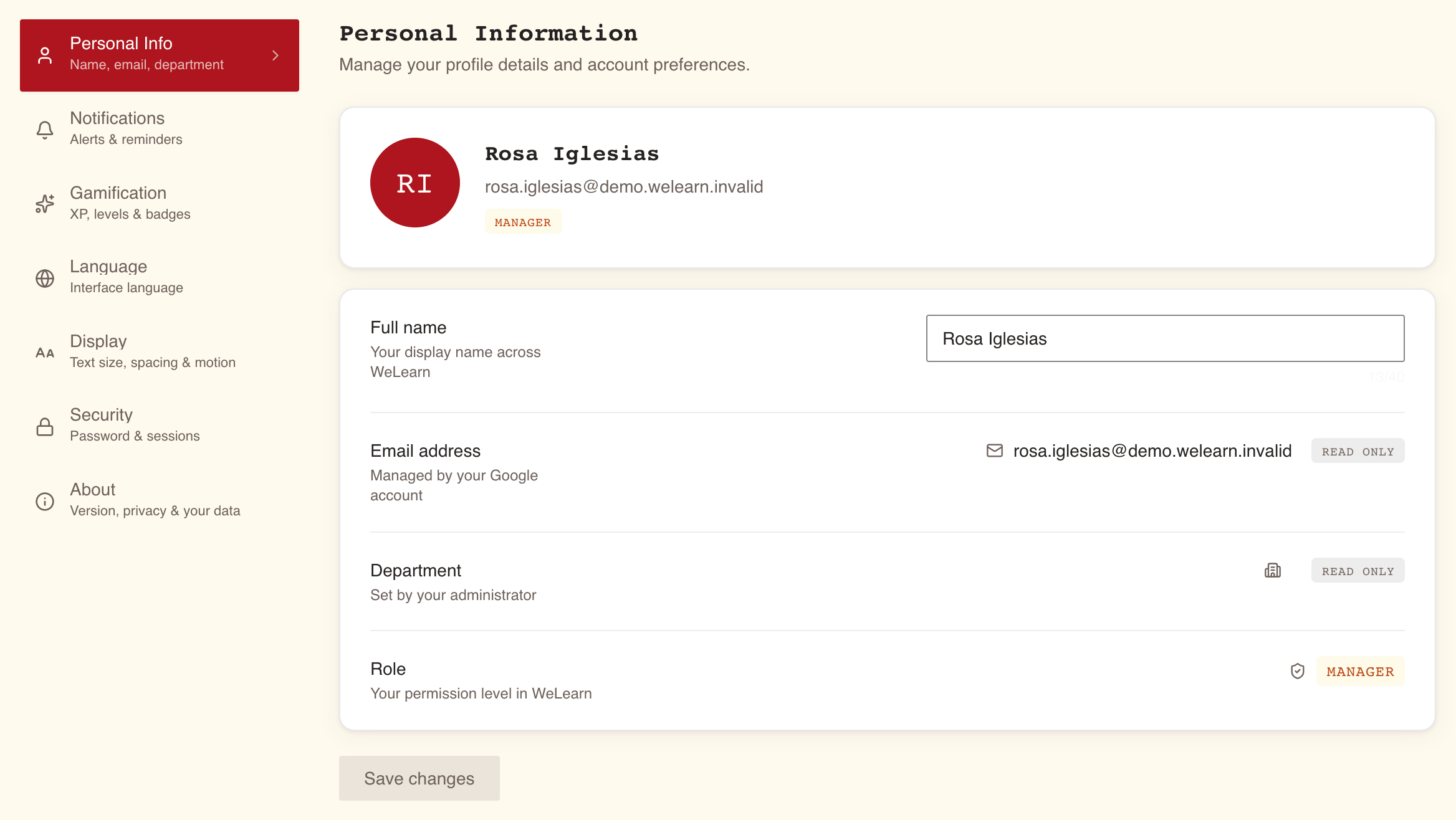
Your picture
Select your picture, or Change photo beside it, and pick an image. It is saved at once, with no other button to press.
- JPG, PNG or WebP only. Anything else is refused with "Only JPG, PNG and WebP images are allowed."
- Under 512 KB. A larger file is refused with "Image must be under 512 KB."
- Remove photo appears once you have one, and puts your initials back.
Your picture and name are visible to every member of your organisation; see Privacy and your data.
Your name
Full name is "Your display name across WeLearn", up to 40 characters. Type the new one and select Save changes; the screen confirms with Changes saved. The name your organisation's sign-in gave you is only used to create your account: once you change it, signing in again does not put the old one back.
What you cannot change here
| Field | Shown as | Who changes it |
|---|---|---|
| Email address | Read only, "Managed by your Google account" | Your organisation's sign-in, not WeLearn |
| Department | Read only, "Set by your administrator" | Nobody. The field stays empty |
| Role | Employee, Manager or Administrator | An Administrator, see Managing members |
Language: the interface language and your time zone
Both choices are saved the moment you pick them, to your account, so they follow you to every device.
Application language
Under Display the interface in, choose English, Français, or Use organization default, which follows whatever your organisation has set and changes with it. The interface switches at once and confirms with "Language updated."
The language changes what WeLearn's own screens say, your notifications included. It does not translate trainings or anything else people have written. The globe button in the top bar makes the same choice; see Finding your way around.
A few things are in English whatever you choose: Slack messages, and the PDF of your learning record.
Time zone
Under Show dates in, choose your zone, or Use organization default. The list holds every zone your browser knows. The screen confirms with "Time zone updated." and, under the menu, says which zone applies to you: "Dates are shown in" followed by the zone.
| Your time zone decides | Details |
|---|---|
| How dates are shown | Across WeLearn, with the exceptions below |
| When a deadline falls | A deadline ends at the end of its day in your zone. See Mandatory trainings and certification |
| When reminders arrive | Deadline and certification reminders come in the morning of your day, the streak warning at 18:00 |
| Which day your streak counts | A day in your streak is a day in your zone |
Some dates are fixed in UTC whatever your zone: those on certificates, on the public verify page and on Analytics › My learning. See Notifications.
Display: how WeLearn is drawn for you
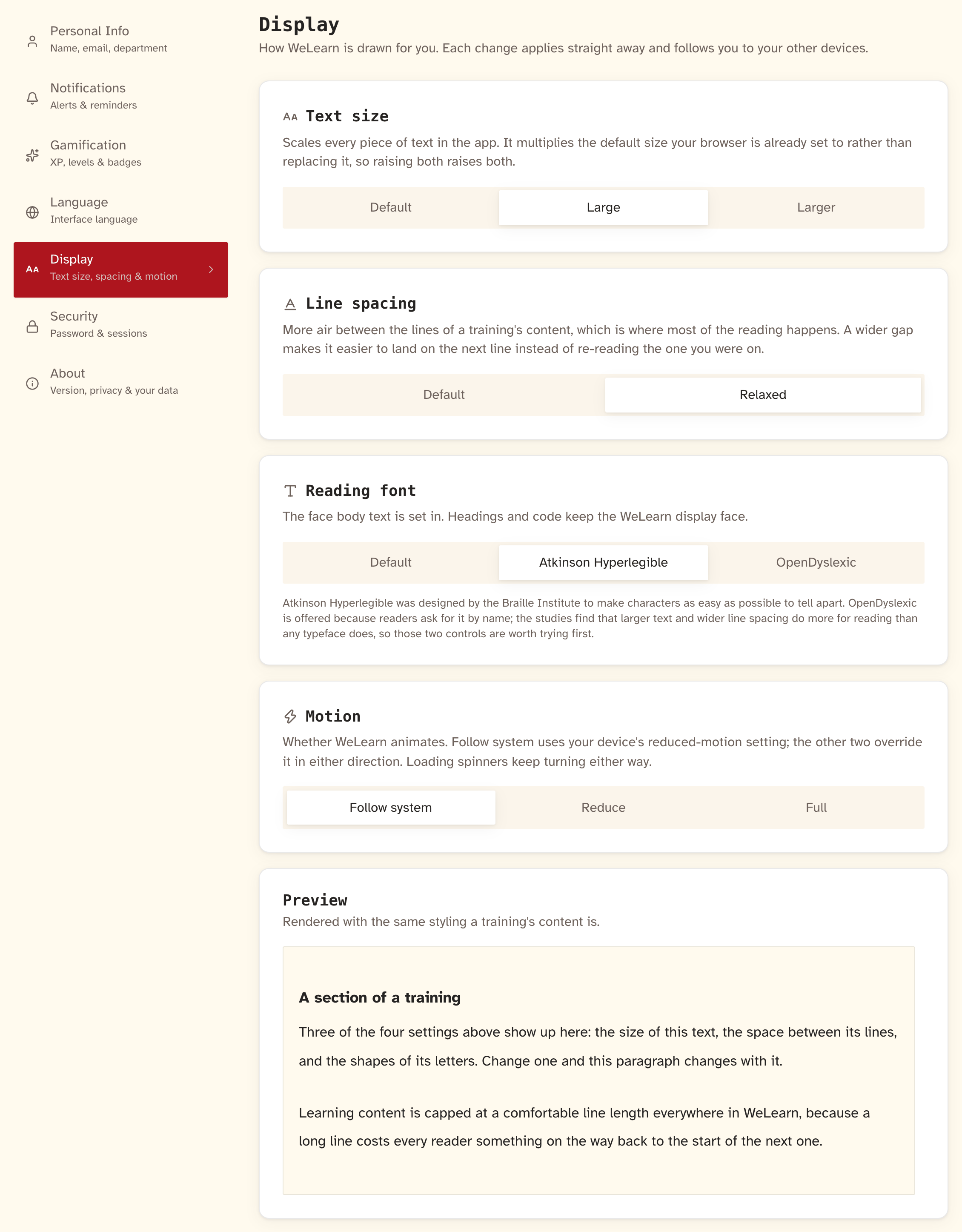
Each change on this tab applies straight away, with no Save button, and is stored with your account, so it follows you to your other devices. Your browser also remembers it, so pages open with your settings already in place.
| Control | Options | What it does |
|---|---|---|
| Theme | Light, Dark, Follow system | Draws WeLearn dark on light, or light on dark. Follow system switches with your device, including when it goes dark in the evening. Charts stay on a light background in the dark theme so their colours keep telling apart |
| Text size | Default, Large, Larger | Scales every piece of text in WeLearn, by 112.5% for Large and 125% for Larger. It multiplies the text size your browser is set to rather than replacing it, so the two add up |
| Line spacing | Default, Relaxed | More space between lines and between paragraphs in a training's content, where the reading happens. Menus, buttons and labels keep their spacing |
| Reading font | Default, Atkinson Hyperlegible, OpenDyslexic | The font body text is set in. Headings and code keep WeLearn's own face |
| Motion | Follow system, Reduce, Full | Whether WeLearn animates. Follow system uses your device's reduced-motion setting; the other two override it either way. Loading spinners keep turning whatever you choose |
Preview, at the bottom, is a sample of a training's content drawn the way a training is. Text size, line spacing and reading font change it as you choose them.
The screen adds a note on the fonts: Atkinson Hyperlegible was designed by the Braille Institute so that characters are easy to tell apart, and OpenDyslexic is offered because readers ask for it. It also says that larger text and wider line spacing tend to help reading more than any typeface does, so try those two first.
Security: your sign-in is managed outside WeLearn
WeLearn stores no password. You sign in through your organisation, and the Security tab says where that is managed:
| Row | What it offers |
|---|---|
| Google SSO enabled | "Your identity is managed by your organisation's Google Workspace. Password management is handled by Google." |
| Change password | Open Google Account, which opens your Google account's security page |
| Two-factor authentication | Configure, which opens Google's two-step verification page |
| Active sessions | "Current session started at login", with 1 active |
To revoke access or sign out of every device, the tab tells you to contact your organisation's IT administrator.
About: version, privacy notice and your data
| Card | What it offers |
|---|---|
| Application version | "WeLearn v" followed by the version you are using. Useful when you report a problem |
| Privacy notice | Read the notice opens the full privacy notice: what WeLearn processes, who receives it, and your rights |
| Download my data | Download saves welearn-export.json, a machine-readable copy of what WeLearn holds about you |
What the data file contains, what it leaves out, and how often you can ask for it are in Privacy and your data. For a readable record of your learning, as a PDF or spreadsheet, see Your learning record and exports.
In the public demo, About has no Download my data, Personal Info has no photo controls, and Connect an agent is not offered.