
A group is a named set of members, such as a team, an office or a role. On its own it is a list. It becomes useful in two ways:
- Required trainings. A group can require trainings of everyone in it. WeLearn enrols current members, and everyone who joins later, without anyone doing it by hand.
- Everywhere else. You can enrol a whole group at once, members get a leaderboard for each group they are in, and a training's peer reviews can be graded by a group. See section 09.
Groups are managed by Managers and Administrators. An Employee never sees the screens on this page.
Groups live on the Team page, under the Groups tab
Open Users in the sidebar; the page is titled Team. Managers and Administrators see two tabs, Members and Groups. Open Groups.
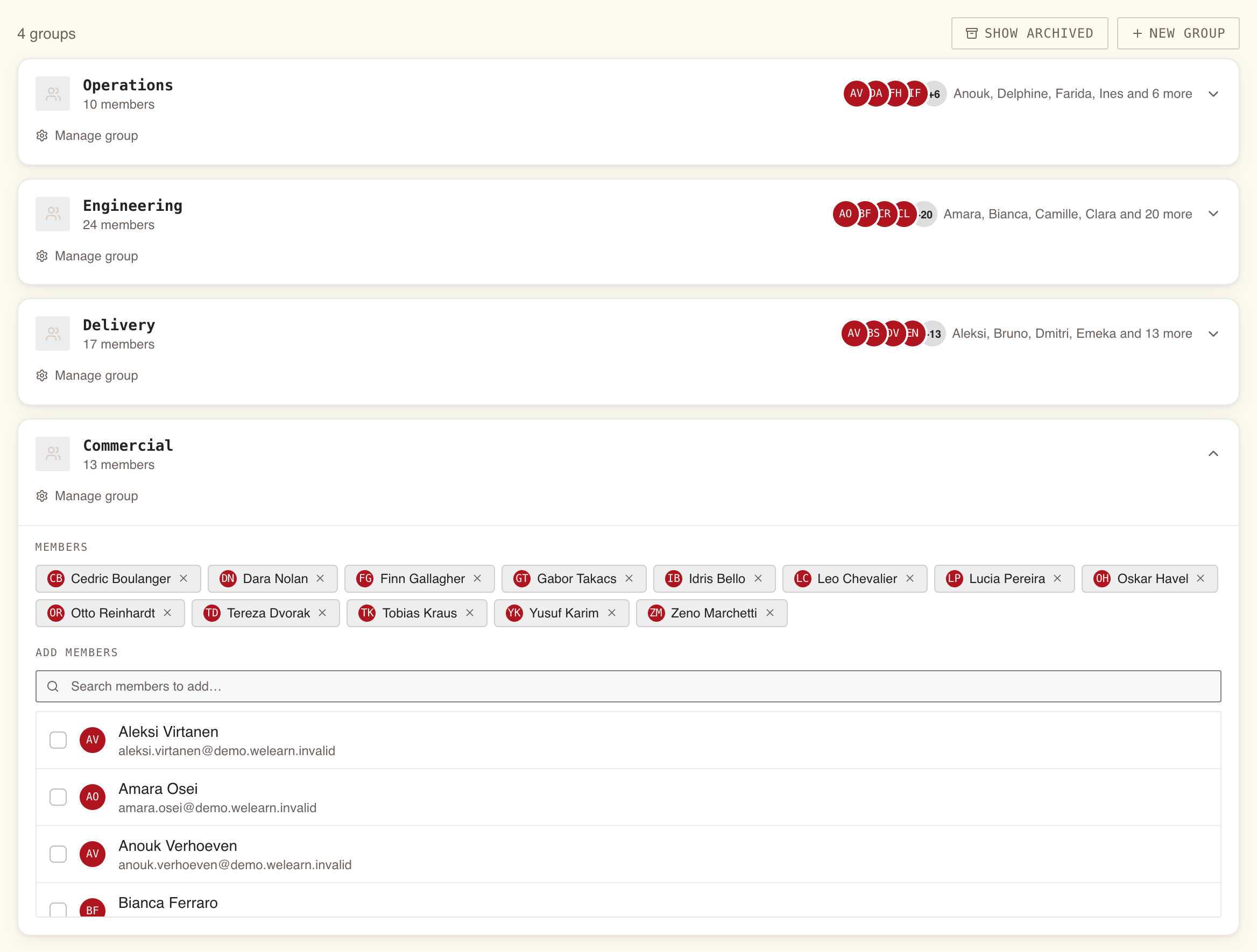
The tab says how many live groups there are, for example 6 groups, and lists them newest first. Each row shows the name, 4 members, the description on wider screens, and the members' avatars. Under the name, Manage group opens the group's own page.
What you do where:
| Task | Where |
|---|---|
| Create a group | Groups tab › New Group |
| Add or remove members | Groups tab, by clicking the group's row; or a person's profile |
| Rename the group, describe it | Group page › Edit |
| Require a training, withdraw a requirement | Group page › Required trainings |
| Archive the group | Group page › Archive |
| See archived groups | Groups tab › Show archived |
The group page lists its members too, but read-only. It says so: Membership is edited from the Groups tab on the team page. Back to team returns to the tab.
Create a group
- On the Groups tab, press New Group.
- Type a Group name, such as "Berlin office", and press Create.
- The new group opens on the tab, ready for members (section 04).
A name can be up to 64 characters and must be unique in your organisation, ignoring upper and lower case: "Finance" and "finance" collide. Archived groups keep their names, so a name used by an archived group cannot be reused. If you hit that, the form says A group with this name already exists. It may be an archived one: turn on "Show archived" to find it.
You cannot add a description while creating. Add it from the group page.
Rename or describe a group from its page
- Press Manage group under the group's name.
- Press Edit.
- Change the Name, or fill in the Description (What is this group for?), up to 500 characters.
- Press Save.
The description shows under the name on the group page and beside it on the Groups tab. Renaming changes nothing else: members, requirements and every record that names the group follow the new name.
Add and remove members, from the group or from the person
From the Groups tab
Click the group's row to expand it.
- Members lists everyone in it. Press the cross beside a name to take that person out.
- Under Add members, type in Search members to add… (name or email), tick the people, and press Add 4 members; the number follows your selection. Once everyone is in, it reads All team members are already in this group.
Click the row again to fold it.
From a person's profile
On the Members tab, click someone's card to open their profile. Under Groups, press the cross on a group to take them out, or Add group to pick one from the list of live groups.
A membership change takes effect at once
| Change | Effect on the trainings the group requires |
|---|---|
| Someone joins | They are enrolled on each one straight away and get a "You've been enrolled" notification. Ones they already hold are not enrolled twice; on a mandatory training, one they started themselves becomes an assignment, with the same notification |
| Someone leaves | Their obligation on each one is closed: they leave Team compliance, the digest and the nudge list. It stays open if another group they are in requires the same training. The training, their progress, passes and certificates all stay |
| Someone comes back | Their old obligation is reopened. If their deadline ran out while they were away and they never passed, they get a fresh one counted from the day they return |
Required trainings: a standing rule for everyone in the group
Require a training
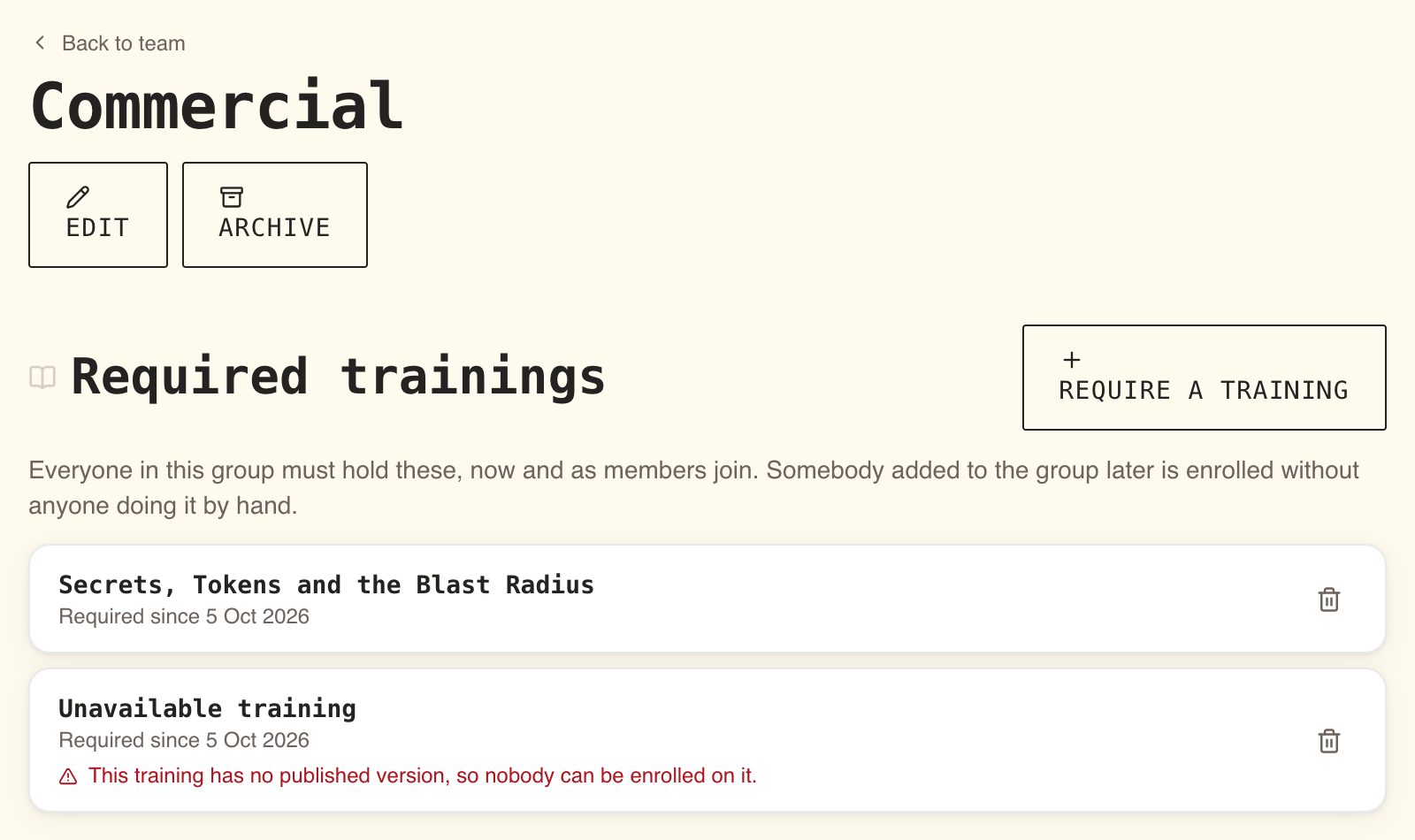
- On the group page, under Required trainings, press Require a training.
- Pick it in Choose a training….
- Press Require.
The training is listed with Required since and today's date. The section's own line explains the rule: Everyone in this group must hold these, now and as members join.
Only published trainings that the group does not already require are offered. When none is left, the Require a training button is not shown.
When people are enrolled
| Who | When |
|---|---|
| Members at the time you press Require | Within the hour |
| People added to the group later | The moment they are added. If that fails for a technical reason, the hourly check catches them |
| Members who already hold the training | Not enrolled again. If the training is mandatory and their enrolment was not an obligation yet, it becomes one, and gets a deadline if it had none |
Each new enrolment is on the newest published version of the training, and the learner gets the notification You've been enrolled in "GDPR Basics". Pressing Require shows no count of who was enrolled. On a mandatory training, check its Enrolled figure under Team compliance › By training after the next hourly check.
On a mandatory training each learner's deadline is the training's Time to complete, counted from the day they were enrolled. A group requirement never sets a date of its own; for a fixed date, use the Enrollments page. On an ordinary training there is no deadline.
Required is not the same as mandatory
A requirement nobody can satisfy says so
If every published version of a required training is archived, its row no longer shows the training's name: the title reads Unavailable training, with a red warning under it: This training has no published version, so nobody can be enrolled on it. Nobody new is enrolled until a version is published again. Withdraw the requirement if the training is gone for good.
Withdraw a requirement
- On the group page, press the bin icon beside the training.
- The window Withdraw this requirement? explains what follows. Press Withdraw.
- The page answers, for example, Withdrawn. 12 obligations closed.
What that does, for every current member:
- New members stop being enrolled.
- Their obligation on that training closes: they leave Team compliance, the digest and the nudge list.
- Nothing is deleted. Every pass, certificate and history entry stays, and the training stays on their dashboard.
- Anyone also in another group that requires the same training keeps the obligation.
A withdrawn requirement disappears from the list. You can require the same training again later, and the hourly check reopens the obligations it closed.
Archive a group. There is no delete
Archiving retires a group while keeping the record of who was in it.
- On the group page, press Archive.
- The window Archive this group? reads: The group stops being offered for assignment and everything it requires is withdrawn, so its members stop being chased for those trainings. Nobody loses a certificate, and members keep their membership. Press Archive.
- The page answers, for example, Archived. 2 required trainings withdrawn. 12 obligations closed.
What changes:
- Every requirement is withdrawn, with the effects of section 06.
- The group is no longer offered on the Enrollments page, in a profile's Add group list, or as a peer-review reviewer.
- It can no longer be edited, renamed, given a requirement, or have members added or removed. Its row on the Groups tab is greyed out, reads Archived with the date, and no longer expands.
- Its name stays taken.
What does not change:
- Members stay in it.
- It still appears as a leaderboard for its members, and a training that already named it as a reviewer pool still draws reviewers from it.
Archiving cannot be undone. To find an archived group, press Show archived on the Groups tab (Hide archived to put them away again) and use View group. Its page shows the name, the archive date and the members. Required trainings reads This group is not required to hold anything yet., because withdrawn requirements are not listed: export what you need from Team compliance before you archive.
Who can do what
Two permissions are involved: managing groups, and managing enrolments. Requiring or withdrawing a training needs both, because it enrols people. Today both come together with the Manager role, so in practice the table is simple.
| Action | Employee | Manager | Administrator |
|---|---|---|---|
| See the Groups tab and group pages | No | Yes | Yes |
| Create, rename, describe or archive a group | No | Yes | Yes |
| Add or remove members | No | Yes | Yes |
| Require a training of a group, or withdraw it | No | Yes | Yes |
| Enrol a group once on the Enrollments page | No | Yes | Yes |
| See their own groups as leaderboards | Yes | Yes | Yes |
An Employee cannot see who is in which group. On a profile, the Groups line reads No groups. for them, even for someone who is in several.
Where else groups are used
| Where | What a group does there |
|---|---|
| Enrollments page, Groups tab | Enrols the group's members once, as they are that day. Newcomers get nothing. See Enrolling people |
| Leaderboard | Every member sees a leaderboard of this week's XP for each group they are in, unless they opted out of leaderboards. Someone in no group and following no topic reads Join a group or follow a thematic to see a leaderboard. See Gamification |
| Peer review | A training's authors can name groups under Reviewers. Membership is read as it stands, so whoever is in the group can grade, except the person who sent the submission. See Setting up peer review |
Traps
| Trap | What happens | What to do |
|---|---|---|
| Ticking a group on the Enrollments page to cover newcomers | Only today's members are enrolled | Require the training of the group |
| Requiring an ordinary training and expecting tracking | Members are enrolled with no deadline and never appear in Team compliance | Have the training marked mandatory |
| Expecting members to be enrolled the moment you press Require | It happens at the next hourly check | Wait up to an hour; newcomers are immediate |
| Needing a fixed date for a group | A requirement always uses the training's Time to complete | Enrol the group on the Enrollments page with a Due date, and require it too if newcomers matter. The first deadline set is the one that stays |
| Removing someone from a group by mistake | Their obligations close at once, with no confirmation | Add them back; the obligations reopen |
| Withdrawing a requirement to tidy the list | Obligations close, including ones assigned by hand | Only withdraw when the group really no longer owes the training |
| Archiving a group to rename or reuse its name | The name stays taken for good, and archiving cannot be undone | Rename the live group with Edit instead |
| Archiving and then looking for what the group required | The group page no longer lists withdrawn requirements | Export Team compliance first |
| Expecting archiving to remove the group everywhere | Members keep their membership, their leaderboard and any reviewer duty | Remove members before archiving if those matter |
| Creating a group with an archived group's name | A group with this name already exists. | Pick another name; turn on Show archived to see the old one |