
As an Administrator you run your organisation's WeLearn space. This page takes you through the first day, in the order that saves rework. Each step links to the full guide.
You need the Administrator role. If the Branding and Integrations tabs are missing from Settings, you do not have it; see Roles and what they can do.
Invite your members
- In the sidebar, open Users. The page is titled Team.
- At the top, open the Invite a teammate panel. Its subtitle shows how many invitations are pending.
- Type the person's Email address, choose a Role (Employee, Manager or Administrator), and press Send invite.
- WeLearn confirms with Invitation sent to followed by the address, and emails the person. They join by signing in with that exact address.
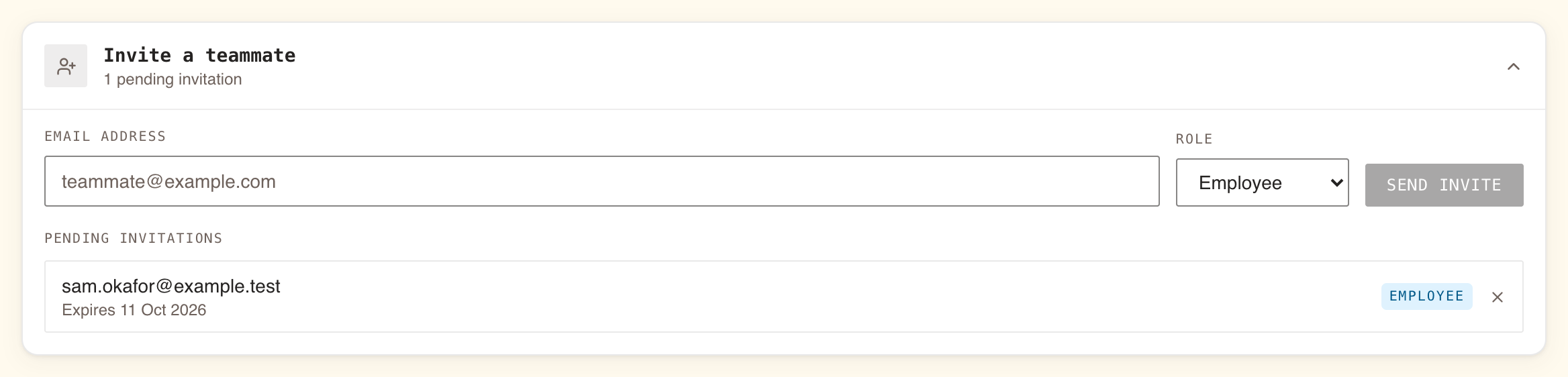
Under Pending invitations you see each address with its role and an Expires date. An invitation lasts 7 days. To cancel one, press the cross at the end of its row, then Revoke.
| You see | It means |
|---|---|
| This person is already a member. Invitations only apply to new accounts. | The address already has an account here. Change their role instead (step 2). |
| No new email after sending to the same address again | A pending invitation for that address already exists. WeLearn keeps it and sends nothing new. |
| A pending invitation disappears from the list | Nobody signed in within 7 days, so it expired and was removed. Send a new invitation. |
Set or change a member's role
On the Team page, every member's card except your own shows their role as a drop-down. Choose the new role; it is saved at once.
- Pick roles from what people need to do, not from seniority. The table in Roles and what they can do lists what each role adds.
- WeLearn always keeps at least one Administrator. Demoting the last one fails with Cannot demote the last administrator. Make a second Administrator before you hand over.
- If there is no drop-down on any card, your organisation's sign-in provider decides roles and they cannot be changed in WeLearn.
Set your brand colour
- Open Settings › Branding.
- Under Brand colour, pick a colour or type it as a hex value such as
#1A5FB4. - Press Save colour.
The colour applies for everyone in your space: the login page, the app header, the WeLearn logo, buttons and links. There is one colour, no logo upload. Reset to default appears once a colour is saved and brings back the WeLearn red.
Set the organisation name, default language and time zone
All three are in Settings › Language, below your own language and time zone. Only Administrators see these three cards.
| Card | What it does | How it saves |
|---|---|---|
| Organization name | The name members see, for example on the sign-in screen. Left empty, emails and link previews use your space address, and the sign-in screen a neutral title. Up to 100 characters. | Press Save name. |
| Default organization language | The interface language for members who have not chosen their own. English or Français. | As soon as you choose. |
| Default organization time zone | The zone dates are shown in, and deadlines and reminders are measured against, for members who have not chosen their own. | As soon as you choose. |
Members who already set a personal language or time zone keep it. Set the time zone before you give anyone a deadline, so reminders arrive on the right morning.
Connect Slack
- Open Settings › Integrations. In the Slack card, press Connect Slack.
- Slack asks you to approve WeLearn for a workspace. Approve it. You come back to the same tab with Slack connected successfully.
- Choose a default channel from the list under Default channel ID, or paste the channel's ID, and press Save.
- In Slack, invite the WeLearn bot to that channel with
/invite. Approving WeLearn does not put the bot in any channel, and it cannot post where it is not a member. If the bot is missing from the channel you picked, WeLearn tells you under the field.
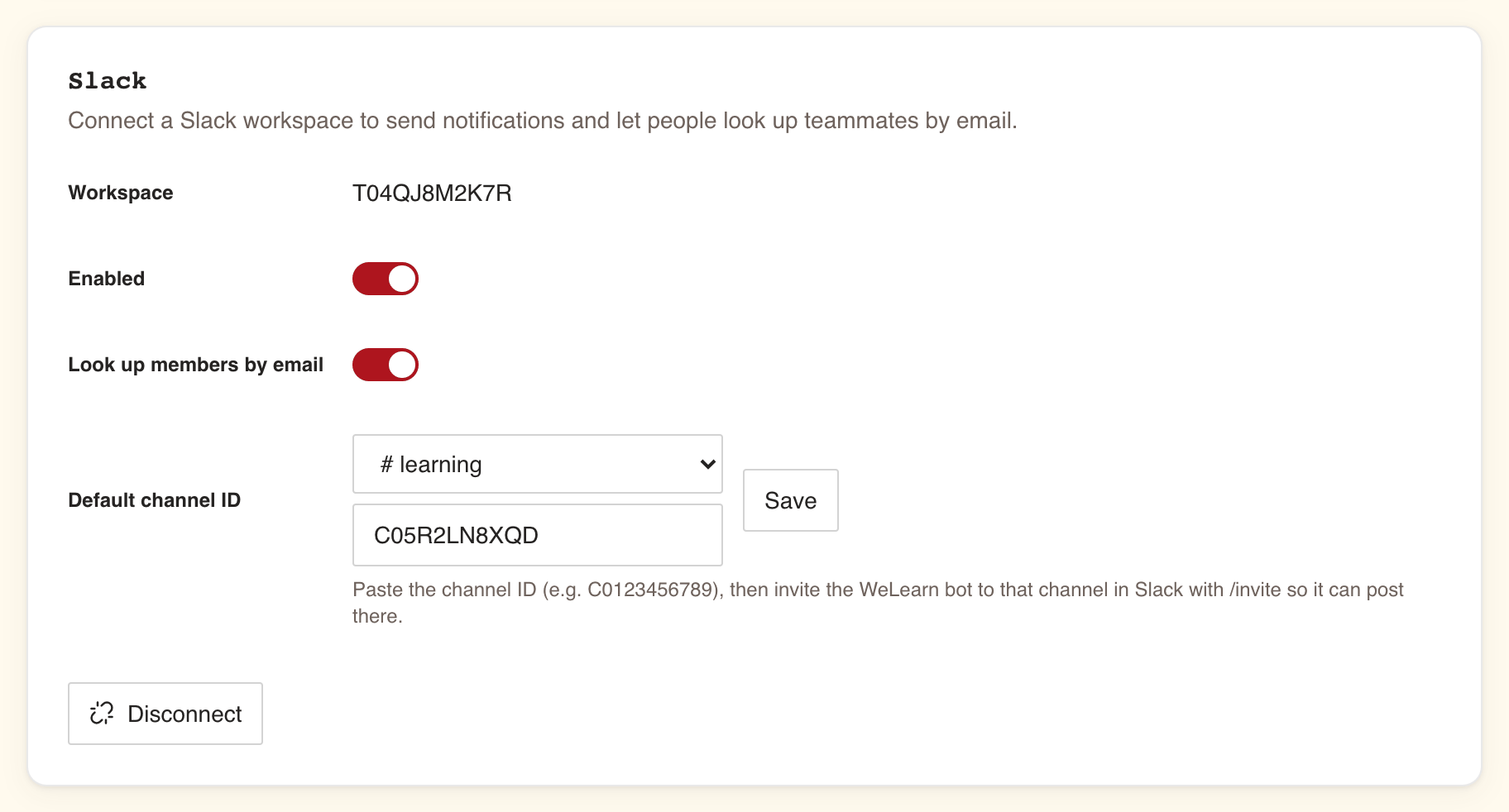
The default channel receives an announcement when a training is published or an update to it is published, and the Five Clues puzzle post on working-day mornings. Members get their own notifications as Slack direct messages, for the categories they leave on in the Slack column of Settings › Notifications.
To stop every Slack message without losing the setup, switch Enabled off. Notifications raised while it is off are never sent to Slack later; members still find them in WeLearn. Disconnect removes the connection and every member match. The full setup is in Connecting Slack.
Know where to look next
Open Analytics › Platform. It shows your organisation's figures for the period you choose: active learners, completions, members, trainings created, enrollments, and rates such as Mandatory compliance. Despite the tab's name, it covers your own organisation only.
Removing a member
When someone leaves, open the Team page, press the bin icon on their card, and confirm with Delete member. Their account, preferences, tokens, notes and ratings go; their learning history stays, and is unlinked from them later. Two guards apply: there is no bin on your own card, so you cannot delete yourself, and WeLearn refuses to delete the last Administrator. Read Managing members before your first removal, because it cannot be undone.
Where to go next
- Managing members: roles, removals and erasure requests in full.
- Organisation settings: every setting an Administrator owns.
- Connecting Slack: channels, direct messages and what to do when nothing arrives.
- Roles and what they can do: what each role adds.